

Big News: Introducing Client Outreach 🚀📣
.png)
.jpg)
Hey photo friends! 👋
This is a big one.
We’re excited to introduce Client Outreach — a brand-new tool that lets you reach your customers directly with one-off texts and emails, completely separate from your normal event marketing.
Whether you’re following up after an event, promoting future bookings, or nudging people who missed check-in… this gives you a simple, flexible way to stay connected.
Let’s break it down 👇
📣 What is Client Outreach?
Client Outreach lets you:
📩 Send one-off emails and texts
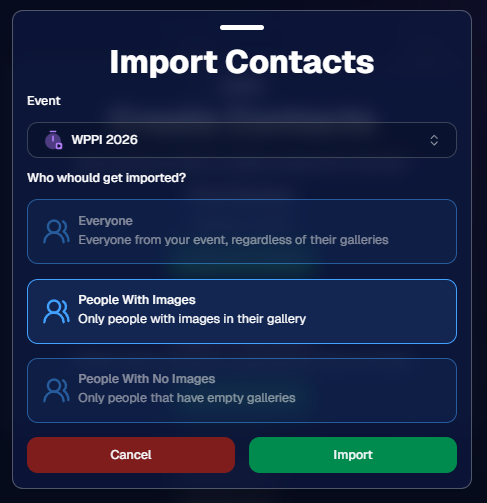
👥 Build contact lists from:
- Existing events
- Uploaded spreadsheets
- Or both combined
🎯 Filter contacts based on:
- Contacts with matched images
- Contacts without matched images
- Or everyone
This is not automated campaign messaging — it’s intentional, targeted outreach when you need it.
👥 Build Your Audience, Your Way
When creating an outreach list, you’ve got flexibility:
- Pull contacts from one event, multiple events, or none
- Upload your own spreadsheet of contacts
- Combine both sources into one list
And when using events, you can choose:
- Only people with images
- Only people without images
- Or everyone
That opens the door to some really useful workflows (more on that below 👀).
💬 SMS Outreach (Simple & Familiar)
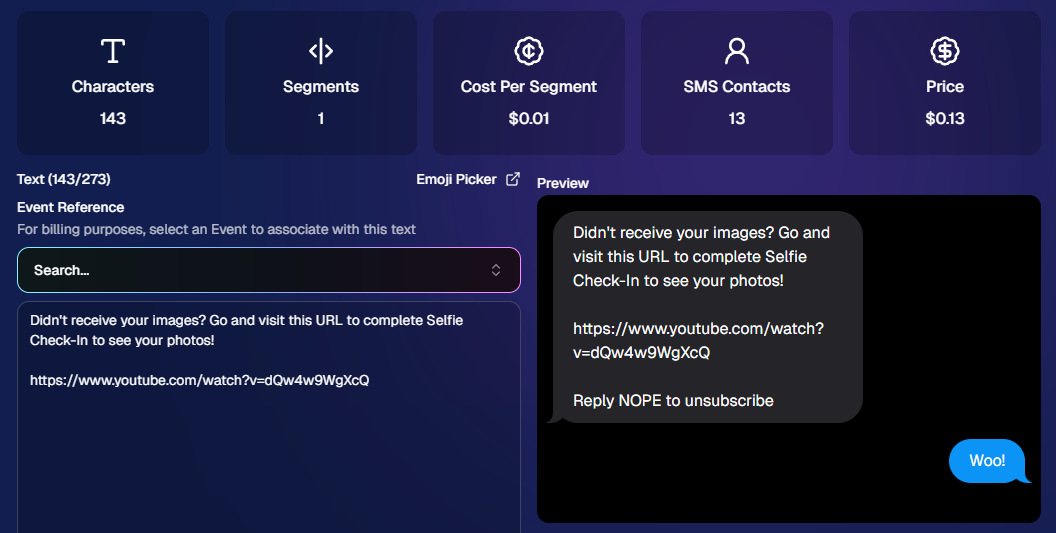
Sending texts is designed to feel easy and familiar.
🧾 Uses a QuicPics-style editor + preview
✍️ Write your message and send to your list
🔗 Include links (galleries, check-in, etc.)
💸 Pricing:
$0.01 per segment, per text
A segment is roughly:
- ~140 characters (standard text)
- ~65 characters (if using emojis)
Longer messages may use multiple segments (typically 2–4).
📧 Email Outreach (Powered by Candy 🤖)
This is where things get really fun.
Instead of building emails manually…
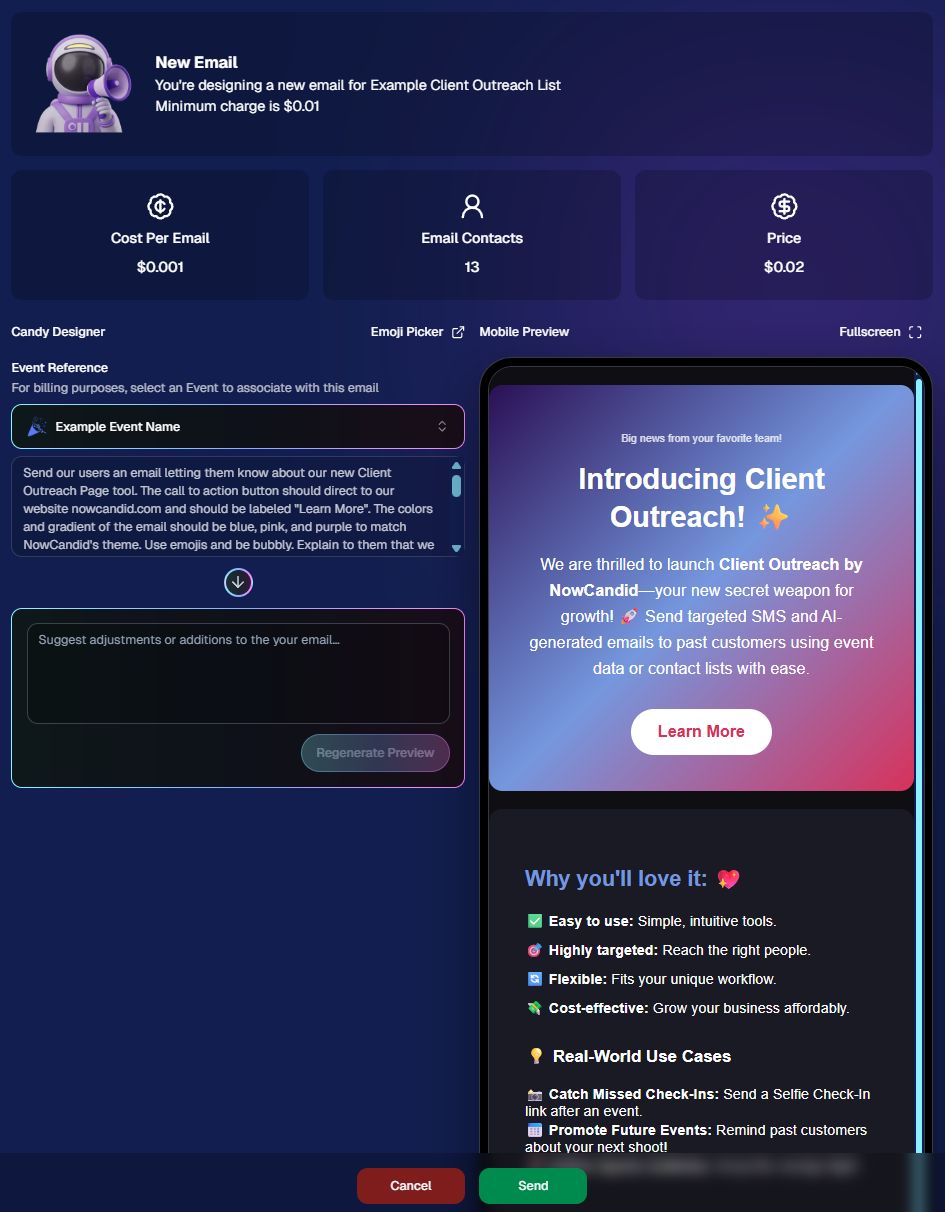
👉 You just describe what you want, and Candy builds the email for you.
✨ How it works:
Tell Candy things like:
- What the email should say
- What tone you want (fun, professional, urgent, etc.)
- What your call-to-action button should say
- Where that button should link
Candy will:
✍️ Write the email
🎨 Design the layout
🧠 Generate a subject line
🏷️ Pull in your business info automatically
No HTML. No formatting headaches. Just describe it.
🧠 Even Smarter with Events
Every outreach must be tied to an event (for billing/history), but that unlocks some extra power:
If your outreach is related to that event, Candy can pull in things like:
🔗 Check-in links
🖼️ Cover photos
🖼️ Gallery links
And more!
👉 You can still override this and use your own URLs — Candy will follow your instructions.
📬 Sending Details
Emails are sent from:
your-business-name@quic.pics
Your business name is prominently shown in the inbox
You can edit the subject line Candy generates before sending
💸 Email Pricing
$0.01 per 10 emails (rounded up)
Examples:
- 10 emails = $0.01
- 11–19 emails = $0.02
🖼️ Bonus Tip: Include Images in Emails
If you have direct image URLs, you can give them to Candy and ask her to include them in the email.
Not sure how to get those? Google is your friend on this one 😄
📊 Track Performance
Just like order receipts, you can see:
👀 Opens
🖱️ Clicks
❌ Bounces
So you know what’s working.
💡 Real-World Use Cases
Here are just a few ideas:
📸 Catch Missed Check-Ins
Send a Selfie Check-In link after an event using a roster from a school or organizer.
📅 Promote Future Events
Reach past customers and say:
“Hey, we’re photographing again next week!”
🏈 Action Sports Galleries
Send All Images Gallery links when using Jersey Jotter (where face matching isn’t ideal).
🧑🤝🧑 New Group Photos Added
Let people know:
“Your group photos are now live!”
📝 Post-Event Surveys
Send feedback forms to improve your next event.
🔔 Picture Day Reminders
Get ahead of the event with reminders to increase participation.
And that’s just scratching the surface.
🎯 Simple, Flexible, Powerful
Client Outreach is designed to be:
✅ Easy to use
🎯 Highly targeted
🔄 Flexible for different workflows
💸 Cost-effective
You’re in control of when, who, and what you send.
This is one of those tools that grows with you — whether you’re running small events or large-scale operations.
We can’t wait to see how you use it! 👀
More soon,
Candy 🍬
.png)

.jpg)

.svg)


