HomeNavigation arrowBlogNavigation arrow
Current page
Feature Updates

Introducing Virtual Group Builder: Create Virtual Group Photos Faster in NowCandid ✨

Introducing Virtual Group Builder: Create Virtual Group Photos Faster in NowCandid ✨
Virtual group photos can be incredibly valuable for photographers — but let’s be honest, they have not always been incredibly fun to make!

Traditionally, creating a virtual group means jumping between multiple tools. You photograph each subject, create cutouts, export files, open design software, place everyone manually, resize and align the group, add names, save the finished image, upload it somewhere else, and then reconnect that image to the right customers.

That is a lot of steps for one group photo!

NowCandid’s Virtual Group Builder makes the process much simpler. Photographers can now create polished virtual group images directly inside the NowCandid Dashboard using the same Participants, cutouts, PhotoTags, backgrounds, and Event data already connected to their Event.

It is fast, flexible, and built to help photographers get virtual groups online and ready to sell with far less hassle. 🎉

A New Way to Build Virtual Group Photos

Virtual Group Builder is designed for photographers who want to offer professional group images when a traditional in-person group photo isn't possible.

That makes it especially useful for sports teams, schools, dance groups, cheer teams, clubs, all-star teams, and any Event where people are photographed individually but still need to appear together in a final group image.

Instead of needing every participant posed together at the exact same time, photographers can build a finished group photo from individual background-removed cutouts. If someone was photographed later, added after the fact, or missed the original group setup, they can still be included.

That flexibility can be a big deal for volume photography.
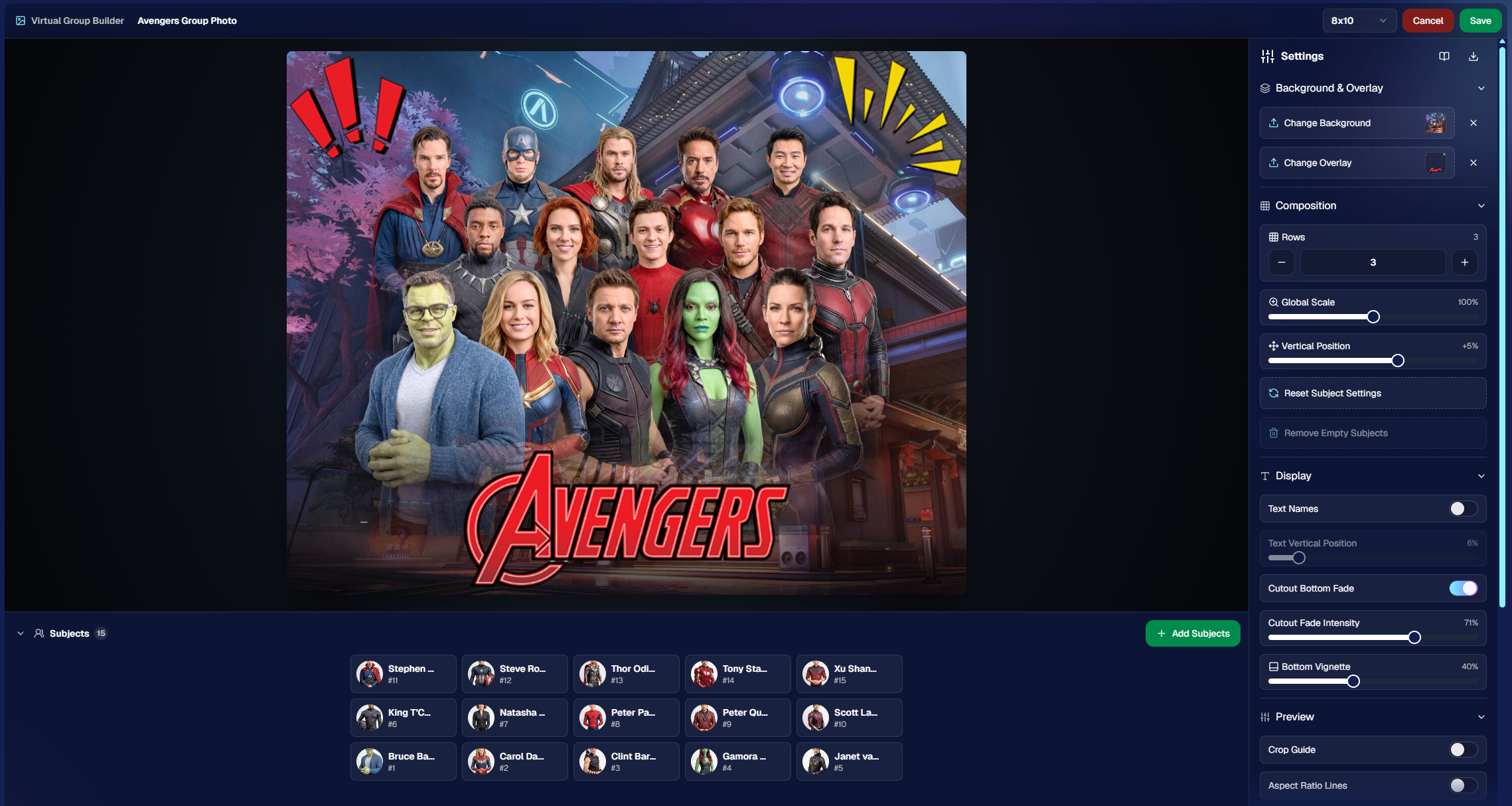
Built Directly Into the NowCandid Dashboard

Virtual Group Builder lives directly inside NowCandid. From an Event page, photographers can click Virtual Groups in the sidebar menu and start building using the Event data they already have.

The builder is not a disconnected design tool. It works alongside our existing tools, including participant data, PhotoTags, background removal, cutouts, custom backgrounds, overlays, logos, and everything else.

So instead of downloading files from one place, designing in another, and uploading it back to the dashboard afterward, photographers can keep the process inside NowCandid from start to finish.

Virtual Group Builder also supports the Mobile Dashboard! We don't necessarily recommend making Virtual Groups on your phone - but hey, could be nice in a pinch!

From Capture to Cutouts to Finished Group 🚀

Virtual Group Builder pairs especially well with NowCandid’s live-uploading and background removal capabilities.

A photographer can shoot participants individually, upload images to NowCandid live (or after the event) use NowCandid’s background removal to create clean cutouts, and then bring those cutouts straight into the Virtual Group Builder.

As a quick note for those unfamiliar with NowCandid's background removal, those same cutouts can also be used for shopping with alternate backgrounds! Making them multi-purpose across the Event.

For photographers shooting sports, schools, dance, cheer, or other volume Events, this can save a serious amount of time.

Add the Right Subjects Quickly 👥

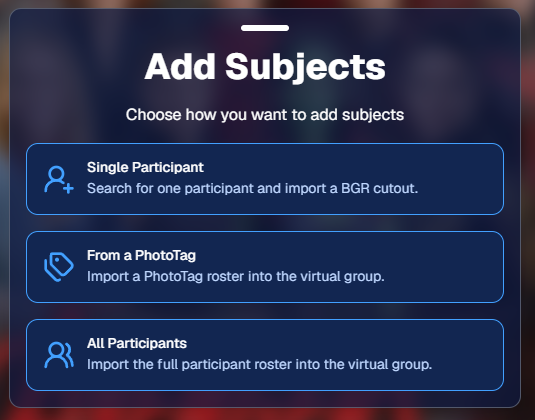
Virtual Group Builder gives photographers a few easy ways to add people to a group.

You can add one participant at a time, import everyone from a specific PhotoTag, or bring in all participants from the Event. This makes the builder flexible for both small custom groups and larger team or event-wide composites.

PhotoTags are especially powerful here. If your Event is organized by team, class, club, etc., you can use those PhotoTags to bring the right people into the group quickly.

For example, a sports photographer could import a single team. A school photographer could import a club or activity group. A graduation photographer could import participants from a specific ceremony.

Clean PhotoTags can turn what used to be a very manual process into just a few clicks. ✨
Helpful Safeguards for Missing Cutouts

Real-world events are messy. Sometimes a participant is missing a cutout. Sometimes a placeholder exists. Sometimes a photographer needs to know what is missing before moving forward.

Virtual Group Builder helps make that easier to catch.

When importing from a PhotoTag, photographers can see the participants in that PhotoTag before removing empty subjects. The Remove Empty Subjects option can remove participants with no cutouts as well as placeholders, but the workflow is designed to help photographers notice missing kids, players, or participants before finalizing the group.

That way, the tool keeps things fast without overlooking potential issues.

Smart Subject Ordering

Virtual Group Builder uses a practical ordering system to help preserve the order participants were photographed in.

Subjects are initially ordered from bottom left to top right based on the alphanumeric order of the first PNG filename. In plain English: if a photographer shoots and names files in a meaningful order, the builder can use that order as a helpful starting point.

This can be useful for sports teams photographed by jersey number, students photographed alphabetically, or groups photographed in a specific roster order.

And when the order needs to change, photographers can simply drag subjects into place.

Drag, Drop, Swap, and Adjust 🖱️

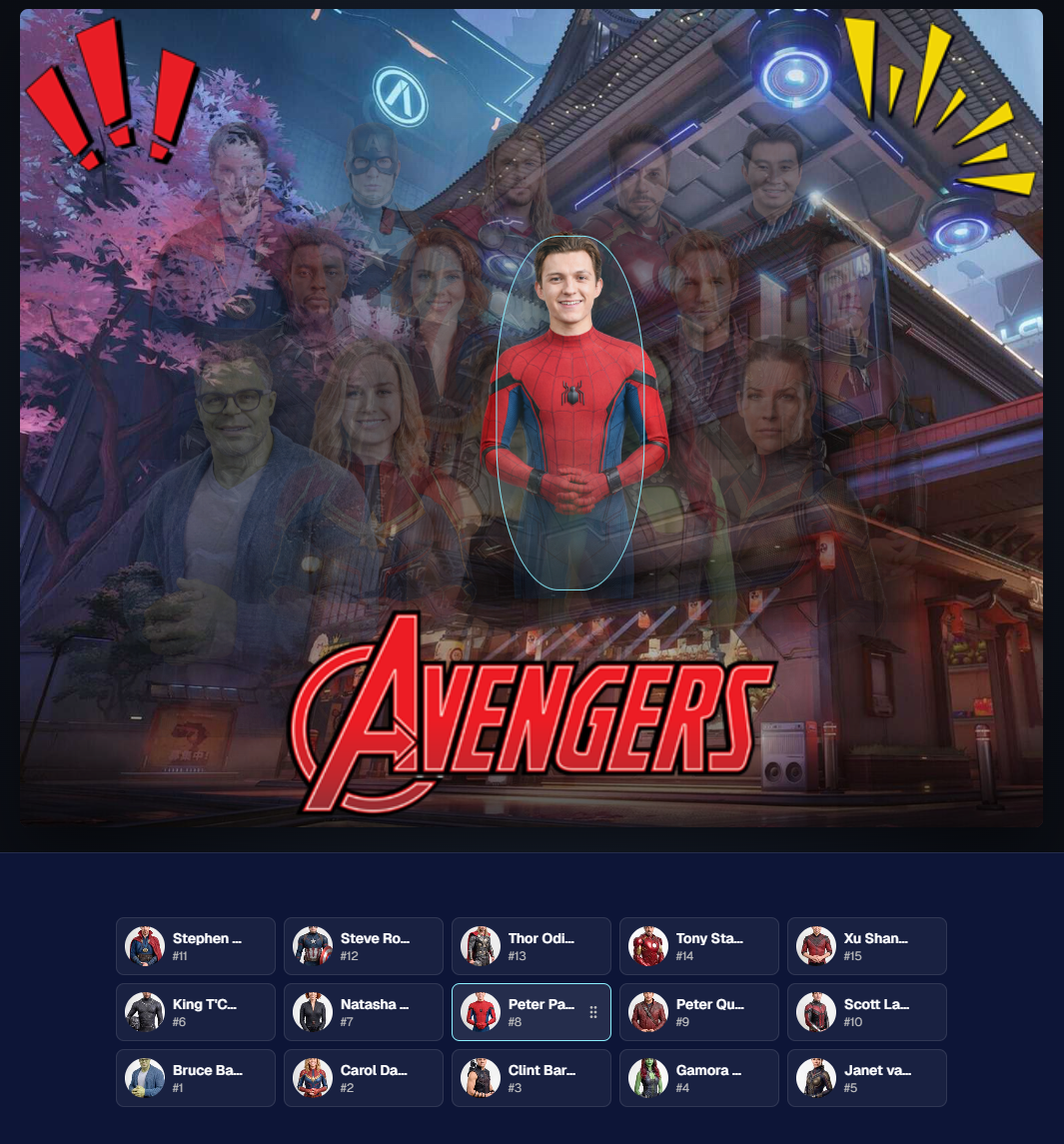
Reordering subjects is simple. Photographers can drag the cutouts directly on the group image or drag the subject tiles at the bottom of the page.

When a subject is dragged to a new location, it swaps with the destination Participant. This makes it easy to balance rows, adjust lineups, or move specific people into better positions.

The builder also includes group-level controls for layout and composition, including rows, global scale, vertical position, background, overlay, text names, crop guides, aspect ratio lines, bottom vignette, and cutout fade settings.

These controls help photographers quickly shape the whole group while still keeping the workflow approachable.
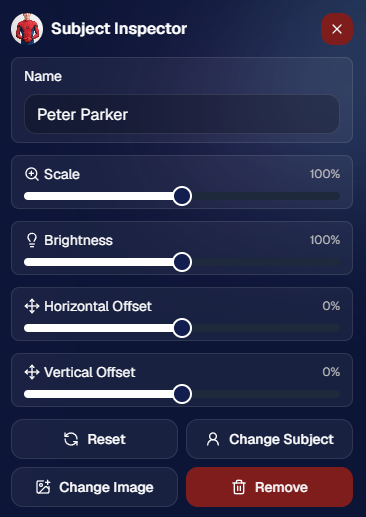
Fine-Tune Individual Subjects 🎛️

Sometimes one participant needs a small adjustment. Maybe they need to be slightly larger, shifted left or right, brightened, or swapped to a different PNG.

The Subject Inspector gives photographers individual control over each subject.

Photographers can adjust a subject’s name, scale, brightness, horizontal offset, and vertical offset. They can also reset the subject, change them to a different Participant, change the selected cutout, or remove the subject from the group entirely.

This is one of the biggest advantages of the builder: it is fast, but still gives you control when the final image needs a little extra polish.
Choose the Best Cutout for Each Participant 🖼️

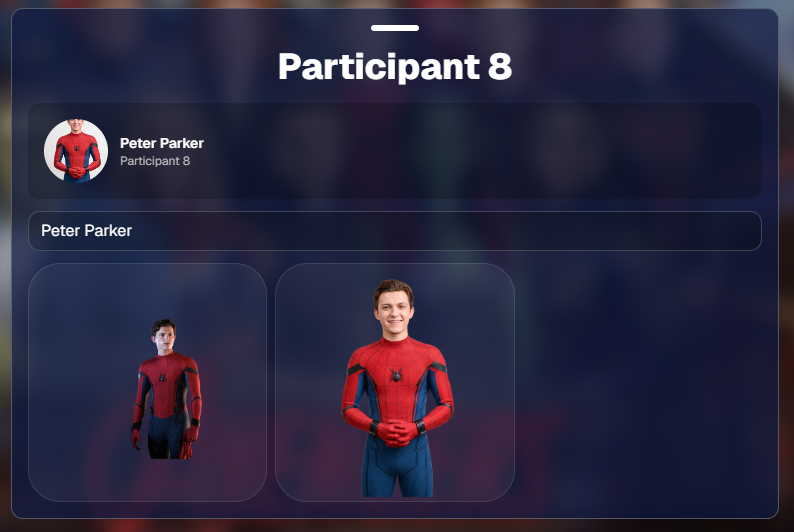
If a Participant has multiple cutouts available, photographers can choose which image works best for the group.

When adding subjects, photographers can also decide they want their incoming Participants to be using their first PNG or their latest PNG (alphanumerically determined using Folder Name and Image File Name).

Then subjects can also be selected to have their individual portrait swapped to a different one! This can be helpful when you want a variety of poses in your Virtual Group, or simply to swap a blinking kid's image to a
Backgrounds, Overlays, Logos, and Product Sizes 🎨

Virtual Group Builder gives photographers creative control over the final image.

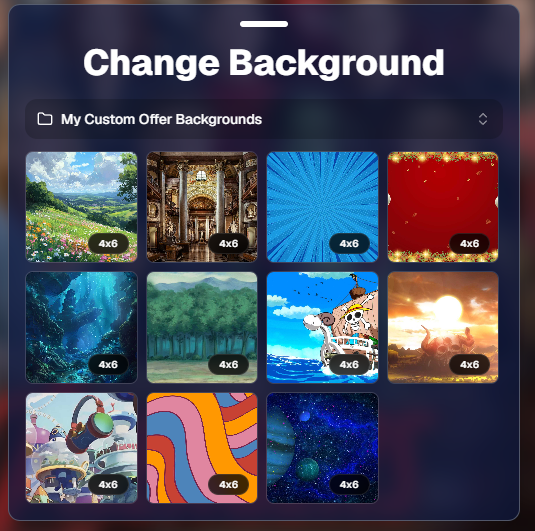
Photographers can choose from NowCandid default backgrounds, use custom offer backgrounds, upload their own backgrounds, add overlays, and place account logos in the corners. This makes it easy to create anything from a clean traditional group image to a bold sports graphic or school-branded composite.

The builder supports common product-friendly formats, including 4×6, 5×7, 8×10, and 11×14. Crop guides and aspect ratio lines help photographers preview how the final image will fit the selected size.

There are also display options for subject names, including toggling names on or off and adjusting their vertical position. For teams, senior groups, school clubs, all-star rosters, or small graduation groups, names can make the final product feel more complete and commemorative.
Upload the Finished Group Back to the Event 📤

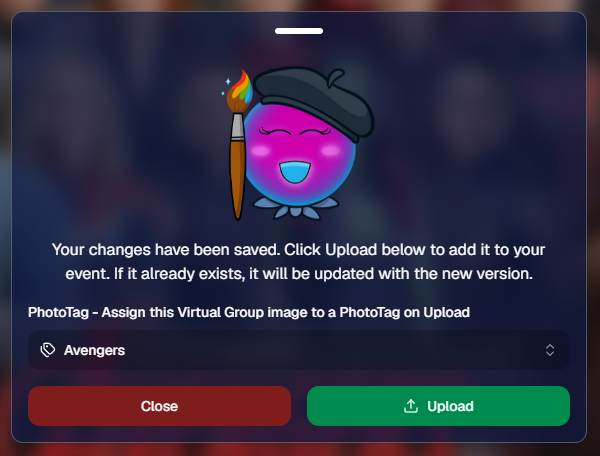
Once the virtual group is finished, photographers can save it and upload it back to the Event.

During upload, the group image can be assigned to a PhotoTag. This does two important things: it automatically shows the group image to participants with that same PhotoTag, and it makes the group photo searchable in the Event using that PhotoTag.

So if a photographer creates a group image for “Varsity Football,” they can assign it to that PhotoTag on upload. The image can then appear for the right participants and stay organized inside the Event.

That keeps the final product connected to the same Event structure used to build it.
Why This Is Such a Big Deal for Photographers

Virtual Group Builder is more than a design feature. It is a faster, more connected way to create and sell group photography products.

It helps photographers reduce manual design work, use the cutouts they already have, build from PhotoTags and participant data, add missing participants more easily, and get virtual group products online faster.

For volume photographers, that can mean less time spent assembling files and more time selling finished products. For customers, it means more group photo options. For events, it means group photography becomes more flexible, forgiving, and scalable.

Virtual Groups, Now Built Into the NowCandid Workflow ✨

Virtual Group Builder brings together live uploading, background removal, participant cutouts, PhotoTags, drag-and-drop group building, backgrounds, overlays, logos, subject names, crop previews, PhotoTag-based upload, and online selling.

When an Event is set up cleanly with consistent cutouts and PhotoTags, photographers can create a full virtual group in just a few clicks — then fine-tune it as needed.

It is simple, powerful, and built directly into NowCandid.

Whether you are creating a sports team composite, school group photo, graduation image, dance group, cheer team, all-star roster, or custom event product, Virtual Group Builder helps you get polished virtual group photos online faster.
Ready to try it?

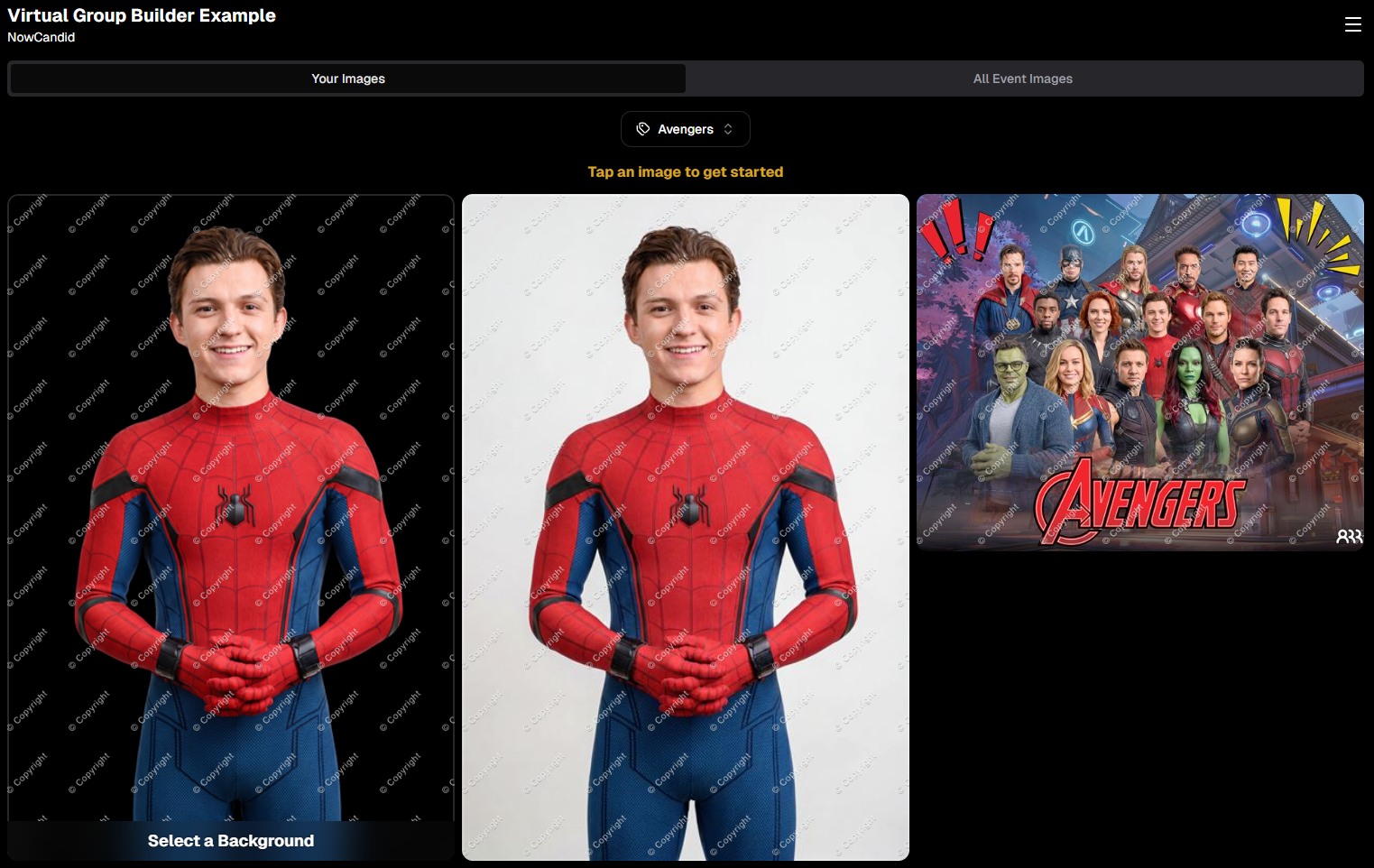
Open an Event in your NowCandid Dashboard and click Virtual Groups in the sidebar menu to start building. 🎉


Related articles

Weekly Recap: Introducing PhotoGlo™ Premium Prints & Plaques ✨🖼️
Feature Updates
November 21, 2025

Weekly Recap: Introducing PhotoGlo™ Premium Prints & Plaques ✨🖼️

5
 minutes read
Hey photo friends! 👋


Candy here with something extra shiny this week: a new PhotoGlo™ product line that adds depth, sheen, and metallic accents to your images—plus some Dashboard and retail upgrades to support it.

Let’s start with the fun stuff. 😏

✨ New PhotoGlo™ Products

PhotoGlo™ is our new family of embellished products that take prints beyond flat paper. These products can include:

  • 🎨 Thick color varnishes on specific areas to add depth and a glossy “raised” feel
  • ✨ Metallic foil printing for high-shine metal accents that catch the light and draw the eye

First up in the line:

  • 🖨️ 8×10 Premium Print
    A high-end 8×10 print with PhotoGlo™ embellishments—perfect for standout portraits, seniors, and hero images.
  • 🪧 Premium Plaque
    A mounted plaque (about 9.5×11.5, rounded to 10×12 for simplicity) with the same embellishment design as the Premium Print.

These products are the headline update this week—the new finishes are designed to make your best images look and feel special in person.

Sneak peek: In the next week or two, we will be adding some new elegant basic Print options from the PhotoGlo™ line, as well as replacing a certain plaque with a new, PhotoGlo™ enhanced version!

🌀 3D Renders to Show Off PhotoGlo™

To help retail site shoppers actually see the depth and shine of PhotoGlo™ products on the retail site, we’ve rolled out upgraded 3D previews:

📦 Live 3D product renders

For Premium Print and Premium Plaque, the 3D preview supports:

  • • BGR backgrounds
  • • Crops
  • • Captions
  • • Primary colors / accents

🖥️ Where 3D appears

  • • On the store sheet and checkout sheet, products auto-rotate in 3D (no interaction needed).
  • • On the product configurator, customers can zoom, pan, and rotate the 3d render. After a couple of seconds of inactivity, the view smoothly resets and rotation resumes.

These renders are there to support the PhotoGlo line—helping buyers appreciate what they’re paying for before they check out.

Wanna take a closer look? Click here to view a demo! (app.nowcandid.com/3d/premium-plaque-print)

🛍️ Retail Tweaks

🧱 New desktop layout while customers customize products

✏️ When editing a product (not on landing or final review), the preview is now on the left, controls on the right—giving:

  • • Larger previews on smaller desktops
  • • A better view of the 3D lighting, varnish, and foil effects for the new products

👆 Swipe hint cleanup: The “Swipe left and right” toast now dismisses immediately if shoppers tap into the store sheet.

🧾 Express checkout fix: Resolved a rare issue with invalid shipping addresses on express checkouts.

🖥️ Dashboard Improvements

Faster image loading on events with very large image counts.

🧰 Manage Images – Tools & Extras popup:

  • • Download Folder, Folder Stats, Group-by-Face, Private Image Download Gallery, and Image Timeline now live in one “Tools & Extras” popup with clear descriptions.

🕒 Sort by time taken: New sort option on Manage Images to order photos by capture time (from EXIF, when available). Images without a timestamp are hidden from this specific sort view.

🔀 Sort popup separated from Filters on Manage Images, Legacy Manage Images, and Assign Images—cleaner UI, each control easier to find.

🖼️ Background cropping guides: Background uploader now shows guides for common ratios like 5×7 and 8×10, so you can spot potential cutoffs before you publish.

📊 Event sales & stats modal:

  • • Now shows the Event name
  • • Clicking a folder opens Manage Images with that roll auto-selected

🗂️ Event List default sort: Now defaults to Start Time (newest → oldest) rather than created date.

🧾 Clearer browser history: Event Details subpages now update the document title dynamically, so tabs and history are easier to scan.

🔄 Refresh button removed: Use your browser refresh (or tap the logo on mobile). One less button, same control.

That’s the scoop for this week!

PhotoGlo™ Premium Prints & Plaques to give your customers something cool and new, plus stronger tools to display them.

Keep creating beautiful things,
Candy 🍬

Weekly Recap: New Ornaments, Better Marketing History & Big Windows Capture App Update 🎄📸
Feature Updates
November 14, 2025

Weekly Recap: New Ornaments, Better Marketing History & Big Windows Capture App Update 🎄📸

5
 minutes read
Hey photo friends! 👋


Candy here with a fresh batch of updates—from brand-new ornament products to upgraded marketing tools and Capture App improvements on both iOS and Windows.

Let’s jump in!

🎁 New Holiday Ornaments

  • 🎄 Statuette Ornament

    A new hanging statuette-style ornament—complete with a red ribbon.
    • Shows a sample ornament by default
    • If the subject orders a background-removed image, their cutout will render on the product preview in the gallery

  • 🪙 Aluminum Ornament

    A flat aluminum ornament that renders any photo in the product gallery.
    • Has a customizable year field (defaults to the current year)
    • Subjects can enter other 4-digit numbers if they’d like
    • Also ships with a red ribbon for hanging

Perfect timing for holiday sales. 🎅

✉️ Marketing History & Dashboard Improvements

📬 Marketing History Page (Big Upgrade!)

  • 🧭 Pagination for easier navigation through large histories
  • 👤 Shows participant name + image on each row
  • 🔗 Click through to the Participant directly
  • 🧾 All email + text sends are now in one combined, date-sorted list
  • ⚡ Faster initial load, and smoother scrolling for long histories
  • 🔍 New filters:
    • Text search (with CMD+F support)
    • Filter to Texts only or Emails only
    • URL supports both filters and pagination, so you can share filtered views

🖥️ Other Dashboard Updates

  • 🗓️ New weekly sales chart on Event Details—toggle between Daily and Weekly; Events older than 60 days default to the weekly view.
  • 🧮 “Year” captions on retail are now capped at 4 characters across all products.
  • 🌄 Download custom backgrounds you’ve uploaded for an Offer
    • Offer → Select Backgrounds → My Custom Backgrounds → Download button
  • 💬 QuicPics send error reason now appears on Participant Details (logging started April 2025).
  • 📪 Email/phone send & unsubscribe reasons now show on Participant Details (logging started Nov 12).
  • 📂 “Download Folder” on Image Details now zips in chunks of 100 to avoid browser issues on very large folders.

🧹 Small Dashboard Fixes

  • 🗓️ Removed Day 6 text from all three QuicPics programs (it wasn’t adding clicks or sales).
  • 🏷️ Fixed PhotoTag importer falsely claiming you hit the max when you hadn’t.
  • 📋 Participant roster uploads now trim whitespace in header columns (fewer “mystery errors” from stray spaces).
  • 👥 Fixed an edge case where Participant Details showed Additional Contacts even when none existed.

📱 Capture App iOS 4.21.4 (OTA)

  • 🤳 Front camera photos mirrored

    Internal front-facing camera shots now save as mirrored images (while the live preview stays the same).
    • Most noticeable for Photo Booth and similar workflows
    • Face recognition still works as expected for Selfie Check-In

(If you’re on 4.21 already, this will arrive as an over-the-air update.)

💻 Capture App Windows 4.20 Highlights

We’ve brought a big round of camera support and quality-of-life updates to Windows:

  • 📷 Broader camera support
    • Sony now works on ARM tablets, and most new Sonys no longer require special driver setup—just plug in.
    • Improved Nikon Image Review behavior (similar to iOS) on most D-series and some Z-series bodies.
    • Added support for Panasonic cameras.
    • Added support for a wide range of FUJIFILM X and GFX models.
    • New Canon support: EOS R5 Mark II, EOS R1, EOS R50V.
  • 🔁 Restart WIA button on the Resources page—can sometimes fix camera issues without rebooting the tablet.
  • ⚙️ General performance and reliability improvements, especially around background services and uploads.
  • 🎨 Updated app icon & name to match the iOS version.

That’s it for this week!

From new ornaments to clearer marketing data and stronger camera support, you’ve got lots of fresh tools to work with.

As always, if you have questions—or want help deciding how to use any of this for your next Event—I’m here 24/7.

Keep creating magic,

Candy 🍬

Weekly Recap: Capture App 4.21 OTA, New Dashboard Filters & Helpful Fixes 📲🧭
Feature Updates
November 7, 2025

Weekly Recap: Capture App 4.21 OTA, New Dashboard Filters & Helpful Fixes 📲🧭

2
 minutes read
Hey photo friends! 👋

Here’s what’s new this week! Changes focused on faster updates, more filters, and a handful of useful fixes.

📱 Capture & Upload App (iOS) — Version 4.21

  • 🚀 Over-the-Air (OTA) updates: Most app updates no longer require the App Store. Updates download in the background and install on app restart/launch—no interruptions during Events. You can also manually check via Resources → “Check for updates” (tap the (i) button).
  • 📶 See your Wi-Fi name: The current network name now shows on the Web Weaver item in Resources.
  • Faster, lighter uploads: Additional memory and performance improvements when uploading image files.

Smaller iOS app changes

  • 🖨️ AirPrint prompt returns if a printer isn’t available (avoids an iOS security hiccup).
  • 🌐 Web Weaver manual toggle fixed.
  • 🔎 Image preview UI fixed when switching after zoom/pan.
  • 🧾 Name Lookup now populates correctly on first launch.
  • 🖼️ QuicPortraits icon color updated in Event select (those icons are single-color).
  • 🗂️ Block log-ins to flagged TKO folders (e.g., if you flagged “a”, you can’t log into “ac”).
  • ↔️ Horizontal zoom issue on iPhone resolved.

FYI on versions: The App Store shows 4.21; the current OTA version is 4.21.3. We’ve already shipped three OTAs this week to help teams while they’re still on-site! Pretty cool, right?

🖥️ Dashboard

  • 👁️ Manage Images → Visibility filter: All / Visible only / Hidden only.
  • 🎯 Assign Images → New filters: Name order, Purchased only, Visibility.
  • 🔗 Events Report: Clicking an Event now opens its Event Details page.

Smaller dashboard changes

  • 📨 Email campaign guard: Prevents a campaign from starting if the only image is a group PhotoTag.
  • 📥 Inbox UI: On mobile, updated header; on desktop, the selected item area stays sticky while you scroll.
  • 🧰 Trader Card fixes: Two styles now say League (not LD), and one style’s production print now matches the retail render.
  • 🖼️ Art uploader validation: Shows an error if an image is under 100 px in width or height.
  • 😊 Retail face boxes aligned on very small desktop viewports.

That’s the update for the week!

Thanks for reading—and happy shooting!

Candy 🍬

Let’s get in touch

If you’re a photographer looking to add NowCandid services to your wheelhouse – set up a call by clicking the button below.

How to customize formatting for each rich text

How to customize formatting for each rich text

How to customize formatting for each rich text

How to customize formatting for each rich text

How to customize formatting for each rich text

What’s a Rich Text element?

The rich text element allows you to create and format headings, paragraphs, blockquotes, images, and video all in one place instead of having to add and format them individually. Just double-click and easily create content.

A rich text element can be used with static or dynamic content. For static content, just drop it into any page and begin editing. For dynamic content, add a rich text field to any collection and then connect a rich text element to that field in the settings panel. Voila!

Headings, paragraphs, blockquotes, figures, images, and figure captions can all be styled after a class is added to the rich text element using the "When inside of" nested selector system.

  • List One
  • List Two
  • List Three
  • List Four
  • List Five

This is a link

This is bold text