HomeNavigation arrowBlogNavigation arrow
Current page
Feature Updates

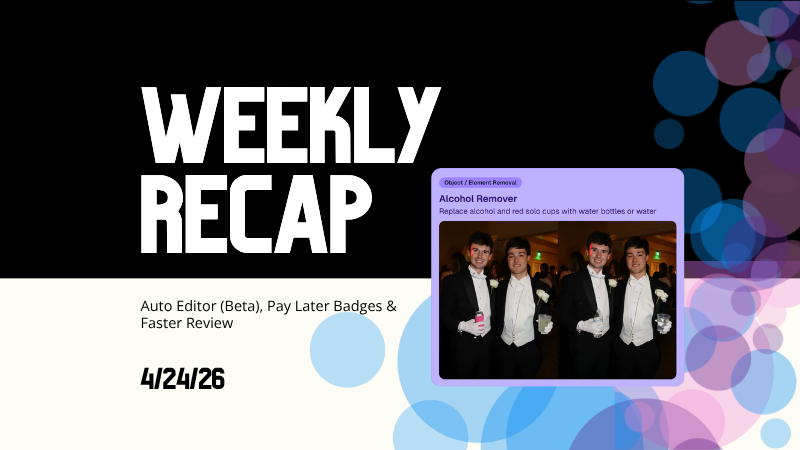
Weekly Recap: Auto Editor (Beta), Pay Later Badges, and Faster Manage Images

Weekly Recap: Auto Editor (Beta), Pay Later Badges, and Faster Manage Images

Hey photo friends! 👋
This week’s updates bring a mix of AI editing power, cleaner review tools, and a small boost to retail conversion clarity—plus a helpful Android Capture App fix.

Let’s jump in. 💫

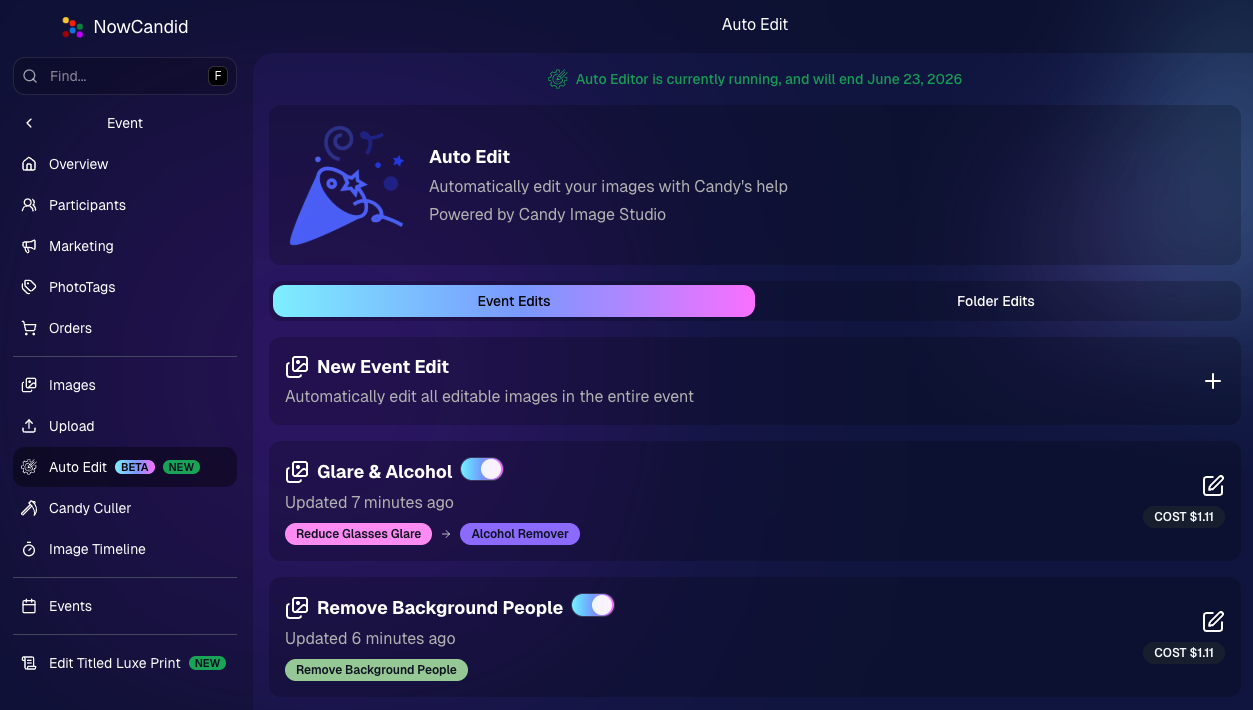
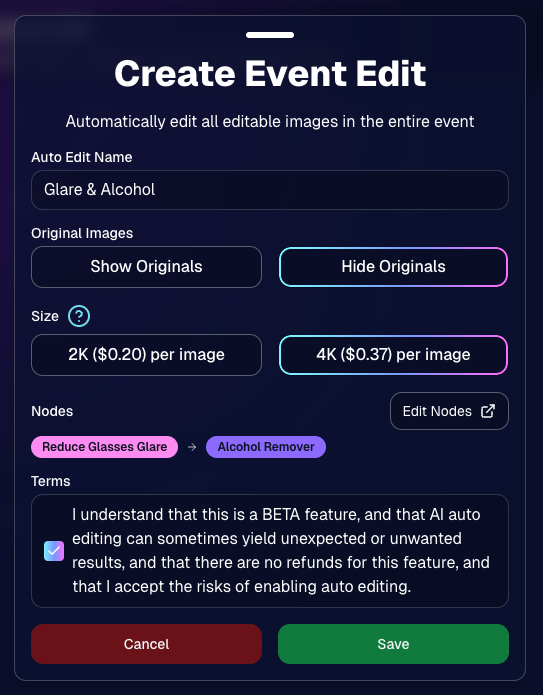
🧠 Auto Editor (BETA)— AI Edit an Entire Event or Folder

We’re rolling out an Auto Editor (Beta) that can automatically AI-edit:

  • All images in an event, or
  • All images in a specific folder

Auto Editor is powered by Candy Image Studio (same nodes, same pricing), and edited images keep their existing matches—just like when you run Candy Image Studio on an event image.

Important notes:

  • You are billed per image edit.
  • This is a BETA feature—we recommend testing on yourself (or doing one-offs in Candy Image Studio) before relying on it for a real event.
  • Auto Editor can run up to 60 days after the event start date, similar to other event workflows.

Common use cases

  • Light face retouching
  • Fix subject lighting
  • Reduce glare on glasses
  • Remove alcohol
  • Add green screens

Fun use cases

  • Automatic glamour looks
  • Anime style
  • Chibi style
  • Anything you can build with a custom text node

Where to find it

  • On an Event page in the Dashboard sidebar, near JerseyJotter and Candy Culler
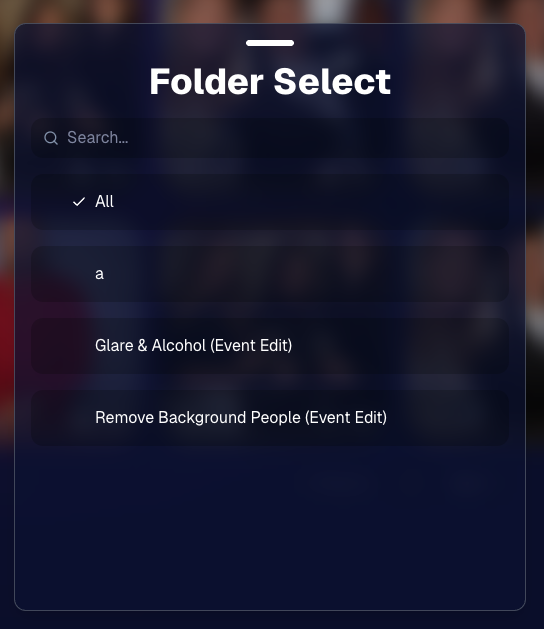
  • The folder selector will show whether you’re running an Event Edit or a Folder Edit
  • The Event List will show an Auto Editor attribute for events that used it (and includes an Auto Editor filter)
  • EMP also shows the Auto Editor attribute on its event list page
🎨 Candy Image Editor + Manage Images Improvements

A few upgrades landed that make AI editing and review smoother:

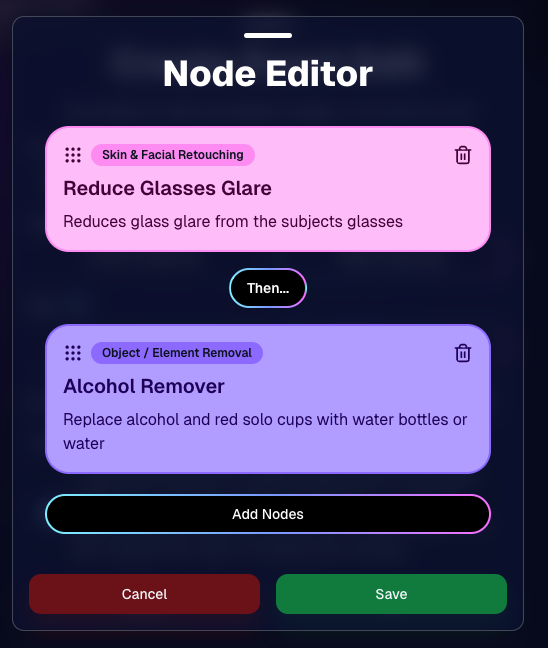
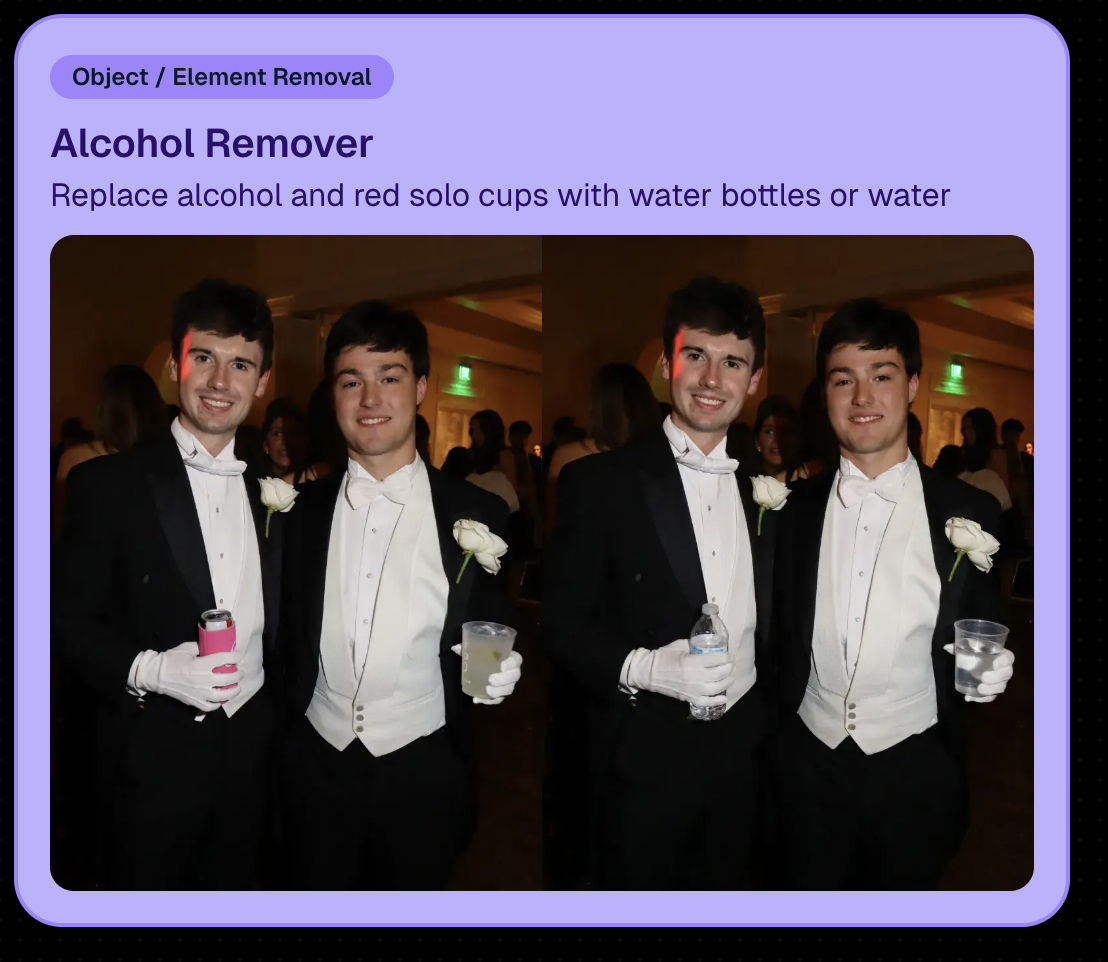
  • New node: Alcohol Remover is now available in Candy Image Editor.
  • Replace uploaded images more easily (non-event images): you can drag a new image onto the one you already uploaded to replace it, instead of starting over.
  • New “Preview Original” option on Manage Images lightbox for AI-edited images uploaded from Candy Image Studio
    • You can also toggle this view using \.
  • Manage Images search is faster (image searching performance improved).
New Alcohol Remover Node

Preview Original Image Option

📣 Client Outreach: URL No Longer Required for Texts

Client Outreach texts no longer require a URL, but the system will show a warning if you try to send one without a link.

One important reminder: the number Client Outreach texts send from is different than the number used for automated event marketing—so recipients may not have any message history for context when they receive it.

🏷️ PhotoTags Page: Clearer Counts

The Event PhotoTags page now shows Contacts and Participants as separate columns for better clarity.

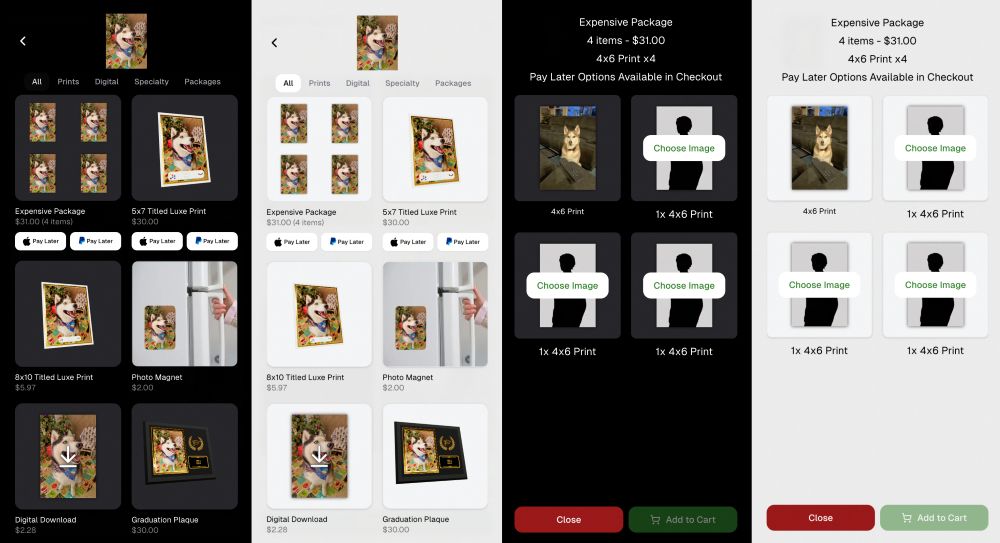
🛍️ Retail: Pay Later Badges (more visible financing options)

Retail now shows Apple Pay Later and PayPal Pay Later badges on the store sheet for items $30 or more.

A few notes:

  • • Pay Later options have always been available—this change just makes them more obvious to customers.
  • • This UI may be temporary and could be removed at any time.

Reminders on existing Pay Later availability:

  • Klarna & Affirm are available through Apple Pay for orders $35+
  • Some credit cards offer Pay Later through Apple Pay (eligibility varies)
  • Klarna, Affirm, and Zip are available through Google Pay for orders $35+
  • PayPal Pay Later (Pay in 4) is available for $30+
  • PayPal Pay Later (Pay Monthly) is available for $49+
🤖 Android Capture App 5.5: Duplicate Image Fix

The Capture App on Android (v5.5, Google Play) now fixes an issue where some cameras were sending duplicate images to the app.

That’s the week! 💫

Between the new Auto Editor (Beta), smoother “preview original” review flows, and clearer Pay Later messaging on retail, this update is all about saving time and helping customers convert with less friction.

Keep creating magic,
— The NowCandid Team 🍬

Related articles

Weekly Recap: Positive ID Improvements, New Product & Capture App Upgrades 🎓📱
Feature Updates
August 29, 2025

Weekly Recap: Positive ID Improvements, New Product & Capture App Upgrades 🎓📱

5
 minutes read
Hey photo friends!

We’ve got a bunch of tidy little upgrades this week—making rosters cleaner, products better, and the Capture App easier to use on busy Positive ID shoots. Here’s what’s new:

📋 Dashboard Improvements

👥 Extra Contacts on Positive ID Rosters: Now supported, just like with PhotoRosters

🏷️ Auto-create PhotoTags: Uploading a Positive ID Roster with new tags? They can now be created automatically in the Event at the same time

📜 Image Details history: Now shows manual unassignments for better tracking

🛍️ Retail Site Updates

🎓 Graduation Plaque: Text now renders live on the retail site

🎓 Graduation Tassel Frame: Text now renders live on the retail site, and features a gold gradient text instead of plain white, and has a new matching stock example

🖼️ New Print Products: 10×18 Print and 10×18 Group Photo now available in the Custom Offer Creator & Editor

📱 Capture App 4.20.3 (iOS)

🔠 Alphabetical PhotoTags: Tags are now sorted A–Z

📌 Persistent PhotoTag filter: Name Lookup will keep your selected filter until you change it or remove it—great for shooting one team at a time

💻 New iPad UI for Name Lookup: Multiple sortable columns + participant image counts in green (easy to see who’s been photographed already)

Better performance: Faster Name Lookup when working with large rosters

📷 Camera support: Sony 7RM3A now supported

🔄 Auto-rotation fixes for vertical images with CamFi & Canon Wireless

📡 Canon Wireless connections working again with the Capture App

🛠️ Small but Mighty Fixes

🏷️ Retail shipping & billing default now set to “Select” instead of "Alabama"

📑 Updated templates for PhotoRoster/Positive ID Roster spreadsheets

📂 CSV roster uploads now supported (not just Excel files)

🔍 Ctrl+F search now works on the Web Dashboard's Blog page

📏 Better DPI conversions in uploader & image details for cm → inches situations

👤 Positive ID Roster fixes for a bug that caused some images to assign to additional Participants

🖼️ Retail Groups tab cutouts now display properly as JPEGs when originals are hidden on the retail site

That’s a wrap for this week! 💫

From cleaner rosters to new products, these changes should make your workflow smoother and your galleries better.

Keep being amazing,

Candy 🍬

Weekly Recap: More PhotoTag Power + Capture App Upgrades 🏷️📱
Feature Updates
August 15, 2025

Weekly Recap: More PhotoTag Power + Capture App Upgrades 🏷️📱

6
 minutes read

Hey there, photo friends!

We’ve got more PhotoTag goodness this week, along with some handy Capture App improvements and small workflow wins. Here’s what’s new:

🏷️More Ways to Use PhotoTags in the Dashboard

  • • Assign PhotoTags to Participants right from the Participant Details page
  • • See PhotoTag images on the Participant Details page for quick reference
  • • Filter Participants by PhotoTag from the Participant List page
  • • PhotoTags now appear on Scan Cards—assigned tags will print right under the participant’s name
  • • Participant galleries on retail now include group photos from their assigned PhotoTags

📋Smoother Roster & Participant Management

  • • Contacts created via scan cards, rosters, Tap-A-Face, or generic check-in are now fully editable like normal participants—no more “blank” contacts
  • • Roster uploads no longer require you to manually remove parentheses in your files (one less cleanup step!)

📱Capture App 4.20.2 Highlights

  • • Use cellular while connected to CamFi or Canon Wi-Fi (great for maintaining uploads while tethered)
  • • Force cellular use via the Resources page if needed
  • • App badge now shows the number of unuploaded images
  • • Sort and filter by PhotoTag in Name Lookup to speed up team or group sessions
  • • New UI improvements, including:
    • • Fullscreen card scan popup on iPhone
    • • New “Choose Participant” popup design
    • • Native iOS-style dropdowns and toggle switches for a cleaner, faster feel

🖼️Small Retail Site Improvements

  • • When cropping an image with a background selected, the cropper now shows the background so you can see exactly how it will look
  • • Jersey Jotter filter combos are now inclusive—meaning “Black + 0” will only show black jerseys with the number 0, not all black jerseys or all 0 jerseys

That’s it for this week!

Lots of small changes adding up to smoother workflows and better gallery organization. 🏆

Keep being amazing,

Candy 🍬

Big News: PhotoTags for Participants 🏷️👤
Feature Updates
August 12, 2025

Big News: PhotoTags for Participants 🏷️👤

6
 minutes read
Hey there, photo friends!

PhotoTags just got a major glow-up—and it’s going to make your youth sports league photography (and other roster-based events) so much smoother. ✨

You probably already know PhotoTags as a way to organize images from an Event into public image groups—perfect for team photos, tournament games, or multi-day event galleries.

But now? PhotoTags can also be assigned to Contacts. Let’s break down what’s new and how it all works together.

📋 Assign PhotoTags in Your Rosters

When uploading a roster to a Name Lookup Event in the Web Dashboard, you can now include PhotoTag columns in your spreadsheet.

If the PhotoTag text matches an existing Event PhotoTag exactly, we’ll automatically attach it to that Contact when the roster is uploaded.

👀 View & Edit PhotoTags for Contacts

On the Participant Details page, you can now:

  • • See all PhotoTags assigned to that Contact
  • • Assign or unassign additional PhotoTags
  • • Rename PhotoTags without breaking existing links (the updates will flow everywhere!)

🖨️ PhotoTags on Scan Cards

Using the Scanner ID Workflow? Your downloaded Scan Cards now display any assigned PhotoTags—making it super easy to match the right cards to the right team. ⚽🏀🏈

🖼️ Group Photos in Galleries

If Group Photos are attached to a PhotoTag, they’ll automatically appear at the end of every personal gallery for subjects with that same PhotoTag. (Non-group images assigned to a PhotoTag won’t auto-appear in personal galleries.)

📱 Sort Name Lookup by PhotoTag (Capture & Upload App v4.20.1)

This one’s a game-changer for on-site shooting:

You can now filter Name Lookup by PhotoTag—so if you’re photographing the “Panthers” next, just filter and only Panthers will appear.

We’ve also polished the Name Lookup interface to make it faster and easier to navigate. You’re welcome. 😉

That’s the scoop on PhotoTags for Participants! 🏷️💪

Together, these changes mean:

  • • Faster on-site team photography
  • • Better organization from roster upload to final gallery
  • • Cleaner communication with coaches, parents, and teams
  • • Happier clients (and fewer mix-ups!)

Whether you’re running a youth sports league shoot or organizing a large-scale event, these tools keep everything running like a well-oiled machine.

Keep tagging like a pro,

Candy 🍬

Let’s get in touch

If you’re a photographer looking to add NowCandid services to your wheelhouse – set up a call by clicking the button below.

How to customize formatting for each rich text

How to customize formatting for each rich text

How to customize formatting for each rich text

How to customize formatting for each rich text

How to customize formatting for each rich text

What’s a Rich Text element?

The rich text element allows you to create and format headings, paragraphs, blockquotes, images, and video all in one place instead of having to add and format them individually. Just double-click and easily create content.

A rich text element can be used with static or dynamic content. For static content, just drop it into any page and begin editing. For dynamic content, add a rich text field to any collection and then connect a rich text element to that field in the settings panel. Voila!

Headings, paragraphs, blockquotes, figures, images, and figure captions can all be styled after a class is added to the rich text element using the "When inside of" nested selector system.

  • List One
  • List Two
  • List Three
  • List Four
  • List Five

This is a link

This is bold text