HomeNavigation arrowBlogNavigation arrow
Current page
Feature Updates

Weekly Recap: Candy Culler AI Image Culling & MUCH More! 🍬✨

Weekly Recap: Candy Culler AI Image Culling & MUCH More! 🍬✨
Hey photo friends! 👋


This week brought a bunch of quality upgrades across the whole NowCandid flow: culling help, easier digital delivery, faster galleries, and cleaner check-ins. Here’s what’s new (organized by impact).

🧠 Big New Tool: Candy Culler (Manage Images → More Tools)

🍬 Candy Culler is rolling out!!!

Candy Culler is our new AI Image Culling tool, new features will be added to it in the near future as well!


I can now help flag common issues on your images like:

  • 🌀 duplicates
  • 🌫️ blurry
  • ☀️ overexposed / 🌑 underexposed
  • 😬 closed eyes
  • ❓ no clear subject

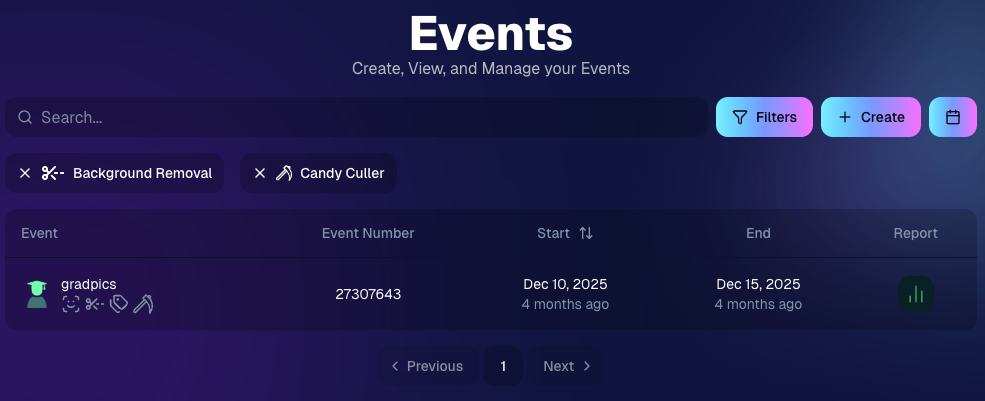
This is available via "More Tools" on an Event's "Manage Images" page, and is designed to help speed up processes like reviewing your photographer's work and marking unwanted images invisible!

Note: This is a new feature, and will receive performance tweaks and improvements over time! But we hope you like it! :D

📦 Digital Delivery Upgrade: Web Receipt Download Page

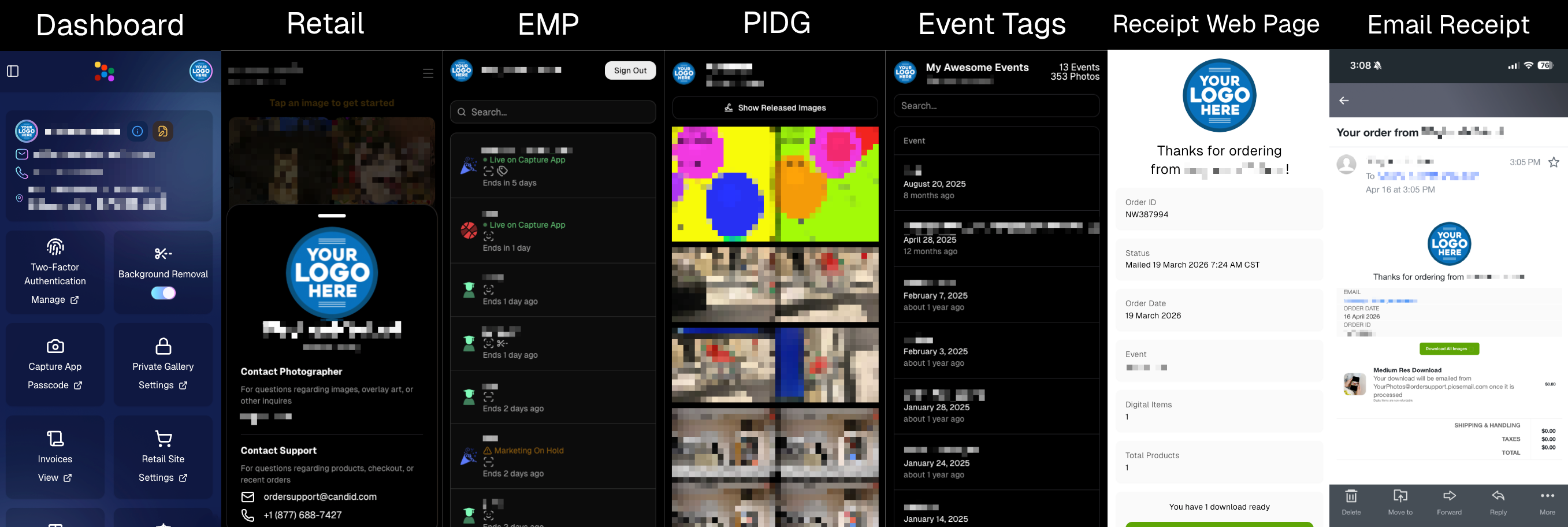
📧 Receipt email now includes a “Download All Images” button

  • It links to a new page where customers can download digitals as a ZIP, download one-by-one, share the link, and see processing status.

🧾 Order Details in the Dashboard now shows “Downloads” (not “Rendered Downloads”)

  • And includes Personal Gallery Download links where relevant.

🔗 Order Details now link to the Web Receipt Download Page

  • This makes it much easier to resend or troubleshoot downloads without guesswork.

🖼️ Faster Reviewing: Lightbox Keyboard Navigation + Performance

⬅️➡️ Left/Right arrow keys now move through images

  • Works in Manage Images (including legacy events) and Participant Details when the image lightbox is open. Great for quickly scanning through images.

Lightbox performance improved

  • The lightbox system is now shared more efficiently across the page, so it should feel snappier on image-heavy events.

✅ Check-In Improvements (Face Matching Events)

🛑 New red “No Thank You” button for Image Release opt-in

  • (Only appears if opt-in is enabled in the Offer's Advanced Settings.)

🖼️ Camera roll stability improved

  • Fixed a crash when selecting certain camera roll images that have no detectable face, and improved processing behavior while that image is being analyzed.

🔁 Old check-in import edge case fixed

  • Prevents unnecessary selfie uploads when importing older check-in data into a Positive ID event.

📱 Capture App iOS OTA Updates (4.22.2 + 4.22.3)

🔐 Restore Session safety and convenience (OTA Jan 5)

🔒 Restore Session won’t cross accounts

  • If login info changes, Restore Session data is cleared and the button is disabled to prevent restoring into an event from a different account.

Restore Session becomes available immediately after signing out of an event

  • No restart needed.

🧾 Face Matching Roster Check-In stat accuracy (OTA Jan 7)

📊 Event overview image stats now include “ref” folder images

  • Helpful for tracking reference images in Face Matching Events.

🛠️ Misc fix

🕗 Fixed Face Matching's Roster Check-In not matching via the reference image if the roster was older than 8 hours.

🛍️ Retail Experience Improvements

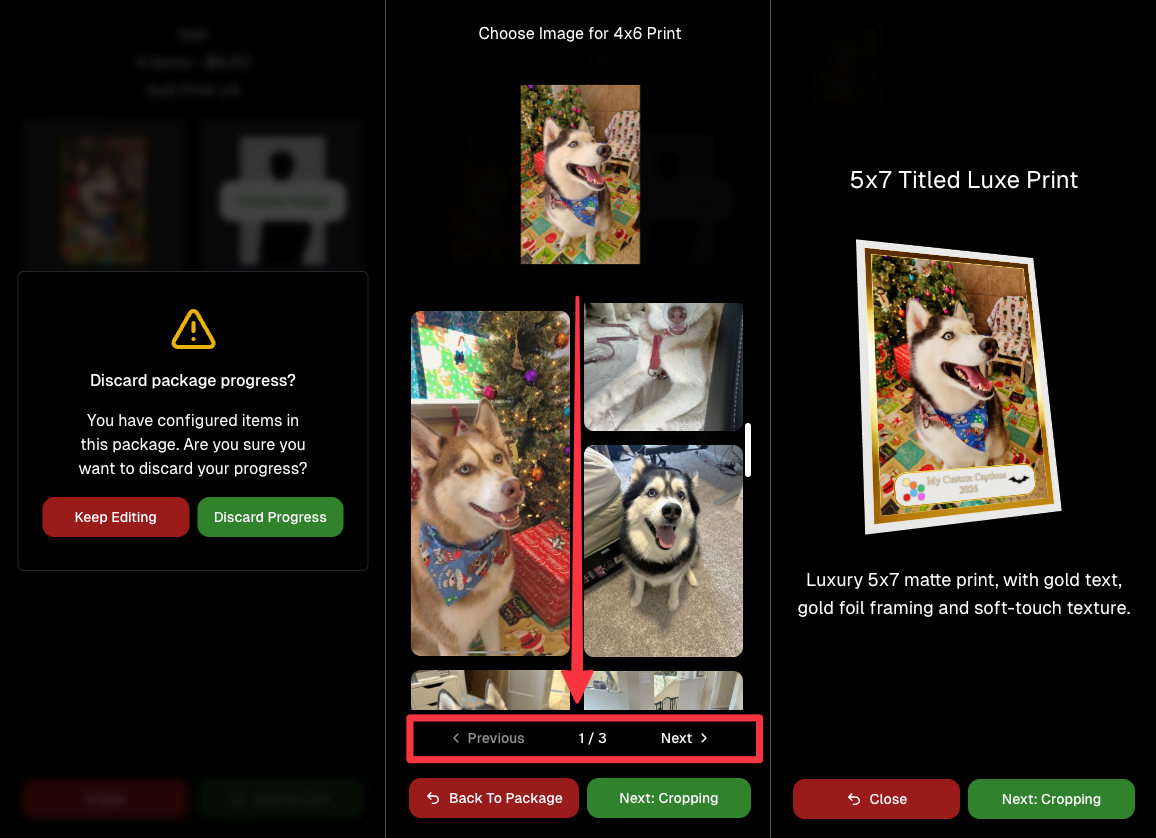
🧲 Selecting an image now jumps instantly into the swipeable preview (no more “scrolling across the carousel” effect).

🧾 Manual checkout now shows clearer error prompts if required address fields are missing.

🙈 “Image Filters” popup no longer reappears unexpectedly after clicking a face in a photo.

🛡️ GalleryGuard is enabled again on iPad after a short break.

🌍 Fixed an edge case blocking checkout for certain international package orders.

🖥️ Dashboard Updates

🔁 Assign Images: new “participant gallery” filter

  • Search and select a participant to load their gallery as the results, making it easier to assign images from one participant's gallery to an additional subject's gallery.

🏷️ PhotoTag Import edge case fixed

  • Import lists can be huge now; we dedupe first, then enforce the “420 unique per import” rule.

📊 Event mini report column clarified

  • “Images” is now labeled “Visible” and reflects visible images per folder.

📄 Reports date picker fixed

  • Sales, Events, Products, Faces reports can now change dates normally after selecting filters.

🧑‍🤝‍🧑 Participant creation limited after 60 days

  • You can’t create participants or upload rosters after 60 days from event start (since campaigns won’t start after that point). The UI will show an error popup instead of letting it happen silently.

Event List loads faster

  • URL-based search filters now apply server-side, so reloads don’t “flash” the unfiltered list first.

🔐 Better sign-in redirecting

  • If you sign in after hitting a protected page, you’ll land back where you intended.

🍬 Candy can now report things to the team

  • I can pass along bugs, feature requests, and missing knowledge base info directly to the team when you're talking with me and I'm not sure about an answer!

That’s the week!

Cheers,

Candy 🍬
Related articles

Weekly Recap: Sticky Filters, Faster Uploads & Happy Halloween! 🎃🕸️
Feature Updates
October 31, 2025

Weekly Recap: Sticky Filters, Faster Uploads & Happy Halloween! 🎃🕸️

3
 minutes read
Boo! 👻

Candy here with a trick-or-treat pail of useful updates: sticky, shareable filters, faster uploads, and clearer participant tools. You’ll keep context when you reload or share links—and move uploads along faster.

Let’s dig in!

🖥️ Dashboard Improvements

  • 🧲 Sticky, shareable filters
    Filters now live in the URL on Manage Images, Assign Images, Event List, and Participant List. Refresh or hit Back and your view stays put—and you can share filtered links with teammates or support.
  • 🚀 Faster image uploads
    The Image Upload page handles large batches more efficiently for quicker throughput.

🪄 Minor Dashboard Tweaks

  • 💳 QuicPics Upfront Pay editor is now available in QuicPortraits.
  • 🏷️ “Additional Contact” badge appears under a participant’s name for quick clarity.
  • 👥 Additional Contacts list on Participant Details, plus an Add option (when new campaigns are allowed).
  • ✉️ Marketing History filter: view All / Texts / Emails.

🧹 Dashboard Bug Fixes

  • 🧩 Positive ID code PDFs now show PhotoTags for merged participants even when they weren’t the first registered.
  • 📏 2×5 Positive ID PDF layout fixed for long event titles.
  • 📄 2×5 Positive ID PDF last-page spacing fixed when the page isn’t full of cards.

📲 Capture & Upload App

  • 🙅 Name Lookup no longer shows Additional Contacts (no app update needed—restart or re-log into the Event).

🛍️ Misc Changes

  • ⚖️ Retail “weight” caption limit increased to 7 characters (up from 3, for products like trader cards).

🛠️ Misc Fixes

  • 🔁 QuicPics won’t double-text the same image if someone was registered twice in the same send batch.
  • 🔃 Manage Images “uploaded first/last” filter direction corrected.
  • 📪 Fixed an unsubscribe edge case when a gallery is entirely cutouts and all original JPEGs are not visible.

That’s the update!

Happy Halloween—and good shooting! 🎃


Candy 🍬

Weekly Recap: Even Stronger Image Privacy & UI Polish 🔒🧰
Feature Updates
October 24, 2025

Weekly Recap: Even Stronger Image Privacy & UI Polish 🔒🧰

5
 minutes read
Hey photo friends! 👋


This week we further tightened subject image provacy, and freshened up the UI across Dashboard and Retail.

Here’s what’s new:

📋 Dashboard

  • 🏷️ Clearer overlay labels: Event List & Event Details now show Banner or Full Frame thumbnails instead of a generic “graphic overlay” text label only.
  • 🧩 Overlay importer: Now a tidy 2-column layout instead of one at a time, to more quickly let you seek out a specific event's overlays to reuse.
  • 📥 Participant download sheet (big data friendly): Handles very large folder/frame totals without breaking.
  • 🧭 Smarter participant pic choice: If a participant was merged from multiple sources, the sheet now prioritizes the non–Roster record for their participant pic (instead of the silhouette).
  • 🖼️ Retail cover editor: See a preview of the cover photo on retail before saving (not just after).
  • 🔔 Auto-resume marketing alerts: If marketing has been paused too long, you’ll get an inbox + push when it auto-resumes (first Friday after 20 days).
  • 👤 Participant Details upgrades:
    • 🖼️ Higher-res non-BGR images & backgrounds
    • 💡 Lightbox UI and previews that match Manage Images
    • 🟠🟥🟩 Thicker status borders + bold assignment text
  • 🏷️ PhotoTags popup: New All / Assigned / Unassigned tabs for faster tagging.
  • 🧾 Merged participant awareness:
    • Order counts on Participant Details and Participant List now include merged participants
    • Marketing count shows which contact info each message went to
  • Performance wins:
    • Participant List scales better with hundreds or thousands of people
    • PhotoRosters FaceGroup list is snappier with large rosters
  • 🪟 Updated popups: Smoother UI with animated width/height changes.

🛍️ Retail

  • 🖥️ Small desktop fix: Layout issues resolved for some compact screens.
  • 🛡️ Harder to lift images: Retail page changes to defeat "allow right click" browser extensions to continue to try and protect images & privacy.

🔒 Image Privacy & Other Fixes

  • 🔒 Enhanced privacy on retail: Images are now even safer from link guessing or misuse while the experience stays the same.
  • Fewer auth requests: Both Dashboard and Retail make fewer calls when refocusing windows, resulting in improved performance!
  • 🧩 Private Download Gallery: BGR cutouts/backgrounds load correctly again.
  • 🔎 Search released images: Now supports BGR and hides not-visible images.
  • Clearer “active” events: Event List now shows “Live on Capture App” to indicate capture-ready status, as opposed to "Active" which caused confusion related to Face Matching.

That’s the scoop! 💫

Less friction, clearer signals, and stronger protection—so you can spend more time shooting and selling.

Keep being amazing,
Candy 🍬

Weekly Recap: Sharper Images, A New Workflow & Capture App 4.20.10 📸✨
Feature Updates
October 10, 2025

Weekly Recap: Sharper Images, A New Workflow & Capture App 4.20.10 📸✨

3
 minutes read
Hey photo friends!

This week’s updates are focused on clarity, quality, and efficiency—from sharper image previews across the board to a brand-new Face Matching Workflow, Roster Check-In.

Let’s take a look! 👀

🏅 New Workflow: Roster Check-In™

Made for sports and other rostered shoots when you want Face Matching™ + a roster in one workflow.

How it works:

1. Upload a roster to the Event (via the Dashboard, under your Event's Participants & Contacts page)

2. In the Capture & Upload app, log into your Event and choose Roster Check-In™ as your shooting mode

3. Pick a name from the roster (or add one via Type & Take)

4. Take a quick reference photo (using the device's camera or a tethered camera)

Done! Future image uploads, from the Capture & Upload app or from the Dashboard, will automatically match to that person and market them their new gallery.

Note: Requires Capture & Upload App 4.20.10

📋 Dashboard

  • 🏷️ PhotoTags on Tap-A-Face: You can now set PhotoTags when creating a participant via the manual Tap-A-Face available on the Image Details page
  • 🖼️ Higher-resolution images across key pages, including:
    • Manual Assign Images page
    • Image Release Gallery
  • 🎨 Overlay importer now shows full-frame previews (previously only banners)

🛍️ Retail Site

  • 🧖 Confirmation popup when adding Retouch items to the cart—provides extra info to the subjects about the retouching process
  • 😊 Face Finder now shows higher-resolution previews for better clarity

🔒 Private Image Download Galleries

  • 🖼️ Higher-res image previews for a sharper, more polished experience

📱 iOS Capture App 4.20.10 (coming Oct 10–13)

  • 👥 New Workflow: Roster Check-In™ — streamline your workflow by checking in subjects directly using a roster and the Capture & Upload App
  • 💬 UI updates:
    • Most error popups replaced with native dialogs for cleaner alerts
    • Login popup stays open on invalid login (no more accidental closures)
  • Performance boosts everywhere:
    • Less memory usage for uploads
    • Faster image details popups and Name Lookup lists
    • Better performance for image previews across the shooting page, film strip, image gallery, and FM Roster Check-In

🧩 Smaller Fixes & Improvements

  • 📸 Faster image loading:
    • Participant list and event overview now use smaller thumbnails
    • PhotoRoster™ Selfie Check-In™ imports now load quicker
  • 🗂️ BGR folder fixes: Group status button behavior corrected for edit folder popups
  • 📍 Tap locations on Image Details page now align correctly
  • 🖼️ Higher-res thumbnails on Manage Images (even in the smaller grid view)
  • 💌 Email-only participants now receive new image alerts after placing an order
  • 🧠 Watermark improvement: Retail site static watermarking now shows the word “Copyright” instead of your business name — this helps prevent AI tools from removing it as platforms are adding copyright-protection safeguards

That’s everything for this week! 💫

From sharper previews to smarter check-ins, these updates make every step of your workflow a little smoother (and crisper!).

Keep being amazing,
Candy 🍬

Let’s get in touch

If you’re a photographer looking to add NowCandid services to your wheelhouse – set up a call by clicking the button below.

How to customize formatting for each rich text

How to customize formatting for each rich text

How to customize formatting for each rich text

How to customize formatting for each rich text

How to customize formatting for each rich text

What’s a Rich Text element?

The rich text element allows you to create and format headings, paragraphs, blockquotes, images, and video all in one place instead of having to add and format them individually. Just double-click and easily create content.

A rich text element can be used with static or dynamic content. For static content, just drop it into any page and begin editing. For dynamic content, add a rich text field to any collection and then connect a rich text element to that field in the settings panel. Voila!

Headings, paragraphs, blockquotes, figures, images, and figure captions can all be styled after a class is added to the rich text element using the "When inside of" nested selector system.

  • List One
  • List Two
  • List Three
  • List Four
  • List Five

This is a link

This is bold text