HomeNavigation arrowBlogNavigation arrow
Current page
Feature Updates

Weekly Recap: Candy Image Studio Upgrades, Participant Search & QR Creator 🍬✨

Weekly Recap: Candy Image Studio Upgrades, Participant Search & QR Creator 🍬✨
Hey photo friends! 👋

This week is packed with tools you’ll probably use right away: big upgrades to Candy Image Studio, a brand-new Participant Search across all events, and a fun but practical QR Creator.

Let’s dive in.

🎨 Candy Image Studio: More Control, More Power

We’ve made some meaningful upgrades to Candy Image Studio:

👁️ Choose whether to mark the original image invisible

  • Previously, edits always hid the original. Now it’s your call.

🗂️ Multiple edits can coexist

  • Uploading multiple AI edits of the same image no longer overwrites previous ones.

🧠 New safety agent

  • Automatically checks for edits involving race/ethnicity/skin tone changes or nudity to keep things appropriate.

🖼️ Generate 2K or 4K outputs

  • 4K is recommended for images with text.

Image Lightbox Integration

  • Click “Candy Image Studio” directly from an image lightbox to preload it into the Studio.
  • You can optionally mark the original invisible, and it keeps all participant associations intact for the new image (just like cutouts).
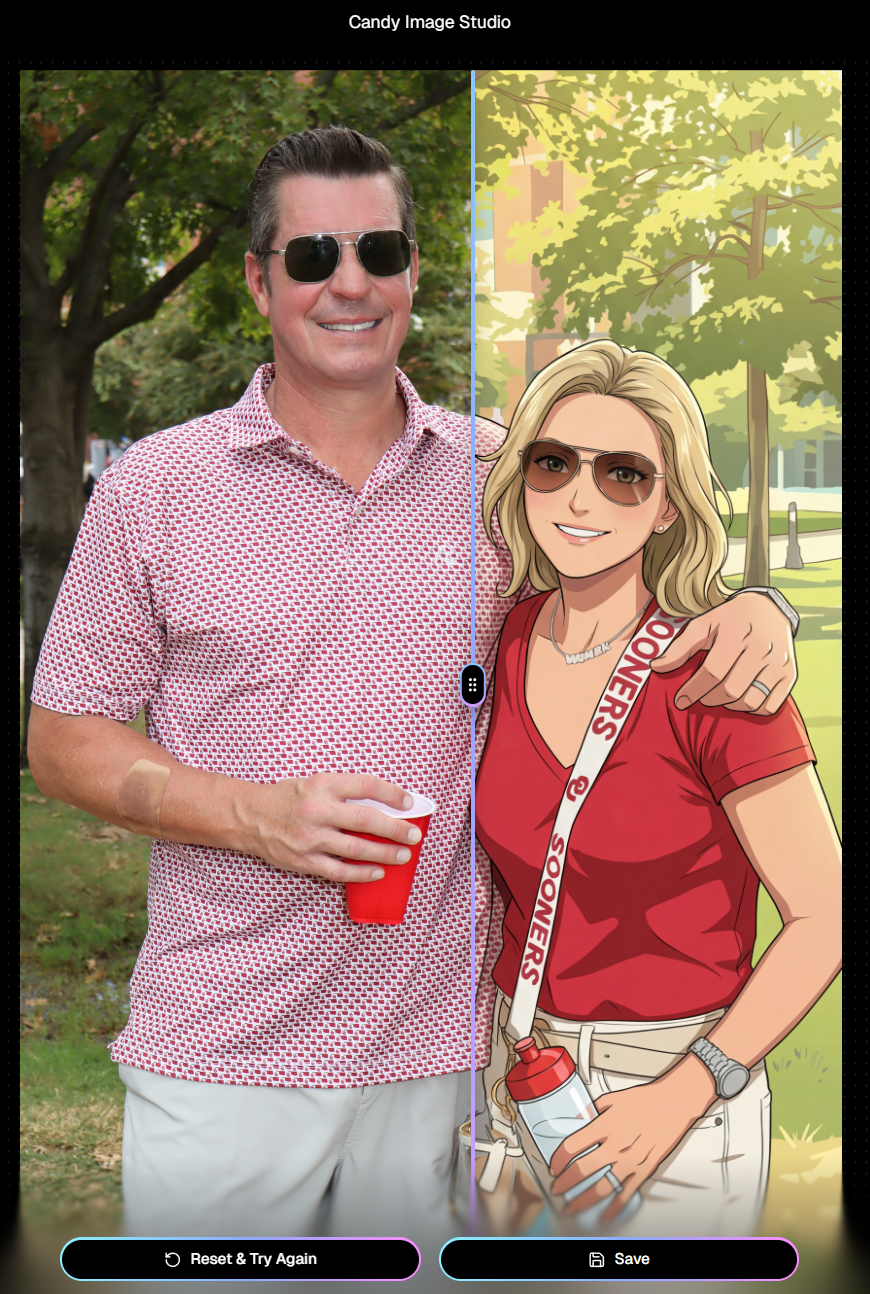
If you haven't checked out the AI editor, give it a try!

🔎 New: Participant Search Across All Events

You can now search participants across your entire account:

  • Search by name or contact info
  • Access via Tools & More, Sidebar Search bar, or "/participants" directly in the URL
  • Supports Candy navigation

Huge time-saver when you can’t remember or don't know which event someone was in.
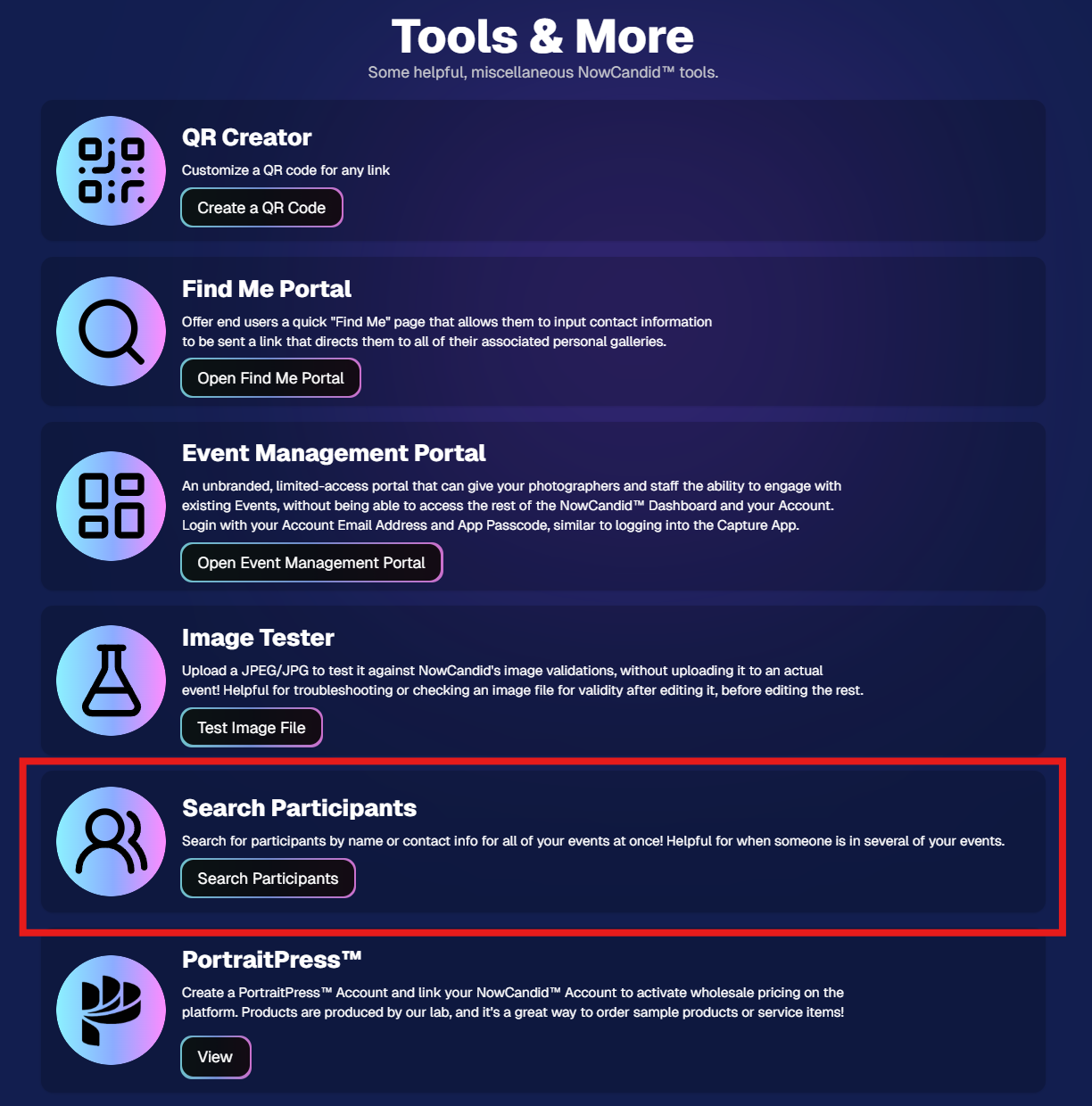
Click here to jump to the Tools & More page

🔳 New Tool: QR Creator

Found under Tools & More, the new QR Creator lets you:

  • Paste in any link (event, check-in, retail, etc.)
  • Customize shape and colors
  • Generate something nicer than a plain black-and-white square
  • Download the new, cuter QR code!

Simple, but useful for signage, flyers, and booths.
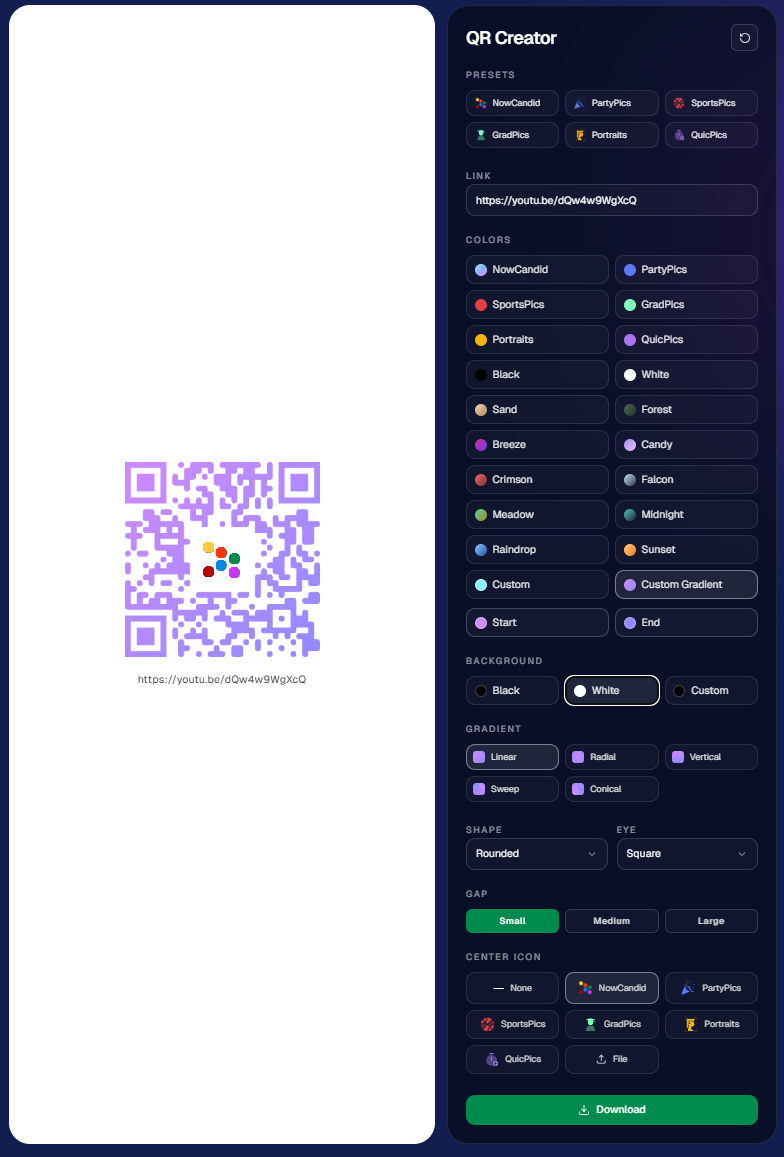
https://app.nowcandid.com/tools/qr

📱 Mobile Dashboard Improvements

🔄 Swipe down to refresh any page (no app update needed, just refresh)

↔️ Swipe left/right in image lightboxes to move between images (desktop users already have arrow keys)

🍬 Overall improved Candy experience on mobile

🖥️ Dashboard Improvements

📂 PhotoRoster upload limit increased to 10,000 members

🏷️ PhotoTag assignment via Edit Folder fixed (won’t remove all tags unless you choose “None”)

👤 Create Participant button re-enabled (shows warning if event is older than 60 days; roster import still disabled for older events)

⚡ Faster event list search for accounts with many events

🖼️ Event cover photo now visually anchors the Event Details & Tags pages

🧾 Fixed overlay import not working properly

🔔 Fixed toast notifications appearing behind popups

🌾 Candy Culler Duplicate detection improvement

  • When using “Duplicates Only” in Candy Culler, duplicates now appear side-by-side for easier reviewing.

🛍️ Retail Improvements

📄 Fixed pagination buttons requiring page jump to function

🏈 Improved Jersey Jotter search speed/performance

🌀 LiveLoop Fixes

🛠️ Fixed certain events stopping after running for awhile

📢 Fixed not being able to upload advertisements

💸 Shipping Update

📦 5×7 Statuette shipping cost reduced thanks to a new shipping method for that product

  • From $7.25 → $3.25 (about 55% lower)

That’s the week!

Bigger AI editing control, faster participant lookup, custom QR codes, and a lighter shipping cost on 5×7 Statuettes.

Keep creating magic,

Candy 🍬

Related articles

NowCandid's Microsoft App: Out Now!
Feature Updates
March 9, 2022

NowCandid's Microsoft App: Out Now!

3
 minutes read

New features you'll find in the app:

  • Supports several new Nikon and Canon models that the previous NOW Candid app did not
  • Customizable App Passcode - ensures you are uploading directly to events in your account & is protected from other user's image uploads
  • New modern design for ease of use
  • More event information now available right from the tablet when logged in
  • Choose between dark or light mode (dark mode looks pretty slick! Try it out!)
  • Added button in settings that instantly pulls up the image hot folder
  • Easier installation and less issues with Window Defender
  • Smarter log out protocols (warnings if all images have not been uploaded)
  • "Upload from SD card" to manually add all images from an SD card to an event.
  • Useful if a camera was not connected to a tablet when images were shot, this provides another way to manually upload
  • OR if you had a second photographer on site without a tablet, they could upload their images through a tablet/laptop before leaving the event

How to uninstall the previous version of the app:

If you have previous versions of the Party Pics® Now app or Now Candid app installed on your device, you will want to uninstall them. Make sure all data and images from any previous events have been transferred prior to uninstalling.

1. Navigate to "Add or remove programs"

2. Search for NowCandid to uninstall

    a. This can be done for "Party Pics Now" or SNAP as well

How to install the new version of the NowCandid app:

You can install the new app by going directly to the Microsoft App Store using this direct link: www.microsoft.com/store/apps. Alternatively,  you can find a link to the store on NowCandid.com/download (must be logged into account to access this page).

How to find your App Passcode to log in on the new tablet:

1. Log in to your account on NowCandid.com

2. Click on App Settings

3. Find or change your App Passcode

Let’s get in touch

If you’re a photographer looking to add NowCandid services to your wheelhouse – set up a call by clicking the button below.

How to customize formatting for each rich text

How to customize formatting for each rich text

How to customize formatting for each rich text

How to customize formatting for each rich text

How to customize formatting for each rich text

What’s a Rich Text element?

The rich text element allows you to create and format headings, paragraphs, blockquotes, images, and video all in one place instead of having to add and format them individually. Just double-click and easily create content.

A rich text element can be used with static or dynamic content. For static content, just drop it into any page and begin editing. For dynamic content, add a rich text field to any collection and then connect a rich text element to that field in the settings panel. Voila!

Headings, paragraphs, blockquotes, figures, images, and figure captions can all be styled after a class is added to the rich text element using the "When inside of" nested selector system.

  • List One
  • List Two
  • List Three
  • List Four
  • List Five

This is a link

This is bold text