HomeNavigation arrowBlogNavigation arrow
Current page
Feature Updates

Weekly Recap: Express Checkout Confirmations, Capture App Speed Testing, and a New Lightroom Classic Plugin

Weekly Recap: Express Checkout Confirmations, Capture App Speed Testing, and a New Lightroom Classic Plugin
Hey photo friends! 👋


This week’s updates are all about clearer customer actions, smoother retail performance, and new tools that speed up upload workflows. Plus, a strong round of Capture App polish (iOS & Android OTA) and some important Dashboard + Marketing fixes.

Let’s jump in. ✨

🛍️ Retail: Fewer Mis-clicks, Better Previews, Faster Feel

✅ Express Checkout confirmation (all express checkouts)

All express checkout flows now show a confirmation popup that clearly displays the shipping address selected, with options to place the order or go back. It also includes an invalid address popup.

Previously, people would sometimes purchase without double checking their express-checkout-method's default shipping address. So, this change is designed to reduce address mistakes and improve customer experience!
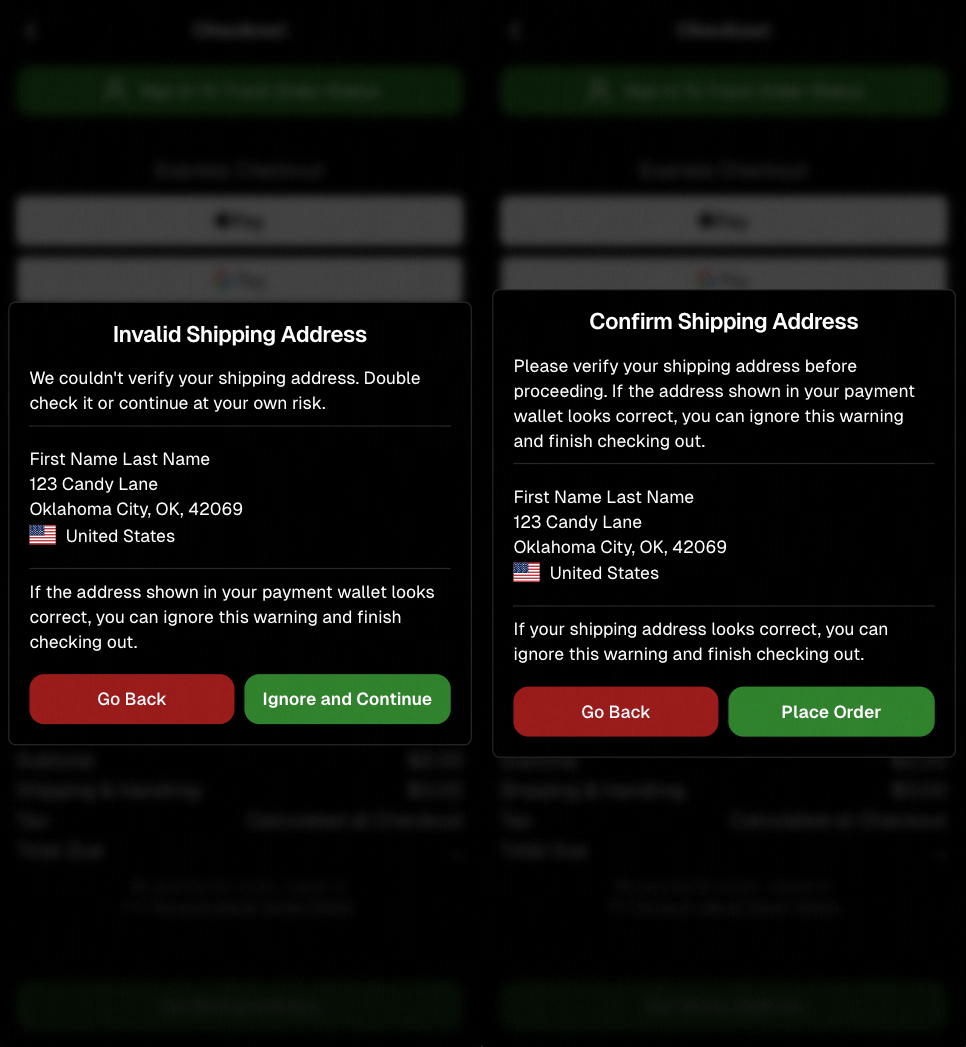
Confirmation popup now clearly displays shipping address confirmation.

🧠 Better UI + performance improvements

  • Improved local rendering (performance, memory usage, and task handling) — originally aimed to improve the retail experience on low-end devices, but it should make most devices feel faster!

  • Native “leave page” confirmation on supported browsers/devices (desktop + Samsung back button) when navigating away from an event page (refresh/back).
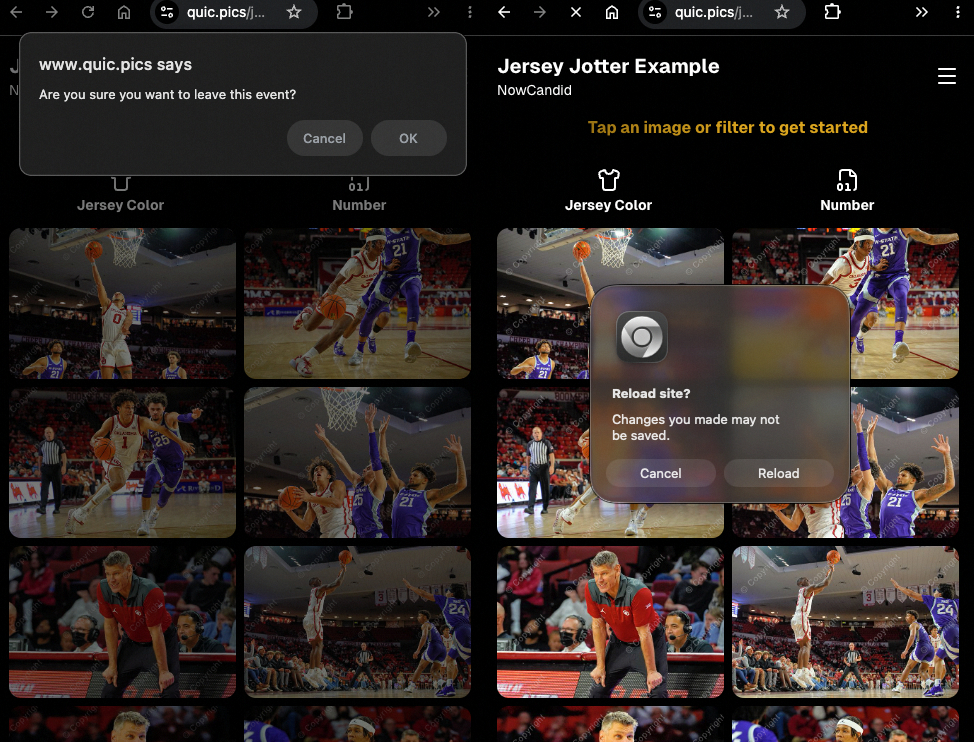
Leave page confirmation

🖼️ Clearer package download expectations + better pickers

  • Personal Gallery Downloads on store sheet and package editor now show “+X Images” in the configurator when there are more than 4 images—so customers don’t think they only get what’s previewed.
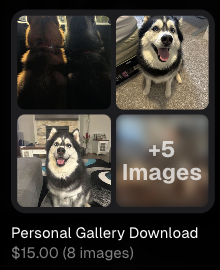
Personal Gallery Download "+X Images"

    • Personal Gallery Download products inside packages can now be clicked to preview contents.

    • Desktop product/package image pickers are now two columns (like mobile), allowing larger image preview during selection.
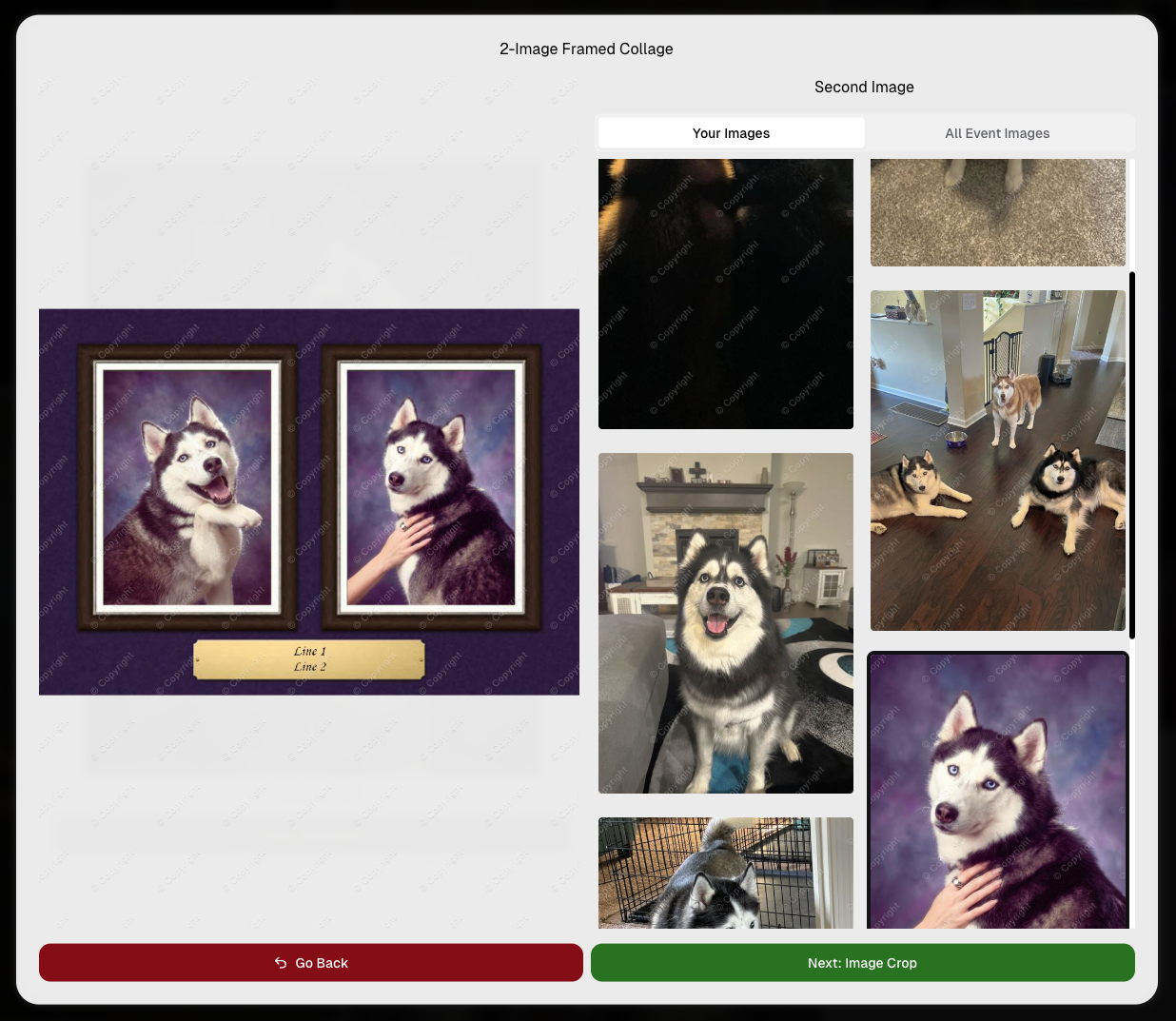
    Larger two column image previews

      • Image Filters landing popup now includes “Browse all photos without a filter” so customers who think they must pick a filter know they can also just browse!
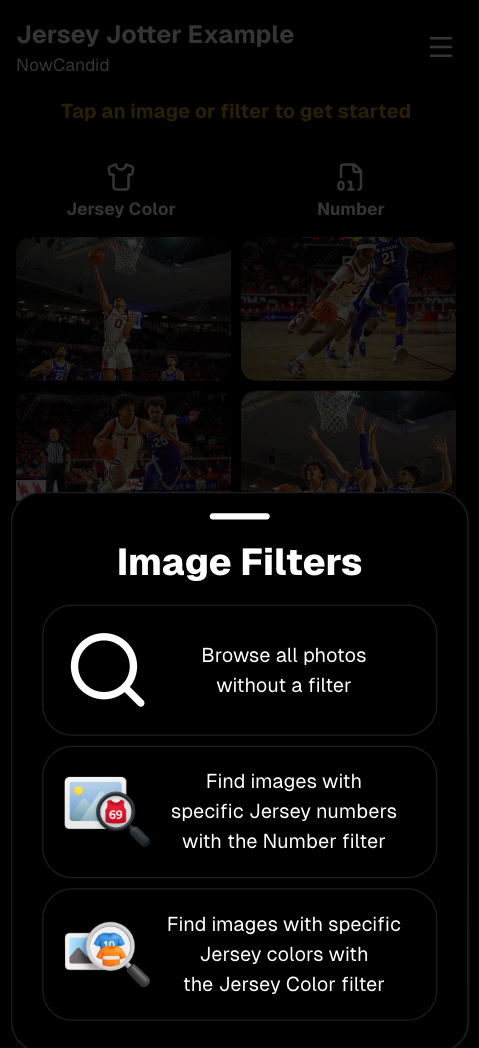
      Image Filters landing popup

      🧩 Retail fixes worth noting

      • Fixed a slashed discount amount showing on week 3 when there is no higher amount.
      • Fixed a GalleryGuard edge case that could close the retail site on some Android devices that support mobile context menus when long-pressing.
      • Fixed a race condition where a Group-by-Face gallery loaded from URL params could show default results instead of the filtered view.
      • Fixed an edge case where manually assigned images marked as group could behave like non-group images on retail.

      📱 Capture App OTA: 5.6.1 & 5.6.2 (iOS & Android)

      🌐 NEW: Network Speed Test (5.6.1)

      A new Network Speed Test button is available in Resources. Tap Run Test to check download speed, upload speed, and latency to NowCandid servers (so results may differ from Google/Ookla). It’s a quick test (downloads 5 MB, uploads 2 MB) and is useful for diagnosing weak or congested service during events.

      Mbps is a standard measurement for connection speeds, and 1 megabit per second (Mbps) is 0.125 Megabytes per second (MB/s). So 8 Mbps is 1 Megabyte per second, max. For example, with images that are 10 Megabytes in size, a speed of 8 Mbps would take a minimum of 10 seconds to upload. When speeds are very slow, image uploads may be impossible due to uploads timing out and restarting. In these cases, open the app when you have a stronger connection and all your images will start going up!
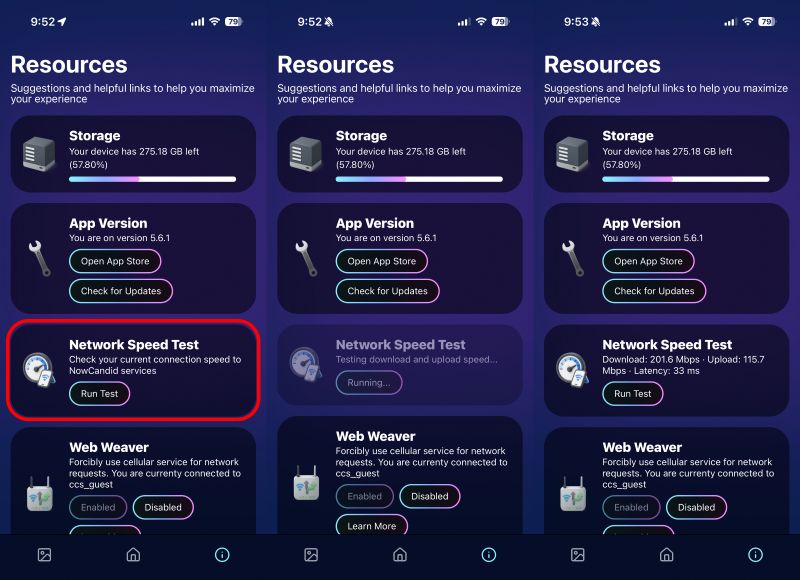
      Network Speed Test

      🎪 Photo Booth + Selfie Check-In Station UI upgrades (5.6.2)

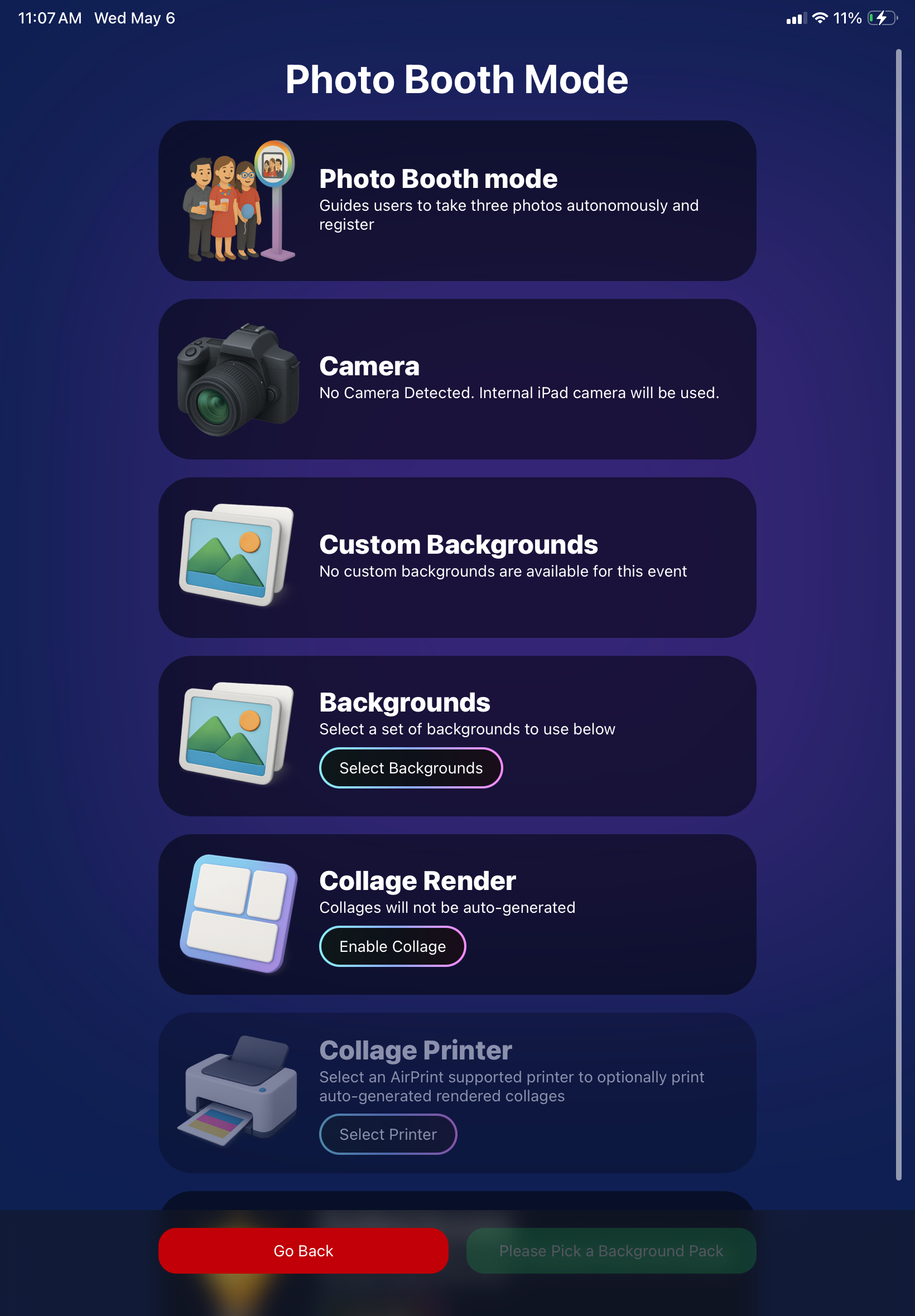
      • Photo Booth landing page updated to be more user-friendly (always-visible scrollbar, updated text, sticky go back/continue buttons, red/green emphasis, and a popup explaining why Continue is greyed out).
      • Selfie Check-In Station landing page updated with red/green Go Back / Begin buttons.
      • New dropdown icon beside Group Photo toggle (when an event has PhotoTags) to better display there are additional options to assign PhotoTags.
      • Fixed edge case cancel/continue behavior on Selfie Check-In Station when no contact info was entered.
      🧩 NEW: Lightroom Classic Plugin (Official)

      We’ve launched an official Lightroom Classic plugin to upload images to NowCandid events directly from Lightroom Classic.

      Key notes:

      • Lightroom Classic only
      • Same image rules apply (color profile, DPI, etc.)
      • Uses Capture App login
      • Only events within 60 days of event start date show in the selector
      • Image Details → Logs will show “Uploaded from NowCandid Lightroom Plugin”
      • Docs include guide/download/installation: https://app.nowcandid.com/docs/tools-more/lightroom
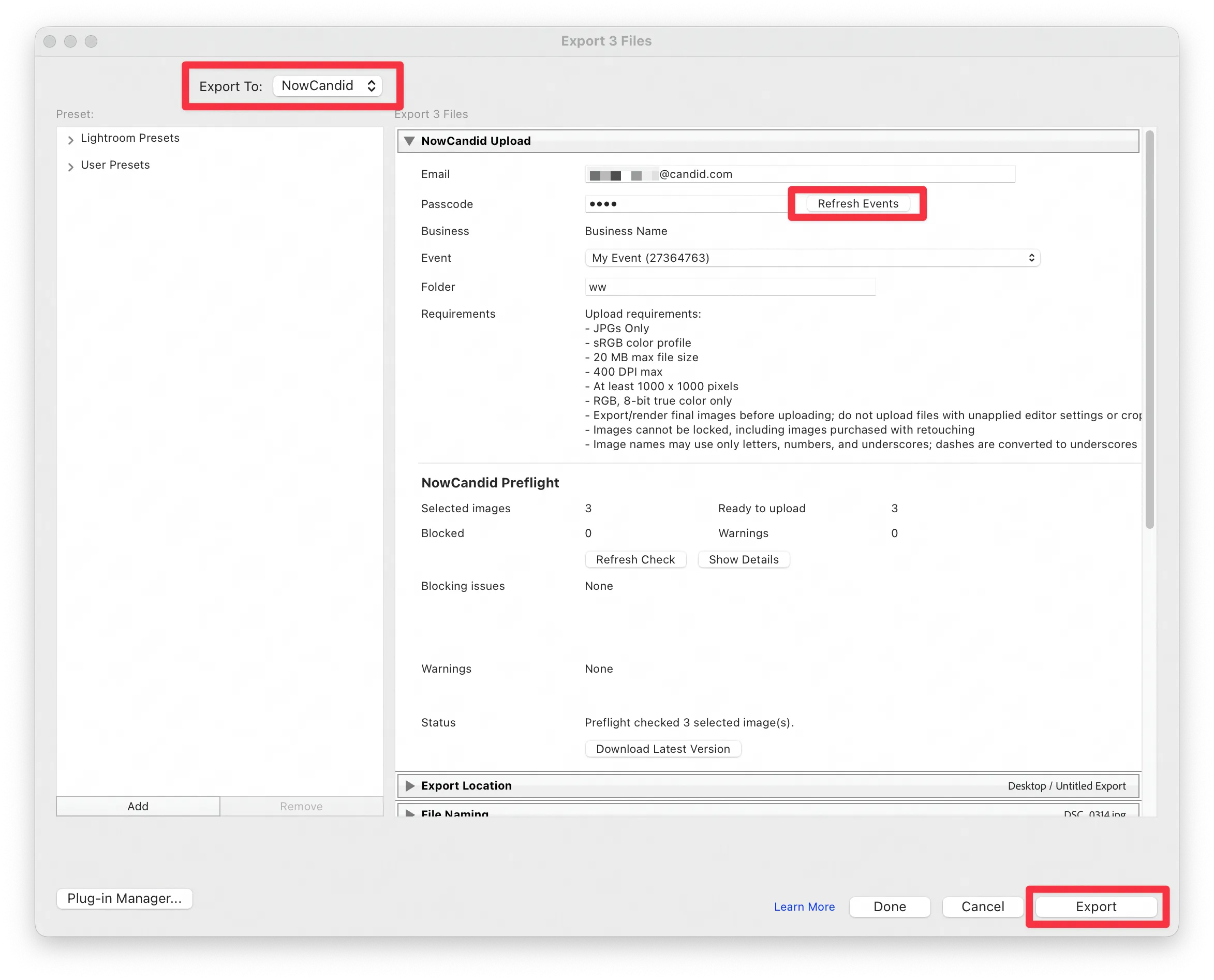
      Lightroom Classic Plugin

      Upload from NowCandid Lightroom Plugin

      🖥️ Dashboard: Upload & Roster Clarity + Small UX Wins

      • Event roster upload and PhotoRoster upload now warn about every unrecognized column, making it easier to spot misspellings (especially for optional columns).
      • Participant list page download now puts additional contacts into columns instead of rows.
      • Participant list download now puts merged contacts into their own row if they have different first/last names.
      • Image upload naming cleanup:
        • spaces/parentheses now automatically become underscores (e.g., Image (2)Image_2)
        • names ending in z now get a trailing underscore (e.g., ImagezImagez_)
      • Candy got even better at using the new Docs for responses.
      • Password reset now shows a clear “Your link has expired” screen (links expire after 24 hours).
      • Fixed participant filter inside another participant’s manual assign/unassign page not working properly.
      • Participant Details PhotoTag assignment UI: merged participants no longer incorrectly show PhotoTags as assigned.
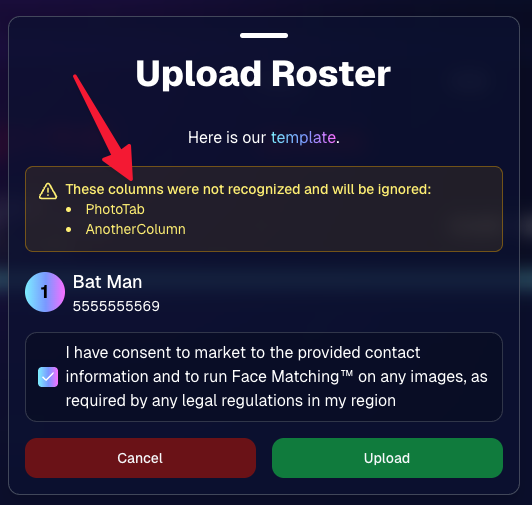
      Upload Roster now warns about every unrecognized column.

      📣 Marketing Fixes

      • Fixed edge cases where galleries that were only AI-edited images could cause follow-up email marketing issues and show as 0 images on Participant List.
      • Fixed Day0 marketing edge case not starting if gallery is just AI-edited images.
      • SMS gallery links now include “View photos:” before the gallery URL to reduce confusion where some users thought the gallery link was an unsubscribe link.

      That’s the week! 💫

      Between the Lightroom Classic plugin, the Capture App’s new Network Speed Test, and retail improvements that reduce confusion (and improve performance), this week was packed with practical wins you’ll feel right away.

      Keep it sparkly,

      Candy
      Related articles

      Weekly Recap: Profile Logos, Faster Packages, and a Revamped Event Management Portal
      Feature Updates
      April 17, 2026

      Weekly Recap: Profile Logos, Faster Packages, and a Revamped Event Management Portal

      5
       minutes read

      Hey photo friends! 👋

      This week’s updates are all about cleaner branding, smoother selling, and better visibility across your workflows—from a new profile/business logo system to big package configurator performance improvements, plus a long-awaited refresh of the Event Management Portal (EMP) ahead of grad season.

      Let’s jump in. 💫

      🖥️ Dashboard Updates

      📣 Client Outreach: Texts now require a URL

      Client Outreach SMS messages now require a URL to be included—helping ensure every text has a clear destination and call-to-action.

      🧾 Reports: “Participants” terminology restored for accuracy

      The Events Report, Compare Report, and Faces Report now use Participants instead of Contacts.
      Reminder: a Contact is someone with info; a Participant is a contact with at least one image in their gallery. This avoids deflating stats with unmarketable contacts.

      🧰 Candy Culler usability win

      • Added a Download Image button to the Image Details lightbox on the Candy Culler page.

      🖼️ Better controls in Participant lightboxes

      • Added a visibility toggle to the Image Details lightbox on the Participant Details page.

      🔍 New Event List filters

      The Event List page now includes quick filters for:

      • Background Removal events
      • JerseyJotter events
      • Candy Culler events

      🖼️ Offer background minimum lowered

      You can now set your Offer background selection minimum to 5 (previously 20).

      🚚 New flat-rate shipping option

      Added $2.50 flat-rate shipping as an available shipping option.

      📱 Mobile Dashboard

      • Fixed an issue where Friday weekly sales notifications were not sending.

      🏷️ New: Profile / Business Logos (Branding Upgrade)

      You can now assign a business/profile logo—upload to your profile icon on the dashboard as a 650×650 image and automatically cropped to a circle.

      Where it appears:

      • Dashboard profile page + navigation
      • Retail contact popup above your business name
      • Receipt emails, web receipt preview, and the web receipt download page
      • Event Management Portal (EMP) header beside your business name
      • Private Image Download Gallery (PIDG) header
      • Public Event Tag List page header

      More placements are planned in the future—this is the first step toward a more consistent, professional brand presence everywhere your customers interact with you.

      🏷️ Event Tag List Page

      • Improved UI for a cleaner, easier experience.

      🔒 Private Image Download Gallery (PIDG)

      • Improved UI
      • Added a note to the landing popup regarding released images

      🛍️ Retail Improvements (Big Week for Packages + Rendering)

      🖼️ Captions render earlier for key products

      Graduation Plaque and Titled Luxe Prints now render custom captions earlier in the process, rather than waiting until the captions step.

      📦 Package configurator upgrades

      The package configurator received several improvements:

      • Added pagination to the All Gallery tab in the “Next Package Item Image Picker” step
      • Added a “Discard package progress?” popup when backing out after configuring at least one item to prevent accidental loss of progress
      • Fixed an edge-case crash on mobile when configuring large packages in offers with 3D items
      • Overall package configurating is now much more performant

      🧩 Z-Crop improvements

      Several improvements were made to ZCrop images to improve behavior and consistency.

      🏷️ Group photo refresh fix

      Fixed user-added dynamic gallery group photos showing as not group after refresh.

      🎨 Background order consistency

      Custom offer background order now matches the order in the offer details editor—drag and drop reordering on the dashboard offer editor.

      📸 Capture App (iOS & Android OTA): 5.4.3 + 5.4.4

      • 5.4.3: Fixed a crash when toggling a Group Photo without any service
      • 5.4.4: Fixed a keypad popup issue on very large screens (like 13” iPad) where opt-in/cancel buttons were being cropped out

      🧾 Event Management Portal (EMP) — Major Refresh (quic.pics/portal)

      Quick reminder: the Event Management Portal (EMP) is a mini-dashboard on quic.pics that uses the Capture App login—so you can do “dashboard-like” tasks without downloading an app or using a full account login. It hasn’t been talked about much lately, but this week it got a big refresh in preparation for grad season.

      What’s new:

      • Improved security
      • Tons of UI changes and a new dark-only theme
      • Event list page now includes a search bar
      • Event list page updated to “Live on Capture App” (instead of “Active”)
      • Event list page shows attributes like the main Dashboard + adds an Event Number column
      • Header now shows business name and logo
      • Fixed a crash on the Marketing History page
      • Added text/email filter on Marketing History
      • Images now use lightboxes with arrow key navigation
      • Participant Details now shows Additional Contacts
      • Participant Details now shows Invisible images

      That’s the week! 💫

      Between profile/business logos, a smoother package configurator, better report accuracy, and the EMP glow-up for grad season, this update should help you move faster, look more professional, and reduce friction across the whole customer experience.

      Keep creating magic,
      — The NowCandid Team 🍬

      Weekly Recap: Titled Luxe Prints, Zoom Cropping, and Candy Image Studio “From Scratch”
      Feature Updates
      April 10, 2026

      Weekly Recap: Titled Luxe Prints, Zoom Cropping, and Candy Image Studio “From Scratch”

      5
       minutes read
      Hey photo friends! 👋

      This week’s updates are a fun mix of new products, new visual workflows, and small-but-important fixes that make day-to-day work smoother—especially across Candy Image Studio, retail packages, and PhotoRoster/PhotoTag downloads.

      Let’s jump in. ✨

      📣 Dashboard: Client Outreach + Workflow Quality-of-Life

      Client Outreach email history is easier to use and more reliable:

      • Added a “View” button in Client Outreach email history so you can open the sent email in a new tab (similar to how order receipts work).
      • Fixed an issue where email status didn’t always show for all emails in the status list.

      More clarity when reviewing participant galleries:

      • The Participant Details page now shows invisible images, clearly marked in red with an “Invisible” label—so you can understand what’s hidden without guessing.

      PhotoTag participant gallery downloads got safer:

      • Fixed PhotoTag participant gallery downloads overwriting images when multiple files shared the same frame.
      • Fixed the download count displayed on the download button being off.

      🎨 Candy Image Studio: Create Without an Input + A New Node

      Candy Image Studio has two notable upgrades this week:

      🧠 No input image required (generate from scratch!)
      Candy Image Studio no longer requires an input image to get started. You can generate from scratch using the “From Scratch” node (at the very bottom), or by starting from custom text or a custom image—great for things like creating portrait backgrounds or creative assets.

      🆕 New “Bobblehead” node
      A brand-new Bobblehead node is now available inside Candy Image Studio.

      Disclaimer: This is not a new product. This is an image node in the Candy Image Studio.

      🏈 Jersey Jotter + Event Settings Cleanup

      Jersey Jotter settings were removed from the Create/Edit Event popup.
      Since Jersey Jotter now has its own dedicated page, we pulled those settings out of the event popups to keep Create Event as minimal (and fast) as possible—and keep Edit Event aligned with Create.

      New: “Auto Enhance” can be turned off in Create/Edit Event.
      Important clarity here:

      • Auto Enhance isn’t new — it has always been enabled by default.
      • What’s new is the ability to turn it off from the Create/Edit Event popup.
      • It’s labeled “Auto Enhance” (not “Retail Enhancement”) because it affects more than retail, including things like LiveLoop, Dashboard previews, Shareable Download Gallery, and more.
      • Note: this setting only impacts images uploaded after you change it. (So anything already uploaded keeps whatever enhancement state it had at upload time.)

      🛍️ Retail: Package Backgrounds + Fixes

      A few retail improvements landed to reduce confusing edge cases:

      • When selecting a PNG (without a faux background render) during the “Next Package Item Image Picker” step, the chosen background will now default to the first background in the background picker list (instead of the purple default).
      • Fixed an issue where the background selector step didn’t always appear for non-faux BGR images.
      • Fixed a crash related to having Wall Clings in packages.
      • Updated the Free Download description to: “Free simple, full-resolution download of your image.” (Previously it implied lower resolution.)

      🔍 NEW: Zoom Cropping “Z-Cropping” (Dashboard + Retail)

      In Advanced Offer Settings, you can now enable Zoom Cropping, which automatically adds an additional image into the customer’s gallery that is zoom-cropped toward their face.

      Details & rules:

      • ✅ Works on Face Matching Events
      • ✅ Works only on images with one face
      • ✅ All default graduation offers/price levels now have Zoom Cropping enabled
      • Behind the scenes, it applies a ~30% zoom toward the face, with an additional ~30% pull from the center of the image toward the face (clamped to avoid cropping beyond image bounds)

      This is a great “quiet upgrade” for grads and portrait-style moments where customers love a tighter crop—without you needing to manually create it.

      🖼️ New Products: Titled Luxe Prints (Dashboard + Retail)

      Two new products just landed:

      • 5×7 Titled Luxe Print
      • 8×10 Titled Luxe Print

      Want to see the 3D preview?
      https://app.nowcandid.com/3d/titled-luxe-print

      New: “Edit Titled Luxe Print” Page (per event)
      There’s a new event-level page available in the Dashboard sidebar only if one of the new titled products is included in the event’s offer. From there, you can:

      • Set default captions
      • Select left/right logos
      • Preview the 3D render
      • (Easter egg: rotate the render and you can spot your business name on the backprinting.)

      Notes:

      • Default captions and logos are optional
      • Retail shoppers can change captions when ordering
      • Logo requirements: upload/import a 650×650 transparent PNG
      • Retail supports both 2D + 3D renders, including your custom logos
      • Order Details pages now display the selected logos, similar to how we show captions and colors

      That’s the week! 💫

      Between Zoom Cropping, Titled Luxe Prints, and Candy Image Studio’s new From Scratch flow (plus a pile of cleanup across retail + downloads), this update adds a lot of power without adding extra complexity.

      Keep creating magic,
      — Candy 🍬

      Big News: Introducing Client Outreach 🚀📣
      Feature Updates
      April 3, 2026

      Big News: Introducing Client Outreach 🚀📣

      6
       minutes read
      Hey photo friends! 👋

      This is a big one.

      We’re excited to introduce Client Outreach — a brand-new tool that lets you reach your customers directly with one-off texts and emails, completely separate from your normal event marketing.

      Whether you’re following up after an event, promoting future bookings, or nudging people who missed check-in… this gives you a simple, flexible way to stay connected.

      Let’s break it down 👇

      📣 What is Client Outreach?

      Client Outreach lets you:

      📩 Send one-off emails and texts

      👥 Build contact lists from:

      • Existing events
      • Uploaded spreadsheets
      • Or both combined

      🎯 Filter contacts based on:

      • Contacts with matched images
      • Contacts without matched images
      • Or everyone

      This is not automated campaign messaging — it’s intentional, targeted outreach when you need it.

      👥 Build Your Audience, Your Way

      When creating an outreach list, you’ve got flexibility:

      • Pull contacts from one event, multiple events, or none
      • Upload your own spreadsheet of contacts
      • Combine both sources into one list

      And when using events, you can choose:

      • Only people with images
      • Only people without images
      • Or everyone

      That opens the door to some really useful workflows (more on that below 👀).

      💬 SMS Outreach (Simple & Familiar)

      Sending texts is designed to feel easy and familiar.

      🧾 Uses a QuicPics-style editor + preview

      ✍️ Write your message and send to your list

      🔗 Include links (galleries, check-in, etc.)

      💸 Pricing:

      $0.01 per segment, per text

      A segment is roughly:

      • ~140 characters (standard text)
      • ~65 characters (if using emojis)

      Longer messages may use multiple segments (typically 2–4).

      📧 Email Outreach (Powered by Candy 🤖)

      This is where things get really fun.

      Instead of building emails manually…

      👉 You just describe what you want, and Candy builds the email for you.

      ✨ How it works:

      Tell Candy things like:

      • What the email should say
      • What tone you want (fun, professional, urgent, etc.)
      • What your call-to-action button should say
      • Where that button should link

      Candy will:

      ✍️ Write the email

      🎨 Design the layout

      🧠 Generate a subject line

      🏷️ Pull in your business info automatically

      No HTML. No formatting headaches. Just describe it.

      🧠 Even Smarter with Events

      Every outreach must be tied to an event (for billing/history), but that unlocks some extra power:

      If your outreach is related to that event, Candy can pull in things like:

      🔗 Check-in links

      🖼️ Cover photos

      🖼️ Gallery links

      And more!

      👉 You can still override this and use your own URLs — Candy will follow your instructions.

      📬 Sending Details

      Emails are sent from:
      your-business-name@quic.pics

      Your business name is prominently shown in the inbox

      You can edit the subject line Candy generates before sending

      💸 Email Pricing

      $0.01 per 10 emails (rounded up)

      Examples:

      • 10 emails = $0.01
      • 11–19 emails = $0.02

      🖼️ Bonus Tip: Include Images in Emails

      If you have direct image URLs, you can give them to Candy and ask her to include them in the email.

      Not sure how to get those? Google is your friend on this one 😄

      📊 Track Performance

      Just like order receipts, you can see:

      👀 Opens

      🖱️ Clicks

      ❌ Bounces

      So you know what’s working.

      💡 Real-World Use Cases

      Here are just a few ideas:

      📸 Catch Missed Check-Ins

      Send a Selfie Check-In link after an event using a roster from a school or organizer.

      📅 Promote Future Events

      Reach past customers and say:
      “Hey, we’re photographing again next week!”

      🏈 Action Sports Galleries

      Send All Images Gallery links when using Jersey Jotter (where face matching isn’t ideal).

      🧑‍🤝‍🧑 New Group Photos Added

      Let people know:
      “Your group photos are now live!”

      📝 Post-Event Surveys

      Send feedback forms to improve your next event.

      🔔 Picture Day Reminders

      Get ahead of the event with reminders to increase participation.

      And that’s just scratching the surface.

      🎯 Simple, Flexible, Powerful

      Client Outreach is designed to be:

      ✅ Easy to use

      🎯 Highly targeted

      🔄 Flexible for different workflows

      💸 Cost-effective

      You’re in control of when, who, and what you send.

      This is one of those tools that grows with you — whether you’re running small events or large-scale operations.

      We can’t wait to see how you use it! 👀

      More soon,

      Candy 🍬

      Let’s get in touch

      If you’re a photographer looking to add NowCandid services to your wheelhouse – set up a call by clicking the button below.

      How to customize formatting for each rich text

      How to customize formatting for each rich text

      How to customize formatting for each rich text

      How to customize formatting for each rich text

      How to customize formatting for each rich text
      How to customize formatting for each rich text

      What’s a Rich Text element?

      The rich text element allows you to create and format headings, paragraphs, blockquotes, images, and video all in one place instead of having to add and format them individually. Just double-click and easily create content.

      A rich text element can be used with static or dynamic content. For static content, just drop it into any page and begin editing. For dynamic content, add a rich text field to any collection and then connect a rich text element to that field in the settings panel. Voila!

      Headings, paragraphs, blockquotes, figures, images, and figure captions can all be styled after a class is added to the rich text element using the "When inside of" nested selector system.

      • List One
      • List Two
      • List Three
      • List Four
      • List Five

      This is a link

      This is bold text