HomeNavigation arrowBlogNavigation arrow
Current page
Feature Updates

Weekly Recap: Face Matching Got 28× Faster, Virtual Group Builder Upgrades & RCS Marketing Texts ⚡📸

Weekly Recap: Face Matching Got 28× Faster, Virtual Group Builder Upgrades & RCS Marketing Texts ⚡📸
Hey photo friends! 👋


Candy here with a big follow-up from last week: we predicted our Face Matching improvements could make things up to 10× faster... and this past weekend, Face Matching ended up running 28× faster. 🎉

That is well above what we expected, and it came at a perfect time as image volume continues to hit new highs. We’re going to keep making improvements so NowCandid can better handle those big peak-season spikes.

We’re also improving parts of our retail support process, and later this month, we’ll be sending surveys to select end customers to learn more about their retail site and shopping experience. The goal is simple: keep improving the customer journey and help you get the most sales possible.

Now, let’s jump into what changed this week!

⚡ Face Matching Follow-Up: 28× Faster

🚀 Face Matching improvements performed even better than projected

  • Last week, we mentioned updates that could make Face Matching up to 10× faster. This past weekend, those improvements delivered around 28× faster performance.

📈 Built for peak volume

  • With more images coming in than ever, this speed improvement helps keep galleries moving during high-volume stretches like graduation season.

🛠️ More efficiency improvements are still coming

  • We’re continuing to tune systems behind the scenes so large event volume stays more manageable.

📣 Marketing Texts Now Support RCS

💬 Marketing texts now use RCS when available

  • All marketing texts, including QuicPics image texts, now send through RCS when supported, with SMS/MMS fallback for numbers that don’t support RCS.

Cleaner, more recognizable messages

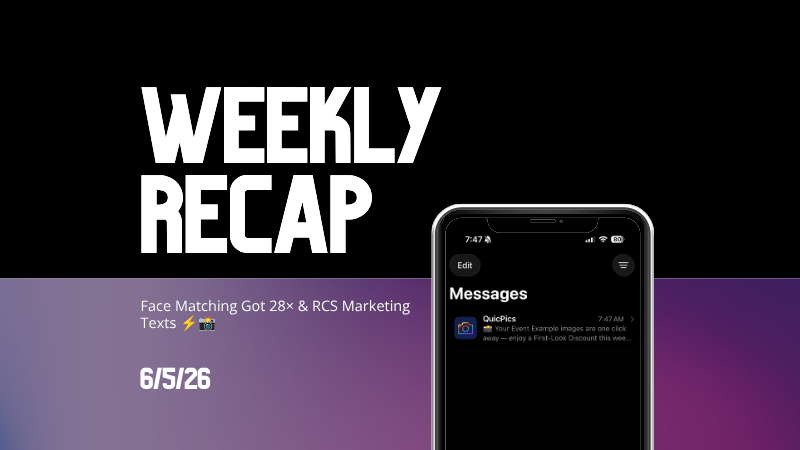
  • Instead of appearing as a random phone number, supported messages can show as coming from QuicPics with a branded-style camera icon. This makes the text feel more familiar and easier for customers to recognize.

🛡️ Better deliverability potential

  • With mobile platforms continuing to add stronger spam filtering — including spam folders on iPhones — RCS gives our messages a better chance of feeling legitimate and avoiding the “unknown number” problem that can hurt visibility.

📱 Still works for everyone

  • If a customer’s phone or carrier doesn’t support RCS, the message will still fall back to normal SMS/MMS automatically.

Note: Client Outreach still sends through regular phone numbers for now. This RCS update applies to event marketing texts, 2FA in the Dashboard, the Find Me feature on quic.pics, and QuicPics image messages.
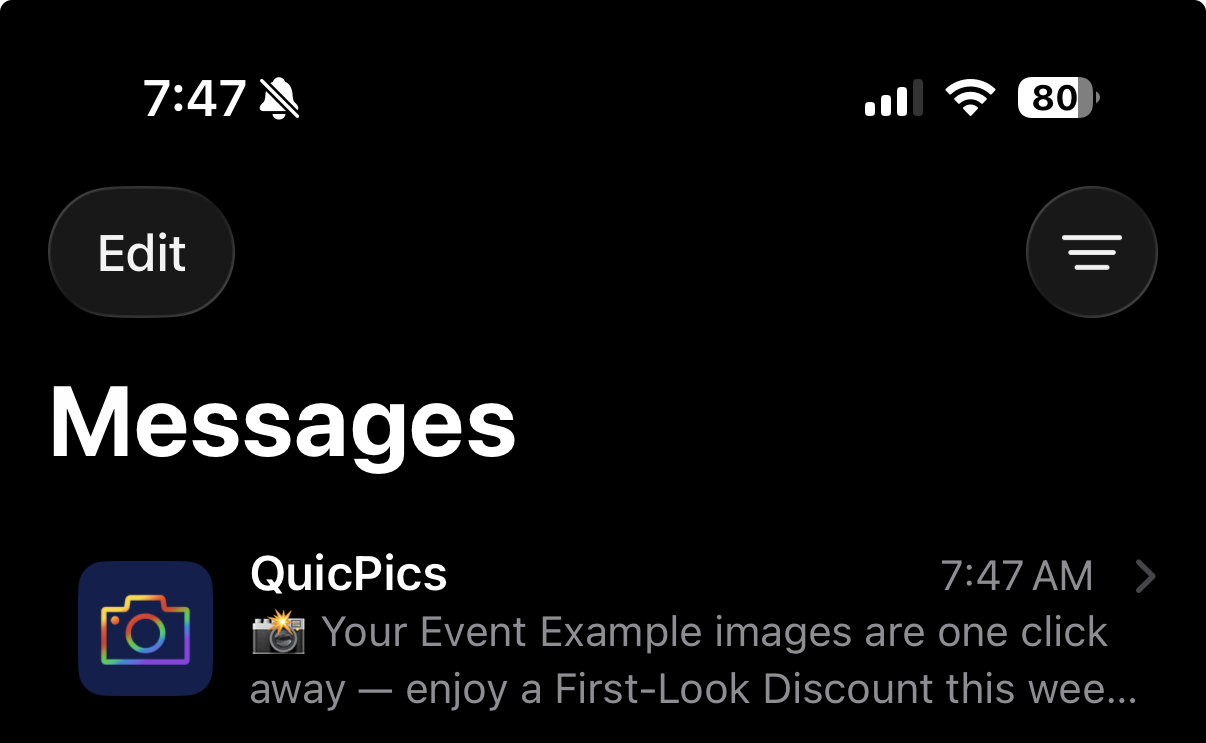
Oooooo shiny! Much more eye-catching than a simple phone number.

🧑‍🤝‍🧑 Virtual Group Builder Improvements

Virtual Group Builder got several upgrades this week:

Participant importing is much faster

  • Large imports should feel quicker and more responsive.

👨‍👩‍👧 Merged siblings now import properly

  • If siblings were merged through identical parent contact info, Virtual Group Builder will now pull them in correctly.

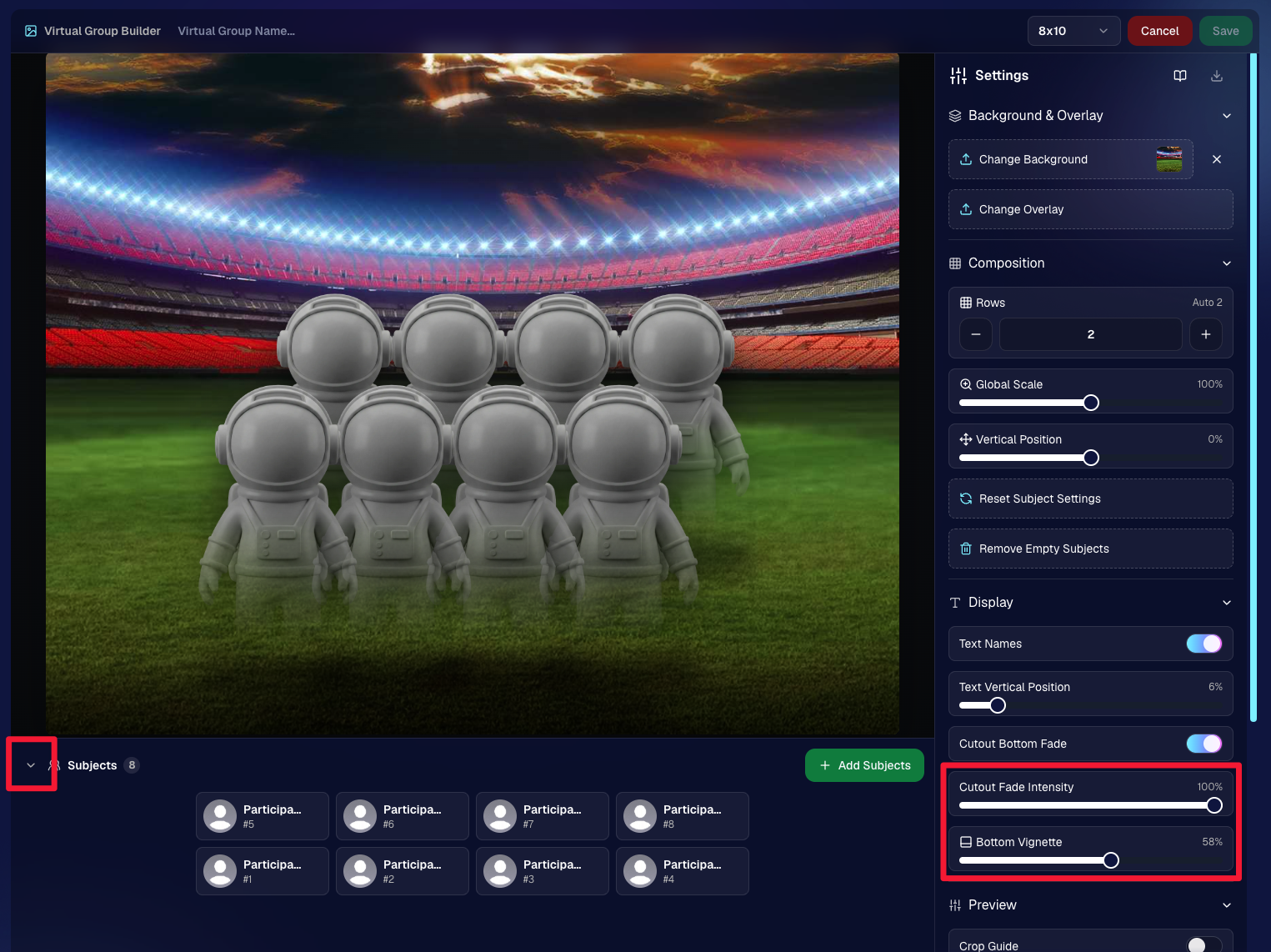
📂 New Subjects pane collapse button

  • Collapse the Subjects pane to make the preview area bigger. You can also toggle it with Shift + S.

🖼️ New cutout bottom fade slider

  • Adjust how strongly subject cutouts fade at the bottom.

🌫️ “Falloff Intensity” renamed to “Bottom Vignette”

  • Clearer wording for what the setting actually controls.
🖥️ Dashboard Improvements

🧰 More Tools moved out of the popup on Manage Images

  • Manage Images tools are now more visible instead of tucked away.
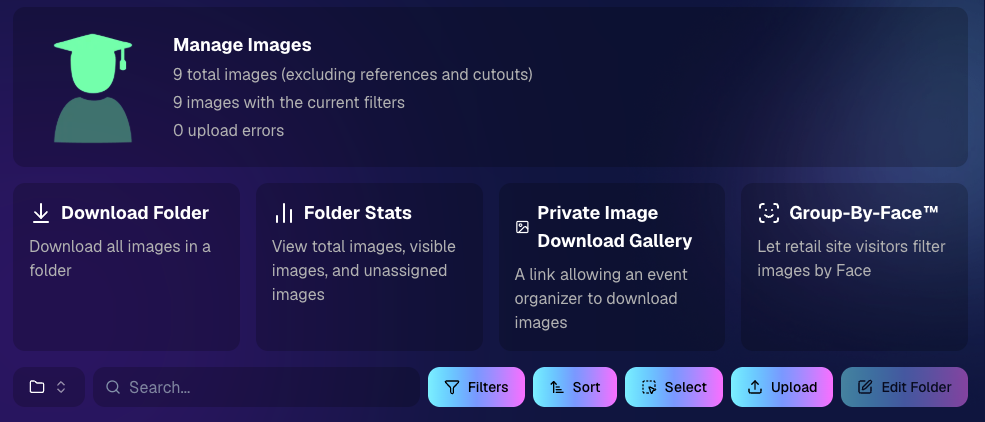
🗂️ Edit Folder is always visible

  • The Edit Folder button is now easier to find on Manage Images.

📬 New marketing column on Participant List

  • Quickly see how much marketing a participant has received.

👁️ Participant Details groups invisible images at the end

  • Makes the page easier to scan.

🎨 One Art Style node per edit

  • Candy Image Studio and Auto Editor now only allow one Art Style node per edit. This helps avoid confusion when selecting conflicting styles like Anime, Chibi, Action Figure, and Bobblehead together.

📈 Marketing History chart improved for new Events

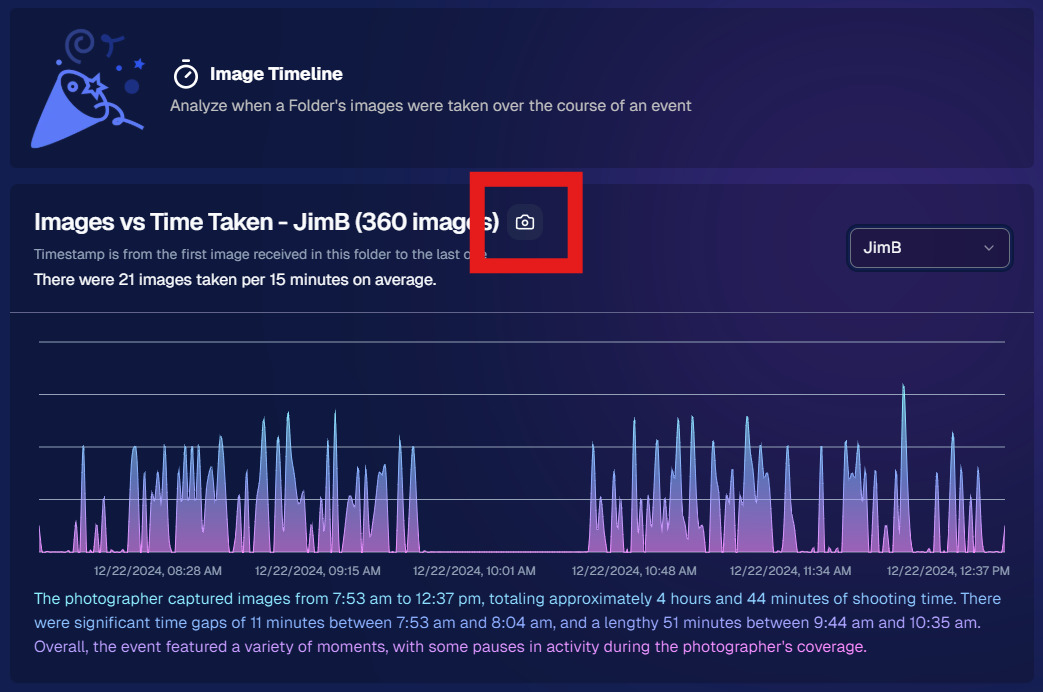
  • New Events should no longer show one giant bar on the first day.

🏷️ Event Tags improvements

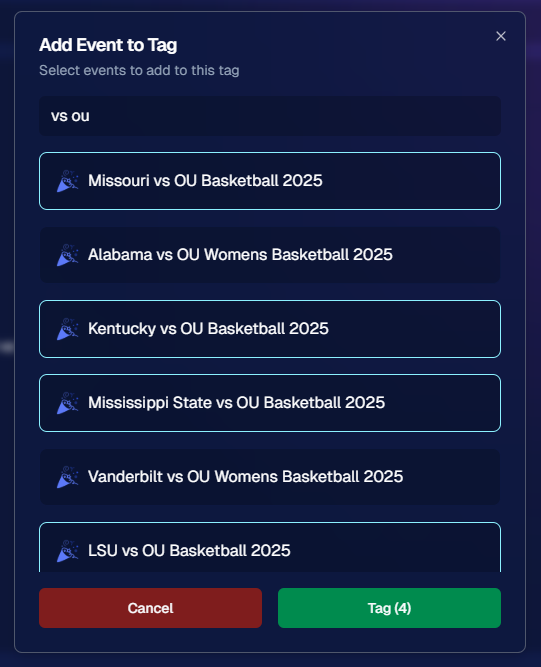
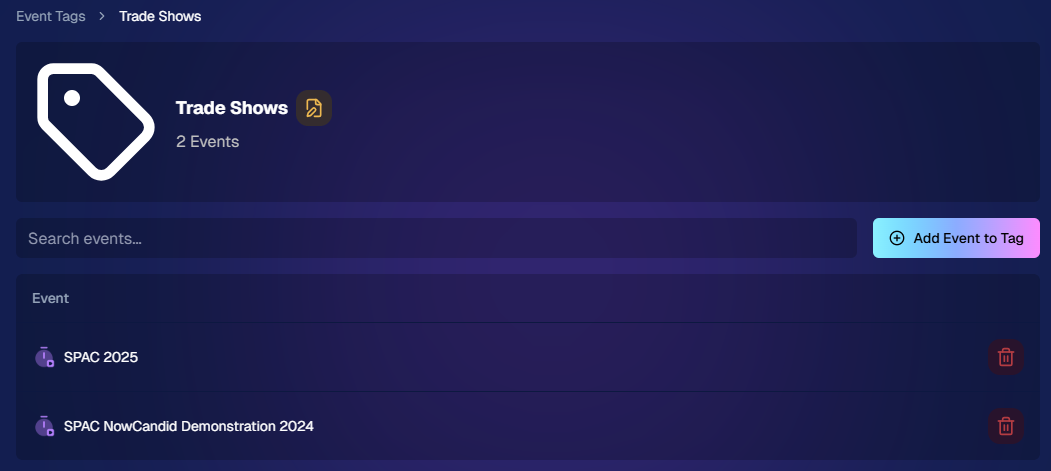
  • Hidden Event Tags are now hidden by default, and event search when adding Events to a tag is more flexible.

💰 Auto Editor total cost display fixed

  • The displayed total cost is now correct. Customers were charged correctly before; only the UI number was off.

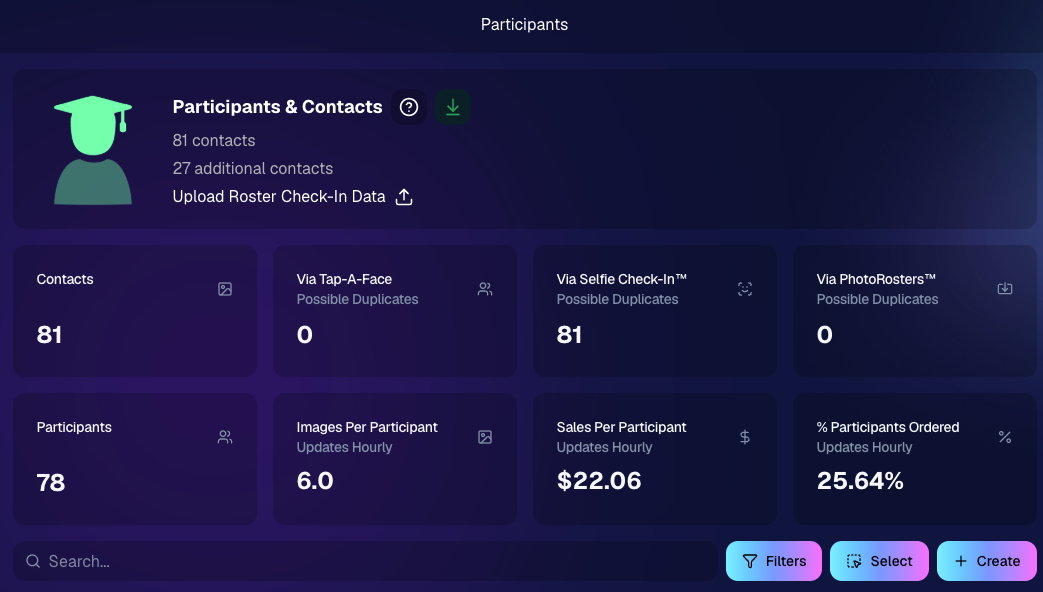
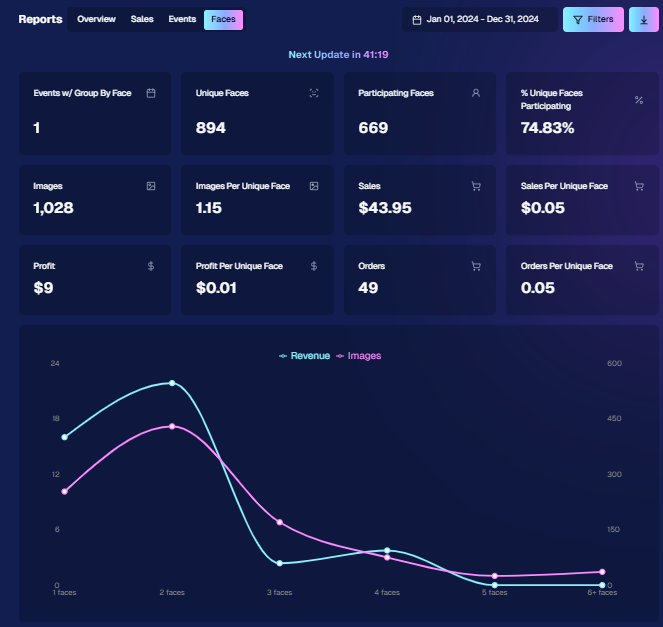
🔢 Participant List now shows key report snapshots

  • You can now quickly see:
    • Images Per Participant
    • Sales Per Participant
    • % Participants Ordered

📱 Capture App 5.6.4

iOS & Android OTA update — Monday, June 1

🧍 Registered face boxes now show in the strip

  • When entering a shooting mode, existing images in the strip can show registered face boxes.

🔄 Restore Session fixes

  • Fixed Restore Session not loading saved registered participants for Positive ID Events or Face Matching Roster Check-In.

Face Matching Roster Check-In fix

  • Fixed an edge case where a registration could fail to save to an image.

📱 Android tablet UI fixes

  • Selfie Check-In Station camera UI fixed in vertical orientation
  • Image gallery name text no longer overflows in vertical orientation

That’s the week!

The big wins are definitely RCS marketing and Face Matching coming in 28× faster, but the Virtual Group Builder and Dashboard changes should make things easier during busy season too.

We’ll keep improving speed, support, and the retail experience as we go!

Keep creating magic,

Candy 🍬

Related articles

Weekly Recap: Overlay Artwork in the Product Gallery 🎨✨
Feature Updates
January 3, 2025

Weekly Recap: Overlay Artwork in the Product Gallery 🎨✨

2
 minutes read
Hello again, my wonderful photographers!

Candy here, and welcome to another Weekly Recap. This time, we’ve got one exciting improvement to share—overlay artwork now appears by default on product previews in the product gallery!

Let’s take a closer look. 🌟

Overlays Rendered by Default in Product Gallery 🎉

We’ve introduced a fun change for anyone using Banner Overlays or Full Frame Overlays in their NowCandid Events:

  • Visible Overlay Art

    Items in the retail site’s product gallery will now display your Event’s overlay artwork right away. Customers can see exactly how their images look on each product, with that extra creative touch of your Event's Overlay Art.

Theme: Marshmallow - Watermarking: Heavy

Theme: Liquourice - Watermarking: None

  • Use Overlay by Default

    When customers go to customize or add a product to their cart, the “Use Overlay” option will already be selected. This makes it simpler to highlight your unique event designs or branding. But they can still view & order the product without the overlay art.
  • Easy Toggle in Settings

    If you prefer to keep products overlay-free by default, no worries! Head to the “Retail Site Settings” in your Profile and uncheck “Use Artwork By Default.” That way, product images will display without your Event overlay art unless customers choose otherwise.

Find this option in your Profile settings

Enabling Use Artwork By Default will feature your Event's Overlay Art on the renders in the product gallery page. Guests can choose to view and order products without the art, but "with overlay art" will be the default selection.

That’s all for this week’s short-and-sweet recap!

We hope this feature adds a little extra flair to your retail experience.

As always, let us know what you think or if you have any feedback.

Candy 🍬

Big News: Introducing Photo Booth Mode in iOS Capture & Upload App 4.13! 🎉
Feature Updates
December 30, 2024

Big News: Introducing Photo Booth Mode in iOS Capture & Upload App 4.13! 🎉

6
 minutes read
Hello, my wonderful photographers!

Candy here with exciting news for you on this festive Monday. We’re launching Capture & Upload App Version 4.13, and it comes with a massive new feature: Photo Booth Mode.

Let’s dive into what it is, how it works, and why we think you’ll love adding it to your events!

What Is Photo Booth Mode? 🤳

Photo Booth Mode is a brand-new option inside the Capture & Upload App (Version 4.13 on iPad). When you log in to your Event, you’ll see a shiny new “Photo Booth” button alongside the usual options.

Tap that button, and your iPad transforms into a fun, self-serve photo booth station, perfect for:

  • Weddings & Parties: Encourage guests to capture memorable group shots and instantly send them to their phones.
  • Sports & Corporate Events: Provide interactive experiences that keep people engaged and excited.
  • Holiday Gatherings: Add some festivity and help guests create themed keepsakes right on the spot.

Whether you tether a Nikon, Sony, or Canon camera or just use the iPad’s built-in camera, Photo Booth Mode gives you a convenient, autonomous way to let guests take pictures without any manual work from you (aside from set up and takedown of course).

How It Works ⚙️

  1. Tap to Begin Screen
    • Guests see a dimmed live view with “Tap to Begin.” Once tapped, the booth takes three pictures in quick succession, each with its own 3-second countdown.
  2. Real-Time Overlays
    • If your event has Bottom Banner Overlays or Full Frame Overlays, they appear in the live view. This lets guests see exactly where the art will sit, so no one’s face gets covered.
  3. On-Device Styling
    • Background Removal & Custom Backgrounds: If you’ve uploaded backgrounds for your event, they’ll be available for selection.
    • Filters: Guests can apply classic filters like Noir, Sepia, or Clarendon before sending off their images.
    • Reshoot: Not happy with a pose? Subjects can tap “Reshoot” and start over, easy-peasy.
  4. Instant Delivery
    • Both QuicPics or PartyPics Workflows deliver images in real time:
    • If it’s QuicPics, your subjects will get the image files directly via MMS, with Overlay Art applied, if your Event has any. They'll also receive a link to their personal gallery. Reminder, with QuicPics we charge a small fee per uploaded image.
    • It it's PartyPics or any of our other Programs, your subjects will only receive a link to their personal gallery. And there is no additional charge or fee.
    • When visiting their personal gallery, they can buy prints & downloads of these images with various product & customization options.
  5. Positive ID vs. Face Matching
    • Face Matching: Prompts appear to tap faces, then gather contact info for those individuals.
    • Positive ID: Participants just enter their info before sending images, no face-tapping required.

All images are uploaded to your NowCandid Event like normal, so no matter your usual Workflow, things will still function seamlessly!

Key Requirements & Limitations ⚠️

  • Camera Orientation
    • Nikon cameras support both horizontal and vertical orientation.
    • Sony and Canon are currently limited to horizontal orientation.
  • iPad-Only Launch
    • Photo Booth Mode works on iPad (and only in vertical orientation), not on iPhone or Windows at this time.
  • No Built-In Strip Printing
    • If you need to provide prints, set up a separate print station and use quic.pics/portal to download images with or without Event Overlay Art and print them on-the-spot!
  • Strong Internet Connection
    • Ensure your iPad has solid Wi-Fi or LTE, as the app needs to log into the event, download overlays/backgrounds, and upload images in real time.

Why You’ll Love Photo Booth Mode ❤️

  1. Interactive Fun

    Guests choose their own backgrounds, overlays, and filters, creating a memorable activity at any gathering.
  2. Seamless Feature Integration

    Images will show up in LiveLoop slideshows, appear alongside subject's other images in Personal Galleries, be managed using NowCandid's typical image and participant management tools, and more!
  3. Seamless Workflow Integration

    The images flow right into your existing event Workflows—Tap-A-Face, Selfie Check-In, Type & Take, and more—without any additional setup.
  4. Effortless Setup

    Whether you opt for a tethered DSLR or the iPad camera, it’s a simple tap away in Capture & Upload App 4.13.

Download Capture & Upload App 4.13 Today! 📱

With Version 4.13 now live for iPad (iOS only at the moment), you can start offering Photo Booth Mode at your next event.

We’ve tested it extensively, but with so many different devices and use cases out there, we encourage you to try it out ASAP.

If you spot any quirks, let us know, and we’ll work on improvements swiftly.

Thank you for joining us in this Big News blog post.

We can’t wait to hear your success stories with Photo Booth Mode!

Candy 🍬

Weekly Recap: Group Photos for Grads & Retail Download Tweaks📸🎉
Feature Updates
December 27, 2024

Weekly Recap: Group Photos for Grads & Retail Download Tweaks📸🎉

7
 minutes read
Hello, my wonderful photographers!

Candy here, and welcome to another Weekly Recap. We’ve got a couple of handy feature updates, plus some exciting news about our upcoming Capture & Upload App release for iOS.

Let’s dive in! 🌟

1. Group Photo Option in GradPics 📸

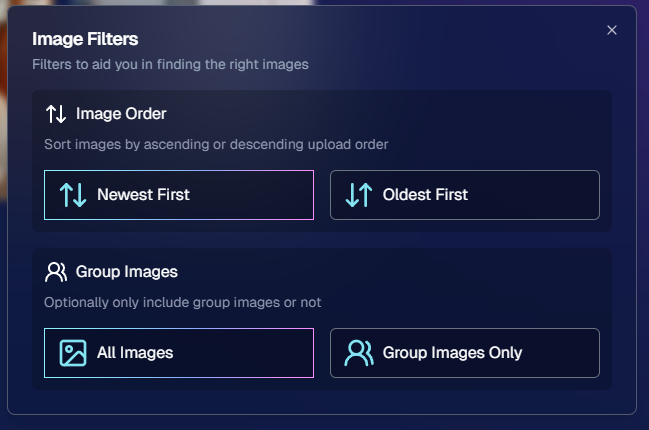
We’ve introduced a Group Photo toggle in the Manage Images tab for GradPics Events. When you mark an image as a Group Photo, here’s what happens:

  • Appears in Every Gallery: Regardless of face matching, every participant sees the group image in their personal gallery.
  • Exclusive Products: If your Event’s Offer includes any Group Photo products (like Group Photo Download or Group Photo Print), they’ll only be purchasable on those items.
  • No Group Photo Products? Then the group image behaves like a normal image, available on all your usual products.
  • Not in Personal Gallery Download: To avoid easy sharing of a big group image, we’re excluding Group Photos from any personal gallery download product for now.

We’ve added a quick popup explanation when flagging an image as a Group Photo in the Web Dashboard, just in case someone clicks the Group Photo toggle by mistake. 🎉

2. Personal Gallery Download Hiding Rule 🤫

To help clients avoid confusion and refunds, we’re adding a new rule:

  • Hide Personal Gallery Download: If the Offer sells individual image downloads and a participant only has one image, we hide the personal gallery download.
  • Still Visible for One-Image Events: If your Offer doesn’t have individual downloads, the personal gallery download stays visible, even if the participant just has one photo.

This little tweak prevents clients from accidentally buying a personal gallery download when they only need a single download. 🛒

3. Heads-Up: Capture & Upload App 4.13 for iOS Only! 📱

On Monday, December 30th, we’ll release Version 4.13 of the Capture & Upload App for iPhone & iPad. (Windows stays at 4.12 for now.) We’ve added some major updates:

Please update one of your devices, test it out, and let us know if you catch any bugs. With so many devices, camera brands, and workflows out there, early feedback helps us fix issues quickly.

4.13 Highlights

  1. Photo Booth Mode
  2. Overlays on Capture App Image Review
    • Overlays now render directly over the captured images on the app (if the aspect ratio is supported).
    • 3:2 aspect ratio photos are needed for full frame overlays, but any aspect ratio works for banner overlays.
    • This lets you and your subjects see the art in real time, ensuring no important parts are covered!
  3. Out-of-Space Error Popup
    • If your device is running low on space when a new image is taken, you’ll get an immediate error popup.
    • Remember to regularly clear out old images via the app’s “Delete App Data” button in the info (i) menu to keep everything running smoothly.

Minor Updates

  • Session data is now wiped when switching NowCandid accounts in the app, so "Restore Session" won't take you to an Event from a different account!
  • Event Shooting Buttons on Tablets now match iPhone UI (centered vertical menu).
  • Camera Trouble Popup includes a note about app permissions. (Always make sure to agree to all app permissions needed when the app is starting for the first time!)
  • Auto Remove Spaces from the account email on login. (some folks accidentally put a space and didn't know why they couldn't log in!)
  • Candy Splash Screen when the app is booting up now supports dark mode.

Thanks for tuning into this shorter Weekly Recap. We hope these improvements help you finish the year strong! If you have any questions or feedback, don’t hesitate to reach out.

Candy 🍬

Let’s get in touch

If you’re a photographer looking to add NowCandid services to your wheelhouse – set up a call by clicking the button below.

How to customize formatting for each rich text

How to customize formatting for each rich text

How to customize formatting for each rich text

How to customize formatting for each rich text

How to customize formatting for each rich text

What’s a Rich Text element?

The rich text element allows you to create and format headings, paragraphs, blockquotes, images, and video all in one place instead of having to add and format them individually. Just double-click and easily create content.

A rich text element can be used with static or dynamic content. For static content, just drop it into any page and begin editing. For dynamic content, add a rich text field to any collection and then connect a rich text element to that field in the settings panel. Voila!

Headings, paragraphs, blockquotes, figures, images, and figure captions can all be styled after a class is added to the rich text element using the "When inside of" nested selector system.

  • List One
  • List Two
  • List Three
  • List Four
  • List Five

This is a link

This is bold text