HomeNavigation arrowBlogNavigation arrow
Current page
Feature Updates

Weekly Recap: Faster Background Removal, Smarter Digital Downloads & New AI Editing Tools 📸✨

Weekly Recap: Faster Background Removal, Smarter Digital Downloads & New AI Editing Tools 📸✨
Hey photo friends! 👋

Last week, we were busy hosting our annual Summer Seminar in Denver, Colorado—and we had a great time with everyone who joined us!

That means this week’s recap includes two weeks of updates. Nothing too wild, but plenty of useful improvements across Retail, the Dashboard, Auto Editor, Capture App, and more while we continue working on some bigger changes behind the scenes.

Let’s catch up!

⚡ Faster Background Removal

✂️ Background Removal processing is faster

  • We made multiple speed improvements over the past two weeks to help cutouts finish sooner, especially during higher-volume periods.

📥 Smarter Digital Download Delivery

Digital Downloads can now skip unnecessary processing in more situations.

Some downloads are now available immediately

  • If a customer selects No Overlay, the Event has no artwork, and/the image is not a BGR image, the customer will skip the cropping step on the retail site and receive the full-resolution image without waiting for an 8×12 rendered version.

🖼️ Full aspect ratio is preserved

  • These downloads bypass the cropping step and work more like Personal Gallery Download products.

🆓 Also applies to Medium Res and Free Downloads

  • This includes cases where those downloads are automatically upgraded to full resolution.

📧 Clearer receipt messaging for custom renders

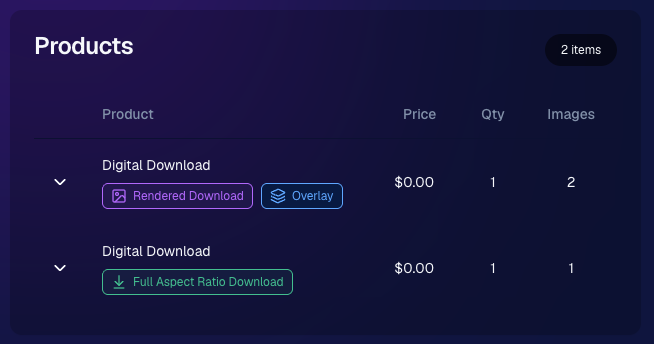
🧾 Order Details now identifies each download type

  • Digital Downloads can now show a Rendered Download or a Full Aspect Ratio Download badge, making it clearer which version was delivered to your customers.
🎨 Auto Editor & Candy Image Studio Updates

🧩 Auto Editor now supports image-input nodes

  • You can now use nodes such as:
    • Custom Image
    • Copy Style
    • Diploma Fix

🙈 Auto Edit originals won’t be texted too early

  • QuicPics and QuicPortraits will no longer send the original image by MMS when it belongs to an active Auto Edit with Hide Originals enabled. The system will wait for the edited version instead.

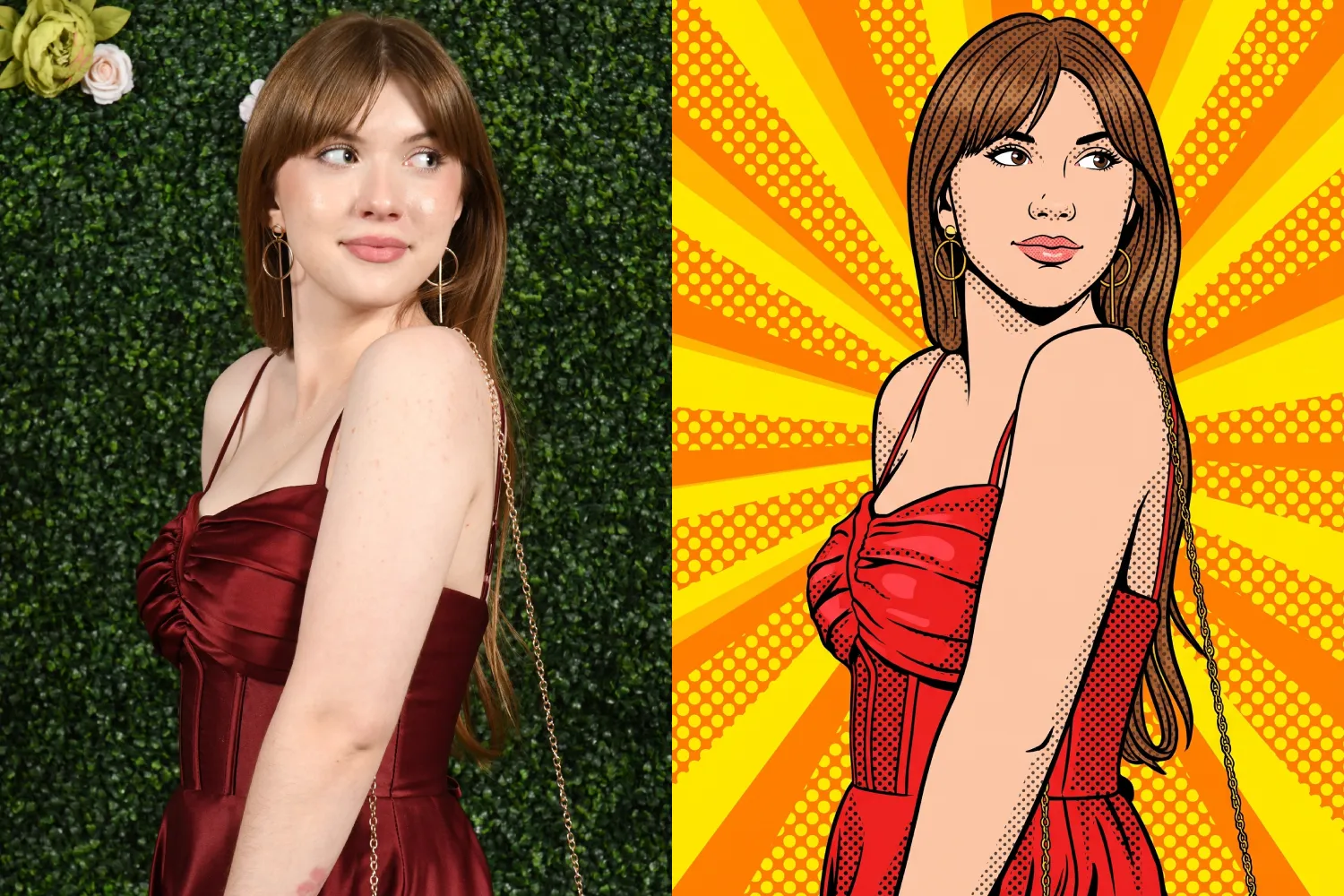
🕺 New Retro Pop node

  • Give images a colorful, retro-inspired treatment.

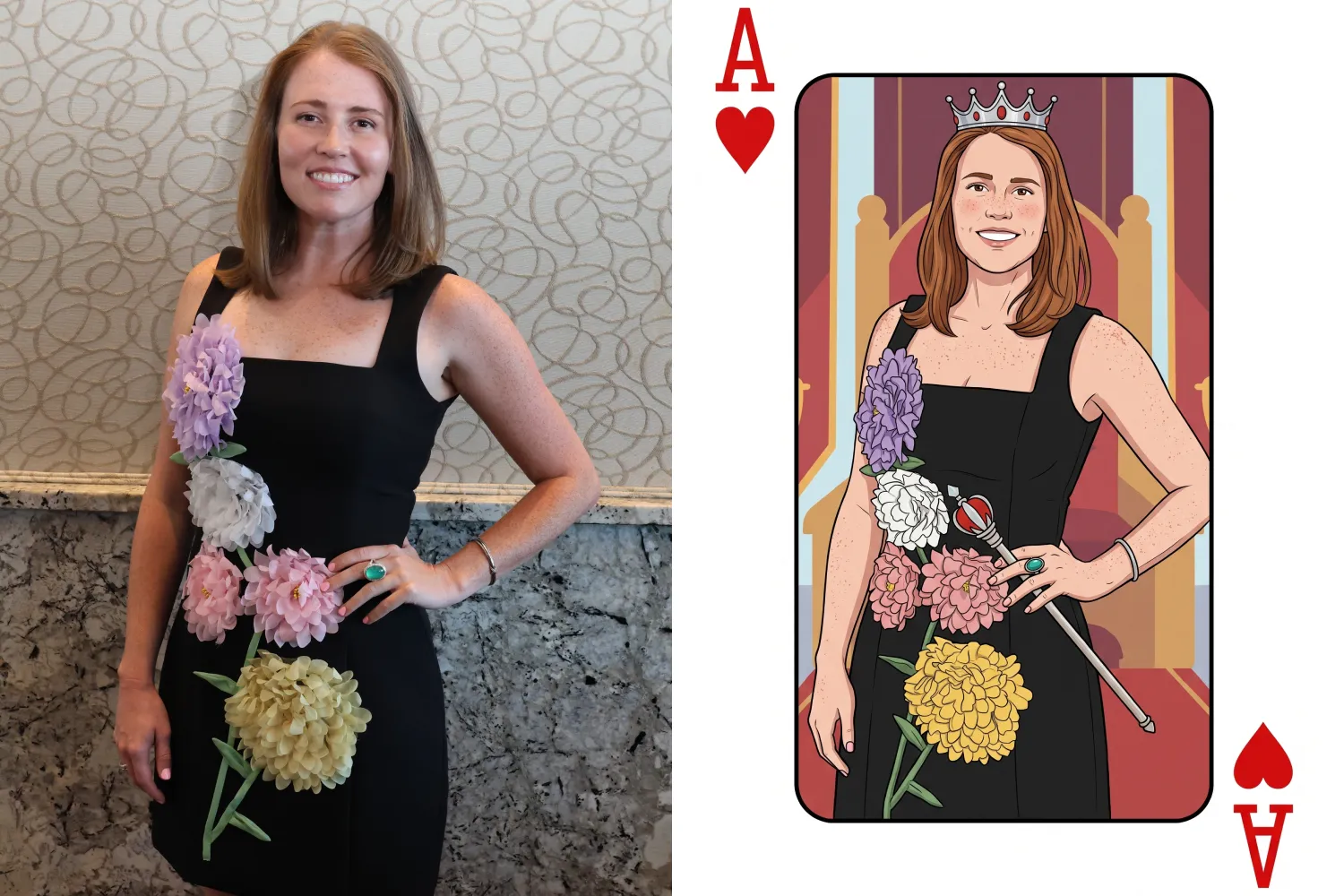
🂡 New Ace Card node

  • Turn subjects into a bold playing-card-style design.
💬 QuicPics & Marketing Improvements

👥 QuicPics can now send to multiple contacts on merged participants

  • If merged participant records contain different phone numbers or email addresses, regular QuicPics can now send to each unique contact.

✉️ Marketing startup fix for BGR cutouts

  • Fixed an edge case where marketing would not begin if the only visible images were cutouts from the newer Background Removal system.

🔗 Hot Links now better respect Hide Originals

  • Fixed an issue where the preview could temporarily show the original image before an Auto Edit finished generating.

📱 Capture App Updates

Capture App 5.8.1

iOS and Android OTA updates

🎨 Updated Event artwork is refreshed at login

  • If artwork changed, the latest file is pulled when logging into the Event normally.

🛠️ Small follow-up fix

  • An additional 5.8.1 update was released to address a minor issue.

Capture App 5.9

iOS and Android App Store update

📲 iOS OTA updates are easier to install

  • You no longer need to completely restart the app or return to the Home Screen to install an available Over-the-Air update.

🤖 Android compatibility updates

  • Required updates were made to stay current with new Google Play requirements.

🛍️ Retail Download Fixes

📱 Safari share sheet reliability improved

  • Press-and-hold downloads should now open the native share sheet more consistently on Safari.

🖼️ Virtual Group download cleanup

  • Virtual Groups in QuicPics no longer offer a Download with Art option.

🎨 Background selection fixes

  • Fixed cases where:
    • A PNG could be downloaded without selecting a background and receive an incorrect blue background
    • Faux renders showed no selected background in the download popup

🔐 Facebook login works again

🖥️ Dashboard Improvements

📊 Image Timeline cleanup

  • Fixed chart display issues, removed folders that were not useful in the timeline, and prevented multiple summaries from appearing when switching folders quickly.

🌾 Candy Culler controls are clearer

  • Filter visibility and report controls now use more descriptive buttons, similar to Manage Images.

📈 BGR Folder Stats fixed

  • Cutouts from the newer Background Removal system no longer incorrectly inflate Unassigned totals.

📱 Mobile Dashboard

🔗 More reliable deep linking

  • Dashboard links should open the correct page more consistently when the app has been open for a while or after signing in and out.

That’s the two-week update!

Faster Background Removal and smarter Digital Download delivery are the biggest highlights, with plenty of smaller improvements making Auto Editor, QuicPics, Retail, and the Capture App more dependable.

Thanks again to everyone who joined us in Denver for Summer Seminar—we loved seeing you!

Keep creating magic,

Candy 🍬

Related articles

Weekly Recap: New Ornaments, Better Marketing History & Big Windows Capture App Update 🎄📸
Feature Updates
November 14, 2025

Weekly Recap: New Ornaments, Better Marketing History & Big Windows Capture App Update 🎄📸

5
 minutes read
Hey photo friends! 👋


Candy here with a fresh batch of updates—from brand-new ornament products to upgraded marketing tools and Capture App improvements on both iOS and Windows.

Let’s jump in!

🎁 New Holiday Ornaments

  • 🎄 Statuette Ornament

    A new hanging statuette-style ornament—complete with a red ribbon.
    • Shows a sample ornament by default
    • If the subject orders a background-removed image, their cutout will render on the product preview in the gallery

  • 🪙 Aluminum Ornament

    A flat aluminum ornament that renders any photo in the product gallery.
    • Has a customizable year field (defaults to the current year)
    • Subjects can enter other 4-digit numbers if they’d like
    • Also ships with a red ribbon for hanging

Perfect timing for holiday sales. 🎅

✉️ Marketing History & Dashboard Improvements

📬 Marketing History Page (Big Upgrade!)

  • 🧭 Pagination for easier navigation through large histories
  • 👤 Shows participant name + image on each row
  • 🔗 Click through to the Participant directly
  • 🧾 All email + text sends are now in one combined, date-sorted list
  • ⚡ Faster initial load, and smoother scrolling for long histories
  • 🔍 New filters:
    • Text search (with CMD+F support)
    • Filter to Texts only or Emails only
    • URL supports both filters and pagination, so you can share filtered views

🖥️ Other Dashboard Updates

  • 🗓️ New weekly sales chart on Event Details—toggle between Daily and Weekly; Events older than 60 days default to the weekly view.
  • 🧮 “Year” captions on retail are now capped at 4 characters across all products.
  • 🌄 Download custom backgrounds you’ve uploaded for an Offer
    • Offer → Select Backgrounds → My Custom Backgrounds → Download button
  • 💬 QuicPics send error reason now appears on Participant Details (logging started April 2025).
  • 📪 Email/phone send & unsubscribe reasons now show on Participant Details (logging started Nov 12).
  • 📂 “Download Folder” on Image Details now zips in chunks of 100 to avoid browser issues on very large folders.

🧹 Small Dashboard Fixes

  • 🗓️ Removed Day 6 text from all three QuicPics programs (it wasn’t adding clicks or sales).
  • 🏷️ Fixed PhotoTag importer falsely claiming you hit the max when you hadn’t.
  • 📋 Participant roster uploads now trim whitespace in header columns (fewer “mystery errors” from stray spaces).
  • 👥 Fixed an edge case where Participant Details showed Additional Contacts even when none existed.

📱 Capture App iOS 4.21.4 (OTA)

  • 🤳 Front camera photos mirrored

    Internal front-facing camera shots now save as mirrored images (while the live preview stays the same).
    • Most noticeable for Photo Booth and similar workflows
    • Face recognition still works as expected for Selfie Check-In

(If you’re on 4.21 already, this will arrive as an over-the-air update.)

💻 Capture App Windows 4.20 Highlights

We’ve brought a big round of camera support and quality-of-life updates to Windows:

  • 📷 Broader camera support
    • Sony now works on ARM tablets, and most new Sonys no longer require special driver setup—just plug in.
    • Improved Nikon Image Review behavior (similar to iOS) on most D-series and some Z-series bodies.
    • Added support for Panasonic cameras.
    • Added support for a wide range of FUJIFILM X and GFX models.
    • New Canon support: EOS R5 Mark II, EOS R1, EOS R50V.
  • 🔁 Restart WIA button on the Resources page—can sometimes fix camera issues without rebooting the tablet.
  • ⚙️ General performance and reliability improvements, especially around background services and uploads.
  • 🎨 Updated app icon & name to match the iOS version.

That’s it for this week!

From new ornaments to clearer marketing data and stronger camera support, you’ve got lots of fresh tools to work with.

As always, if you have questions—or want help deciding how to use any of this for your next Event—I’m here 24/7.

Keep creating magic,

Candy 🍬

Weekly Recap: Capture App 4.21 OTA, New Dashboard Filters & Helpful Fixes 📲🧭
Feature Updates
November 7, 2025

Weekly Recap: Capture App 4.21 OTA, New Dashboard Filters & Helpful Fixes 📲🧭

2
 minutes read
Hey photo friends! 👋

Here’s what’s new this week! Changes focused on faster updates, more filters, and a handful of useful fixes.

📱 Capture & Upload App (iOS) — Version 4.21

  • 🚀 Over-the-Air (OTA) updates: Most app updates no longer require the App Store. Updates download in the background and install on app restart/launch—no interruptions during Events. You can also manually check via Resources → “Check for updates” (tap the (i) button).
  • 📶 See your Wi-Fi name: The current network name now shows on the Web Weaver item in Resources.
  • Faster, lighter uploads: Additional memory and performance improvements when uploading image files.

Smaller iOS app changes

  • 🖨️ AirPrint prompt returns if a printer isn’t available (avoids an iOS security hiccup).
  • 🌐 Web Weaver manual toggle fixed.
  • 🔎 Image preview UI fixed when switching after zoom/pan.
  • 🧾 Name Lookup now populates correctly on first launch.
  • 🖼️ QuicPortraits icon color updated in Event select (those icons are single-color).
  • 🗂️ Block log-ins to flagged TKO folders (e.g., if you flagged “a”, you can’t log into “ac”).
  • ↔️ Horizontal zoom issue on iPhone resolved.

FYI on versions: The App Store shows 4.21; the current OTA version is 4.21.3. We’ve already shipped three OTAs this week to help teams while they’re still on-site! Pretty cool, right?

🖥️ Dashboard

  • 👁️ Manage Images → Visibility filter: All / Visible only / Hidden only.
  • 🎯 Assign Images → New filters: Name order, Purchased only, Visibility.
  • 🔗 Events Report: Clicking an Event now opens its Event Details page.

Smaller dashboard changes

  • 📨 Email campaign guard: Prevents a campaign from starting if the only image is a group PhotoTag.
  • 📥 Inbox UI: On mobile, updated header; on desktop, the selected item area stays sticky while you scroll.
  • 🧰 Trader Card fixes: Two styles now say League (not LD), and one style’s production print now matches the retail render.
  • 🖼️ Art uploader validation: Shows an error if an image is under 100 px in width or height.
  • 😊 Retail face boxes aligned on very small desktop viewports.

That’s the update for the week!

Thanks for reading—and happy shooting!

Candy 🍬

Weekly Recap: Sticky Filters, Faster Uploads & Happy Halloween! 🎃🕸️
Feature Updates
October 31, 2025

Weekly Recap: Sticky Filters, Faster Uploads & Happy Halloween! 🎃🕸️

3
 minutes read
Boo! 👻

Candy here with a trick-or-treat pail of useful updates: sticky, shareable filters, faster uploads, and clearer participant tools. You’ll keep context when you reload or share links—and move uploads along faster.

Let’s dig in!

🖥️ Dashboard Improvements

  • 🧲 Sticky, shareable filters
    Filters now live in the URL on Manage Images, Assign Images, Event List, and Participant List. Refresh or hit Back and your view stays put—and you can share filtered links with teammates or support.
  • 🚀 Faster image uploads
    The Image Upload page handles large batches more efficiently for quicker throughput.

🪄 Minor Dashboard Tweaks

  • 💳 QuicPics Upfront Pay editor is now available in QuicPortraits.
  • 🏷️ “Additional Contact” badge appears under a participant’s name for quick clarity.
  • 👥 Additional Contacts list on Participant Details, plus an Add option (when new campaigns are allowed).
  • ✉️ Marketing History filter: view All / Texts / Emails.

🧹 Dashboard Bug Fixes

  • 🧩 Positive ID code PDFs now show PhotoTags for merged participants even when they weren’t the first registered.
  • 📏 2×5 Positive ID PDF layout fixed for long event titles.
  • 📄 2×5 Positive ID PDF last-page spacing fixed when the page isn’t full of cards.

📲 Capture & Upload App

  • 🙅 Name Lookup no longer shows Additional Contacts (no app update needed—restart or re-log into the Event).

🛍️ Misc Changes

  • ⚖️ Retail “weight” caption limit increased to 7 characters (up from 3, for products like trader cards).

🛠️ Misc Fixes

  • 🔁 QuicPics won’t double-text the same image if someone was registered twice in the same send batch.
  • 🔃 Manage Images “uploaded first/last” filter direction corrected.
  • 📪 Fixed an unsubscribe edge case when a gallery is entirely cutouts and all original JPEGs are not visible.

That’s the update!

Happy Halloween—and good shooting! 🎃


Candy 🍬

Let’s get in touch

If you’re a photographer looking to add NowCandid services to your wheelhouse – set up a call by clicking the button below.

How to customize formatting for each rich text

How to customize formatting for each rich text

How to customize formatting for each rich text

How to customize formatting for each rich text

How to customize formatting for each rich text

What’s a Rich Text element?

The rich text element allows you to create and format headings, paragraphs, blockquotes, images, and video all in one place instead of having to add and format them individually. Just double-click and easily create content.

A rich text element can be used with static or dynamic content. For static content, just drop it into any page and begin editing. For dynamic content, add a rich text field to any collection and then connect a rich text element to that field in the settings panel. Voila!

Headings, paragraphs, blockquotes, figures, images, and figure captions can all be styled after a class is added to the rich text element using the "When inside of" nested selector system.

  • List One
  • List Two
  • List Three
  • List Four
  • List Five

This is a link

This is bold text