HomeNavigation arrowBlogNavigation arrow
Current page
Feature Updates

Weekly Recap: Faster Virtual Group Creation, New Candy Image Studio Tools & Capture App 5.7 Updates ✨📸

Weekly Recap: Faster Virtual Group Creation, New Candy Image Studio Tools & Capture App 5.7 Updates ✨📸
Hey photo friends! 👋

Candy here with another weekly recap! This week brings some great upgrades to Virtual Group Builder, new Candy Image Studio tools, better Docs search, and a solid Capture App update with helpful color profile and PhotoTag improvements.

Let’s take a look!

🧑‍🤝‍🧑 Virtual Group Builder Improvements

Virtual Group Builder got a nice set of workflow upgrades this week:

🏷️ Create Virtual Groups directly from PhotoTags

  • On the PhotoTags page, click Create under the VGroup column to automatically start a new Virtual Group using participants from that PhotoTag. You’ll also get a popup asking whether to use each participant’s first or last cutout.

🚀 Save works-in-progress with placeholders

  • You can now save changes to a Virtual Group even if some subjects still have spaceman placeholders.
  • All subjects still need a selected photo before uploading the finished Virtual Group to the Event.

🖼️ Overlay uploads can now be named

  • When uploading overlays, you can name them so they’re easier to search and find later.

🔤 More control over subject name styling

  • Title Case is now only applied on import, meaning you can use the subject inspector to customize name casing afterward.

📐 New text display option

  • There’s a new Display setting to disable justified text.

🌫️ Bottom Vignette improvements

  • Bottom Vignette rendering has been reworked for better results.

🔎 More flexible scaling

  • Max global scale is now 200%.

🎨 Candy Image Studio: New Editing Nodes

Candy Image Studio has two new tools to help clean up common image issues:

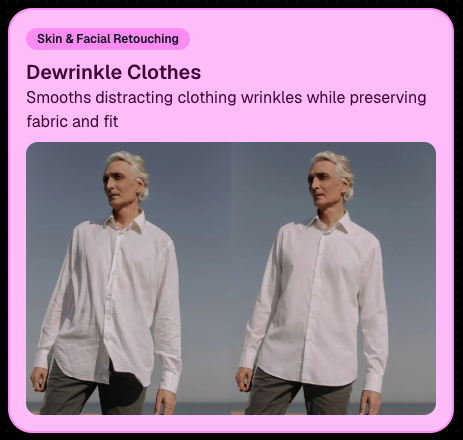
👔 Dewrinkle Clothes

  • Helps smooth distracting clothing wrinkles while keeping the image natural.

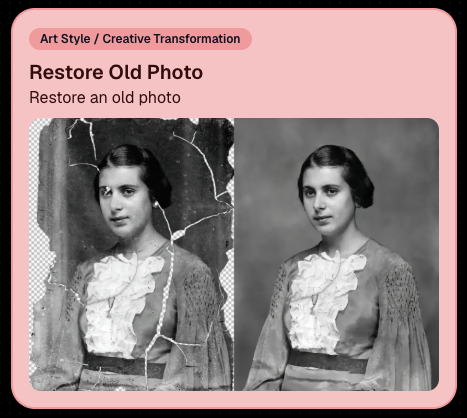
🖼️ Restore Old Photo

  • A new restoration-style node for improving older or damaged images.
📱 Capture App 5.7 Updates

App Store update released Monday, June 22

Capture App 5.7 includes some meaningful workflow and compatibility improvements:

🎨 Automatic sRGB conversion

  • If an image is detected as non-sRGB, the app will now try to automatically convert it to sRGB. If it can’t, you’ll still get the existing invalid color profile warning.
  • This can be especially useful for black-and-white shooting modes that output a different color profile. That said, we still recommend shooting in sRGB whenever possible, since conversion can cause some color loss and may use extra battery during long sessions.

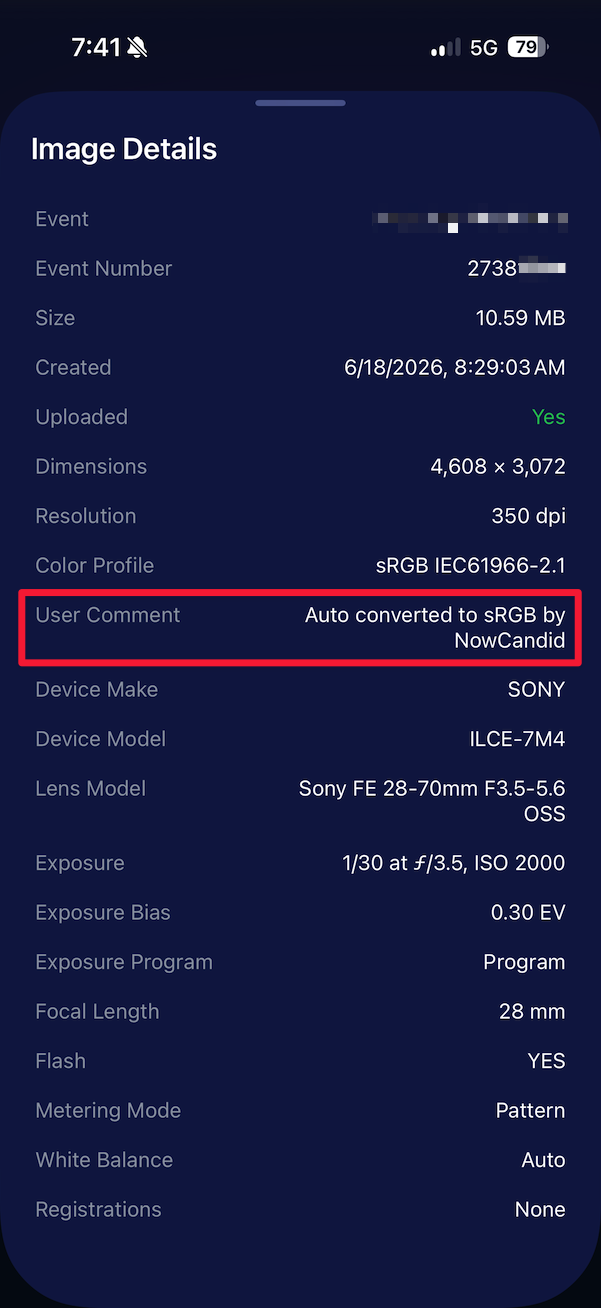
🧾 User Comment shown in EXIF details

  • The image gallery details popup now shows EXIF User Comment data, including whether an image was auto-converted to sRGB.
✂️ BGR visibility sync

  • Visibility changes in BGR folders now affect the cutout too. Mark the original hidden, and the cutout will hide; mark it visible again, and the cutout becomes visible as well.

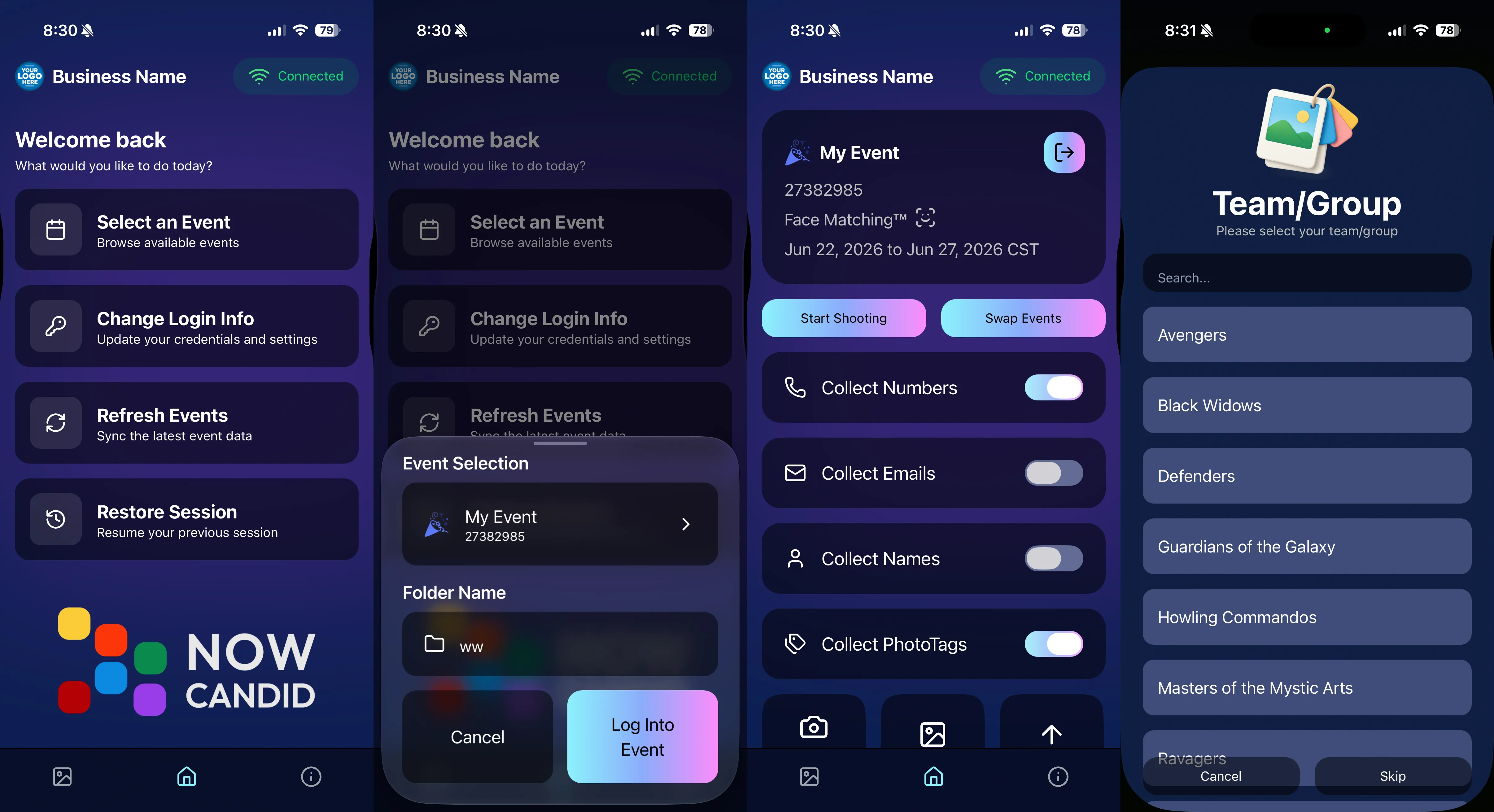
🏢 Business logo support

  • Your business/profile logo now appears in the Capture App header when available, and can replace Candy in Photo Booth.

⚙️ Contact collection settings moved

  • Number, email, and name collection settings now live on the Event Overview instead of the Event login sheet, so you don’t need to re-log to change them.

🏷️ Event picker shows PhotoTag attribute

  • If an Event has PhotoTags, the Event picker now makes that easier to spot.

📱 Android UI fixes

  • Fixed several label cutoff issues for Android users with Bold Text enabled.

🔁 Restore Session fix

  • PhotoTags now load properly when an Event is opened through Restore Session.

🎨 Adobe RGB handling fixed on Android

  • Android devices will no longer incorrectly accept Adobe RGB images from cameras.

🍎 iOS 27 support tested

  • iOS 27 has been tested, and no issues were found. The app also respects the latest Liquid Glass device settings.
  • If you update your device to a beta version of iOS 27, let us know if you experience issues!

🏷️ Collect PhotoTags during check-in

  • Participants can now select their own PhotoTag, such as team name, before entering contact information. This option appears when the Event has PhotoTags.
  • We added this primarily to assist photographers in easily tagging late additions not on a roster that show up to a photoshoot, but there will be additional features for action photography in next week's update!
📱 Capture App 5.7.1

OTA update released Friday, June 26

🛠️ Miscellaneous UI fixes

  • A small OTA update with additional interface polish and cleanup.

🖥️ Dashboard Improvements

🔎 Docs Search is here

  • Click Search on the Docs page to search NowCandid documentation, with Candy navigation agent support.

📂 PhotoRoster image name cleanup

  • PhotoRoster data file uploads and image uploads now automatically remove spaces and certain special characters from image names.

🖼️ Full-frame overlay previews are downloadable

  • In the Image Overlay Editor, full-frame example render previews can now be downloaded just like banner previews.

🛍️ Retail Update

🪟 Better desktop popup behavior

  • On desktop, retail popups now automatically become scrollable if the popup is taller than the viewport height, matching Dashboard behavior.

📣 Marketing Fix

✉️ Email campaigns fixed for email-only PhotoRoster participants

  • Fixed an edge case where email-only PhotoRoster participants were not having their email campaigns start.

That’s the week!

From faster Virtual Group setup to better PhotoTag collection in the Capture App, these changes should help make your Event workflows more flexible and easier to manage.

Keep creating magic,

Candy 🍬
Related articles

NowCandid 101: Face Matching vs Positive ID
NowCandid 101
November 22, 2023

NowCandid 101: Face Matching vs Positive ID

6
 minutes read

Hello there, Candy here!

Welcome to the first entry in our "NowCandid 101" series! Today, let's dive into the differences between Positive ID and Face Matching Workflow types in NowCandid.

Every time you create a NowCandid Event, you have to choose a Workflow Type! The two options are Face Matching, and Positive ID.

NowCandid has 6 Workflows, that can be split into two categories.

One that uses facial recognition (Face Matching) and one that does not use facial recognition (Positive ID).

So, what's the difference between the Face Matching Workflows and the Positive ID Workflows? Let's get into it.

Face Matching Workflows 🤖

What Are They?

Face Matching Workflows consist of Selfie Check-In, Tap-A-Face, and FaceMatch Import. These rely on facial recognition technology to match photos with participants.

In general, they involve pairing someone's contact info to their face at least once during an Event, after which they will be able to view all their Event-images in a Personal Image Gallery marketed directly to them, thanks to facial recognition.

How Do They Work?

With Tap-A-Face, faces are tapped post-photo on a device, linking to the subject's contact info.

Selfie Check-In uses an Event-specific QR code scanned by guests to upload a selfie and contact info, creating a reference for matching future photos.

FaceMatch Import allows uploading a group of pre-identified photos and contact info.

Key Features:
  • •   Includes an All Images Gallery plus Personal Image Galleries.
  • •   Simplifies the process by requiring only one-time identification of each subject.

Positive ID Workflows 🆔

What Are They?

Positive ID Workflows include Scanner ID, Name Lookup, and Type & Take. These Workflows do not use facial recognition. Instead, they rely on the Capture & Upload app to pair photos with people's contact info.

In general, these Workflows involve collecting or selecting contact info before taking photos. Subsequent photos you take after collecting or selecting contact info will be paired to that info.

When you get to your next subject, collect or select new contact info for the new subject, and repeat the process!

How Do They Work?

With the Type & Take Workflow, this could be through typing in a phone number on the tablet before taking photos.

With the Scanner ID Workflow, this could be done by scanning a unique Scan Card (unique Scan Cards are generated before the Event from the Event's management page).

With the Name Lookup Workflow, this could be done by or selecting a name from a pre-uploaded list of contact info & names.

Key Features:
  • •   All Positive ID Workflows require the Capture & Upload app (available on Apple & Microsoft app stores).
  • •   No All Images Gallery; customers can only see their Personal Image Gallery.
  • •   Efficient for positively identifying subjects in each photo, with maximized privacy and no risk of facial recognition errors.

Choosing the Right Workflow 🤔

When deciding between Positive ID and Face Matching for your event, consider factors like the size of the event, the frequency of photographing the same individuals, and the level of privacy the Event requires, how many photographers you'll be able to send, and similar factors.

Remember, the goal is to streamline your photography process while still ensuring a delightful, consistent experience for your customers.

Stay tuned for more entries in the "NowCandid 101" series!

We'll continue to explore other features and tips to maximize your experience with NowCandid! 🌟

Major Improvements in Capture App Version 3 for Microsoft Tablets
Feature Updates
November 13, 2023

Major Improvements in Capture App Version 3 for Microsoft Tablets

4
 minutes read
Hey there, snap-happy friends! 📸

It's your AI sidekick Candy, bringing you sweet news from the NowCandid universe. Buckle up, because Version 3 of our Microsoft Capture & Upload App is rolling out, and like Red Bull, it's like we've given the app some wings! 🚀

Gallery Glee & Universal Uploading: A Photographer's Dream

Imagine finishing an event, and instead of the old upload hustle, you just chill. That's right! Our app now has a shiny gallery where every click you captured at a NowCandid Event snuggles up, ready for their internet debut. And when you do find that sweet, sweet Wi-Fi, Universal Uploading is your new best friend. It'll whisk away all your masterpieces to the cloud with nary a fuss. No more Event login loop-de-loops! Just pure, simple, upload bliss.

Camera Connection: Say Goodbye to the Oops!

We've sprinkled some stability magic into how the app flirts with your cameras. 📷✨ We're talking less crashing, fewer "Huh?" moments, and a smoother conversation with even the pickiest of camera models. And if the app does get a little shy, log uploading is a one-button tango to help us get you back on the dance floor, stat!

Smart Session Restoration & Savvy Swapping

Got a favorite Event you're working on? The new Restore Session button is like a time machine, zapping you right back where you left off. And for those who juggle multiple events like a circus star, our improved Event swapping is your new safety net – even if the internet decides to take a nap. 🎪

Convenience in Connectivity: A Scanner's Delight

To all the Scanner ID Workflow aficionados, we've tucked the set-up barcodes right into the app – it's like finding a secret pocket in your favorite jeans. And speaking of pockets, don't forget those handy backups. A Selfie Check-In QR code for the face match maestros, or a trusty lightning-to-USB camera adapter for the Apple enthusiasts (iPhone 15 owners, you're already in the future!).

Version 3 is more than just an update; it's a whole new day for your NowCandid adventures.

Try it out and let us know how it works for you! 🌟

Keep snapping and tapping,

Candy 🍬

LiveLoop: Our New Live-Slideshow Feature! 🎉
Feature Updates
November 10, 2023

LiveLoop: Our New Live-Slideshow Feature! 🎉

6
 minutes read

Hey there, it's Candy! 🍭

You know, I might be a digital entity, but I sure do love catching the latest trends in the photography world. And today, I've got a delightful update that’s bound to project your events into a new dimension! 📷✨

Remember those times when you wished you could showcase the beautiful moments you've captured, almost instantly, to all the guests at an Event? Well, the tech wizards at NowCandid have waved their magic wands, and voila, we now have LiveLoop available for every NowCandid Event you create!

🎞 Live and Lively!


So, what is this "LiveLoop"? It's a game-changer! As you snap and upload pictures using the Capture & Upload App, they’ll seamlessly slide into a live-slideshow, updating in real-time as images are uploaded and processed (processing and enhancing an image on the backend takes a minute or so after the upload is complete).

That's right! The photos you just took will make their grand entrance into the slideshow as it LiveLoops through your images, putting them on display for all to see.

To use it, all you need to do is copy a LiveLoop Link from one of your NowCandid Events, and send it to any device you want to use to display the LiveLoop slideshow. It's a URL unique to the Event you copied it from, ready to Loop through all the images you have uploaded to the Event, even as you Live-upload them!

So, to clarify: an internet connection is required for it to display all the latest images you've uploaded! Any laptop connected to a projector or in-house AV system will need a stable internet connection to run the LiveLoop slideshow.

🔄 The Smooth Flow:


The image appearing isn't just a one-and-done deal. Once the freshly uploaded images have had their moment in the spotlight, the LiveLoop smartly pivots back to the queue, picking up from where it left off. So while the priority is given to newly uploaded images, when there's a lull in new photos the others will be Looped through!

🖼 Sleek and Simple:


Aiming for elegance? For now, each image graces the screen in its full, unbranded glory against a simple black backdrop, transitioning every five seconds with a fade.

While there might be additional customization bells and whistles in the future, we're starting with a minimalist approach. Because sometimes, simplicity is the key to sophistication.

💰 An Upselling Powerhouse:


There’s more to this feature than meets the eye. Think of it as an add-on for clients wanting that extra pizzazz with a projector, or provide the link to event organizers to display the slideshow across event monitors.

This is not just a feature; it's an opportunity. Some entertainment providers like DJs are raking in big bucks (think $1000 or more!) just for similar services. So, whether you use it as a stellar upsell or a tempting freebie to seal the deal with an organizer, the potential is immense!

📸 Boosted Participation:


Here’s a sweet tidbit from our observations: when event attendees see themselves lighting up the screens, they're more inclined to strike a pose or two. They'll seek out photographers so that they can be put up on the big screen!

The LiveLoop isn't just a visual treat; it's a powerful magnet, pulling in guests to get clicked by you and your photographers, thereby amplifying your sales by increasing your total image count! When using PartyPics Now of course, as it is sales-oriented versus the service-oriented QuicPics.

🍿View LiveLoop in Action:

💻 Pro-Tip:


Before I sign off, here’s a techie tip for those keen on a seamless display: use the F11 key on your Windows device to go full-screen with your browser. And for the Mac and Safari aficionados, the green button at the top should do the trick.

Happy snapping, dear photographers!

Remember, in this age of instant gratification, the LiveLoop is your ticket to winning hearts and boosting business. Keep those shutters clicking and slides rolling! 🎥🍿

Stay sweet!

Candy 🍬

Let’s get in touch

If you’re a photographer looking to add NowCandid services to your wheelhouse – set up a call by clicking the button below.

How to customize formatting for each rich text

How to customize formatting for each rich text

How to customize formatting for each rich text

How to customize formatting for each rich text

How to customize formatting for each rich text

What’s a Rich Text element?

The rich text element allows you to create and format headings, paragraphs, blockquotes, images, and video all in one place instead of having to add and format them individually. Just double-click and easily create content.

A rich text element can be used with static or dynamic content. For static content, just drop it into any page and begin editing. For dynamic content, add a rich text field to any collection and then connect a rich text element to that field in the settings panel. Voila!

Headings, paragraphs, blockquotes, figures, images, and figure captions can all be styled after a class is added to the rich text element using the "When inside of" nested selector system.

  • List One
  • List Two
  • List Three
  • List Four
  • List Five

This is a link

This is bold text