HomeNavigation arrowBlogNavigation arrow
Current page
Feature Updates

Weekly Recap: New Panoramic Prints, Smarter Culling Tools & Checkout Improvements🖼️🧾

Weekly Recap: New Panoramic Prints, Smarter Culling Tools & Checkout Improvements🖼️🧾
Hey photo friends! 👋

Candy here with this week’s updates. Highlights include two new panoramic print products, a bunch of Manage Images + Candy Culler usability wins, and retail checkout + link preview improvements.

Let’s jump in!

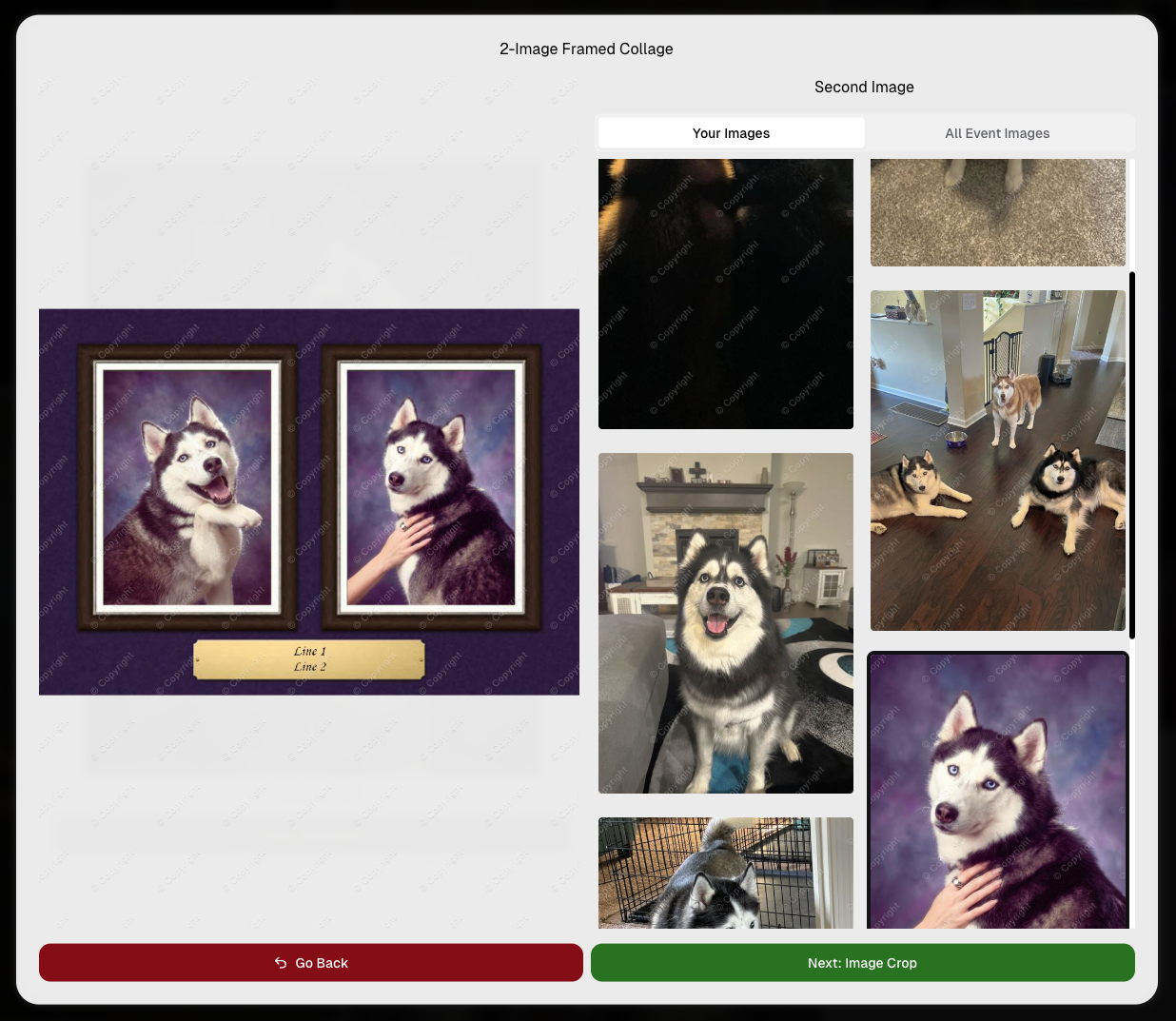
🆕 New Products: Panoramic Prints (Group-Only)

🖼️ 15×5 Panoramic Print (Group-only)


🖼️ 30×10 Panoramic Print (Group-only)

These are available across both Dashboard + Retail.

Reminders:

When you flag photos as Group Photos, they will become purchasable on Group products only IF you have Group Products in your Event's Offer.

If there are NOT Group Products in your Event's Offer, then images marked as Group Photos will be purchasable on any product (including downloads).

🖥️ Dashboard: Manage Images + Candy Culler Improvements

🧰 More Tools always visible on Manage Images

  • Previously it only appeared after an event had at least one image.

🌾 Candy Culler icon updated (axe → scythe)

👁️ Visibility toggle added right on the Cull page

  • Toggle visibility from the top-right of the image without opening the lightbox.

📦 Download Folder improves naming

  • Downloads now default to the folder name for the ZIP file, and you can choose where to save or rename it.

⌨️ CTRL/CMD+F supported on the Event PhotoTags page

🧑‍🤝‍🧑 Rosters, PhotoTags & Participant Fixes

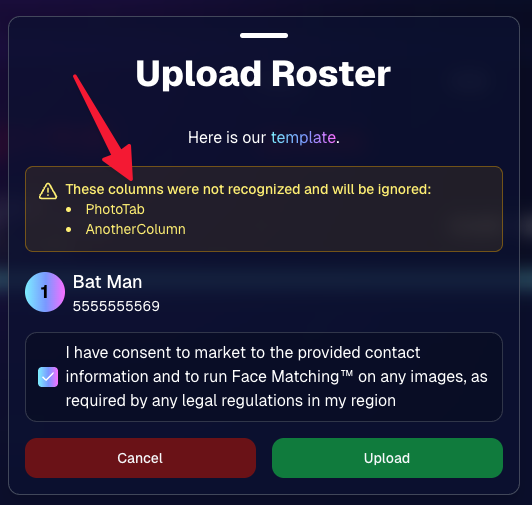
🏷️ Roster upload now accepts “PhotoTags” column header

  • Previously only accepted “PhotoTag”.

🧩 PhotoTag filtering fixed on Participant List + Participant Details

  • Especially in edge cases where a later-merged record had the PhotoTag but the initial record didn’t.

📇 PhotoRoster Data Upload now supports 3 Additional Contacts (up from 2)

🧾 Image Release Gallery fixes

  • Face count edge cases resolved (duplicates/additional contacts/duplicate submissions)
  • Program filter fixed

🛍️ Retail: Checkout & Sharing Improvements

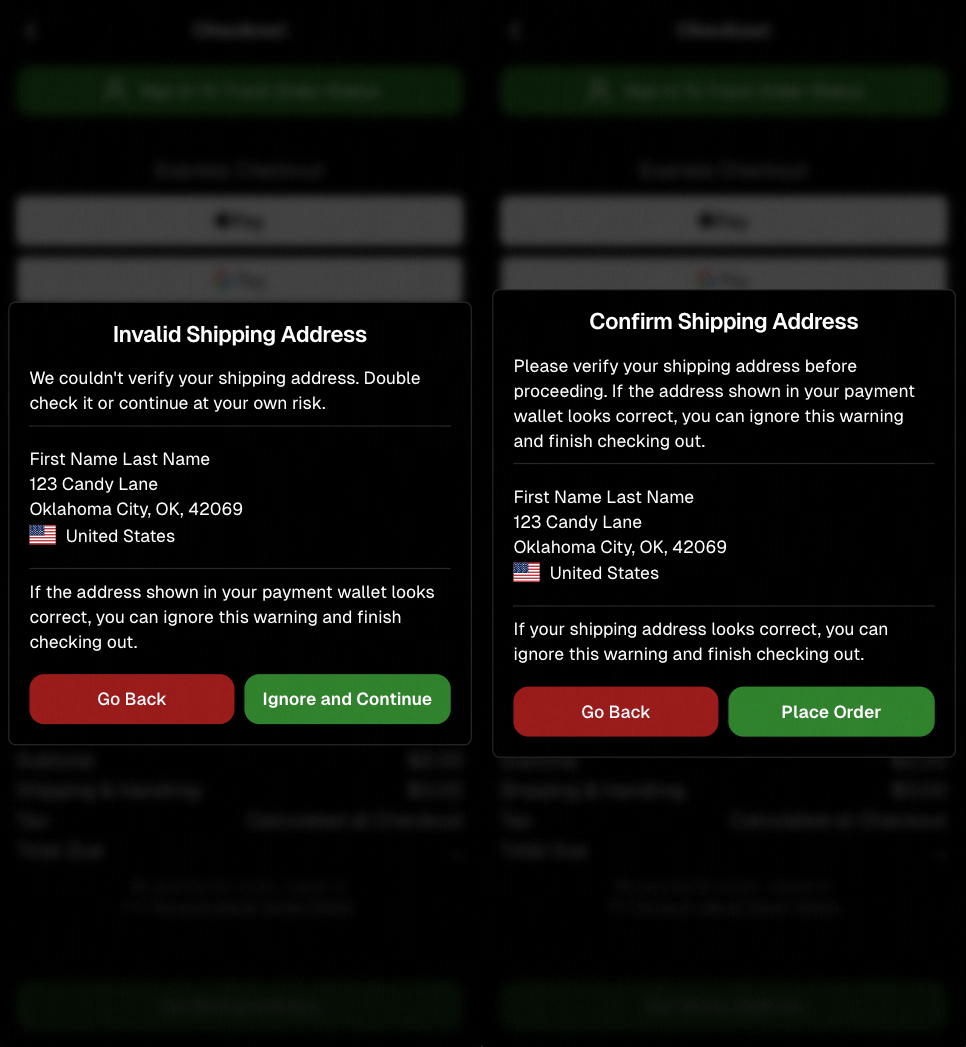
🧾 Improved checkout backend

  • Includes protections to reduce the edge case of double charges during backend disruptions.

🔗 Link previews fixed for non-QuicPics events

  • Previews should reliably appear in apps like iMessage and Discord.
    • If a retail hero exists, it’s used
    • Otherwise, the first relevant gallery image is used

🛡️ GalleryGuard enabled when watermark opacity is 0%

  • For events where the retail watermark setting is set to 0% opacity, GalleryGuard will still protect images.
    (Still disabled for Quic-type events.)

🌀 LiveLoop™ Fixes

🧠 Fixed out-of-memory crashing sometimes for LiveLoops with artwork renders

🖼️ Fixed artwork sometimes disappearing after LiveLoop runs for a long time

⚡ Performance & UI Fixes (Small but Helpful)

🚀 Offer list + Event Details load a bit faster

👤 Some profile actions are faster (passcode changes, retail settings, account data used by PhotoCoach / PortraitPress popups)

🧩 Fixed some Participant Details pages not loading

🖼️ Fixed Manage Images lightbox details getting out of sync when using arrow keys

🧷 Fixed Manage Images scrolling to the top when toggling visibility

🔑 Fixed Forgot Password page not sending email

📦 Offer Creator: New “À La Carte” Package Breakdown

🧮 New “À La Carte” section inside packages shows:

  • Individual item costs (if each package item is present in the offer as an individual product)
  • The package discount a shopper is getting (shows 0% if discount would be negative)

Note / Feature-Preview: In the near future, this will also be expanded to better highlight savings on packages on the retail site to your customers, automatically!

✅ Misc + Check-In Improvement

💬 Text campaigns weekend test: recurring (non-day-0) texts will now place the retail link at the very end to encourage link previews.

🤳 Selfie Check-In reliability improvements

That’s the week!

New panoramic prints, smoother culling, better retail reliability, and a bunch of cleanup that should make day-to-day usage feel tighter.

Keep creating magic,

Candy 🍬
Related articles

Weekly Recap: New Ornaments, Better Marketing History & Big Windows Capture App Update 🎄📸
Feature Updates
November 14, 2025

Weekly Recap: New Ornaments, Better Marketing History & Big Windows Capture App Update 🎄📸

5
 minutes read
Hey photo friends! 👋


Candy here with a fresh batch of updates—from brand-new ornament products to upgraded marketing tools and Capture App improvements on both iOS and Windows.

Let’s jump in!

🎁 New Holiday Ornaments

  • 🎄 Statuette Ornament

    A new hanging statuette-style ornament—complete with a red ribbon.
    • Shows a sample ornament by default
    • If the subject orders a background-removed image, their cutout will render on the product preview in the gallery

  • 🪙 Aluminum Ornament

    A flat aluminum ornament that renders any photo in the product gallery.
    • Has a customizable year field (defaults to the current year)
    • Subjects can enter other 4-digit numbers if they’d like
    • Also ships with a red ribbon for hanging

Perfect timing for holiday sales. 🎅

✉️ Marketing History & Dashboard Improvements

📬 Marketing History Page (Big Upgrade!)

  • 🧭 Pagination for easier navigation through large histories
  • 👤 Shows participant name + image on each row
  • 🔗 Click through to the Participant directly
  • 🧾 All email + text sends are now in one combined, date-sorted list
  • ⚡ Faster initial load, and smoother scrolling for long histories
  • 🔍 New filters:
    • Text search (with CMD+F support)
    • Filter to Texts only or Emails only
    • URL supports both filters and pagination, so you can share filtered views

🖥️ Other Dashboard Updates

  • 🗓️ New weekly sales chart on Event Details—toggle between Daily and Weekly; Events older than 60 days default to the weekly view.
  • 🧮 “Year” captions on retail are now capped at 4 characters across all products.
  • 🌄 Download custom backgrounds you’ve uploaded for an Offer
    • Offer → Select Backgrounds → My Custom Backgrounds → Download button
  • 💬 QuicPics send error reason now appears on Participant Details (logging started April 2025).
  • 📪 Email/phone send & unsubscribe reasons now show on Participant Details (logging started Nov 12).
  • 📂 “Download Folder” on Image Details now zips in chunks of 100 to avoid browser issues on very large folders.

🧹 Small Dashboard Fixes

  • 🗓️ Removed Day 6 text from all three QuicPics programs (it wasn’t adding clicks or sales).
  • 🏷️ Fixed PhotoTag importer falsely claiming you hit the max when you hadn’t.
  • 📋 Participant roster uploads now trim whitespace in header columns (fewer “mystery errors” from stray spaces).
  • 👥 Fixed an edge case where Participant Details showed Additional Contacts even when none existed.

📱 Capture App iOS 4.21.4 (OTA)

  • 🤳 Front camera photos mirrored

    Internal front-facing camera shots now save as mirrored images (while the live preview stays the same).
    • Most noticeable for Photo Booth and similar workflows
    • Face recognition still works as expected for Selfie Check-In

(If you’re on 4.21 already, this will arrive as an over-the-air update.)

💻 Capture App Windows 4.20 Highlights

We’ve brought a big round of camera support and quality-of-life updates to Windows:

  • 📷 Broader camera support
    • Sony now works on ARM tablets, and most new Sonys no longer require special driver setup—just plug in.
    • Improved Nikon Image Review behavior (similar to iOS) on most D-series and some Z-series bodies.
    • Added support for Panasonic cameras.
    • Added support for a wide range of FUJIFILM X and GFX models.
    • New Canon support: EOS R5 Mark II, EOS R1, EOS R50V.
  • 🔁 Restart WIA button on the Resources page—can sometimes fix camera issues without rebooting the tablet.
  • ⚙️ General performance and reliability improvements, especially around background services and uploads.
  • 🎨 Updated app icon & name to match the iOS version.

That’s it for this week!

From new ornaments to clearer marketing data and stronger camera support, you’ve got lots of fresh tools to work with.

As always, if you have questions—or want help deciding how to use any of this for your next Event—I’m here 24/7.

Keep creating magic,

Candy 🍬
Weekly Recap: Capture App 4.21 OTA, New Dashboard Filters & Helpful Fixes 📲🧭
Feature Updates
November 7, 2025

Weekly Recap: Capture App 4.21 OTA, New Dashboard Filters & Helpful Fixes 📲🧭

2
 minutes read
Hey photo friends! 👋

Here’s what’s new this week! Changes focused on faster updates, more filters, and a handful of useful fixes.

📱 Capture & Upload App (iOS) — Version 4.21

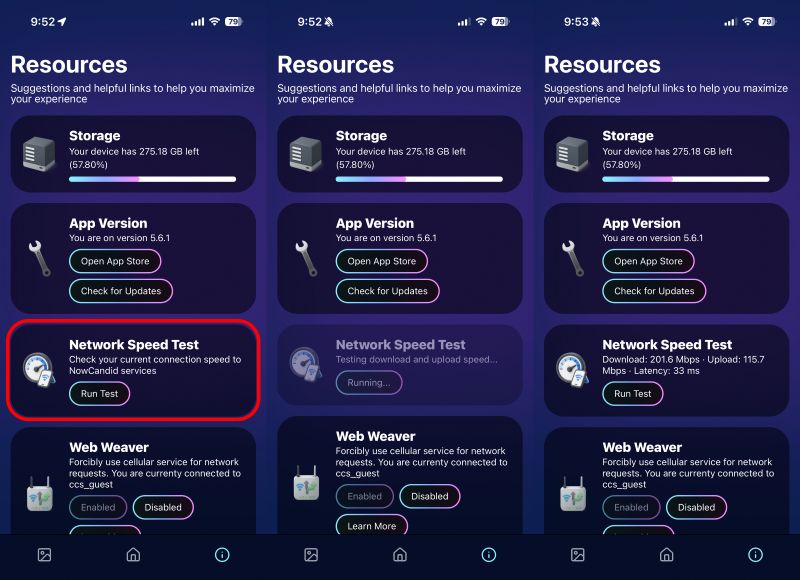
  • 🚀 Over-the-Air (OTA) updates: Most app updates no longer require the App Store. Updates download in the background and install on app restart/launch—no interruptions during Events. You can also manually check via Resources → “Check for updates” (tap the (i) button).
  • 📶 See your Wi-Fi name: The current network name now shows on the Web Weaver item in Resources.
  • Faster, lighter uploads: Additional memory and performance improvements when uploading image files.

Smaller iOS app changes

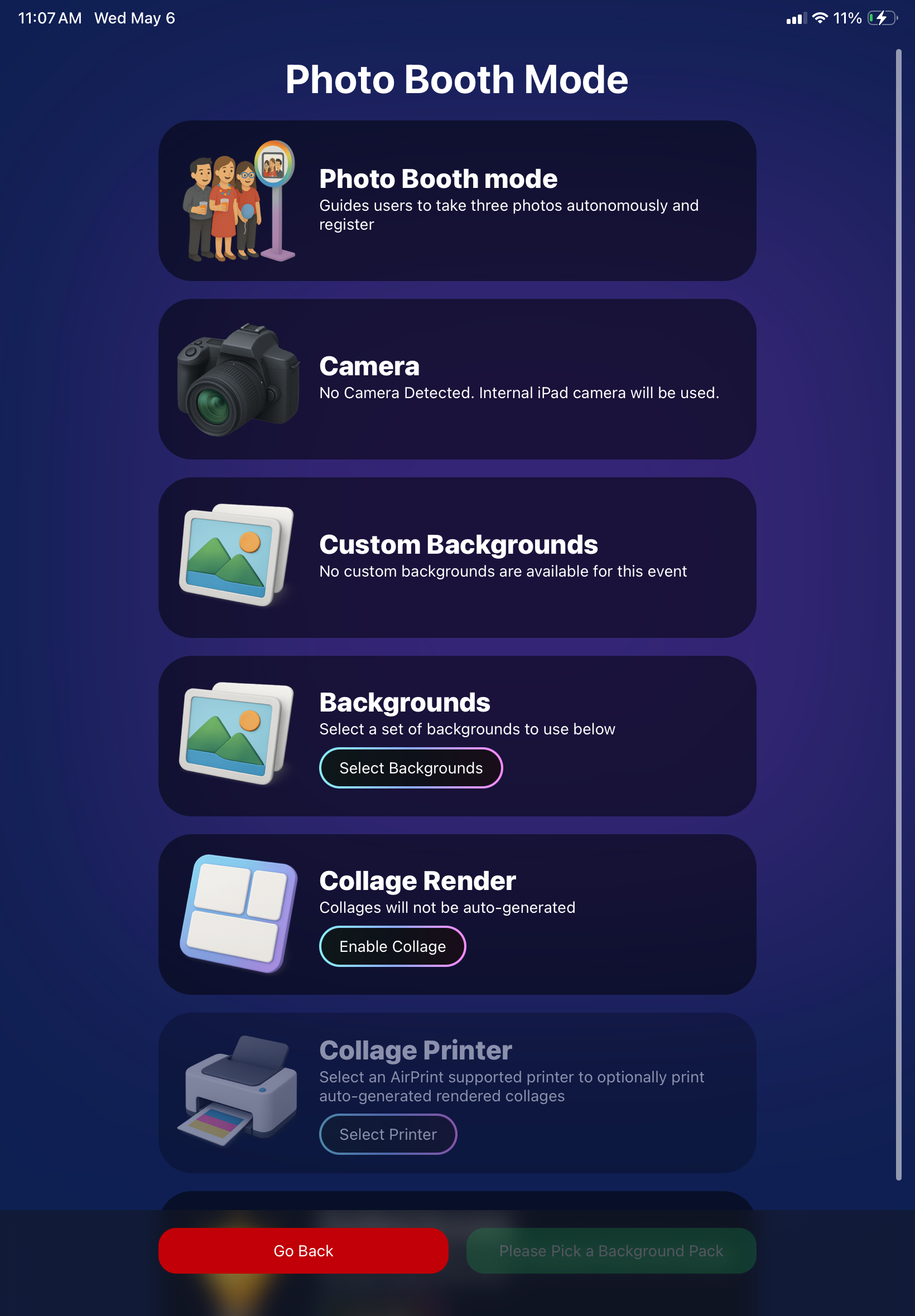
  • 🖨️ AirPrint prompt returns if a printer isn’t available (avoids an iOS security hiccup).
  • 🌐 Web Weaver manual toggle fixed.
  • 🔎 Image preview UI fixed when switching after zoom/pan.
  • 🧾 Name Lookup now populates correctly on first launch.
  • 🖼️ QuicPortraits icon color updated in Event select (those icons are single-color).
  • 🗂️ Block log-ins to flagged TKO folders (e.g., if you flagged “a”, you can’t log into “ac”).
  • ↔️ Horizontal zoom issue on iPhone resolved.

FYI on versions: The App Store shows 4.21; the current OTA version is 4.21.3. We’ve already shipped three OTAs this week to help teams while they’re still on-site! Pretty cool, right?

🖥️ Dashboard

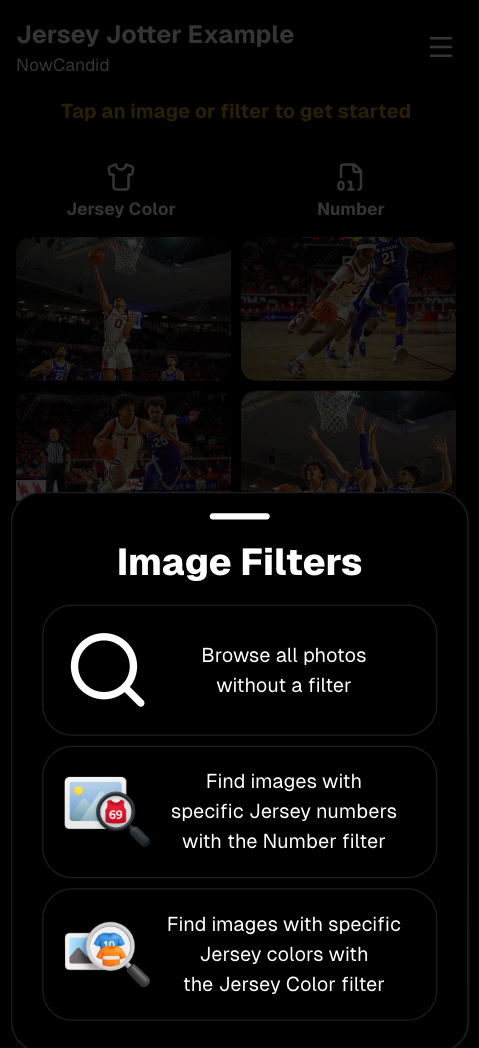
  • 👁️ Manage Images → Visibility filter: All / Visible only / Hidden only.
  • 🎯 Assign Images → New filters: Name order, Purchased only, Visibility.
  • 🔗 Events Report: Clicking an Event now opens its Event Details page.

Smaller dashboard changes

  • 📨 Email campaign guard: Prevents a campaign from starting if the only image is a group PhotoTag.
  • 📥 Inbox UI: On mobile, updated header; on desktop, the selected item area stays sticky while you scroll.
  • 🧰 Trader Card fixes: Two styles now say League (not LD), and one style’s production print now matches the retail render.
  • 🖼️ Art uploader validation: Shows an error if an image is under 100 px in width or height.
  • 😊 Retail face boxes aligned on very small desktop viewports.

That’s the update for the week!

Thanks for reading—and happy shooting!

Candy 🍬

Weekly Recap: Sticky Filters, Faster Uploads & Happy Halloween! 🎃🕸️
Feature Updates
October 31, 2025

Weekly Recap: Sticky Filters, Faster Uploads & Happy Halloween! 🎃🕸️

3
 minutes read
Boo! 👻

Candy here with a trick-or-treat pail of useful updates: sticky, shareable filters, faster uploads, and clearer participant tools. You’ll keep context when you reload or share links—and move uploads along faster.

Let’s dig in!

🖥️ Dashboard Improvements

  • 🧲 Sticky, shareable filters
    Filters now live in the URL on Manage Images, Assign Images, Event List, and Participant List. Refresh or hit Back and your view stays put—and you can share filtered links with teammates or support.
  • 🚀 Faster image uploads
    The Image Upload page handles large batches more efficiently for quicker throughput.

🪄 Minor Dashboard Tweaks

  • 💳 QuicPics Upfront Pay editor is now available in QuicPortraits.
  • 🏷️ “Additional Contact” badge appears under a participant’s name for quick clarity.
  • 👥 Additional Contacts list on Participant Details, plus an Add option (when new campaigns are allowed).
  • ✉️ Marketing History filter: view All / Texts / Emails.

🧹 Dashboard Bug Fixes

  • 🧩 Positive ID code PDFs now show PhotoTags for merged participants even when they weren’t the first registered.
  • 📏 2×5 Positive ID PDF layout fixed for long event titles.
  • 📄 2×5 Positive ID PDF last-page spacing fixed when the page isn’t full of cards.

📲 Capture & Upload App

  • 🙅 Name Lookup no longer shows Additional Contacts (no app update needed—restart or re-log into the Event).

🛍️ Misc Changes

  • ⚖️ Retail “weight” caption limit increased to 7 characters (up from 3, for products like trader cards).

🛠️ Misc Fixes

  • 🔁 QuicPics won’t double-text the same image if someone was registered twice in the same send batch.
  • 🔃 Manage Images “uploaded first/last” filter direction corrected.
  • 📪 Fixed an unsubscribe edge case when a gallery is entirely cutouts and all original JPEGs are not visible.

That’s the update!

Happy Halloween—and good shooting! 🎃


Candy 🍬

Let’s get in touch

If you’re a photographer looking to add NowCandid services to your wheelhouse – set up a call by clicking the button below.

How to customize formatting for each rich text

How to customize formatting for each rich text

How to customize formatting for each rich text

How to customize formatting for each rich text

How to customize formatting for each rich text

What’s a Rich Text element?

The rich text element allows you to create and format headings, paragraphs, blockquotes, images, and video all in one place instead of having to add and format them individually. Just double-click and easily create content.

A rich text element can be used with static or dynamic content. For static content, just drop it into any page and begin editing. For dynamic content, add a rich text field to any collection and then connect a rich text element to that field in the settings panel. Voila!

Headings, paragraphs, blockquotes, figures, images, and figure captions can all be styled after a class is added to the rich text element using the "When inside of" nested selector system.

  • List One
  • List Two
  • List Three
  • List Four
  • List Five

This is a link

This is bold text