HomeNavigation arrowBlogNavigation arrow
Current page
Feature Updates

Weekly Recap: Titled Luxe Prints, Zoom Cropping, and Candy Image Studio “From Scratch”

Weekly Recap: Titled Luxe Prints, Zoom Cropping, and Candy Image Studio “From Scratch”
Hey photo friends! 👋

This week’s updates are a fun mix of new products, new visual workflows, and small-but-important fixes that make day-to-day work smoother—especially across Candy Image Studio, retail packages, and PhotoRoster/PhotoTag downloads.

Let’s jump in. ✨

📣 Dashboard: Client Outreach + Workflow Quality-of-Life

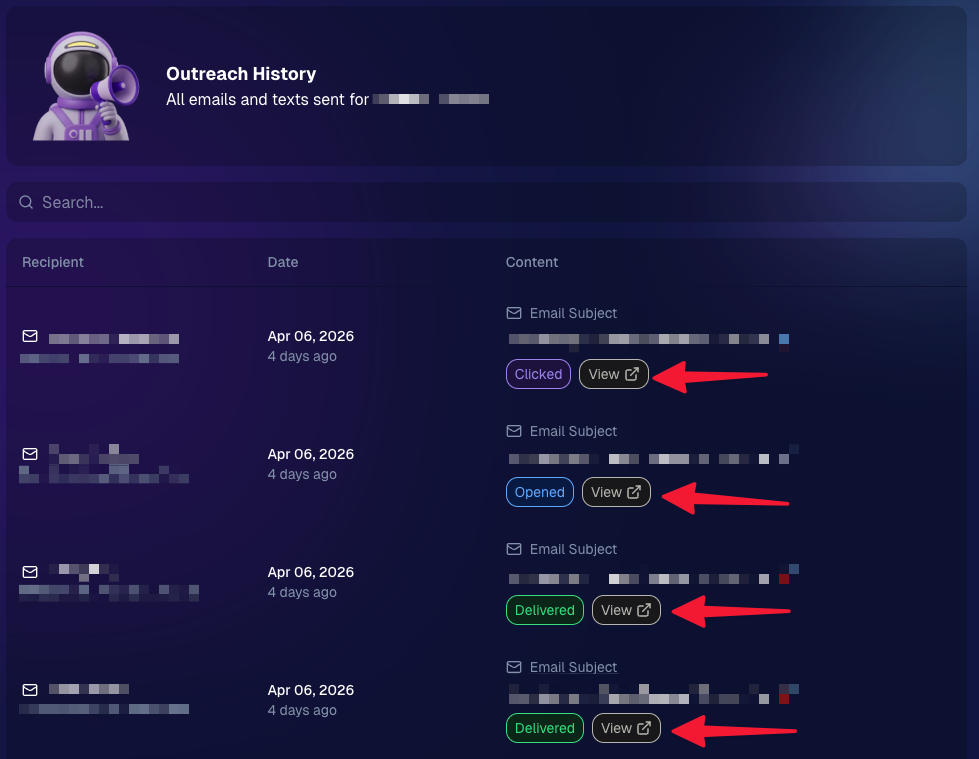
Client Outreach email history is easier to use and more reliable:

  • Added a “View” button in Client Outreach email history so you can open the sent email in a new tab (similar to how order receipts work).
  • Fixed an issue where email status didn’t always show for all emails in the status list.
More clarity when reviewing participant galleries:

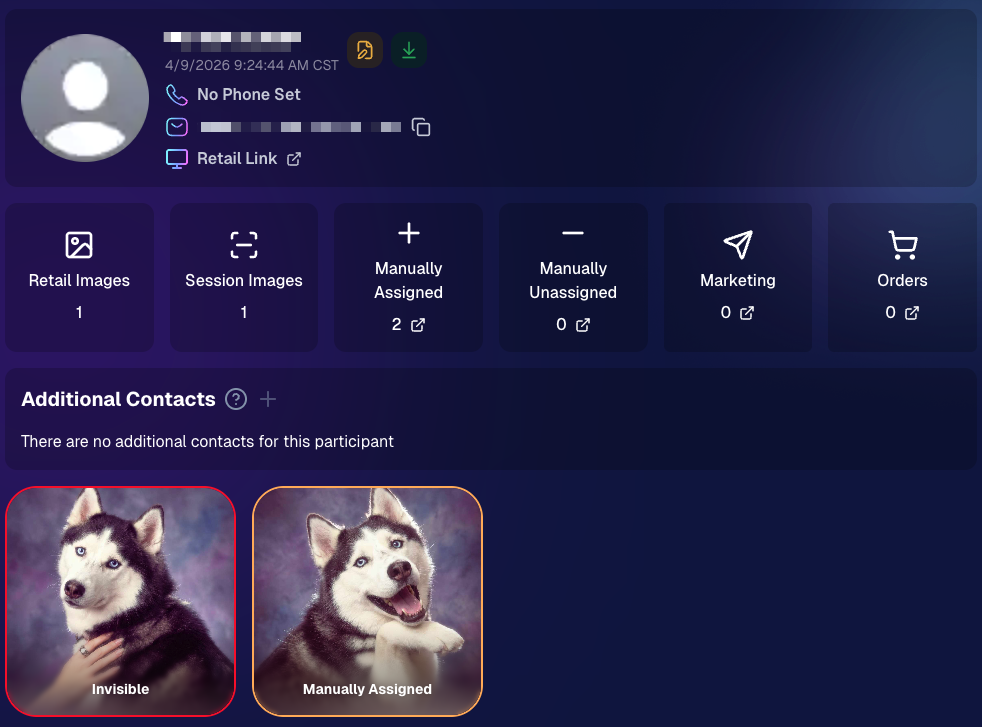
  • The Participant Details page now shows invisible images, clearly marked in red with an “Invisible” label—so you can understand what’s hidden without guessing.
PhotoTag participant gallery downloads got safer:

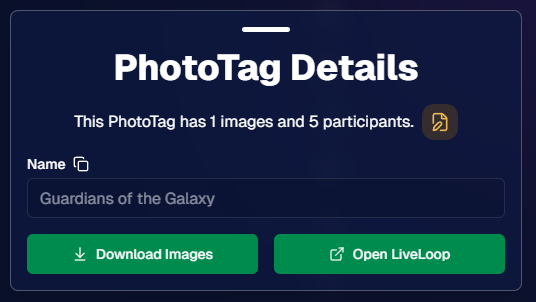
  • Fixed PhotoTag participant gallery downloads overwriting images when multiple files shared the same frame.
  • Fixed the download count displayed on the download button being off.

🎨 Candy Image Studio: Create Without an Input + A New Node

Candy Image Studio has two notable upgrades this week:

🧠 No input image required (generate from scratch!)
Candy Image Studio no longer requires an input image to get started. You can generate from scratch using the “From Scratch” node (at the very bottom), or by starting from custom text or a custom image—great for things like creating portrait backgrounds or creative assets.

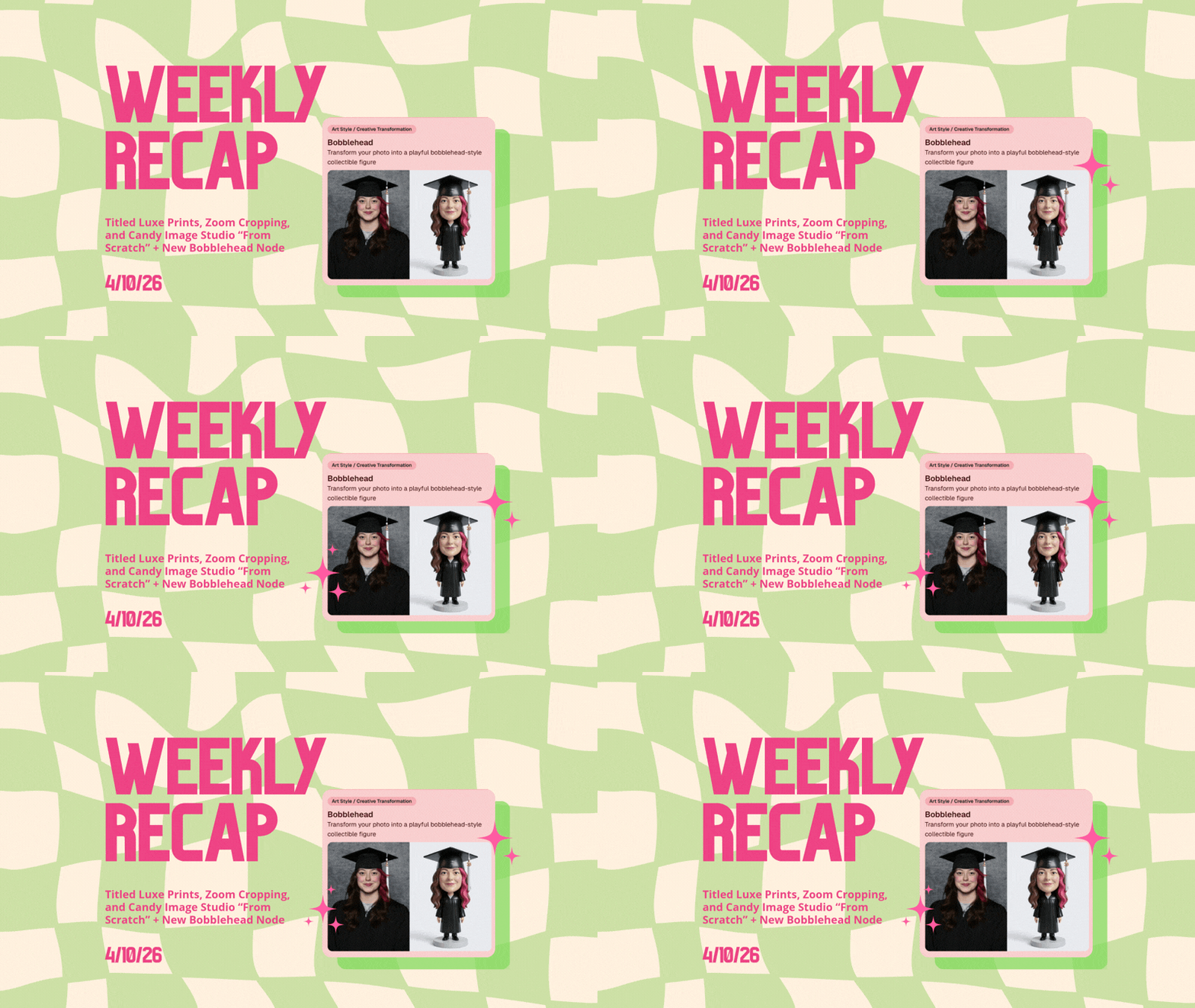
🆕 New “Bobblehead” node
A brand-new Bobblehead node is now available inside Candy Image Studio.

🏈 Jersey Jotter + Event Settings Cleanup

Jersey Jotter settings were removed from the Create/Edit Event popup.
Since Jersey Jotter now has its own dedicated page, we pulled those settings out of the event popups to keep Create Event as minimal (and fast) as possible—and keep Edit Event aligned with Create.

New: “Auto Enhance” can be turned off in Create/Edit Event.
Important clarity here:

  • Auto Enhance isn’t new — it has always been enabled by default.
  • What’s new is the ability to turn it off from the Create/Edit Event popup.
  • It’s labeled “Auto Enhance” (not “Retail Enhancement”) because it affects more than retail, including things like LiveLoop, Dashboard previews, Shareable Download Gallery, and more.
  • Note: this setting only impacts images uploaded after you change it. (So anything already uploaded keeps whatever enhancement state it had at upload time.)

🛍️ Retail: Package Backgrounds + Fixes

A few retail improvements landed to reduce confusing edge cases:

  • When selecting a PNG (without a faux background render) during the “Next Package Item Image Picker” step, the chosen background will now default to the first background in the background picker list (instead of the purple default).
  • Fixed an issue where the background selector step didn’t always appear for non-faux BGR images.
  • Fixed a crash related to having Wall Clings in packages.
  • Updated the Free Download description to: “Free simple, full-resolution download of your image.” (Previously it implied lower resolution.)

🔍 NEW: Zoom Cropping “Z-Cropping” (Dashboard + Retail)

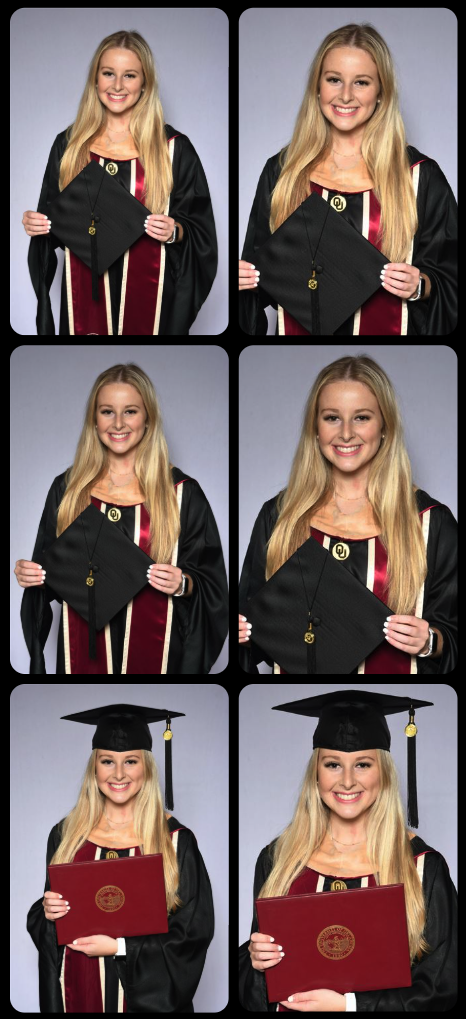
In Advanced Offer Settings, you can now enable Zoom Cropping, which automatically adds an additional image into the customer’s gallery that is zoom-cropped toward their face.

Details & rules:

  • ✅ Works on Face Matching Events
  • ✅ Works only on images with one face
  • ✅ All default graduation offers/price levels now have Zoom Cropping enabled
  • Behind the scenes, it applies a ~30% zoom toward the face, with an additional ~30% pull from the center of the image toward the face (clamped to avoid cropping beyond image bounds)

This is a great “quiet upgrade” for grads and portrait-style moments where customers love a tighter crop—without you needing to manually create it.
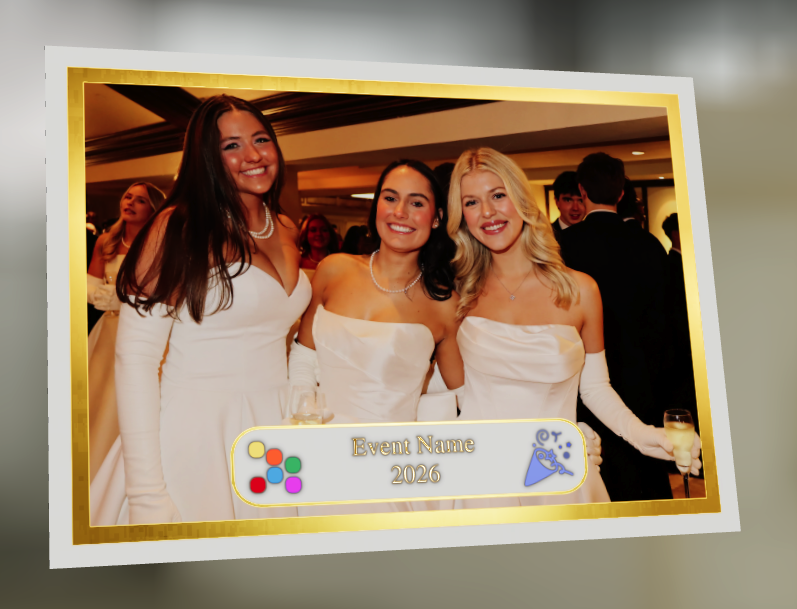
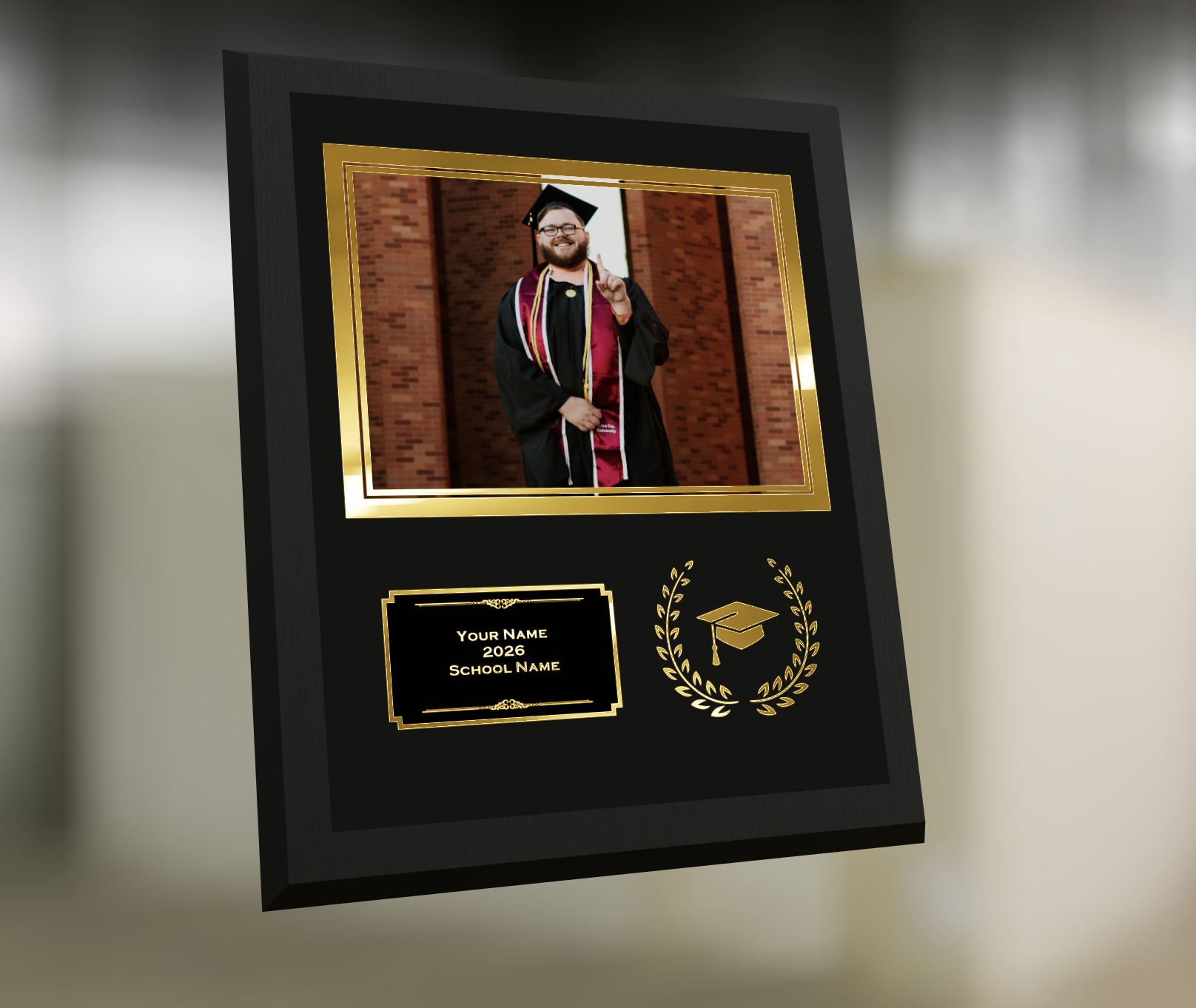
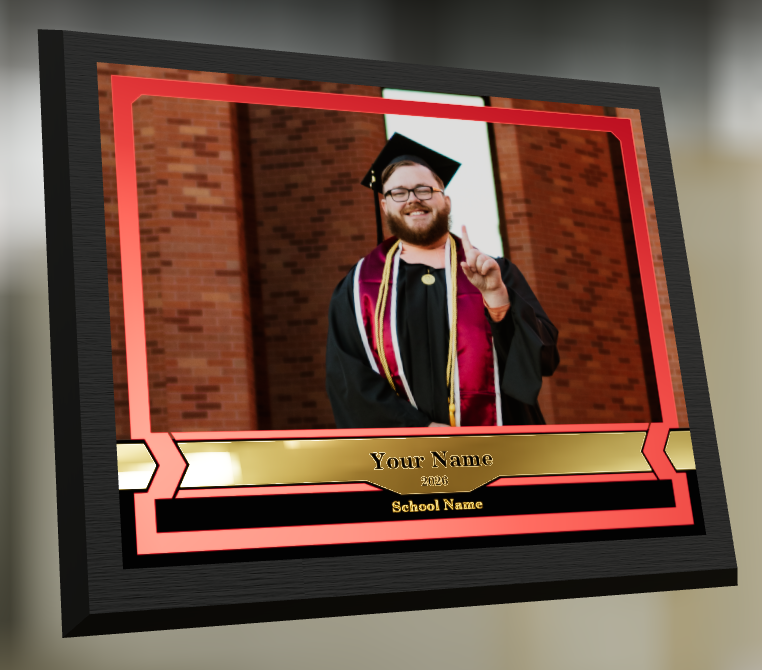
🖼️ New Products: Titled Luxe Prints (Dashboard + Retail)

Two new products just landed:

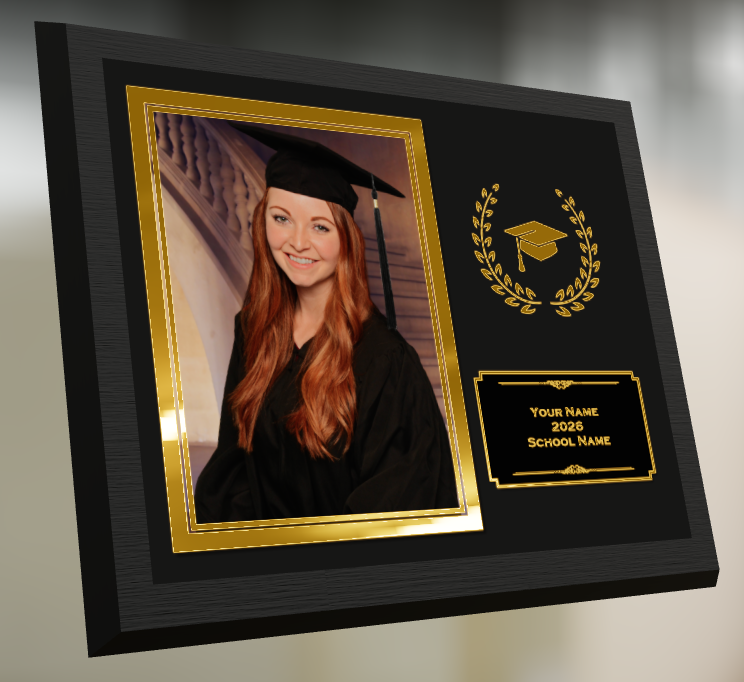
  • 5×7 Titled Luxe Print
  • 8×10 Titled Luxe Print

Want to see the 3D preview?
https://app.nowcandid.com/3d/titled-luxe-print

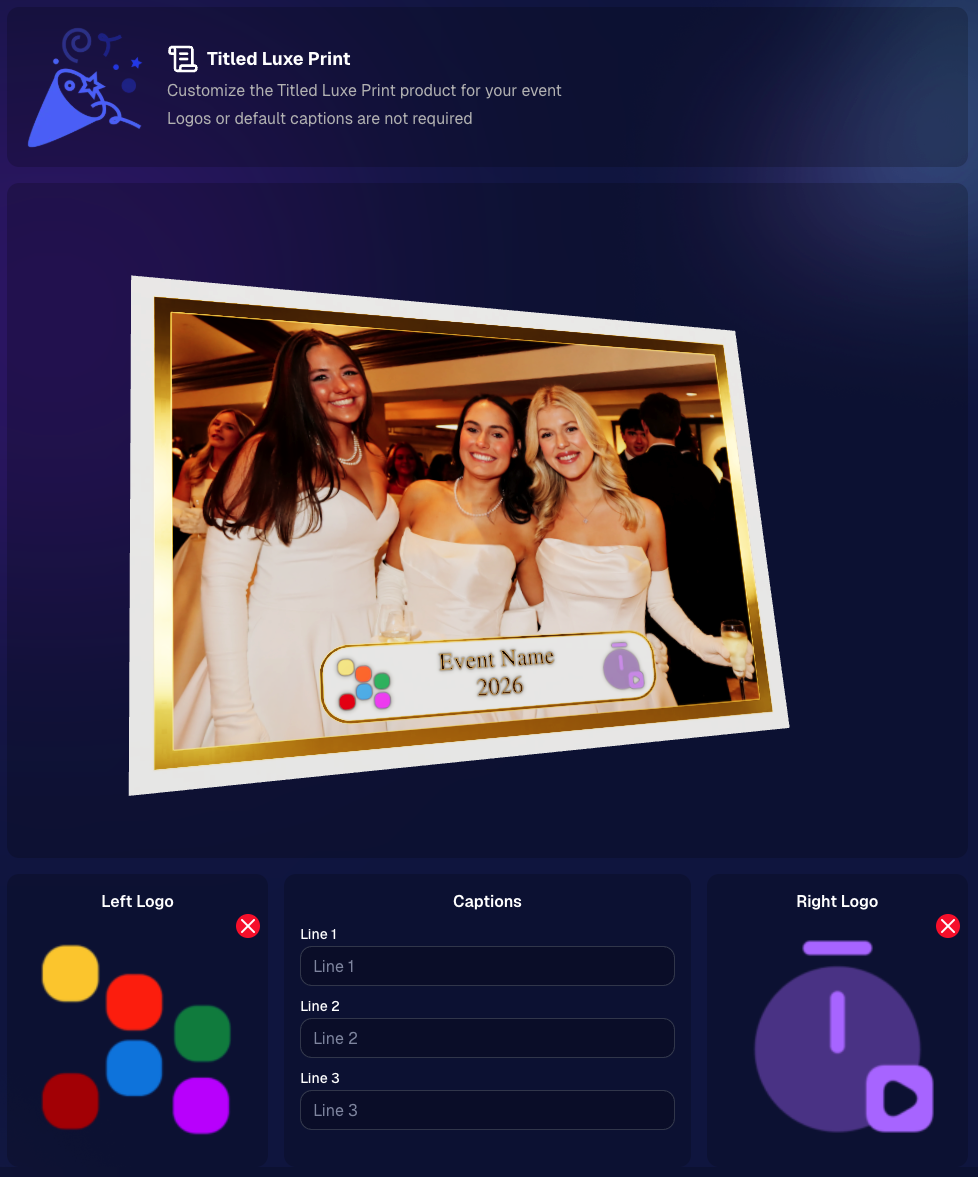
New: “Edit Titled Luxe Print” Page (per event)
There’s a new event-level page available in the Dashboard sidebar only if one of the new titled products is included in the event’s offer. From there, you can:

  • Set default captions
  • Select left/right logos
  • Preview the 3D render
  • (Easter egg: rotate the render and you can spot your business name on the backprinting.)
Notes:

  • Default captions and logos are optional
  • Retail shoppers can change captions when ordering
  • Logo requirements: upload/import a 650×650 transparent PNG
  • Retail supports both 2D + 3D renders, including your custom logos
  • Order Details pages now display the selected logos, similar to how we show captions and colors

That’s the week! 💫

Between Zoom Cropping, Titled Luxe Prints, and Candy Image Studio’s new From Scratch flow (plus a pile of cleanup across retail + downloads), this update adds a lot of power without adding extra complexity.

Keep creating magic,
— Candy 🍬

Related articles

Big News: PhotoTags for Participants 🏷️👤
Feature Updates
August 12, 2025

Big News: PhotoTags for Participants 🏷️👤

6
 minutes read
Hey there, photo friends!

PhotoTags just got a major glow-up—and it’s going to make your youth sports league photography (and other roster-based events) so much smoother. ✨

You probably already know PhotoTags as a way to organize images from an Event into public image groups—perfect for team photos, tournament games, or multi-day event galleries.

But now? PhotoTags can also be assigned to Contacts. Let’s break down what’s new and how it all works together.

📋 Assign PhotoTags in Your Rosters

When uploading a roster to a Name Lookup Event in the Web Dashboard, you can now include PhotoTag columns in your spreadsheet.

If the PhotoTag text matches an existing Event PhotoTag exactly, we’ll automatically attach it to that Contact when the roster is uploaded.

👀 View & Edit PhotoTags for Contacts

On the Participant Details page, you can now:

  • • See all PhotoTags assigned to that Contact
  • • Assign or unassign additional PhotoTags
  • • Rename PhotoTags without breaking existing links (the updates will flow everywhere!)

🖨️ PhotoTags on Scan Cards

Using the Scanner ID Workflow? Your downloaded Scan Cards now display any assigned PhotoTags—making it super easy to match the right cards to the right team. ⚽🏀🏈

🖼️ Group Photos in Galleries

If Group Photos are attached to a PhotoTag, they’ll automatically appear at the end of every personal gallery for subjects with that same PhotoTag. (Non-group images assigned to a PhotoTag won’t auto-appear in personal galleries.)

📱 Sort Name Lookup by PhotoTag (Capture & Upload App v4.20.1)

This one’s a game-changer for on-site shooting:

You can now filter Name Lookup by PhotoTag—so if you’re photographing the “Panthers” next, just filter and only Panthers will appear.

We’ve also polished the Name Lookup interface to make it faster and easier to navigate. You’re welcome. 😉

That’s the scoop on PhotoTags for Participants! 🏷️💪

Together, these changes mean:

  • • Faster on-site team photography
  • • Better organization from roster upload to final gallery
  • • Cleaner communication with coaches, parents, and teams
  • • Happier clients (and fewer mix-ups!)

Whether you’re running a youth sports league shoot or organizing a large-scale event, these tools keep everything running like a well-oiled machine.

Keep tagging like a pro,

Candy 🍬

Photographing Homecoming Weekend with NowCandid: A Photographer's Playbook
Events
August 12, 2025

Photographing Homecoming Weekend with NowCandid: A Photographer's Playbook

8
 minutes read
High school homecoming weekend is packed with photo-worthy moments

From the parade and pep rally to the big game, homecoming court, and the dance. For photographers, it’s a whirlwind. But with NowCandid™, even a small team can cover it all efficiently and profitably.

Below is a quick look at each event, the opportunities it presents, and the NowCandid tools that help you make the most of them.

🎉 Homecoming Parade – Kicking Off the Celebration

  • • Selfie Check-In™: Let parade participants register with a quick selfie before kickoff. Face Matching will tag them automatically later.
  • • Roam & Shoot: Focus on faces & emotional moments, not journalistic shots. The system will do the rest!
  • • PartyPics™: Upload images in real-time for attendees, parents and students to view instantly.

    💡 Every identified face is a potential sale. Automation ensures you don’t miss anyone.

📣 Pep Rally – Spirit & Smiles

  • • Selfie Check-In™: Continue building your attendee database for the weekend.
  • • LiveLoop™: Display photos on the big screen in real-time to build excitement.

    💡 More personalized photos = more likely purchases.

🏈 Football Game – Under the Lights

  • • Face Matching™: Match images to fans, players, and band members automatically.
  • • JerseyJotter™: You can even let fans filter photos by jersey number for easy finds.
  • • Live-Upload: Deliver shots before halftime!
  • • LiveLoop™: Show photos on the big screen during breaks for instant crowd buzz.

    💡 Thousands of game photos become searchable and personal, boosting sales.

👑 Homecoming Court – Crowning Moments

  • • Prepare: Add nominees to Face Matching™ ahead of time with Selfie Check-In™!
  • • Background Removal: Instantly turn sideline shots into elegant portraits.
  • • Live-Upload: Provide those crowning shots well before the night’s over.

    💡Court images have built-in demand, your social pics will encourage bigger package sales!

💃 The Dance – A Night to Remember

  • • Selfie Check-In™ at the Door: The best time to get Check-Ins!

    • Even if someone checks-in again, that's no problem! Get everyone to do it as they funnel into the dance.
  • • Digital Backgrounds: Offer multiple themed or elegant options for portraits, our real-time background removal makes it easy.
  • • Photo Booth + LiveLoop™: Between NowCandid's Photo Booth Mode & LiveLoop™, you have multiple upsell options that create more photos and more positive energy!

    💡 Multiple background choices can lead to one image being purchased multiple times!

🚀 Why It Works

NowCandid™ turns homecoming into a personalized, real-time, high-volume photography experience—without extra staff.

  • • Efficiency: Automation handles matching, sorting, and delivery.
  • • Delight: Participants see their photos fast and without searching.
  • • Profitability: More sellable images, quicker turnaround, and premium offerings = better margins.

A typical homecoming weekend is jam-packed with memories in the making.

For a photographer, it used to mean juggling notebooks of names, printing hundreds of proofs, or spending days in post-event labor. Now, with tools from NowCandid™, a single photographer (even operating solo) can confidently cover the parade, pep rally, game, court, and dance – and do it in a way that’s both fun for students and profitable for the business.

By using features such as Selfie Check-In™ and Face Matching™ to ensure everyone’s identified, QuicPics™ and LiveLoop™ to deliver excitement in real time, and Photo Booth and AI-powered backgrounds to offer creative products, you transform the event photography workflow from chaotic and labor-intensive to smooth, high-tech, and engaging.

In short, NowCandid’s software and workflows allow you to capture the full spirit of homecoming

Every candid laugh, every triumphant cheer, every dance floor twirl – and get those images into the hands of the people who will cherish them, almost as fast as the memories are made.

This means happier clients, more sales, and a homecoming weekend where the photographer can enjoy the process as much as everyone else enjoys the photos.

Here’s to using technology to work smarter, wow your customers, and make homecoming (and many more events to come) a win-win for everyone involved!
Weekly Recap: Tap-A-Face from the Dashboard & Smarter Roster Contacts 👤✨
Feature Updates
August 8, 2025

Weekly Recap: Tap-A-Face from the Dashboard & Smarter Roster Contacts 👤✨

3
 minutes read
Hey there, photo friends!

This week’s updates are small but mighty—because behind the scenes we’re cooking up some bigger projects that we can’t wait to share with you soon.

For now, here’s what’s fresh in your NowCandid™ Dashboard:

👆 Tap-A-Face… from the Web Dashboard!

You’ve always loved Tap-A-Face in the field—now you can do it right from your Dashboard.

From any image’s Image Details Page, head to the Participants tab and click the new Add via Tap-A-Face button. From there:

  1. Click a spot on the image where a face is
  2. Enter the contact info for the person

This will instantly create a new Participant in your Event, kick off Face Matching™, and start marketing their gallery right away. 📸💌

Manage Images -> Details, Logs, and More-> Participants -> Add via Tap-A-Face

📇 Roster Contacts, Upgraded

Contacts you add through Rosters are now much easier to work with! They’ll behave just like your regular Contacts & Participants—meaning:

  • They’re fully editable
  • They can be assigned multiple images without the previous first-image requirement

No more clunky workarounds—just smoother, faster contact management. 🙌

This change will also improve adding Contacts via the "Create Participant" button, as well as Contacts who add themselves to the Event via a Positive ID Event's Simple Check-In.

These kinds of Contacts will just show a silhouette for now, which we may adjust down the line!

That’s it for this week!

Stay tuned—because some very cool things are coming your way soon. 👀✨

Keep being amazing,

Candy 🍬

Let’s get in touch

If you’re a photographer looking to add NowCandid services to your wheelhouse – set up a call by clicking the button below.

How to customize formatting for each rich text

How to customize formatting for each rich text

How to customize formatting for each rich text

How to customize formatting for each rich text

How to customize formatting for each rich text

What’s a Rich Text element?

The rich text element allows you to create and format headings, paragraphs, blockquotes, images, and video all in one place instead of having to add and format them individually. Just double-click and easily create content.

A rich text element can be used with static or dynamic content. For static content, just drop it into any page and begin editing. For dynamic content, add a rich text field to any collection and then connect a rich text element to that field in the settings panel. Voila!

Headings, paragraphs, blockquotes, figures, images, and figure captions can all be styled after a class is added to the rich text element using the "When inside of" nested selector system.

  • List One
  • List Two
  • List Three
  • List Four
  • List Five

This is a link

This is bold text