HomeNavigation arrowBlogNavigation arrow
Current page
Feature Updates

Weekly Recap: Virtual Group Builder, Client Outreach Updates & Smarter Retail Support 🎉📸

Weekly Recap: Virtual Group Builder, Client Outreach Updates & Smarter Retail Support 🎉📸
Hey photo friends! 👋

This is a big week! The headline feature is one many sports and volume photographers are going to love: An all-new Virtual Group Builder is now available directly on the Dashboard.

We’ve also added new Candy Image Studio tools, improved Client Outreach behavior, refreshed image assignment tools, and made retail support easier for shoppers and photographers alike.

Let’s jump in!

🧑‍🤝‍🧑 Big New Feature: Virtual Group Builder

You can now build Virtual Groups directly on the Dashboard — with Mobile Dashboard support too!

Find it from an Event page by clicking Virtual Groups in the sidebar menu.

With Virtual Group Builder, you can:

👥 Import participants from the full Event, one at a time, or everyone with a specific PhotoTag

✂️ Use participant cutouts to build polished group images

🏷️ Build groups quickly when your Event has consistent cutouts and participants tagged with PhotoTags

🖼️ Create Virtual Groups in 4×6, 5×7, 8×10, or 11×14 formats

🎨 Choose from NowCandid default backgrounds, upload custom backgrounds, and add overlays

🧢 Add account logos to the corners

🔤 Toggle subject names on or off

📐 Preview crop lines and aspect ratio lines

🖱️ Zoom, pan, drag, reorder, resize, brighten, and position subjects

You can also adjust group-level settings like background, overlay, overall scale, vertical position, bottom shadow falloff, and individual cutout fade to help hide cropped legs.

When your Event is set up cleanly with cutouts and PhotoTags, you can create a full Virtual Group in just a few clicks. ✨

Docs page: https://app.nowcandid.com/docs/image-management/virtual-groups
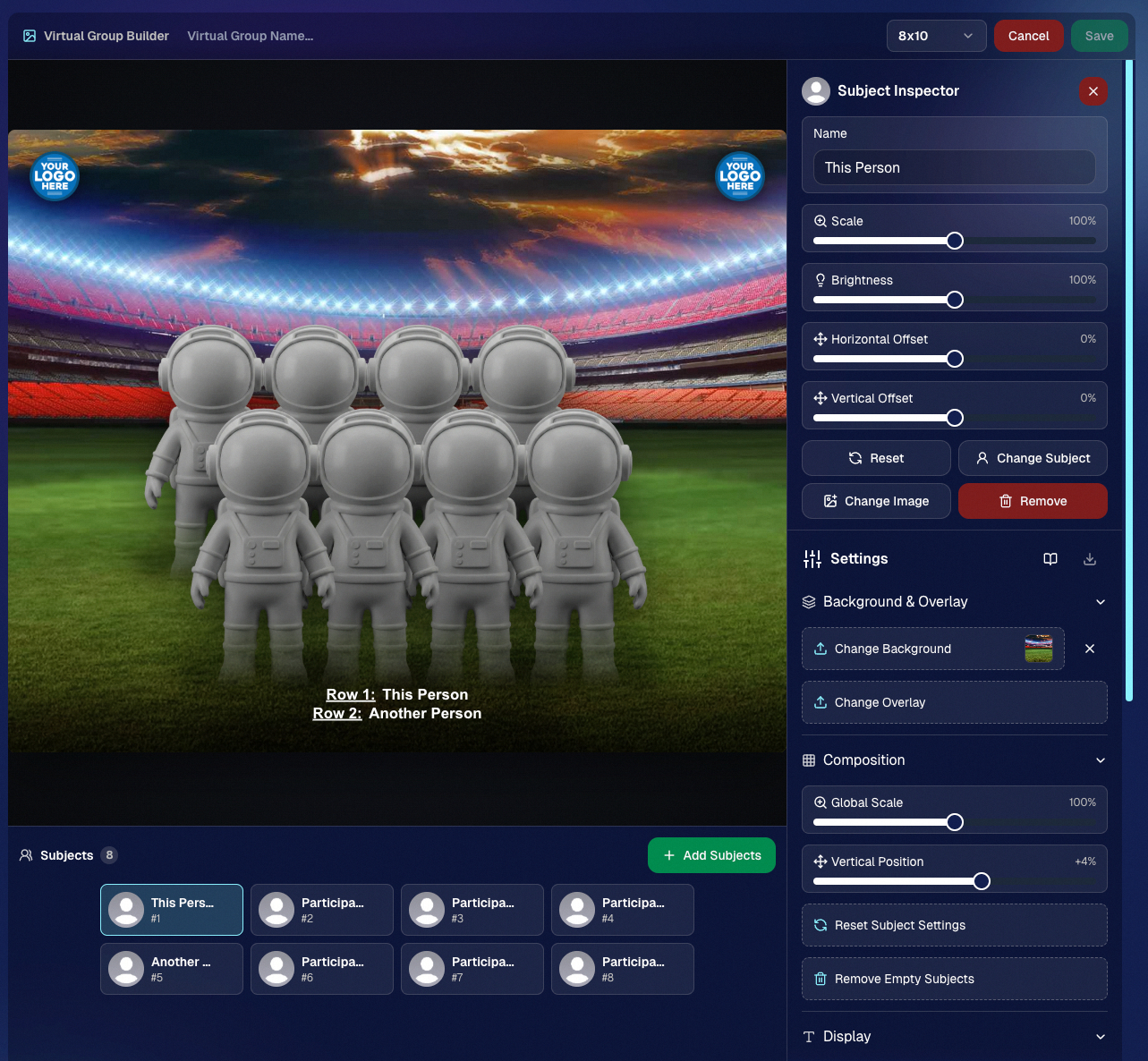
Desktop Dashboard view of the new Virtual Group Builder

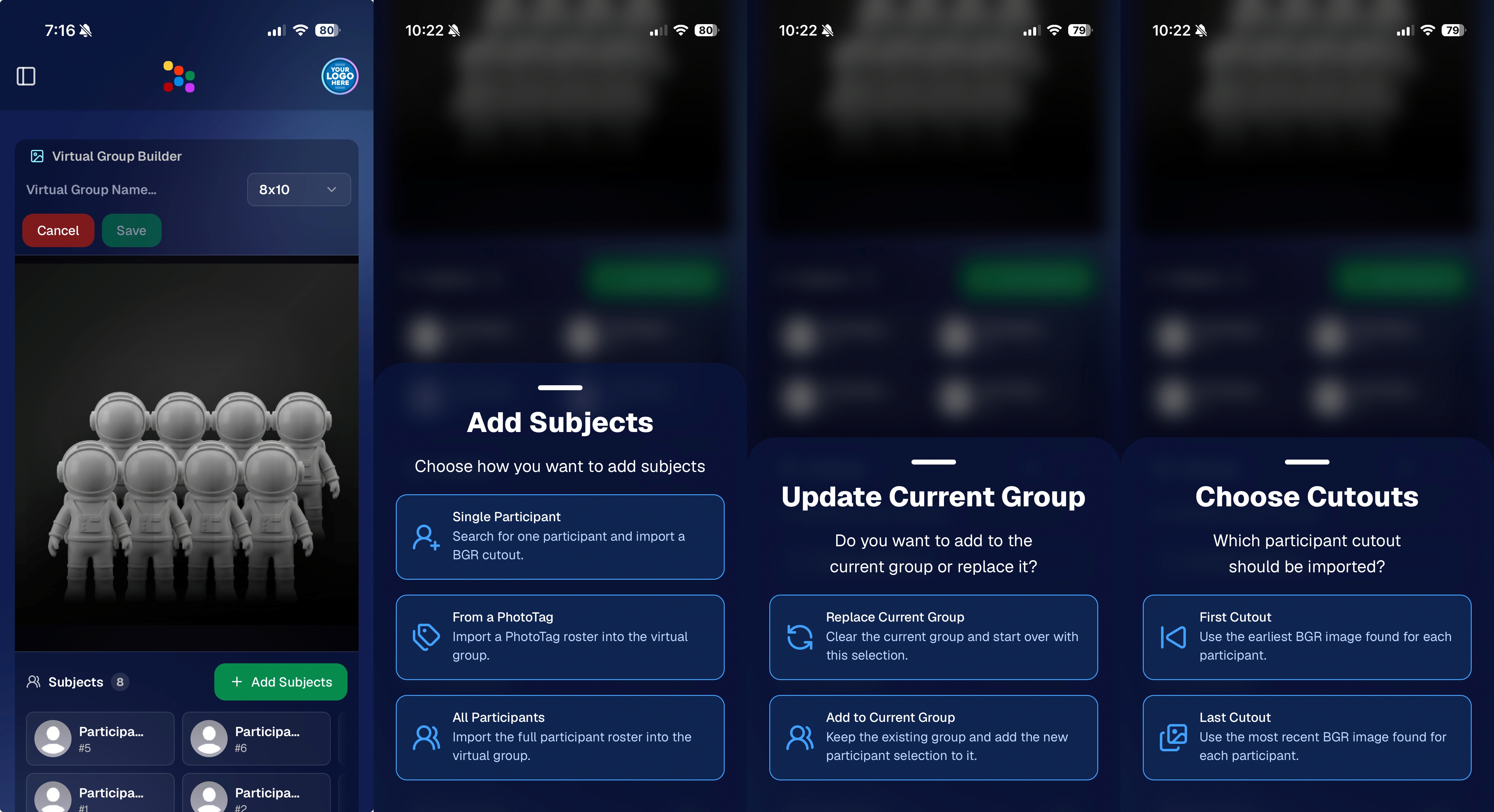
Mobile Dashboard view of the new Virtual Group Builder

🎓 Candy Image Studio: New Graduation Tools

Candy Image Studio got some very timely upgrades for graduation season:

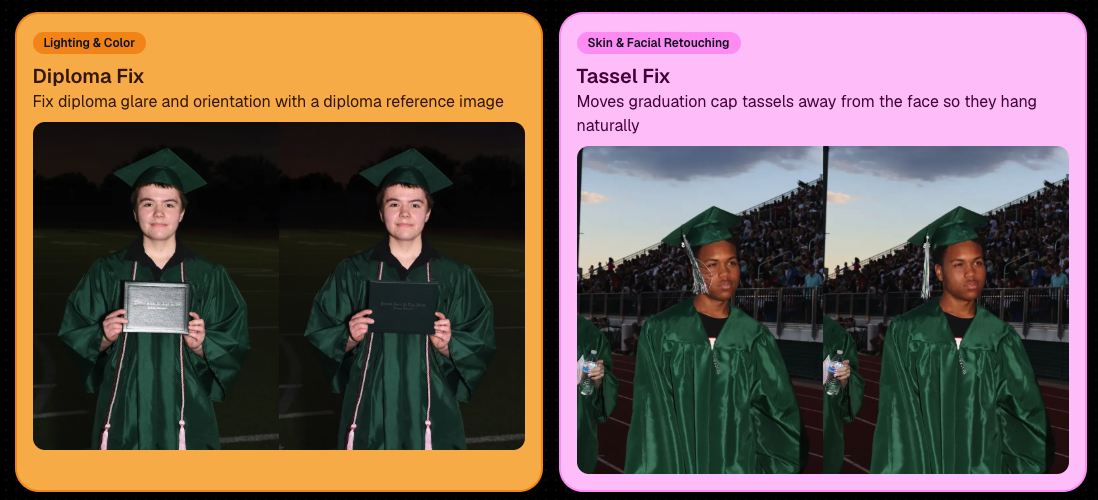
🎓 New “Diploma Fix” node

  • Helps fix diploma orientation and glare. You’ll need to upload a reference diploma so Candy knows what the diploma should look like, including details like school name, emblem, fonts, and colors.

🎗️ New “Tassel Fix” node

  • Helps adjust graduation tassels that are covering a subject’s face — similar to Stray Hair Removal, but tailored specifically for grad tassels.

👓 Improved Reduce Glass Glare

  • This node is now more reliable and less likely to accidentally add glasses to subjects who aren’t wearing them.
📣 Client Outreach Improvements

Client Outreach got a few useful updates to help save money and keep lists cleaner:

🚫 Unsubscribed contacts excluded by default

  • Imported Client Outreach contacts now exclude unsubscribed contacts unless you choose to include them.

🔘 New “Include unsubscribed contacts” toggle

  • You can still include them if needed, but the default helps avoid spending on contacts who can’t receive your outreach.

👀 Show Hidden on Client Lists

  • The Client Outreach list page now has a Show Hidden option, similar to Offers and PhotoRoster organizations.

🧭 Client List sidebar shortcut

  • The Client Outreach sidebar item now takes you back to the Client List page more clearly.

🖼️ Image Management & Dashboard Upgrades

🧩 Image Release Gallery redesign

  • The Image Release Gallery now uses a masonry layout like retail, supports lightboxes with arrow key navigation, has CMD/CTRL+F search support, and saves filters in the URL.

🧑‍💻 Manual Assignment page refresh

  • The Participant Manual Assignment page has a cleaner, more intuitive UI.

Camera star ratings on Image Details

  • If your camera includes star ratings, they now appear on the Image Details page.

⬇️ Image Details convenience buttons

  • Image Details now includes quick actions to download or open in Candy Image Studio.

🏷️ PhotoTag ampersand fix

  • PhotoTag names with ampersands now save correctly.

🧍 Merged participant name fix

  • Manual Assignment now shows the selected participant’s name instead of the first merged participant’s name.

🔙 Event sidebar remembers filters

  • When going back to the Event List from an Event Overview page, your filters are remembered as long as you haven’t refreshed.

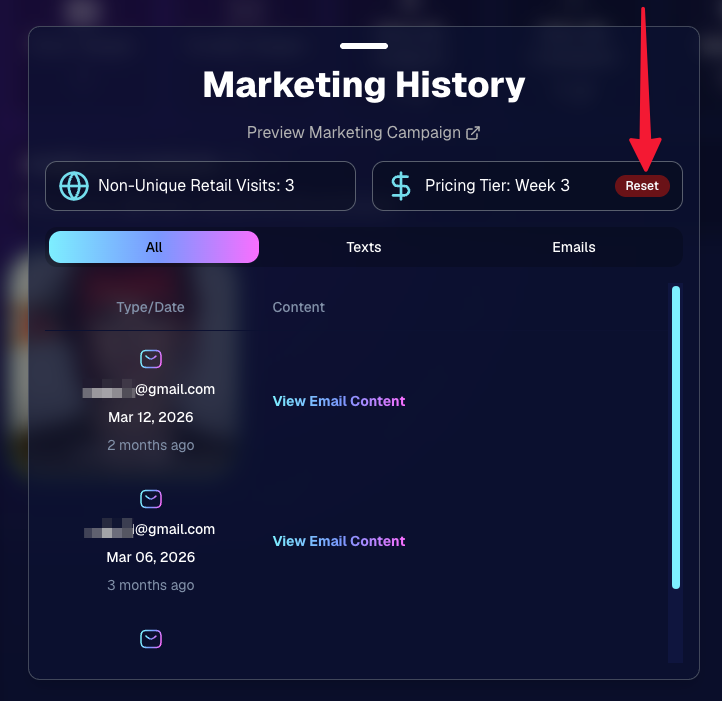
🔁 Pricing tier reset button

  • Participant marketing history now includes a button to reset a participant’s pricing tier start date, useful if support wants to re-offer first-week pricing.
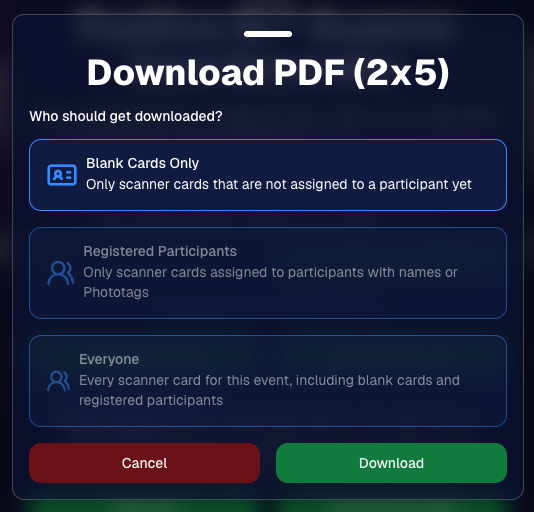
🪪 Positive ID QR Code downloader options

  • You can now download blank cards only, registered participants only, or everyone, making scan card PDFs easier to manage for multi-workflow sports events.
🛠️ New Tool: Image Converter

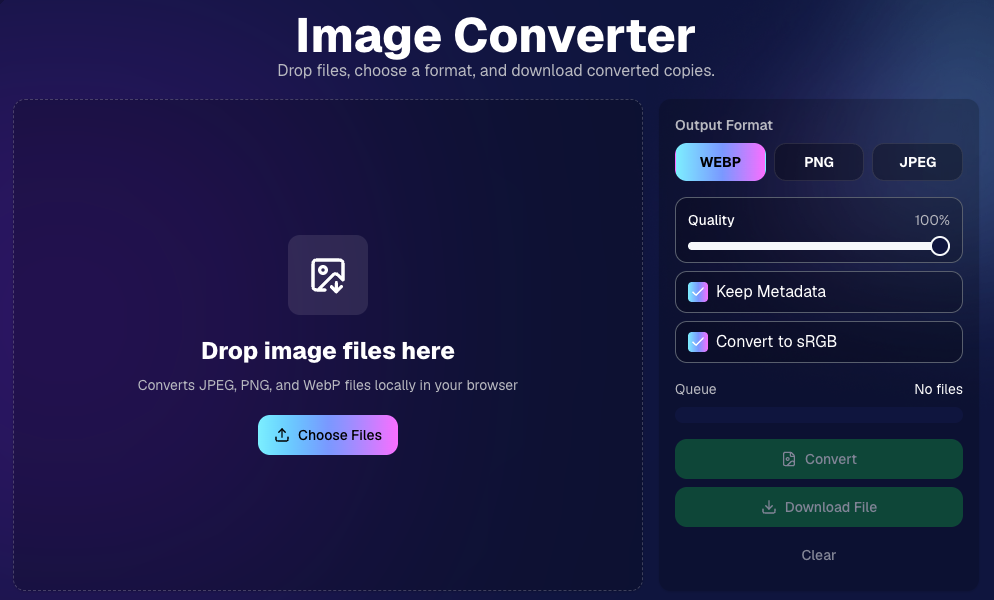
There’s a new tool under Tools & More → Image Converter.

Use it to:

🔄 Convert images to WEBP, PNG, or JPEG

🎨 Convert images to sRGB

Handy for preparing files before uploading them to NowCandid Events.
📚 New Capture App Camera Docs

We added a dedicated docs page for confirmed camera models that work with the Capture App.

More cameras may work than what’s listed, but this page focuses on models we’ve confirmed.

Docs page: https://app.nowcandid.com/docs/capture-app/cameras

🛍️ Retail Improvements

📬 New Contact Us form on retail

  • The Contact Us popup now includes a form that sends support an email with helpful details automatically included, such as browser info, window size, retail link, Event details, and order number when available. This should make support faster and reduce back-and-forth.

🖼️ Overlay step now comes before cropping

  • This prepares retail for future improvements while keeping product customization clearer.

🗓️ Smarter Year captions

  • Certain products now default the Year caption to the Event start year or participant Day 0 year instead of the current year. Helpful for late-December events or older graduation galleries.

🌍 International order fix

  • Fixed an edge case where some international orders could send multiple receipts and incorrectly show that the order wasn’t submitted.

🤳 Selfie Check-In & Capture App Updates

📶 Clearer Selfie Check-In upload errors

  • If a selfie upload fails, subjects now see a more specific error reason — like upload speed being too slow — so they know what to try next.

📱 Capture App 5.6.3 OTA update

  • Contact Info Settings now says Tap-A-Face or Type & Take based on the Event program
  • The 1000×1000 reference image requirement has been removed for Selfie Check-In Station and Roster Check-In, especially helpful for Android devices with lower-resolution cameras

That’s the week!

Virtual Group Builder is the big one, especially for sports and volume workflows — but between Client Outreach, Candy Image Studio, Image Converter, and retail support improvements, there’s a lot here to make your next Event easier to manage.

Keep creating magic,

Candy 🍬

Related articles

Weekly Recap: Extended Face Matching™ & Image Overwrite Upgrades! ✨
Feature Updates
March 7, 2025

Weekly Recap: Extended Face Matching™ & Image Overwrite Upgrades! ✨

4
 minutes read
Hello, my fabulous photographers!

Candy here, and welcome to this week’s Weekly Recap.

We’ve got some exciting updates that will make your NowCandid™ events even smoother—so grab a coffee and let’s dive in!

Extended Face Matching™ Window

Great news for Face Matching™ events! We’ve extended the Face Matching™ window to last 30 days from your event’s start date. Here’s what that means:

  • • Longer Matching Period:

    Previously, Face Matching™ ended when the event concluded. Now, images uploaded even several weeks late will still find their matches, as Selfie Check-In™ remains live for the full 30 days!
  • • Consistent Marketing:

    Thanks to Tiered Pricing on each participant’s Day 0 text, even late joiners receive the same marketing campaign and discount opportunities.
  • • Event End Date Still Matters:

    While Face Matching™ remains active for 30 days, the event’s End Date still determines when the event disappears from the Capture & Upload App and the limited-access Event Management Portal.
  • • Flexible Event Management:

    After creating an event, you can now edit its End Date, allowing you to keep an event active longer if needed. Plus, on the All Images Gallery, Selfie Check-In™ is prominently displayed for Face Matching™ events—making it easier for stragglers to get their images.

This extended window opens up new opportunities and helps ensure no one misses out on their photos!

an expired event (mar 7), with face matching™ still active

Image Overwrite Feature in the Web Dashboard 🔄

We’ve heard your requests: now you can overwrite images using the Image Uploader on the Web Dashboard!

  • • Edit & Replace:

    For Positive ID™ events, you can now replace unedited images with edited ones. The new, updated images will slot directly into each participant’s retail gallery and your Manage Images page, replacing the originals seamlessly.
  • • Enhanced Workflow for Positive ID™:

    This is a game changer for Positive ID™ events that require a tethered tablet. You can take photos, assign them during the event, then edit and replace them later—all without disrupting your marketing.
  • • Important Reminder:

    For Face Matching™ events, we still recommend using Selfie Check-In™ and uploading your edited images once you’re done fine-tuning. And always export in the proper sRGB color profile for printing and uploading.

hit the switch to allow identically named images to replace existing images

Miscellaneous Updates ⚙️

  • • Press & Hold Download Fix:

    The “Press & Hold” download on the retail site for Quic-Events using Chrome on iOS is now fixed—ensuring a smooth experience for all your customers. (The Free Download product was available for those who had issues previously, so no worries! People still got their pics.)

That’s it for this week’s recap!

These updates are designed to extend your event’s image matching capabilities, streamline your image editing workflow, and improve overall user experience.

As always, your feedback is invaluable—drop us a line if you have any questions or suggestions.

Thanks for being an essential part of the NowCandid™ community, and keep capturing those unforgettable moments!

Cheers and sparkles,

Candy 🍬

Weekly Recap: QuicPortraits™, QuicPics™ Updates & More! ✨
Feature Updates
February 28, 2025

Weekly Recap: QuicPortraits™, QuicPics™ Updates & More! ✨

5
 minutes read
Hello, my wonderful photographers!

Candy here, bringing you another Weekly Recap packed with fresh features and improvements to your NowCandid™ experience. Let’s dive right in!

1. Introducing QuicPortraits™ 📸

We’re thrilled to add a new Program to our lineup—QuicPortraits™—joining PartyPics™, GradPics™, Portraits, SportsPics™, QuicPics™, and QuicPics GO™:

  • • One-Time Text Limit: Each image can only be texted out once—perfect for headshots or single-family portraits where you only need to share each image a single time.
  • • Why?: Because of this limit, QuicPortraits™ costs less to use than QuicPics™. It’s a budget-friendly version of the same great service designed specifically for portrait & headshot photography.
  • • No Extra Setup: If you already know how QuicPics™ works, you’ll feel right at home with QuicPortraits™!

A new Quic-Program, with different functionality and pricing!

2. QuicPortraits™ & QuicPics™ Feature Additions 🤳

These upgrades apply to Quic-Events created AFTER today’s system deployment (March 1st):

  • • “Images Are Arriving Soon” Records: View text records in your event’s Marketing History page.
  • • Render Previews for Texted-Out Images: Know exactly when and to whom each image was sent—complete with a small preview.
  • • Unsubscribe Keyword “NOPE”: “Images Are Arriving Soon” texts use “NOPE” for event-based unsubscribes, aligning with other NowCandid™ marketing.
  • • Future Integrations: Under-the-hood improvements now let us potentially add advanced NowCandid™ features (like background removal) to QuicPics™ down the road!
  • • No App Update Required: Older Capture & Upload App versions can handle QuicPortraits™; they just won’t display its icon. For the icon, see iOS version 4.13.72 below.

And good news for existing QuicPics™ fans—our behind-the-scenes tweaks should speed up QuicPics™ deliveries even more!

For when you're curious, or need some help checking on a customer's images!

3. Capture & Upload App for iOS (4.13.72) 🍎

We’ve rolled out Version 4.13.72 with the following fixes and updates:

New Icon: You’ll now see a QuicPortraits™ icon (older app versions don’t show it, but will still function fine).

Photo Booth Mode:

  • • Added two new default backgrounds.
  • • Fixed old artwork sticking around when switching events.
  • • Corrected face tap location on custom background or filtered images.
  • • Fixed bug where filters sometimes failed to apply on uploaded images.

If you’re on iOS, make sure to update for the smoothest experience!

That’s it for this Weekly Recap, folks!

QuicPortraits™ adds a brand-new, simpler way to handle headshots and single-user portrait sessions, while QuicPics™ receives behind-the-scenes speed boosts and more detailed marketing records.

Next week’s recap might be even juicier—stay tuned!

Candy 🍬

Webinars You Can't Miss
Events
February 25, 2025

Webinars You Can't Miss

1
 minutes read

We don’t have any upcoming webinars at the moment, but check back soon for new sessions! Stay tuned for updates.

Let’s get in touch

If you’re a photographer looking to add NowCandid services to your wheelhouse – set up a call by clicking the button below.

How to customize formatting for each rich text

How to customize formatting for each rich text

How to customize formatting for each rich text

How to customize formatting for each rich text

How to customize formatting for each rich text

What’s a Rich Text element?

The rich text element allows you to create and format headings, paragraphs, blockquotes, images, and video all in one place instead of having to add and format them individually. Just double-click and easily create content.

A rich text element can be used with static or dynamic content. For static content, just drop it into any page and begin editing. For dynamic content, add a rich text field to any collection and then connect a rich text element to that field in the settings panel. Voila!

Headings, paragraphs, blockquotes, figures, images, and figure captions can all be styled after a class is added to the rich text element using the "When inside of" nested selector system.

  • List One
  • List Two
  • List Three
  • List Four
  • List Five

This is a link

This is bold text