

Introducing Virtual Group Builder: Create Virtual Group Photos Faster in NowCandid ✨
.png)
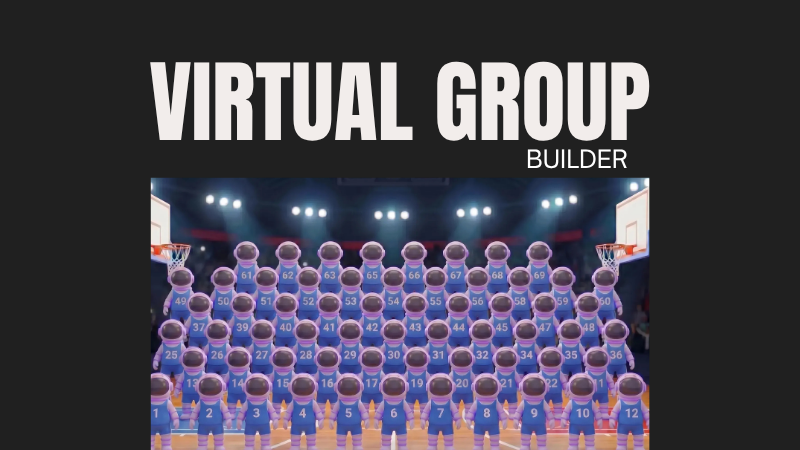
Virtual group photos can be incredibly valuable for photographers — but let’s be honest, they have not always been incredibly fun to make!
Traditionally, creating a virtual group means jumping between multiple tools. You photograph each subject, create cutouts, export files, open design software, place everyone manually, resize and align the group, add names, save the finished image, upload it somewhere else, and then reconnect that image to the right customers.
That is a lot of steps for one group photo!
NowCandid’s Virtual Group Builder makes the process much simpler. Photographers can now create polished virtual group images directly inside the NowCandid Dashboard using the same Participants, cutouts, PhotoTags, backgrounds, and Event data already connected to their Event.
It is fast, flexible, and built to help photographers get virtual groups online and ready to sell with far less hassle. 🎉
A New Way to Build Virtual Group Photos
Virtual Group Builder is designed for photographers who want to offer professional group images when a traditional in-person group photo isn't possible.
That makes it especially useful for sports teams, schools, dance groups, cheer teams, clubs, all-star teams, and any Event where people are photographed individually but still need to appear together in a final group image.
Instead of needing every participant posed together at the exact same time, photographers can build a finished group photo from individual background-removed cutouts. If someone was photographed later, added after the fact, or missed the original group setup, they can still be included.
That flexibility can be a big deal for volume photography.
Built Directly Into the NowCandid Dashboard
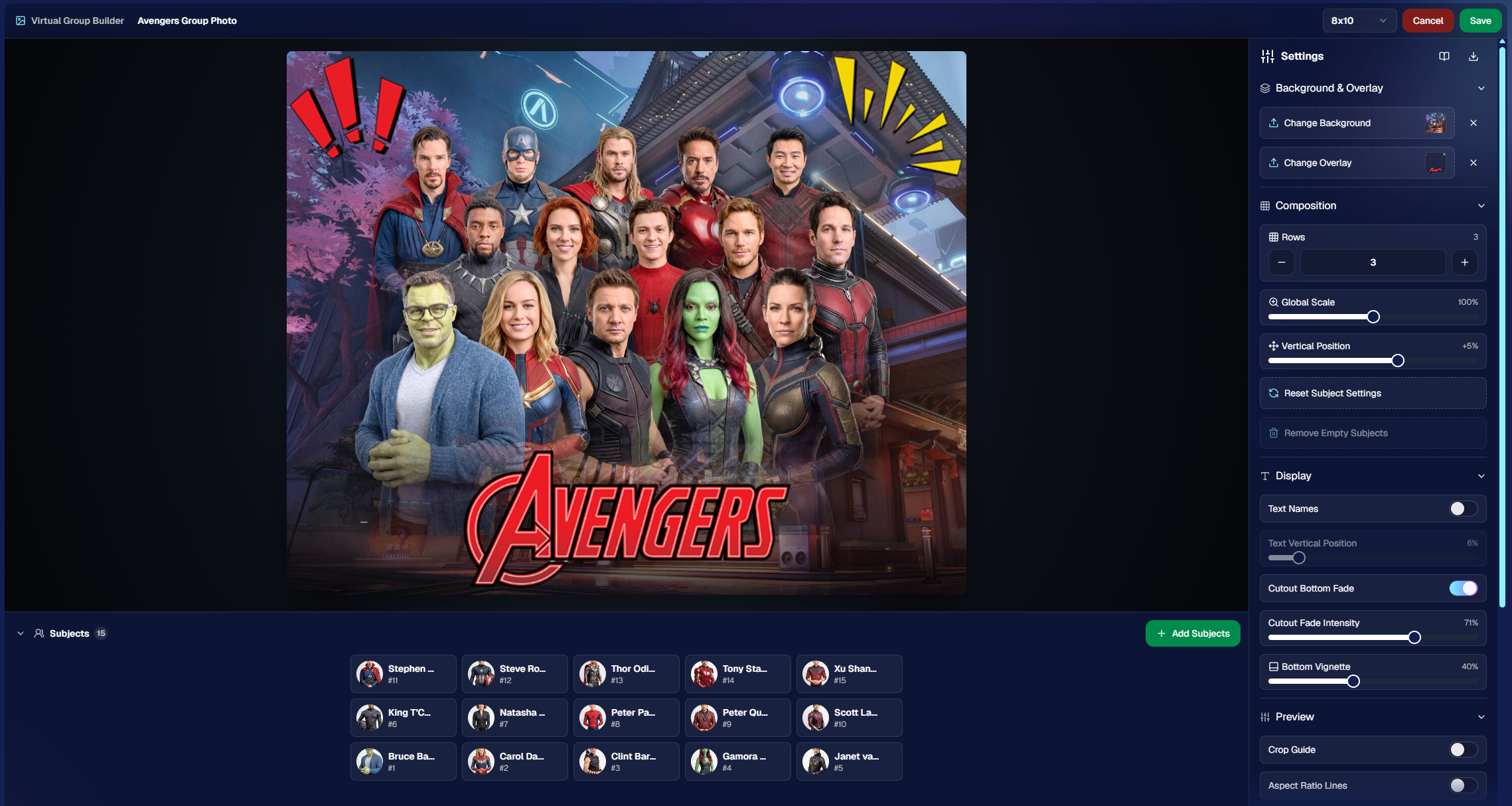
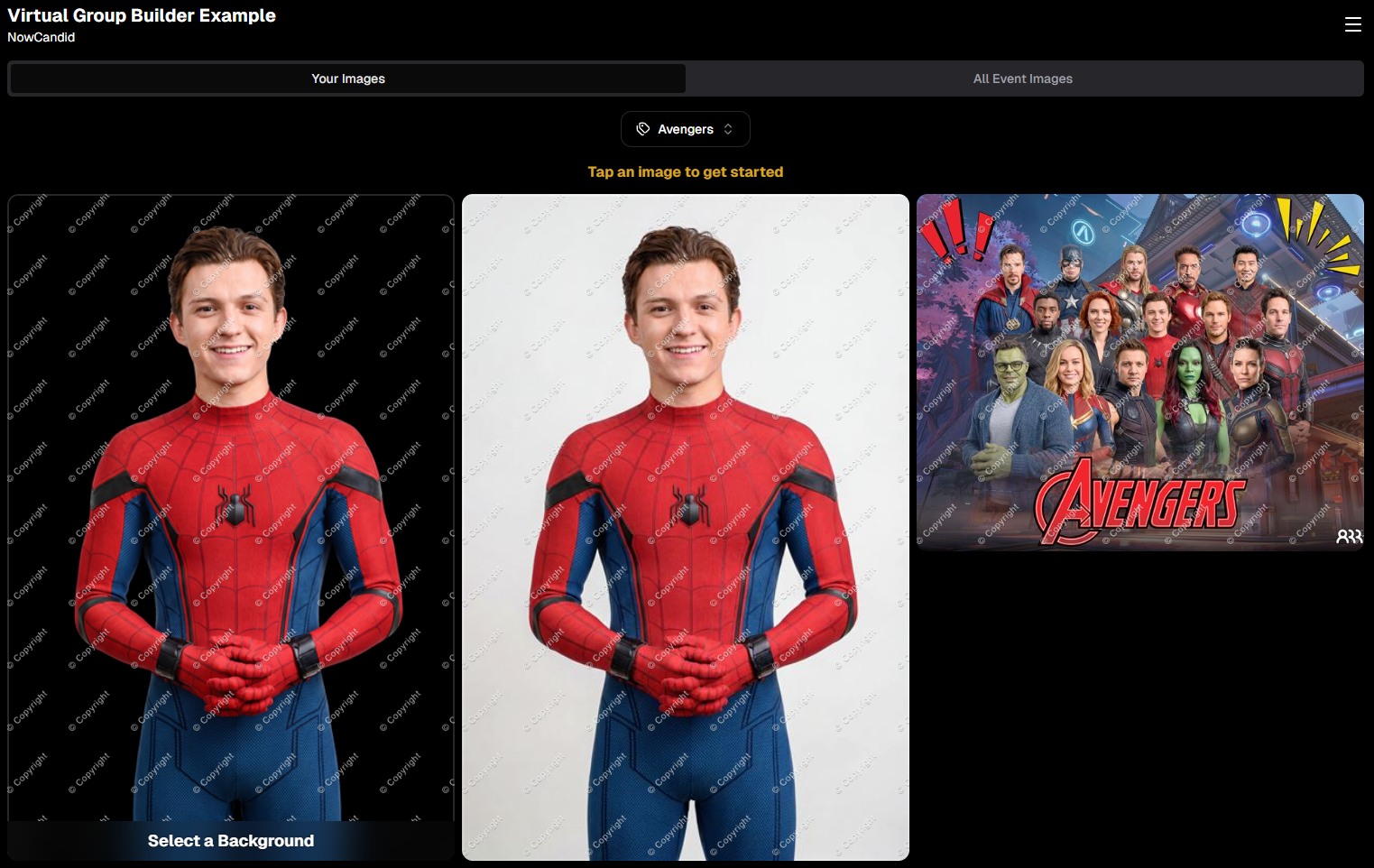
Virtual Group Builder lives directly inside NowCandid. From an Event page, photographers can click Virtual Groups in the sidebar menu and start building using the Event data they already have.
The builder is not a disconnected design tool. It works alongside our existing tools, including participant data, PhotoTags, background removal, cutouts, custom backgrounds, overlays, logos, and everything else.
So instead of downloading files from one place, designing in another, and uploading it back to the dashboard afterward, photographers can keep the process inside NowCandid from start to finish.
Virtual Group Builder also supports the Mobile Dashboard! We don't necessarily recommend making Virtual Groups on your phone - but hey, could be nice in a pinch!
From Capture to Cutouts to Finished Group 🚀
Virtual Group Builder pairs especially well with NowCandid’s live-uploading and background removal capabilities.
A photographer can shoot participants individually, upload images to NowCandid live (or after the event) use NowCandid’s background removal to create clean cutouts, and then bring those cutouts straight into the Virtual Group Builder.
As a quick note for those unfamiliar with NowCandid's background removal, those same cutouts can also be used for shopping with alternate backgrounds! Making them multi-purpose across the Event.
For photographers shooting sports, schools, dance, cheer, or other volume Events, this can save a serious amount of time.
Add the Right Subjects Quickly 👥
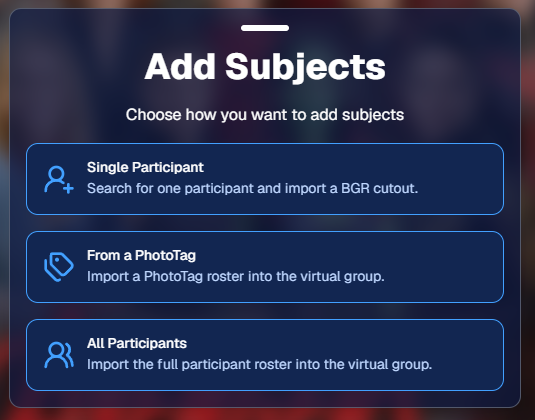
Virtual Group Builder gives photographers a few easy ways to add people to a group.
You can add one participant at a time, import everyone from a specific PhotoTag, or bring in all participants from the Event. This makes the builder flexible for both small custom groups and larger team or event-wide composites.
PhotoTags are especially powerful here. If your Event is organized by team, class, club, etc., you can use those PhotoTags to bring the right people into the group quickly.
For example, a sports photographer could import a single team. A school photographer could import a club or activity group. A graduation photographer could import participants from a specific ceremony.
Clean PhotoTags can turn what used to be a very manual process into just a few clicks. ✨
Helpful Safeguards for Missing Cutouts
Real-world events are messy. Sometimes a participant is missing a cutout. Sometimes a placeholder exists. Sometimes a photographer needs to know what is missing before moving forward.
Virtual Group Builder helps make that easier to catch.
When importing from a PhotoTag, photographers can see the participants in that PhotoTag before removing empty subjects. The Remove Empty Subjects option can remove participants with no cutouts as well as placeholders, but the workflow is designed to help photographers notice missing kids, players, or participants before finalizing the group.
That way, the tool keeps things fast without overlooking potential issues.
Smart Subject Ordering
Virtual Group Builder uses a practical ordering system to help preserve the order participants were photographed in.
Subjects are initially ordered from bottom left to top right based on the alphanumeric order of the first PNG filename. In plain English: if a photographer shoots and names files in a meaningful order, the builder can use that order as a helpful starting point.
This can be useful for sports teams photographed by jersey number, students photographed alphabetically, or groups photographed in a specific roster order.
And when the order needs to change, photographers can simply drag subjects into place.
Drag, Drop, Swap, and Adjust 🖱️
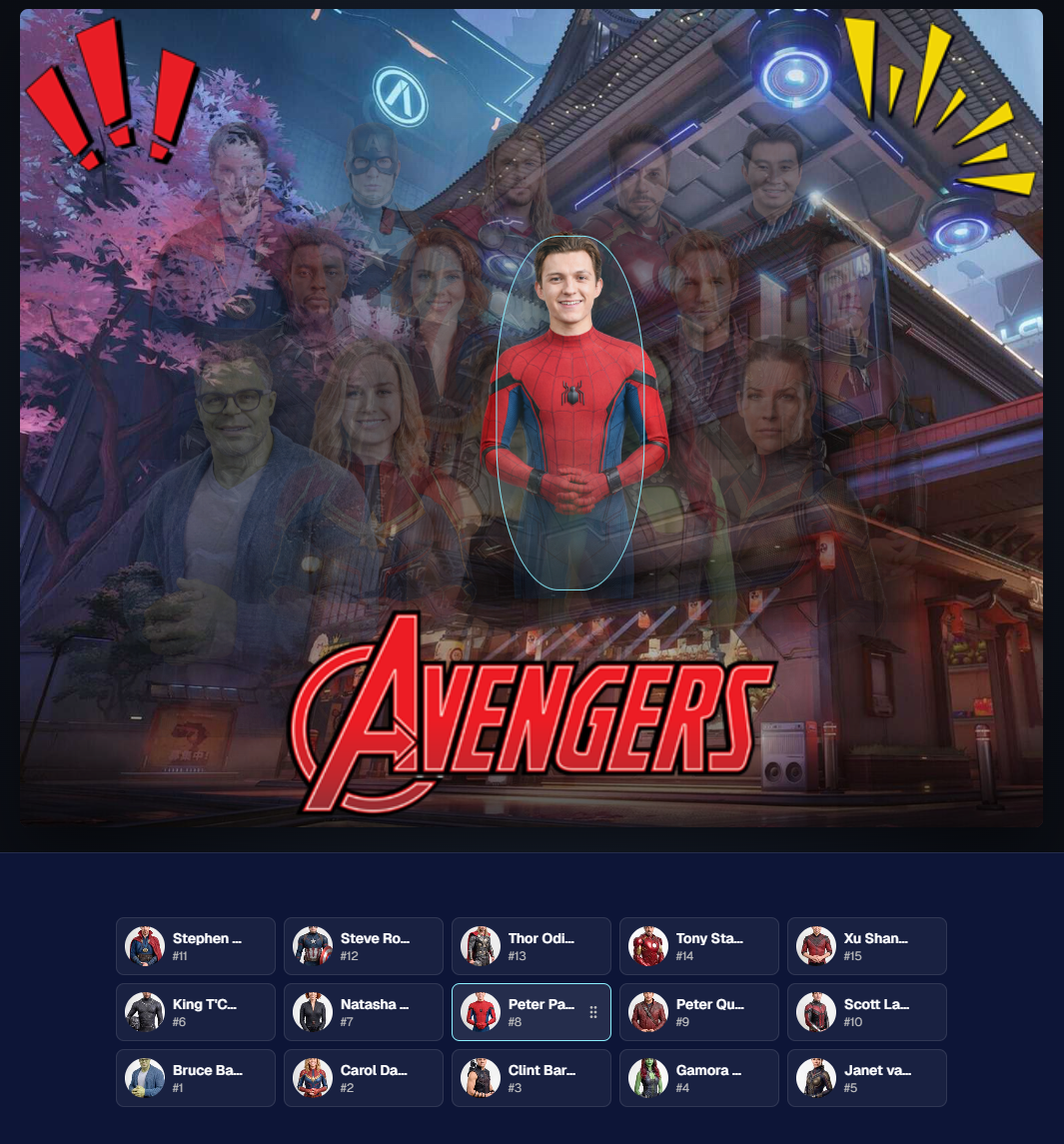
Reordering subjects is simple. Photographers can drag the cutouts directly on the group image or drag the subject tiles at the bottom of the page.
When a subject is dragged to a new location, it swaps with the destination Participant. This makes it easy to balance rows, adjust lineups, or move specific people into better positions.
The builder also includes group-level controls for layout and composition, including rows, global scale, vertical position, background, overlay, text names, crop guides, aspect ratio lines, bottom vignette, and cutout fade settings.
These controls help photographers quickly shape the whole group while still keeping the workflow approachable.
Fine-Tune Individual Subjects 🎛️
Sometimes one participant needs a small adjustment. Maybe they need to be slightly larger, shifted left or right, brightened, or swapped to a different PNG.
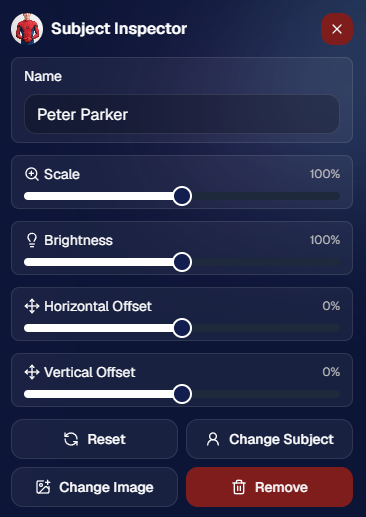
The Subject Inspector gives photographers individual control over each subject.
Photographers can adjust a subject’s name, scale, brightness, horizontal offset, and vertical offset. They can also reset the subject, change them to a different Participant, change the selected cutout, or remove the subject from the group entirely.
This is one of the biggest advantages of the builder: it is fast, but still gives you control when the final image needs a little extra polish.
Choose the Best Cutout for Each Participant 🖼️
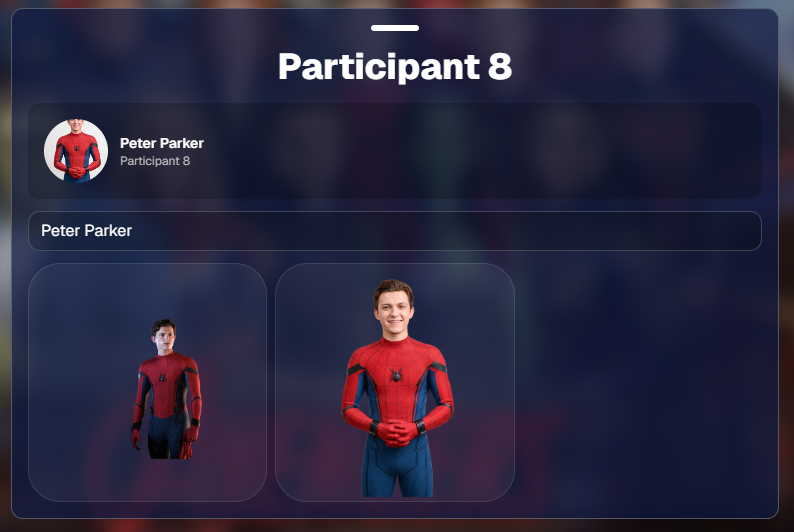
If a Participant has multiple cutouts available, photographers can choose which image works best for the group.
When adding subjects, photographers can also decide they want their incoming Participants to be using their first PNG or their latest PNG (alphanumerically determined using Folder Name and Image File Name).
Then subjects can also be selected to have their individual portrait swapped to a different one! This can be helpful when you want a variety of poses in your Virtual Group, or simply to swap a blinking kid's image to a
Backgrounds, Overlays, Logos, and Product Sizes 🎨
Virtual Group Builder gives photographers creative control over the final image.
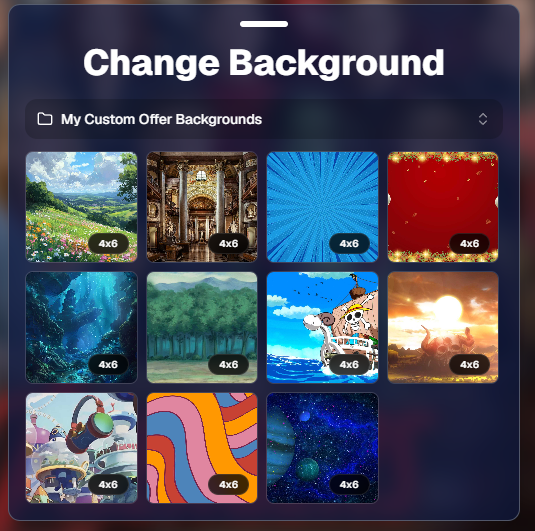
Photographers can choose from NowCandid default backgrounds, use custom offer backgrounds, upload their own backgrounds, add overlays, and place account logos in the corners. This makes it easy to create anything from a clean traditional group image to a bold sports graphic or school-branded composite.
The builder supports common product-friendly formats, including 4×6, 5×7, 8×10, and 11×14. Crop guides and aspect ratio lines help photographers preview how the final image will fit the selected size.
There are also display options for subject names, including toggling names on or off and adjusting their vertical position. For teams, senior groups, school clubs, all-star rosters, or small graduation groups, names can make the final product feel more complete and commemorative.
Upload the Finished Group Back to the Event 📤
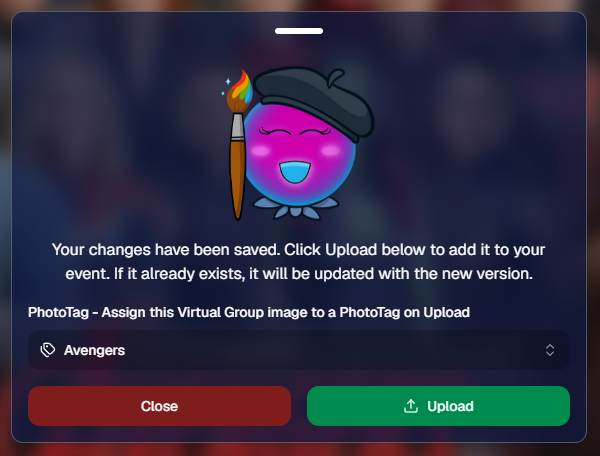
Once the virtual group is finished, photographers can save it and upload it back to the Event.
During upload, the group image can be assigned to a PhotoTag. This does two important things: it automatically shows the group image to participants with that same PhotoTag, and it makes the group photo searchable in the Event using that PhotoTag.
So if a photographer creates a group image for “Varsity Football,” they can assign it to that PhotoTag on upload. The image can then appear for the right participants and stay organized inside the Event.
That keeps the final product connected to the same Event structure used to build it.
Why This Is Such a Big Deal for Photographers
Virtual Group Builder is more than a design feature. It is a faster, more connected way to create and sell group photography products.
It helps photographers reduce manual design work, use the cutouts they already have, build from PhotoTags and participant data, add missing participants more easily, and get virtual group products online faster.
For volume photographers, that can mean less time spent assembling files and more time selling finished products. For customers, it means more group photo options. For events, it means group photography becomes more flexible, forgiving, and scalable.
Virtual Groups, Now Built Into the NowCandid Workflow ✨
Virtual Group Builder brings together live uploading, background removal, participant cutouts, PhotoTags, drag-and-drop group building, backgrounds, overlays, logos, subject names, crop previews, PhotoTag-based upload, and online selling.
When an Event is set up cleanly with consistent cutouts and PhotoTags, photographers can create a full virtual group in just a few clicks — then fine-tune it as needed.
It is simple, powerful, and built directly into NowCandid.
Whether you are creating a sports team composite, school group photo, graduation image, dance group, cheer team, all-star roster, or custom event product, Virtual Group Builder helps you get polished virtual group photos online faster.
Ready to try it?
Open an Event in your NowCandid Dashboard and click Virtual Groups in the sidebar menu to start building. 🎉


.svg)


