HomeNavigation arrowBlogNavigation arrow
Current page
Feature Updates

Weekly Recap: Titled Luxe Prints, Zoom Cropping, and Candy Image Studio “From Scratch”

Weekly Recap: Titled Luxe Prints, Zoom Cropping, and Candy Image Studio “From Scratch”
Hey photo friends! 👋

This week’s updates are a fun mix of new products, new visual workflows, and small-but-important fixes that make day-to-day work smoother—especially across Candy Image Studio, retail packages, and PhotoRoster/PhotoTag downloads.

Let’s jump in. ✨

📣 Dashboard: Client Outreach + Workflow Quality-of-Life

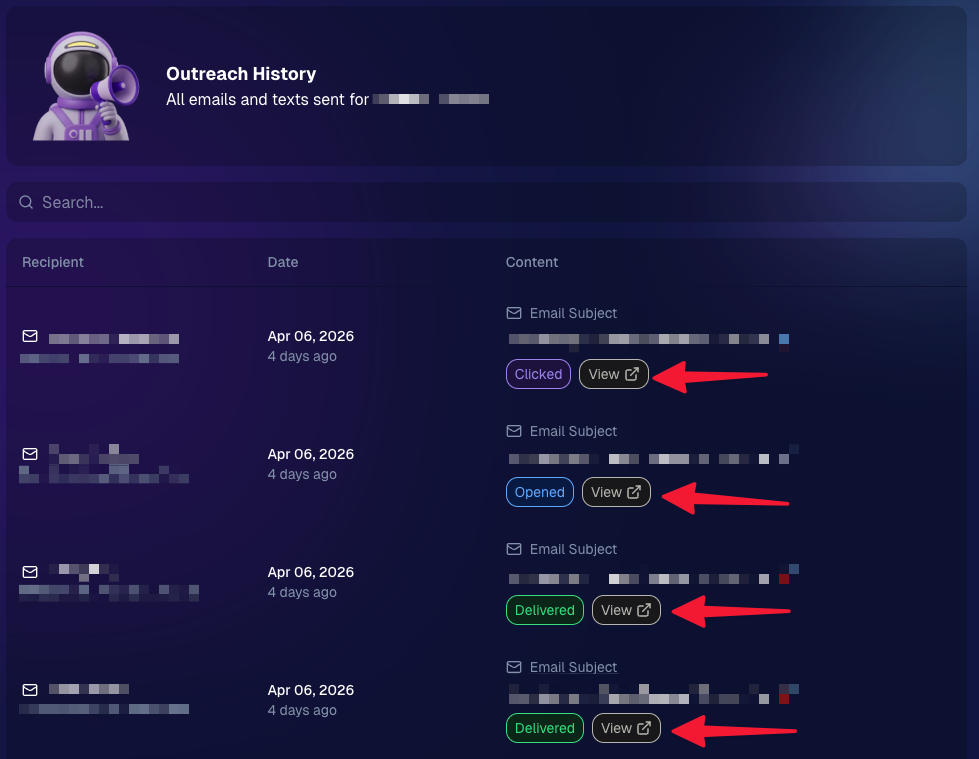
Client Outreach email history is easier to use and more reliable:

  • Added a “View” button in Client Outreach email history so you can open the sent email in a new tab (similar to how order receipts work).
  • Fixed an issue where email status didn’t always show for all emails in the status list.
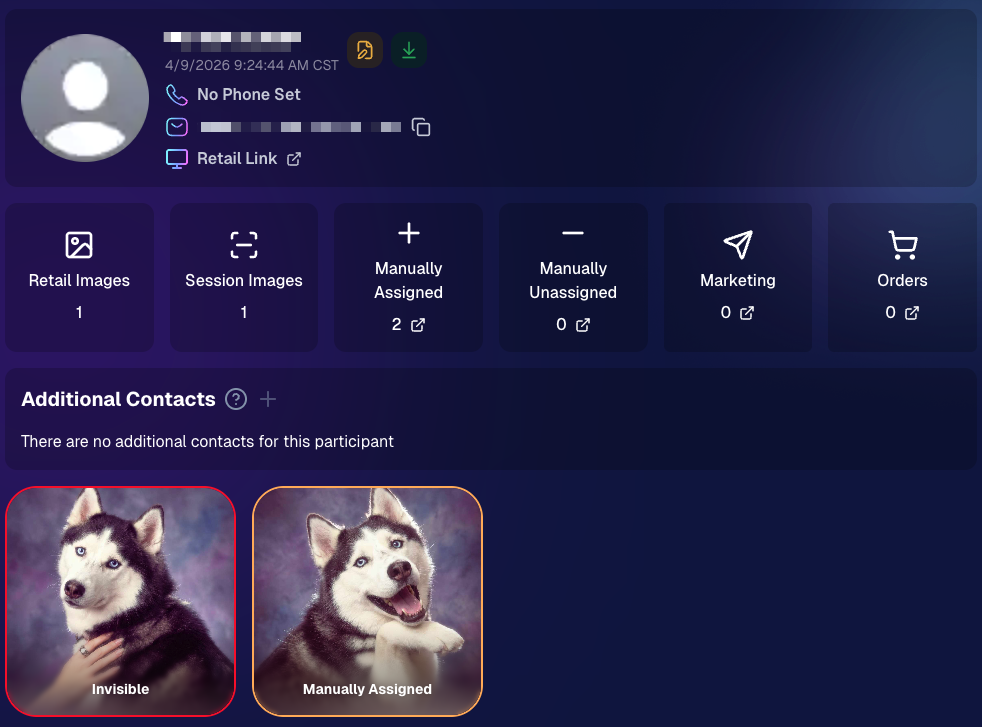
More clarity when reviewing participant galleries:

  • The Participant Details page now shows invisible images, clearly marked in red with an “Invisible” label—so you can understand what’s hidden without guessing.
PhotoTag participant gallery downloads got safer:

  • Fixed PhotoTag participant gallery downloads overwriting images when multiple files shared the same frame.
  • Fixed the download count displayed on the download button being off.

🎨 Candy Image Studio: Create Without an Input + A New Node

Candy Image Studio has two notable upgrades this week:

🧠 No input image required (generate from scratch!)
Candy Image Studio no longer requires an input image to get started. You can generate from scratch using the “From Scratch” node (at the very bottom), or by starting from custom text or a custom image—great for things like creating portrait backgrounds or creative assets.

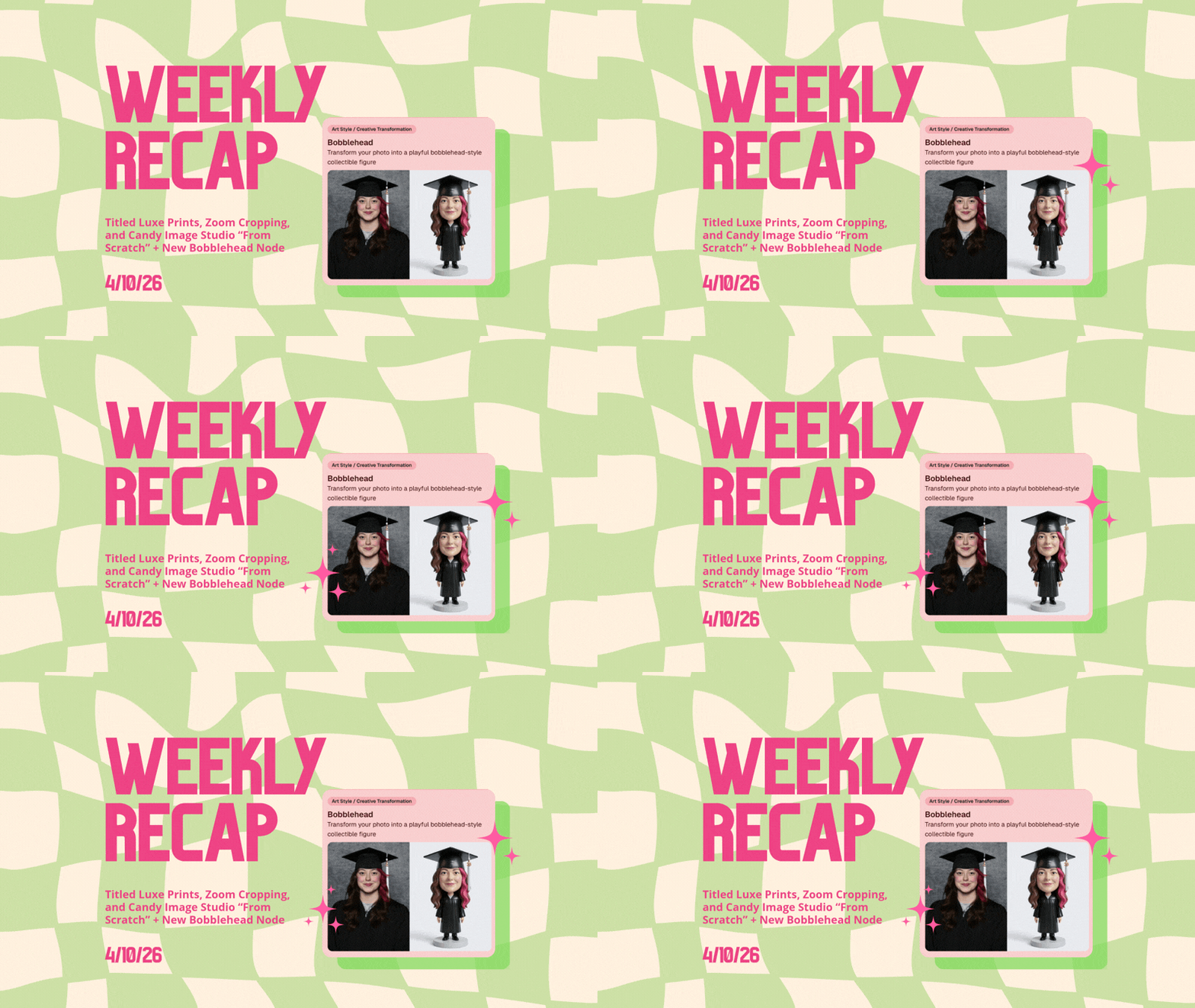
🆕 New “Bobblehead” node
A brand-new Bobblehead node is now available inside Candy Image Studio.

Disclaimer: This is not a new product. This is an image node in the Candy Image Studio.

🏈 Jersey Jotter + Event Settings Cleanup

Jersey Jotter settings were removed from the Create/Edit Event popup.
Since Jersey Jotter now has its own dedicated page, we pulled those settings out of the event popups to keep Create Event as minimal (and fast) as possible—and keep Edit Event aligned with Create.

New: “Auto Enhance” can be turned off in Create/Edit Event.
Important clarity here:

  • Auto Enhance isn’t new — it has always been enabled by default.
  • What’s new is the ability to turn it off from the Create/Edit Event popup.
  • It’s labeled “Auto Enhance” (not “Retail Enhancement”) because it affects more than retail, including things like LiveLoop, Dashboard previews, Shareable Download Gallery, and more.
  • Note: this setting only impacts images uploaded after you change it. (So anything already uploaded keeps whatever enhancement state it had at upload time.)

🛍️ Retail: Package Backgrounds + Fixes

A few retail improvements landed to reduce confusing edge cases:

  • When selecting a PNG (without a faux background render) during the “Next Package Item Image Picker” step, the chosen background will now default to the first background in the background picker list (instead of the purple default).
  • Fixed an issue where the background selector step didn’t always appear for non-faux BGR images.
  • Fixed a crash related to having Wall Clings in packages.
  • Updated the Free Download description to: “Free simple, full-resolution download of your image.” (Previously it implied lower resolution.)

🔍 NEW: Zoom Cropping “Z-Cropping” (Dashboard + Retail)

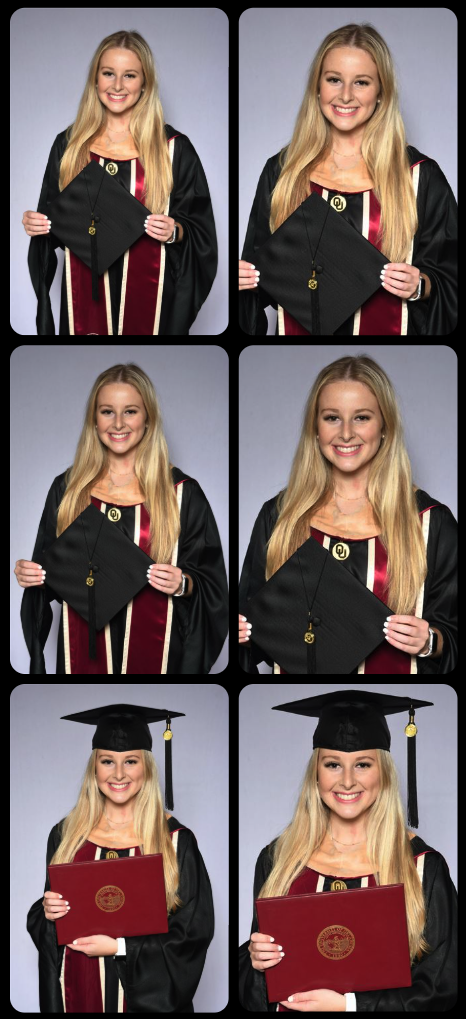
In Advanced Offer Settings, you can now enable Zoom Cropping, which automatically adds an additional image into the customer’s gallery that is zoom-cropped toward their face.

Details & rules:

  • ✅ Works on Face Matching Events
  • ✅ Works only on images with one face
  • ✅ All default graduation offers/price levels now have Zoom Cropping enabled
  • Behind the scenes, it applies a ~30% zoom toward the face, with an additional ~30% pull from the center of the image toward the face (clamped to avoid cropping beyond image bounds)

This is a great “quiet upgrade” for grads and portrait-style moments where customers love a tighter crop—without you needing to manually create it.
🖼️ New Products: Titled Luxe Prints (Dashboard + Retail)

Two new products just landed:

  • 5×7 Titled Luxe Print
  • 8×10 Titled Luxe Print

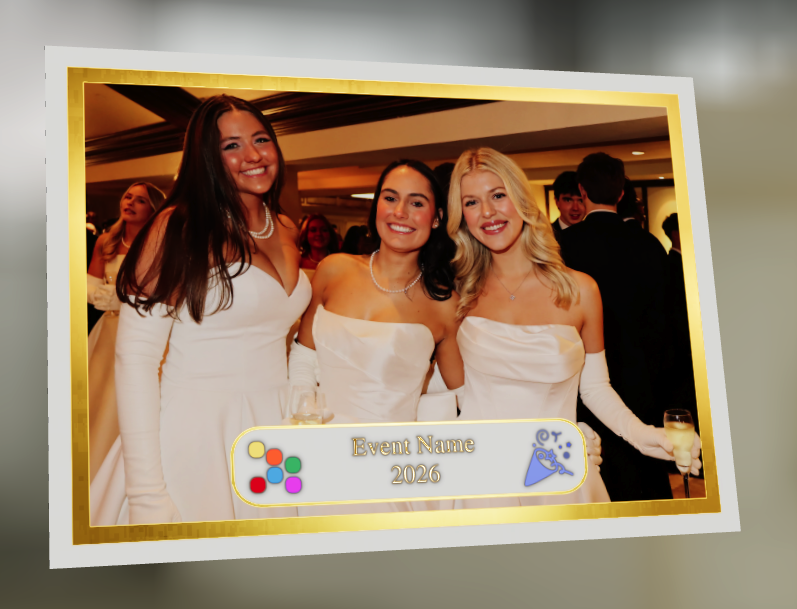
Want to see the 3D preview?
https://app.nowcandid.com/3d/titled-luxe-print

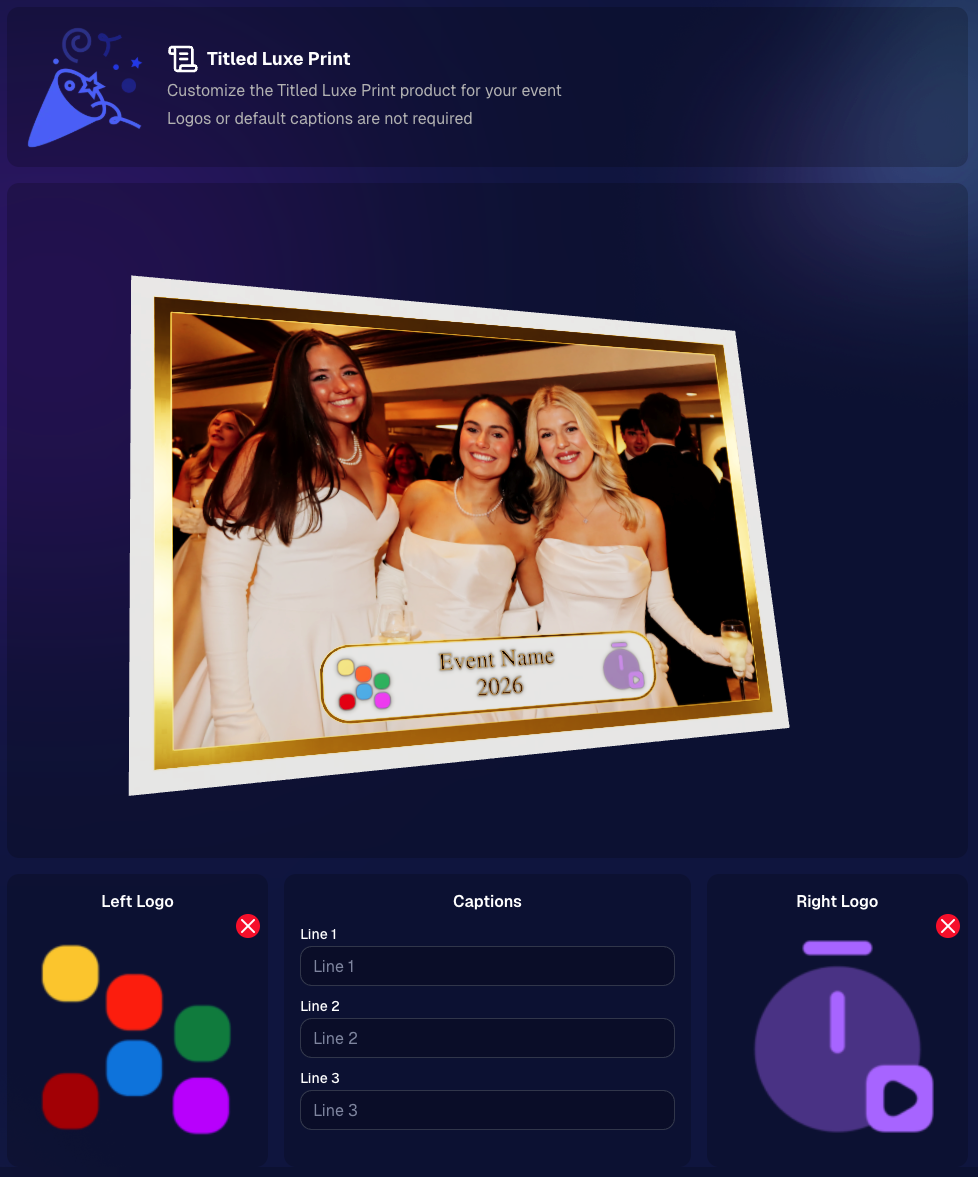
New: “Edit Titled Luxe Print” Page (per event)
There’s a new event-level page available in the Dashboard sidebar only if one of the new titled products is included in the event’s offer. From there, you can:

  • Set default captions
  • Select left/right logos
  • Preview the 3D render
  • (Easter egg: rotate the render and you can spot your business name on the backprinting.)
Notes:

  • Default captions and logos are optional
  • Retail shoppers can change captions when ordering
  • Logo requirements: upload/import a 650×650 transparent PNG
  • Retail supports both 2D + 3D renders, including your custom logos
  • Order Details pages now display the selected logos, similar to how we show captions and colors

That’s the week! 💫

Between Zoom Cropping, Titled Luxe Prints, and Candy Image Studio’s new From Scratch flow (plus a pile of cleanup across retail + downloads), this update adds a lot of power without adding extra complexity.

Keep creating magic,
— Candy 🍬
Related articles

Weekly Recap: Capture App 4.21 OTA, New Dashboard Filters & Helpful Fixes 📲🧭
Feature Updates
November 7, 2025

Weekly Recap: Capture App 4.21 OTA, New Dashboard Filters & Helpful Fixes 📲🧭

2
 minutes read
Hey photo friends! 👋

Here’s what’s new this week! Changes focused on faster updates, more filters, and a handful of useful fixes.

📱 Capture & Upload App (iOS) — Version 4.21

  • 🚀 Over-the-Air (OTA) updates: Most app updates no longer require the App Store. Updates download in the background and install on app restart/launch—no interruptions during Events. You can also manually check via Resources → “Check for updates” (tap the (i) button).
  • 📶 See your Wi-Fi name: The current network name now shows on the Web Weaver item in Resources.
  • Faster, lighter uploads: Additional memory and performance improvements when uploading image files.

Smaller iOS app changes

  • 🖨️ AirPrint prompt returns if a printer isn’t available (avoids an iOS security hiccup).
  • 🌐 Web Weaver manual toggle fixed.
  • 🔎 Image preview UI fixed when switching after zoom/pan.
  • 🧾 Name Lookup now populates correctly on first launch.
  • 🖼️ QuicPortraits icon color updated in Event select (those icons are single-color).
  • 🗂️ Block log-ins to flagged TKO folders (e.g., if you flagged “a”, you can’t log into “ac”).
  • ↔️ Horizontal zoom issue on iPhone resolved.

FYI on versions: The App Store shows 4.21; the current OTA version is 4.21.3. We’ve already shipped three OTAs this week to help teams while they’re still on-site! Pretty cool, right?

🖥️ Dashboard

  • 👁️ Manage Images → Visibility filter: All / Visible only / Hidden only.
  • 🎯 Assign Images → New filters: Name order, Purchased only, Visibility.
  • 🔗 Events Report: Clicking an Event now opens its Event Details page.

Smaller dashboard changes

  • 📨 Email campaign guard: Prevents a campaign from starting if the only image is a group PhotoTag.
  • 📥 Inbox UI: On mobile, updated header; on desktop, the selected item area stays sticky while you scroll.
  • 🧰 Trader Card fixes: Two styles now say League (not LD), and one style’s production print now matches the retail render.
  • 🖼️ Art uploader validation: Shows an error if an image is under 100 px in width or height.
  • 😊 Retail face boxes aligned on very small desktop viewports.

That’s the update for the week!

Thanks for reading—and happy shooting!

Candy 🍬

Weekly Recap: Sticky Filters, Faster Uploads & Happy Halloween! 🎃🕸️
Feature Updates
October 31, 2025

Weekly Recap: Sticky Filters, Faster Uploads & Happy Halloween! 🎃🕸️

3
 minutes read
Boo! 👻

Candy here with a trick-or-treat pail of useful updates: sticky, shareable filters, faster uploads, and clearer participant tools. You’ll keep context when you reload or share links—and move uploads along faster.

Let’s dig in!

🖥️ Dashboard Improvements

  • 🧲 Sticky, shareable filters
    Filters now live in the URL on Manage Images, Assign Images, Event List, and Participant List. Refresh or hit Back and your view stays put—and you can share filtered links with teammates or support.
  • 🚀 Faster image uploads
    The Image Upload page handles large batches more efficiently for quicker throughput.

🪄 Minor Dashboard Tweaks

  • 💳 QuicPics Upfront Pay editor is now available in QuicPortraits.
  • 🏷️ “Additional Contact” badge appears under a participant’s name for quick clarity.
  • 👥 Additional Contacts list on Participant Details, plus an Add option (when new campaigns are allowed).
  • ✉️ Marketing History filter: view All / Texts / Emails.

🧹 Dashboard Bug Fixes

  • 🧩 Positive ID code PDFs now show PhotoTags for merged participants even when they weren’t the first registered.
  • 📏 2×5 Positive ID PDF layout fixed for long event titles.
  • 📄 2×5 Positive ID PDF last-page spacing fixed when the page isn’t full of cards.

📲 Capture & Upload App

  • 🙅 Name Lookup no longer shows Additional Contacts (no app update needed—restart or re-log into the Event).

🛍️ Misc Changes

  • ⚖️ Retail “weight” caption limit increased to 7 characters (up from 3, for products like trader cards).

🛠️ Misc Fixes

  • 🔁 QuicPics won’t double-text the same image if someone was registered twice in the same send batch.
  • 🔃 Manage Images “uploaded first/last” filter direction corrected.
  • 📪 Fixed an unsubscribe edge case when a gallery is entirely cutouts and all original JPEGs are not visible.

That’s the update!

Happy Halloween—and good shooting! 🎃


Candy 🍬

Weekly Recap: Even Stronger Image Privacy & UI Polish 🔒🧰
Feature Updates
October 24, 2025

Weekly Recap: Even Stronger Image Privacy & UI Polish 🔒🧰

5
 minutes read
Hey photo friends! 👋


This week we further tightened subject image provacy, and freshened up the UI across Dashboard and Retail.

Here’s what’s new:

📋 Dashboard

  • 🏷️ Clearer overlay labels: Event List & Event Details now show Banner or Full Frame thumbnails instead of a generic “graphic overlay” text label only.
  • 🧩 Overlay importer: Now a tidy 2-column layout instead of one at a time, to more quickly let you seek out a specific event's overlays to reuse.
  • 📥 Participant download sheet (big data friendly): Handles very large folder/frame totals without breaking.
  • 🧭 Smarter participant pic choice: If a participant was merged from multiple sources, the sheet now prioritizes the non–Roster record for their participant pic (instead of the silhouette).
  • 🖼️ Retail cover editor: See a preview of the cover photo on retail before saving (not just after).
  • 🔔 Auto-resume marketing alerts: If marketing has been paused too long, you’ll get an inbox + push when it auto-resumes (first Friday after 20 days).
  • 👤 Participant Details upgrades:
    • 🖼️ Higher-res non-BGR images & backgrounds
    • 💡 Lightbox UI and previews that match Manage Images
    • 🟠🟥🟩 Thicker status borders + bold assignment text
  • 🏷️ PhotoTags popup: New All / Assigned / Unassigned tabs for faster tagging.
  • 🧾 Merged participant awareness:
    • Order counts on Participant Details and Participant List now include merged participants
    • Marketing count shows which contact info each message went to
  • Performance wins:
    • Participant List scales better with hundreds or thousands of people
    • PhotoRosters FaceGroup list is snappier with large rosters
  • 🪟 Updated popups: Smoother UI with animated width/height changes.

🛍️ Retail

  • 🖥️ Small desktop fix: Layout issues resolved for some compact screens.
  • 🛡️ Harder to lift images: Retail page changes to defeat "allow right click" browser extensions to continue to try and protect images & privacy.

🔒 Image Privacy & Other Fixes

  • 🔒 Enhanced privacy on retail: Images are now even safer from link guessing or misuse while the experience stays the same.
  • Fewer auth requests: Both Dashboard and Retail make fewer calls when refocusing windows, resulting in improved performance!
  • 🧩 Private Download Gallery: BGR cutouts/backgrounds load correctly again.
  • 🔎 Search released images: Now supports BGR and hides not-visible images.
  • Clearer “active” events: Event List now shows “Live on Capture App” to indicate capture-ready status, as opposed to "Active" which caused confusion related to Face Matching.

That’s the scoop! 💫

Less friction, clearer signals, and stronger protection—so you can spend more time shooting and selling.

Keep being amazing,
Candy 🍬

Let’s get in touch

If you’re a photographer looking to add NowCandid services to your wheelhouse – set up a call by clicking the button below.

How to customize formatting for each rich text

How to customize formatting for each rich text

How to customize formatting for each rich text

How to customize formatting for each rich text

How to customize formatting for each rich text

What’s a Rich Text element?

The rich text element allows you to create and format headings, paragraphs, blockquotes, images, and video all in one place instead of having to add and format them individually. Just double-click and easily create content.

A rich text element can be used with static or dynamic content. For static content, just drop it into any page and begin editing. For dynamic content, add a rich text field to any collection and then connect a rich text element to that field in the settings panel. Voila!

Headings, paragraphs, blockquotes, figures, images, and figure captions can all be styled after a class is added to the rich text element using the "When inside of" nested selector system.

  • List One
  • List Two
  • List Three
  • List Four
  • List Five

This is a link

This is bold text