HomeNavigation arrowBlogNavigation arrow
Current page
Feature Updates

Weekly Recap: Titled Luxe Prints, Zoom Cropping, and Candy Image Studio “From Scratch”

Weekly Recap: Titled Luxe Prints, Zoom Cropping, and Candy Image Studio “From Scratch”
Hey photo friends! 👋

This week’s updates are a fun mix of new products, new visual workflows, and small-but-important fixes that make day-to-day work smoother—especially across Candy Image Studio, retail packages, and PhotoRoster/PhotoTag downloads.

Let’s jump in. ✨

📣 Dashboard: Client Outreach + Workflow Quality-of-Life

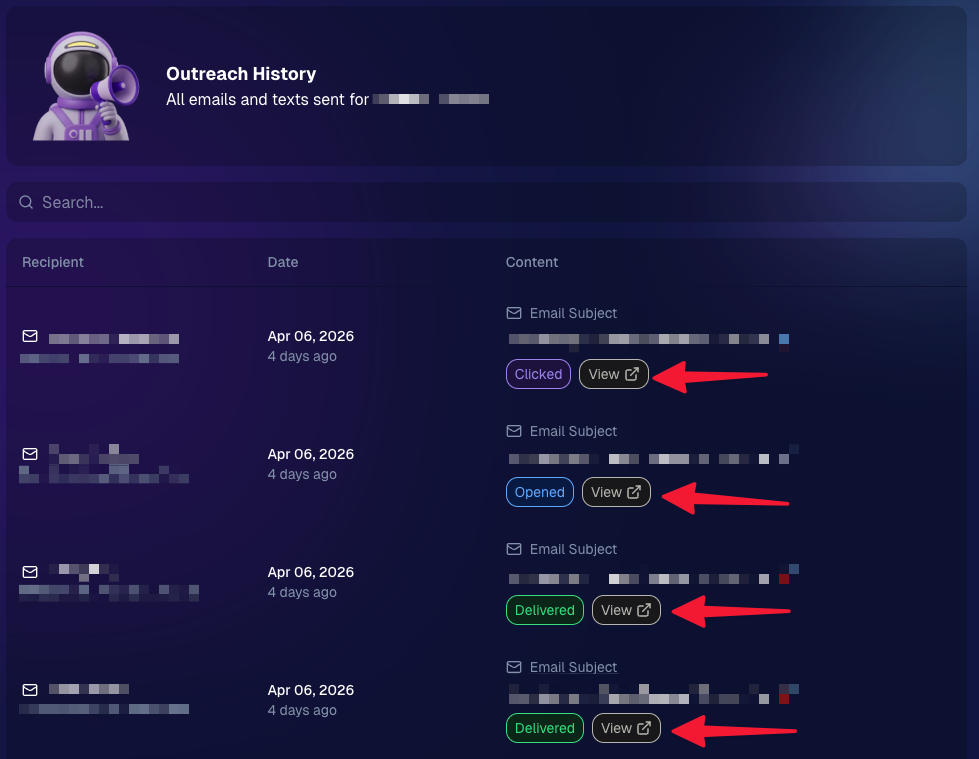
Client Outreach email history is easier to use and more reliable:

  • Added a “View” button in Client Outreach email history so you can open the sent email in a new tab (similar to how order receipts work).
  • Fixed an issue where email status didn’t always show for all emails in the status list.
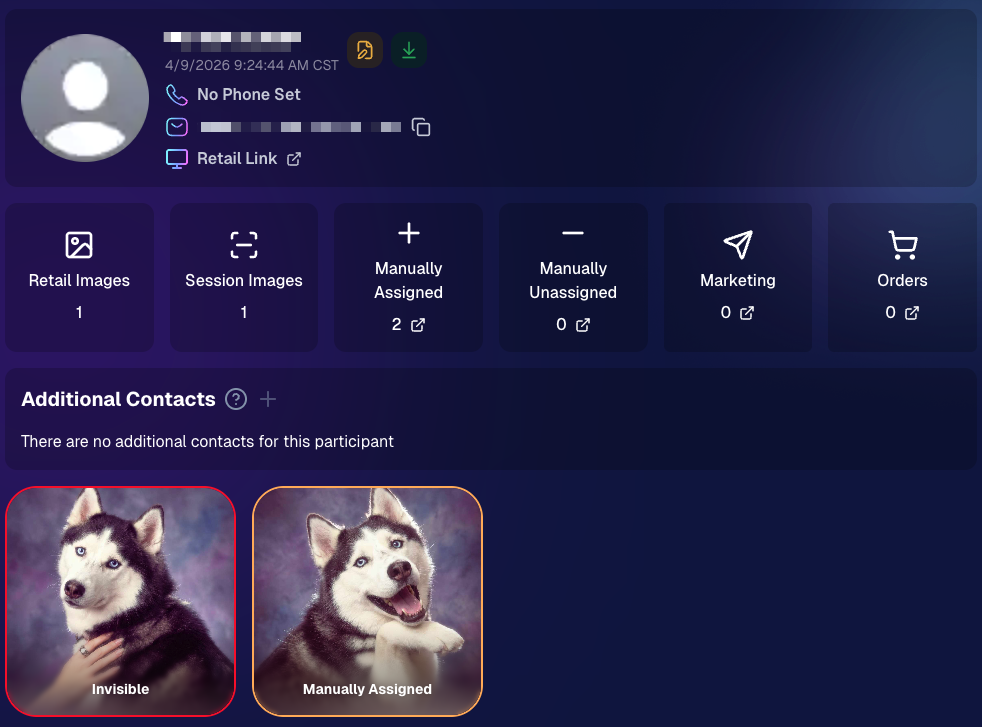
More clarity when reviewing participant galleries:

  • The Participant Details page now shows invisible images, clearly marked in red with an “Invisible” label—so you can understand what’s hidden without guessing.
PhotoTag participant gallery downloads got safer:

  • Fixed PhotoTag participant gallery downloads overwriting images when multiple files shared the same frame.
  • Fixed the download count displayed on the download button being off.

🎨 Candy Image Studio: Create Without an Input + A New Node

Candy Image Studio has two notable upgrades this week:

🧠 No input image required (generate from scratch!)
Candy Image Studio no longer requires an input image to get started. You can generate from scratch using the “From Scratch” node (at the very bottom), or by starting from custom text or a custom image—great for things like creating portrait backgrounds or creative assets.

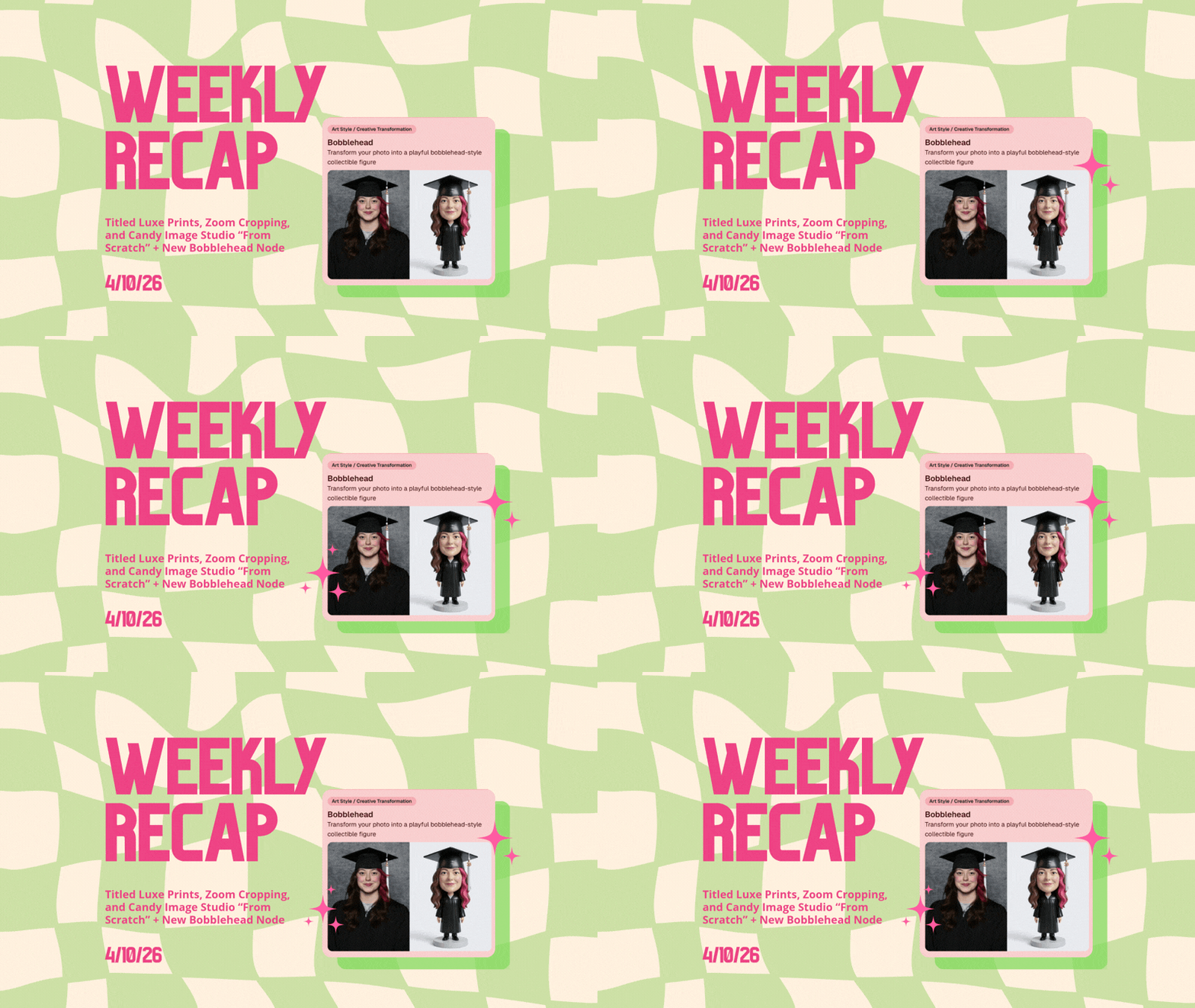
🆕 New “Bobblehead” node
A brand-new Bobblehead node is now available inside Candy Image Studio.

🏈 Jersey Jotter + Event Settings Cleanup

Jersey Jotter settings were removed from the Create/Edit Event popup.
Since Jersey Jotter now has its own dedicated page, we pulled those settings out of the event popups to keep Create Event as minimal (and fast) as possible—and keep Edit Event aligned with Create.

New: “Auto Enhance” can be turned off in Create/Edit Event.
Important clarity here:

  • Auto Enhance isn’t new — it has always been enabled by default.
  • What’s new is the ability to turn it off from the Create/Edit Event popup.
  • It’s labeled “Auto Enhance” (not “Retail Enhancement”) because it affects more than retail, including things like LiveLoop, Dashboard previews, Shareable Download Gallery, and more.
  • Note: this setting only impacts images uploaded after you change it. (So anything already uploaded keeps whatever enhancement state it had at upload time.)

🛍️ Retail: Package Backgrounds + Fixes

A few retail improvements landed to reduce confusing edge cases:

  • When selecting a PNG (without a faux background render) during the “Next Package Item Image Picker” step, the chosen background will now default to the first background in the background picker list (instead of the purple default).
  • Fixed an issue where the background selector step didn’t always appear for non-faux BGR images.
  • Fixed a crash related to having Wall Clings in packages.
  • Updated the Free Download description to: “Free simple, full-resolution download of your image.” (Previously it implied lower resolution.)

🔍 NEW: Zoom Cropping “Z-Cropping” (Dashboard + Retail)

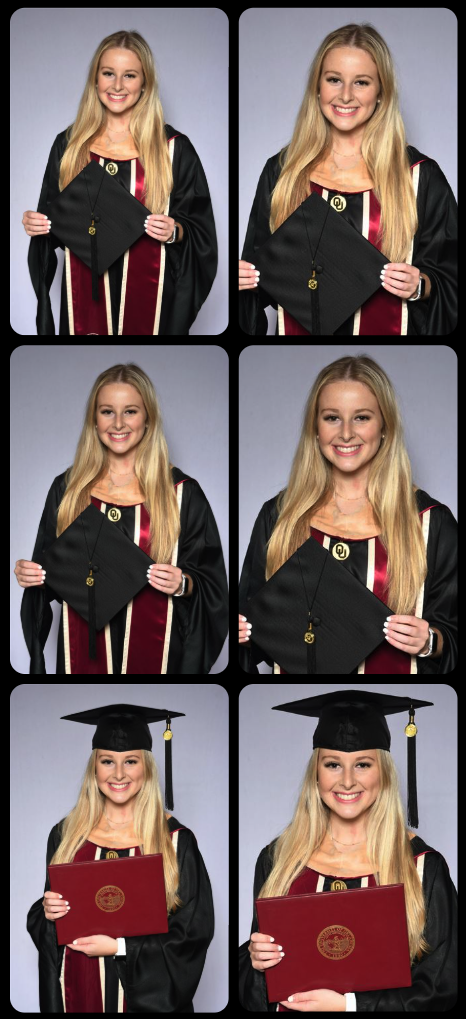
In Advanced Offer Settings, you can now enable Zoom Cropping, which automatically adds an additional image into the customer’s gallery that is zoom-cropped toward their face.

Details & rules:

  • ✅ Works on Face Matching Events
  • ✅ Works only on images with one face
  • ✅ All default graduation offers/price levels now have Zoom Cropping enabled
  • Behind the scenes, it applies a ~30% zoom toward the face, with an additional ~30% pull from the center of the image toward the face (clamped to avoid cropping beyond image bounds)

This is a great “quiet upgrade” for grads and portrait-style moments where customers love a tighter crop—without you needing to manually create it.
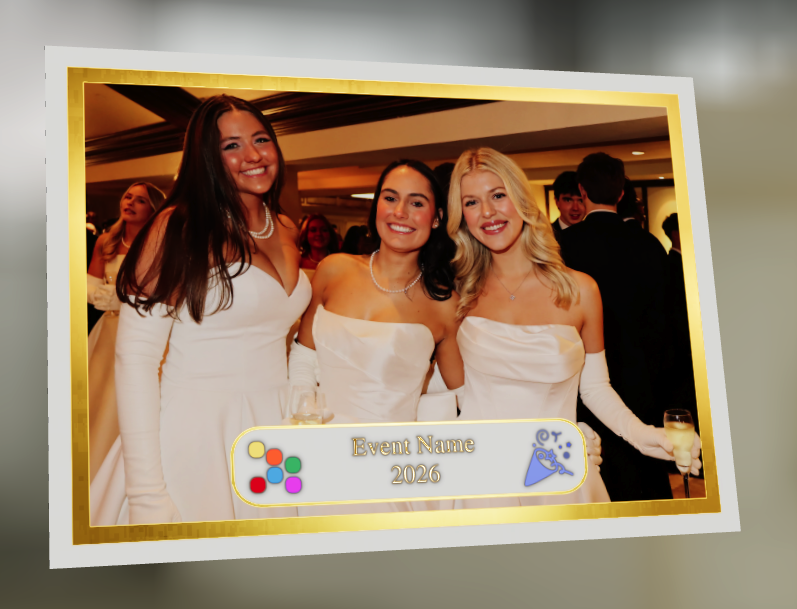
🖼️ New Products: Titled Luxe Prints (Dashboard + Retail)

Two new products just landed:

  • 5×7 Titled Luxe Print
  • 8×10 Titled Luxe Print

Want to see the 3D preview?
https://app.nowcandid.com/3d/titled-luxe-print

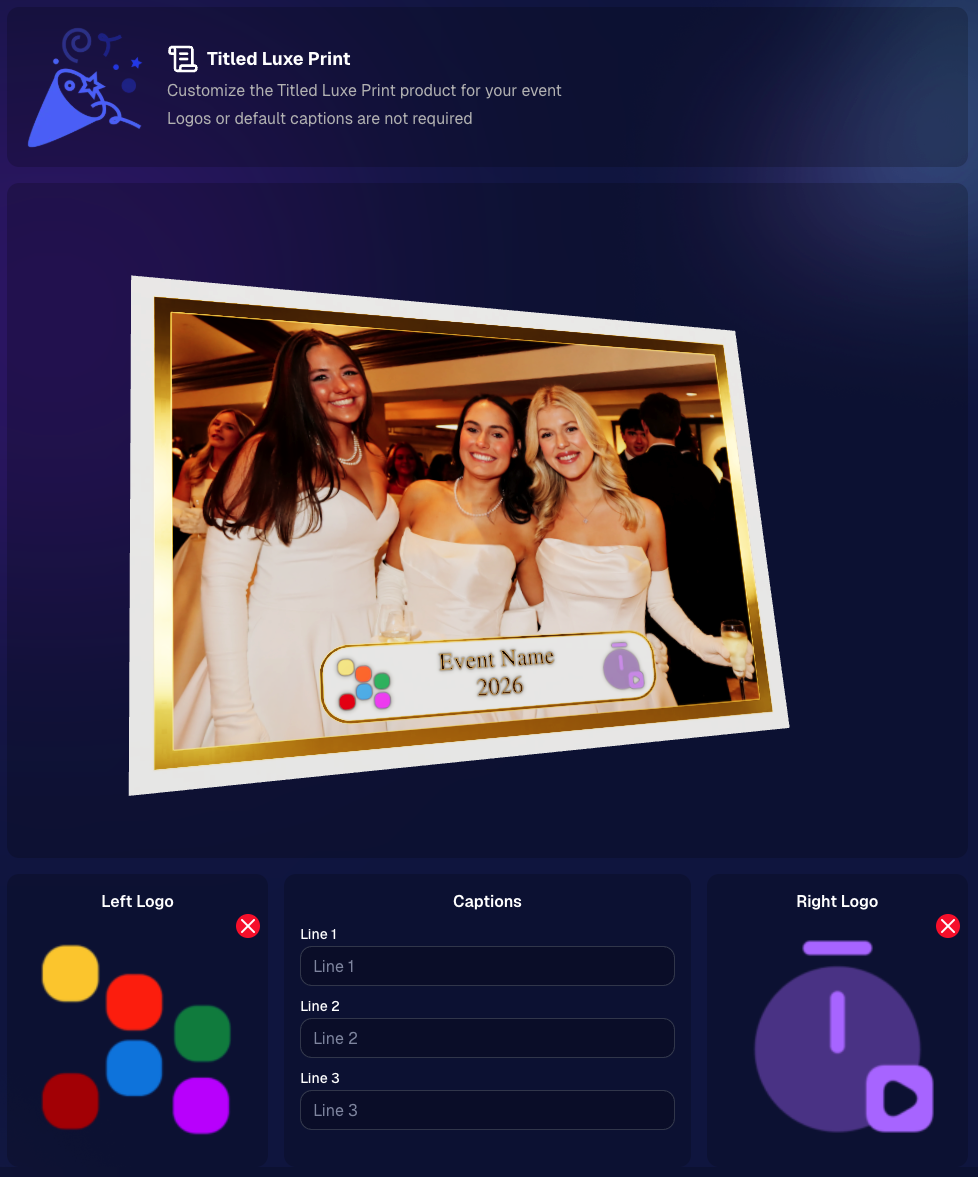
New: “Edit Titled Luxe Print” Page (per event)
There’s a new event-level page available in the Dashboard sidebar only if one of the new titled products is included in the event’s offer. From there, you can:

  • Set default captions
  • Select left/right logos
  • Preview the 3D render
  • (Easter egg: rotate the render and you can spot your business name on the backprinting.)
Notes:

  • Default captions and logos are optional
  • Retail shoppers can change captions when ordering
  • Logo requirements: upload/import a 650×650 transparent PNG
  • Retail supports both 2D + 3D renders, including your custom logos
  • Order Details pages now display the selected logos, similar to how we show captions and colors

That’s the week! 💫

Between Zoom Cropping, Titled Luxe Prints, and Candy Image Studio’s new From Scratch flow (plus a pile of cleanup across retail + downloads), this update adds a lot of power without adding extra complexity.

Keep creating magic,
— Candy 🍬
Related articles

Big News: JerseyJotter™, Your New MVP for Sports Galleries
SportPics
June 24, 2025

Big News: JerseyJotter™, Your New MVP for Sports Galleries

5
 minutes read
Let’s be real—sports events can be chaotic.

You’re out there capturing incredible moments: diving saves, finish line sprints, sideline smiles… and by the time you upload your gallery, it’s packed to the brim with action shots.

But then comes the big question: How will parents, athletes, and coaches find their photos quickly and easily?

That’s where JerseyJotter™ comes in to save the day—and your gallery.

💡 What Is JerseyJotter™?

JerseyJotter™ is NowCandid’s brand-new feature that automatically adds searchable filters to the All Images Gallery of SportsPics Events.

It does two things:

🎽 Color Recognition

Detects the primary shirt or jersey color worn in each image.

🔢 Number Recognition

Pulls jersey numbers or racing bibs straight from the photo.

🛠️ Total Control at Your Fingertips

You choose how JerseyJotter™ works for each event:

✅ Turn on Color only
✅ Turn on Number only
✅ Or use both for the dream team combo
✅ And yes—you can toggle them off if needed

It works with both Positive ID and Face Matching Events... just make sure your All Images Gallery is turned on!

🔍 Why You’ll Love It

With JerseyJotter™, customers can:

  • • Instantly filter photos by jersey number or color
  • • Zero in on their athlete without wading through hundreds of lookalikes
  • • Enjoy a more personal, efficient shopping experience (when they don't have a personal gallery)

And for you? Less “Can you help me find #22?” emails. 🎉

📸 Who’s It For?

JerseyJotter™ is a game-changer for:

  • • Sports leagues
  • • School teams
  • • Track meets
  • • Dance competitions
  • • Martial arts tournaments
  • • Basically any event where participants wear numbers or uniforms

⚡ Final Whistle

We built JerseyJotter™ to help you deliver better All Image galleries. It’s smart, seamless, and designed with real photographers (and real parents) in mind.

Ready to see it in action? Log into your NowCandid Dashboard and try it out on your next SportsPics Event!

The NowCandid™ Team
Smarter Tools. Sharper Galleries. Happy Parents.

Weekly Recap: JerseyJotter™, SportsPics Action Pricing, and Smarter Gallery Sharing🏷️
Feature Updates
June 20, 2025

Weekly Recap: JerseyJotter™, SportsPics Action Pricing, and Smarter Gallery Sharing🏷️

7
 minutes read
Hey there, it’s Candy!

This week, we’re bringing the action with jersey recognition, fresh new price levels for sports events, and a sleek gallery-sharing upgrade that makes your links pop.

Let’s dive in! 💦

🧢 Introducing: JerseyJotter™

Your new MVP for sports galleries has arrived!

JerseyJotter™ automatically adds searchable filters to the All Images gallery for SportsPics Events:

  • 🎽 Color Recognition – identifies the primary shirt/jersey color worn in the photo.
  • 🔢 Number Recognition – picks up numbers from jerseys or racing bibs

You can toggle:

  • ✅ Both on
  • ✅ Only one
  • ✅ Or turn them both off

✅ Color & Number Recognition will work for both Positive ID and Face Matching Events (as long as the All Images Gallery is turned on)


🔍 Customers can filter using either filter independently, or both filters at once!

It’s your new best friend for organizing crowded team galleries!

💸 New SportsPics (Action) Price Levels + Offer Template

We’ve added new price levels and a recommended offer template for action-packed sports coverage. These are designed to complement JerseyJotter™ and better suit high-volume, high-energy photo galleries.

Perfect for:

  • 🏃‍♂️ Race day events
  • 🏈 Game-day action
  • 🏀 Sideline candids

If you’re used to SportsPics Portrait pricing, give this new setup a look—it might be a better fit for your action photgraphy Events!

🔗 Gallery Sharing Just Got an Upgrade

Now when you share your NowCandid Gallery Links via:

  • 📱 iMessage
  • 💬 Discord
  • ✉️ Other messaging platforms

They’ll automatically preview using your Event’s retail cover photo (if one’s set) — or fall back to the first image in the gallery, now complete with copyright-watermarking.

📸 Cleaner. Sharper. Way more pro.

🔍 Dashboard Search Boost

  • Hit Control + K (or find it in the Extras dropdown) to search Orders and Events
  • Because finding stuff fast should feel like magic 🪄

✨ Tiny Changes & Bug Splatting

  • 🧵 View Sequence logic now uses image names for better chronological accuracy
  • 🪲 Smashed a bajillion bugs (yes, bajillion is a real number)
    • Including quirks with email marketing
    • And rare background removal issues in relation to group photos & group products

That’s it for this week! If you're capturing athletes, races, or energetic action shots, this update was made just for you. 💪

Until next time,


📣 Candy

Graduation Was Great… But What If You Missed the Selfie Check-Ins™?🎓
GradPics
June 18, 2025

Graduation Was Great… But What If You Missed the Selfie Check-Ins™?🎓

7
 minutes read
Hey there, grad photographers! 👋

Candy here from NowCandid, and we need to talk about a common situation we’ve been hearing a lot about:

“I didn’t get enough graduates to do Selfie Check-In™… now what?!”

We get it. When you're new to the Selfie Check-In™ system, it’s easy to be a little too passive — maybe you just printed QR codes on handouts or stuck signs around the venue. That’s a decent start, and sure, it’ll get you some check-ins… but not nearly enough to maximize your reach (and sales 💸).

So what should have happened? Ideally, you have staff at the entrance — where all the grads arrive — actively guiding them through Selfie Check-In™ before they even get to the ceremony space. Yes, it may feel pushy at first, but schools usually love that you’re making sure families get the photos they want. Some schools even appreciate the contact info you collect, because it helps them stay connected with their new alumni! 🎓💌

But that’s beside the point. Graduation season is winding down now. You can’t go back in time and be more assertive with check-ins. So the question is:

😰 You Missed the Selfie Check-Ins™… What Now?

Good news: All is not lost! 🙌

We just added a set of brand-new post-graduation email templates to our Digital Marketing Materials, accessible via our Resources Page.

These are customizable Word docs you can quickly edit and send to the school — making it super easy for them to email students and parents the Selfie Check-In™ URL.

These emails invite grads and families to check in after the event, so they can still receive their images. We even included:

  • ✅ A version you can send to the school to make the ask
  • ✅ A version the school can send to grads & families directly
  • ✅ Language that’s clear, warm, and action-driven

By doing this, you’ll reach a bunch of people who want their photos but never knew how to access them. It means:

📸 More participants tagged

🧑‍🤝‍🧑 More happy families

💰 More sales coming your way!

📈 Real Results: One Photographer's Experience

One photographer we worked with saw many graduates did not complete their Selfie Check-In™ by the day of the event. So, after the ceremony, the photographer asked the school to send a follow-up message using our post-event template.

The result?


Participation is up 12% so far! Between additional participation and continued marketing campaigns - Event revenue has increased significantly since the photographer asked the schools to send out these emails for the stragglers!

📬 Let’s Hear From You!

Whether this graduation season was a smashing success or a learning experience, we want to hear from you.

Got feedback? Success stories? Questions? Rants? Raves? We’re all ears. 👂💕

Drop us a note right here: nowcandid.com/contact

Your feedback helps us grow — and we’re always looking to celebrate wins or learn how we can make your job easier next year!

Until next grad season,


💖 Candy from NowCandid

Let’s get in touch

If you’re a photographer looking to add NowCandid services to your wheelhouse – set up a call by clicking the button below.

How to customize formatting for each rich text

How to customize formatting for each rich text

How to customize formatting for each rich text

How to customize formatting for each rich text

How to customize formatting for each rich text

What’s a Rich Text element?

The rich text element allows you to create and format headings, paragraphs, blockquotes, images, and video all in one place instead of having to add and format them individually. Just double-click and easily create content.

A rich text element can be used with static or dynamic content. For static content, just drop it into any page and begin editing. For dynamic content, add a rich text field to any collection and then connect a rich text element to that field in the settings panel. Voila!

Headings, paragraphs, blockquotes, figures, images, and figure captions can all be styled after a class is added to the rich text element using the "When inside of" nested selector system.

  • List One
  • List Two
  • List Three
  • List Four
  • List Five

This is a link

This is bold text