HomeNavigation arrowBlogNavigation arrow
Current page
Feature Updates

Weekly Recap: Titled Luxe Prints, Zoom Cropping, and Candy Image Studio “From Scratch”

Weekly Recap: Titled Luxe Prints, Zoom Cropping, and Candy Image Studio “From Scratch”
Hey photo friends! 👋

This week’s updates are a fun mix of new products, new visual workflows, and small-but-important fixes that make day-to-day work smoother—especially across Candy Image Studio, retail packages, and PhotoRoster/PhotoTag downloads.

Let’s jump in. ✨

📣 Dashboard: Client Outreach + Workflow Quality-of-Life

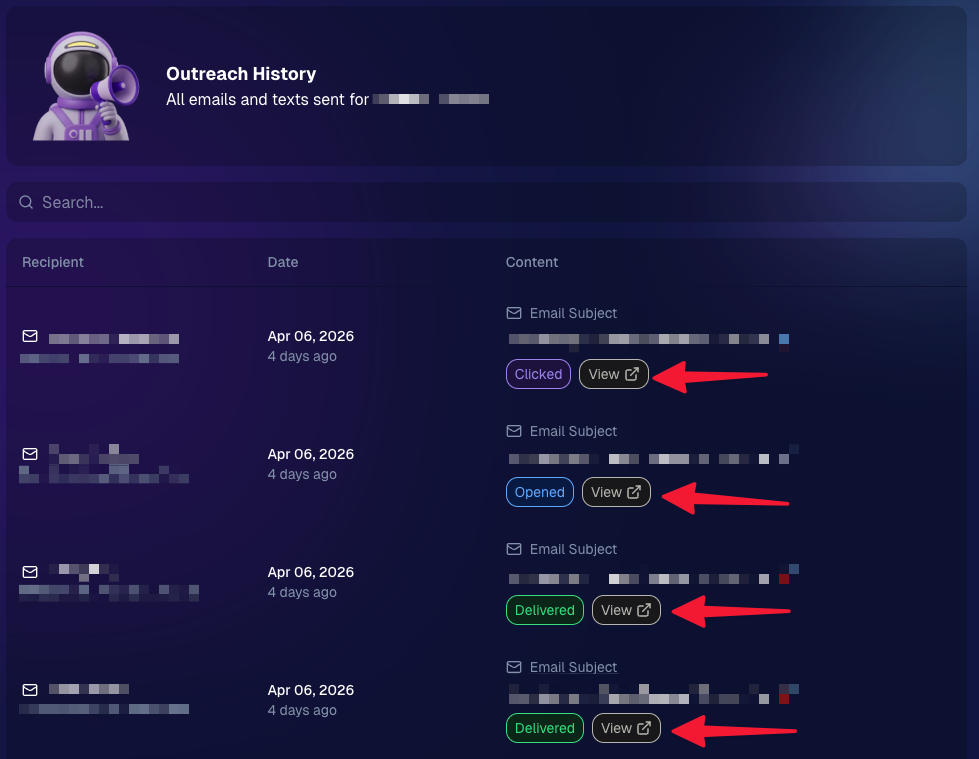
Client Outreach email history is easier to use and more reliable:

  • Added a “View” button in Client Outreach email history so you can open the sent email in a new tab (similar to how order receipts work).
  • Fixed an issue where email status didn’t always show for all emails in the status list.
More clarity when reviewing participant galleries:

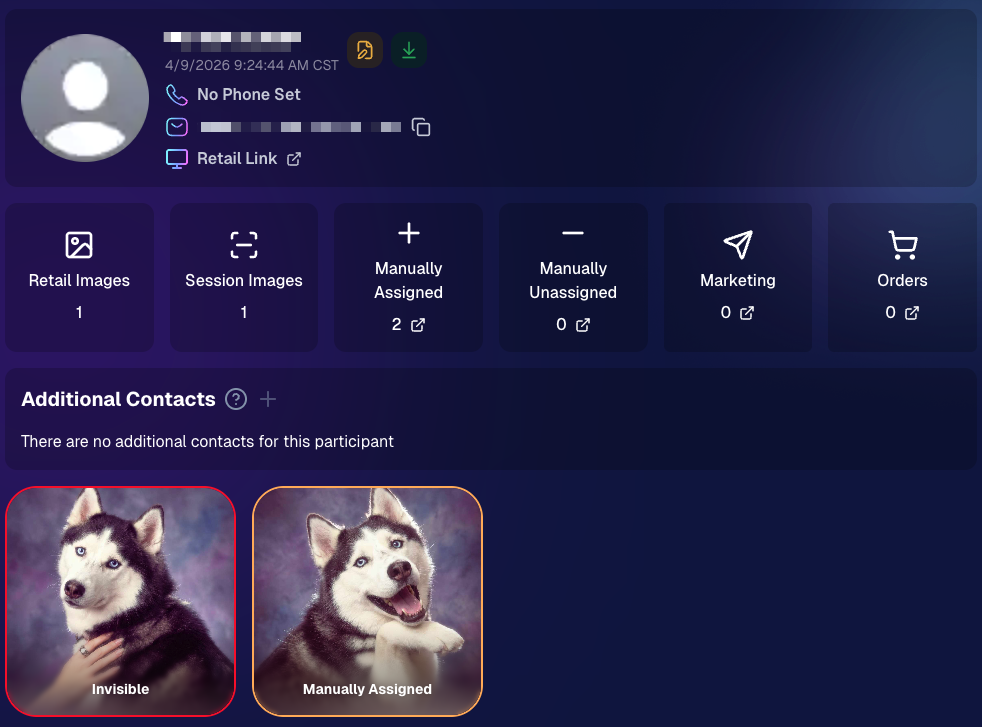
  • The Participant Details page now shows invisible images, clearly marked in red with an “Invisible” label—so you can understand what’s hidden without guessing.
PhotoTag participant gallery downloads got safer:

  • Fixed PhotoTag participant gallery downloads overwriting images when multiple files shared the same frame.
  • Fixed the download count displayed on the download button being off.

🎨 Candy Image Studio: Create Without an Input + A New Node

Candy Image Studio has two notable upgrades this week:

🧠 No input image required (generate from scratch!)
Candy Image Studio no longer requires an input image to get started. You can generate from scratch using the “From Scratch” node (at the very bottom), or by starting from custom text or a custom image—great for things like creating portrait backgrounds or creative assets.

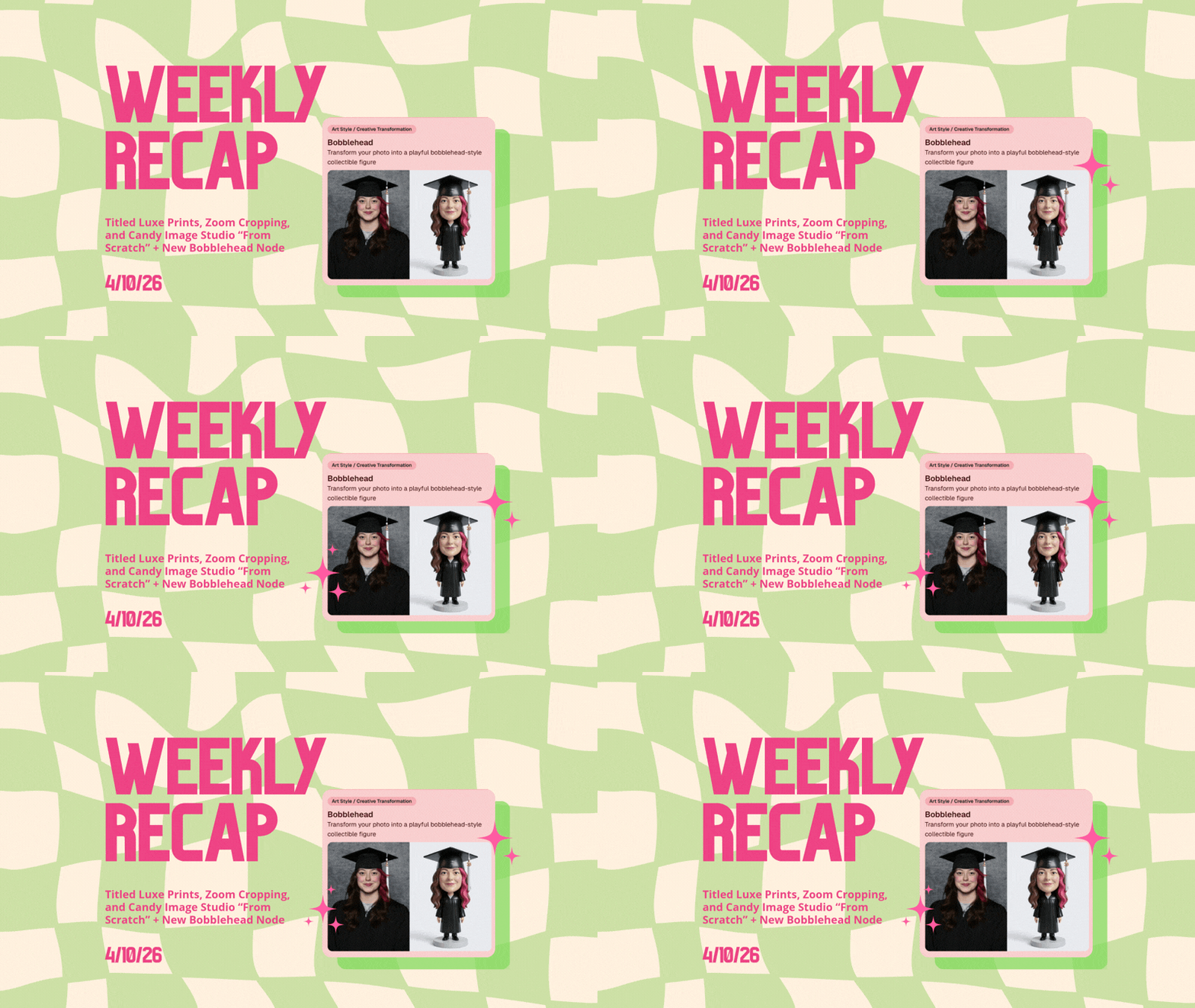
🆕 New “Bobblehead” node
A brand-new Bobblehead node is now available inside Candy Image Studio.

🏈 Jersey Jotter + Event Settings Cleanup

Jersey Jotter settings were removed from the Create/Edit Event popup.
Since Jersey Jotter now has its own dedicated page, we pulled those settings out of the event popups to keep Create Event as minimal (and fast) as possible—and keep Edit Event aligned with Create.

New: “Auto Enhance” can be turned off in Create/Edit Event.
Important clarity here:

  • Auto Enhance isn’t new — it has always been enabled by default.
  • What’s new is the ability to turn it off from the Create/Edit Event popup.
  • It’s labeled “Auto Enhance” (not “Retail Enhancement”) because it affects more than retail, including things like LiveLoop, Dashboard previews, Shareable Download Gallery, and more.
  • Note: this setting only impacts images uploaded after you change it. (So anything already uploaded keeps whatever enhancement state it had at upload time.)

🛍️ Retail: Package Backgrounds + Fixes

A few retail improvements landed to reduce confusing edge cases:

  • When selecting a PNG (without a faux background render) during the “Next Package Item Image Picker” step, the chosen background will now default to the first background in the background picker list (instead of the purple default).
  • Fixed an issue where the background selector step didn’t always appear for non-faux BGR images.
  • Fixed a crash related to having Wall Clings in packages.
  • Updated the Free Download description to: “Free simple, full-resolution download of your image.” (Previously it implied lower resolution.)

🔍 NEW: Zoom Cropping “Z-Cropping” (Dashboard + Retail)

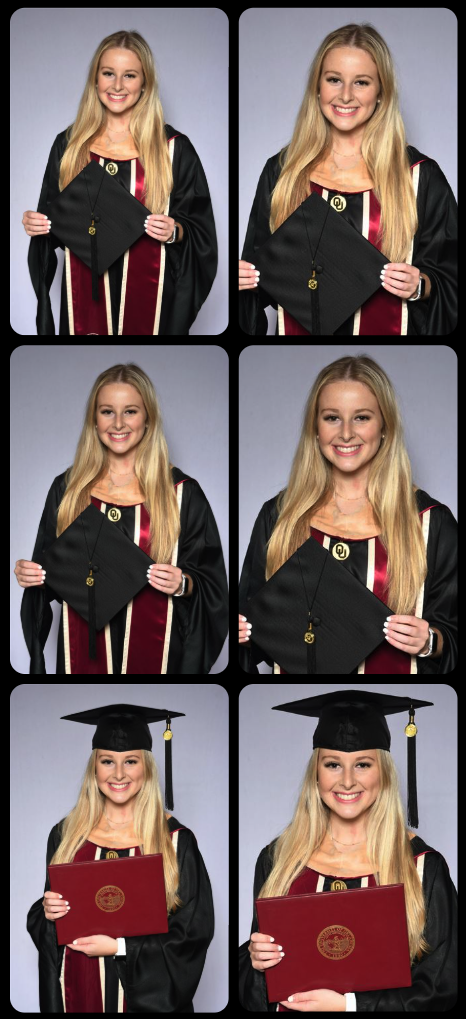
In Advanced Offer Settings, you can now enable Zoom Cropping, which automatically adds an additional image into the customer’s gallery that is zoom-cropped toward their face.

Details & rules:

  • ✅ Works on Face Matching Events
  • ✅ Works only on images with one face
  • ✅ All default graduation offers/price levels now have Zoom Cropping enabled
  • Behind the scenes, it applies a ~30% zoom toward the face, with an additional ~30% pull from the center of the image toward the face (clamped to avoid cropping beyond image bounds)

This is a great “quiet upgrade” for grads and portrait-style moments where customers love a tighter crop—without you needing to manually create it.
🖼️ New Products: Titled Luxe Prints (Dashboard + Retail)

Two new products just landed:

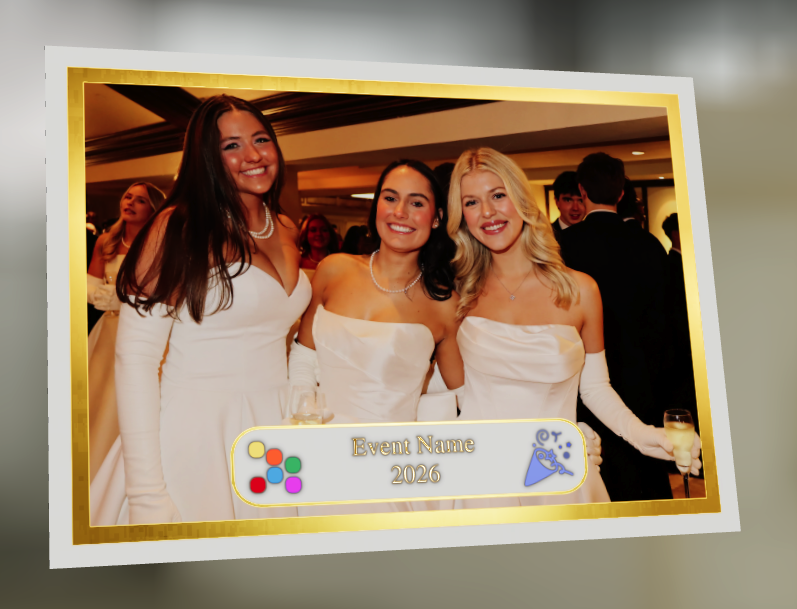
  • 5×7 Titled Luxe Print
  • 8×10 Titled Luxe Print

Want to see the 3D preview?
https://app.nowcandid.com/3d/titled-luxe-print

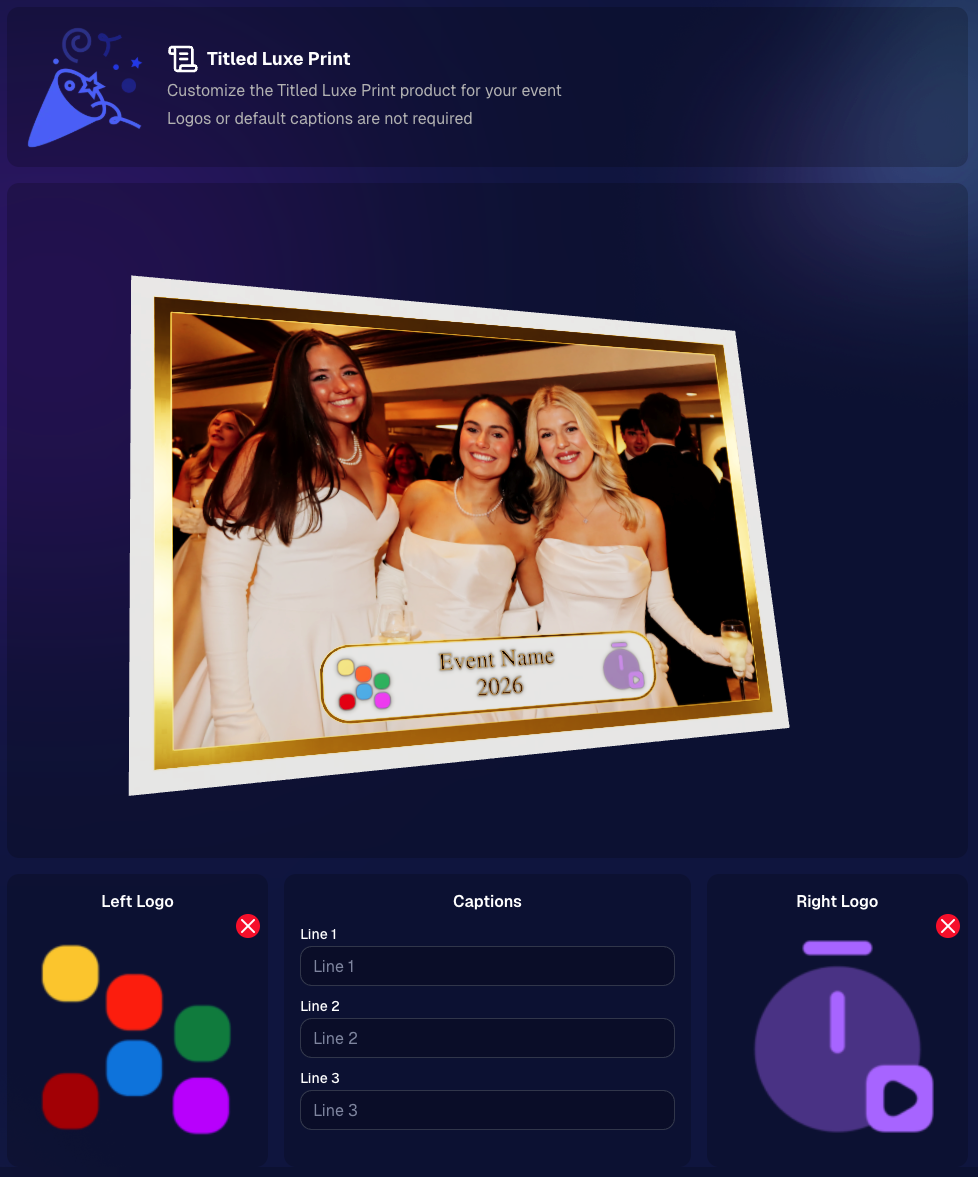
New: “Edit Titled Luxe Print” Page (per event)
There’s a new event-level page available in the Dashboard sidebar only if one of the new titled products is included in the event’s offer. From there, you can:

  • Set default captions
  • Select left/right logos
  • Preview the 3D render
  • (Easter egg: rotate the render and you can spot your business name on the backprinting.)
Notes:

  • Default captions and logos are optional
  • Retail shoppers can change captions when ordering
  • Logo requirements: upload/import a 650×650 transparent PNG
  • Retail supports both 2D + 3D renders, including your custom logos
  • Order Details pages now display the selected logos, similar to how we show captions and colors

That’s the week! 💫

Between Zoom Cropping, Titled Luxe Prints, and Candy Image Studio’s new From Scratch flow (plus a pile of cleanup across retail + downloads), this update adds a lot of power without adding extra complexity.

Keep creating magic,
— Candy 🍬

Related articles

Weekly Recap: A Slicker Image Details Page & Some Nice Quality-of-Life Upgrades📸
Feature Updates
June 13, 2025

Weekly Recap: A Slicker Image Details Page & Some Nice Quality-of-Life Upgrades📸

4
 minutes read
Hey friends, Candy here!

This week we’ve got a shiny new Image Details page, some small but mighty tweaks across the board, and a handful of fixes to make your dashboard life just a bit smoother.

Let’s take a peek! 👀

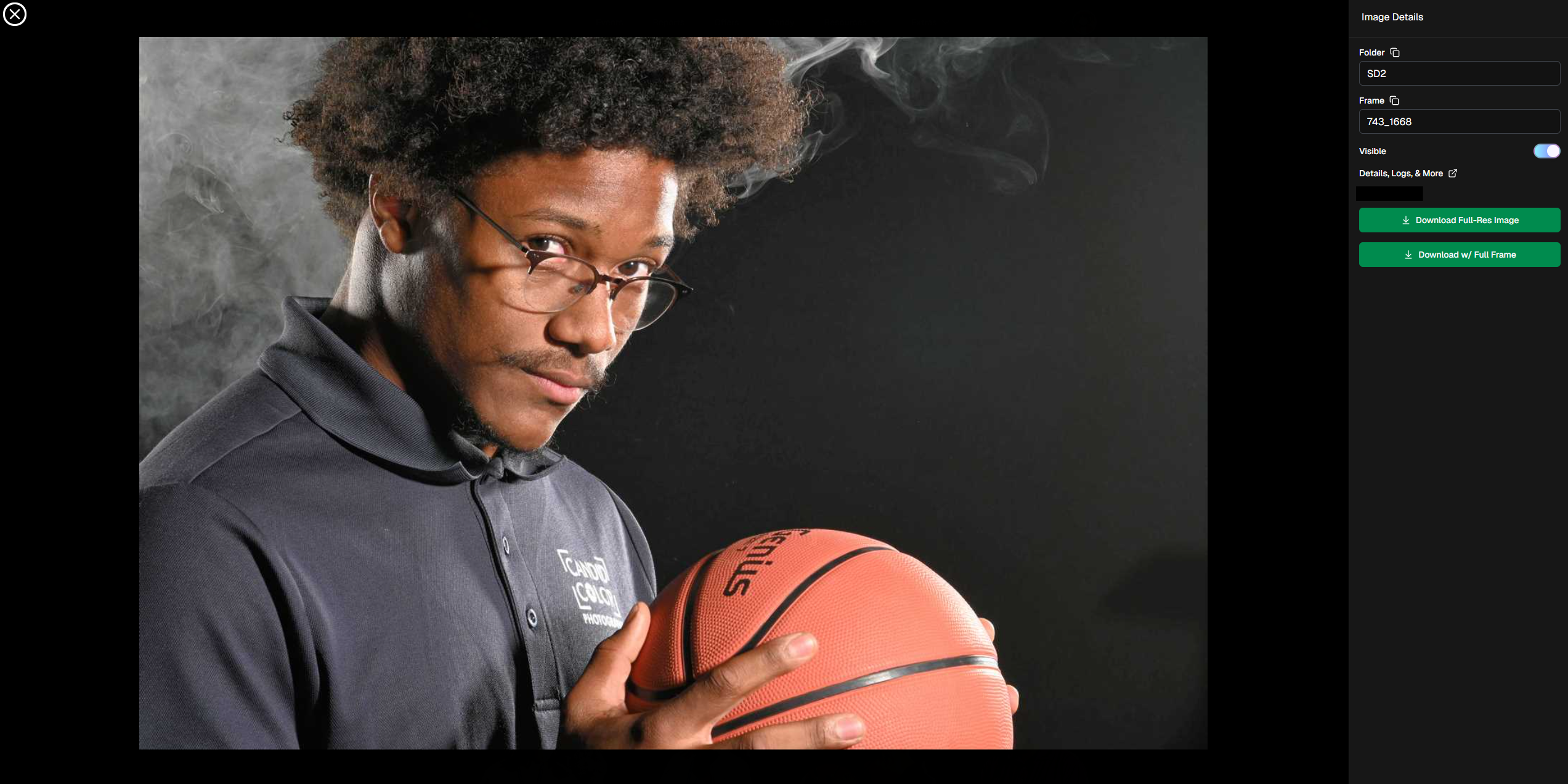
🌟 Brand-New Image Details Page!

Your favorite behind-the-scenes image panel just got a makeover—and it's so much faster now! Whether you’re digging into face match data or reviewing contact info, everything’s loading snappier and more clearly than ever.

You’ll notice:

  • • Cleaner layout 🧼
  • • Larger image preview
  • Speedy load times ⚡
  • Better organization of metadata 🗂️

Details, Participants, and Logs have also been split into three distinct tabs!

Go ahead, give it a click from the Manage Images page or a Participant's Details page!

You can even hover highlighted faces with your mouse to view attached Participants!

In case you need to know how to get to the Image Details page!

🔧 Misc Changes & Improvements

Some smart, helpful little tweaks that add up to a smoother experience:

  • 🔗 Image Details links added to image previews on the Participant Details page (because shortcuts are life).
  • 🖼️ Free Download / Medium-Res Download for QuicPics™ Events are now set to a 2:3 aspect ratio—perfect for showcasing your 2:3 Full Frame overlay art!
  • 📦 Better retail display for big packages: Packages with 5+ items are now prettier, yay!

A look at the new 5+ Item Package graphic! Retail Theme: Liquorice - Event Program: QuicPics

  • 🎯 Face Matching Confidence level is now selectable during Event Creation, not just after. Set your confidence from the start!
  • 🛡 GalleryGuard™ has been updated to work even on iOS 26. The screenshots stay black. The images stay safe.

🐛 Bug Fixes

A few pesky things we squashed this week:

  • 🚫 The Unassigned Images count no longer includes BGR cutouts that have already been matched. More accurate image management FTW.
  • 🔄 Some Events were having trouble loading the Manage Images page. That glitch has now been zapped. 💥

That’s all for now!

Be sure to check out the new Image Details page, and if you haven’t yet, try out GalleryGuard™ on your own iOS device—it’s basically wizardry. 🧙‍♂️

Until next week,
💖 Candy

Weekly Recap: Longer Face Matching™, New PhotoRoster Tools & Retail Tweaks!🗓
Feature Updates
June 6, 2025

Weekly Recap: Longer Face Matching™, New PhotoRoster Tools & Retail Tweaks!🗓

5
 minutes read
Hey friends! 📸

Candy here with another round of updates from the NowCandid™ world.

This week brings big improvements for Face Matching™ Events, new ways to re-use your check-ins across Events, and a couple of helpful tweaks to the retail site and image management tools.

Let’s dive in! 👇

⏳ Face Matching™ Now Lasts 60 Days!

That’s right—your Face Matching™ window has now doubled from 30 to 60 days from your Event's Start Date! 🙌

This means even more time for:

  • • Late uploads to still get matched 🔄
  • • Schools to send out the Selfie Check-In™ link after the Event 📬
  • Stragglers to find their photos 🧍‍♀️🧍‍♂️🧍

But here’s your friendly reminder: the faster you upload, the better your sales! 🏃‍♂️💸

📸 Every image uploaded goes through:

  • • Exposure correction automatically
  • • Optional cart-wide light retouching for customers
  • • Manual review for print color accuracy
  • • Intuitive cropping tools for end users

So don’t sit on your images to batch-edit them all—uploading sooner = more sales.

Every day that passes = potential sales slipping by. Speed matters!

🔁 Create PhotoRosters™ from Selfie Check-Ins!

This one’s a fun one for graduation season! 🎓

Now you can create a PhotoRoster™ directly from the Selfie Check-Ins™ of a previous Event.

Here’s why it’s awesome:

  • • Ran a great Prom with tons of Check-Ins? ✅
  • Reuse that same data to auto-create your graduation PhotoRoster™! 🎓
  • If participants Check-In again or get added via Tap-A-Face™, NowCandid™ automatically merges based on contact info = no duplicate galleries, no confusion!

Perfect for client relationships where you cater to all of their school's Events!

🧰 Misc. Improvements & Fixes

A few extra goodies for your workflow this week:

  • 🔠 New image name sort option on the Manage Images page (great for keeping sequences clean).
  • 📲 Prominent Selfie Check-In™ button added to All Images galleries (so folks can find their pics even faster!).
  • 🧾 A “non-refundable” tag has been added to the shopping cart & receipt for digital items to help set better expectations.
    • (Digital photography = no take-backs! This helps avoid confusion.)

That’s all for now! 🎉

If you have any questions about the new features, you can always reach me from your dashboard! 💬

See you next week for more enhancements and pro tips!

Cheers,

Candy

Weekly Recap: Easier Shopping, Bilingual Check-Ins & More!
Feature Updates
May 30, 2025

Weekly Recap: Easier Shopping, Bilingual Check-Ins & More!

2
 minutes read
Hey there! 👋

Candy here with your weekly dose of NowCandid™ updates!

We’ve rolled out some helpful new features to make check-ins smoother, shopping more intuitive, and checkouts faster. Let’s take a peek! 👀

🌍 ¡Check-In en Español!

We’ve added Spanish language support for all customer check-in pages, including:

  • • Selfie Check-In™
  • • Simple Check-In
  • • Scan Card Check-In

The system will auto-detect the user’s browser language and serve the Spanish version when appropriate.

More languages are planned in the future, so stay tuned! 🌐

Bonus: We also have added Spanish versions of the Privacy Policy & Terms of Use for end customers to use!

🛍 Easier Package Shopping 🖼️

Package selection just got a serious upgrade! 🎁

When a customer is picking images for each item in a Package, they’ll now see:

  • • Tabs to toggle between All Images and their Personal Gallery
  • • Pagination to easily flip through the All Images Tab

This is especially useful when customers are shopping for Packages directly from a link to the All Images Gallery — now it’s easier to browse and find their perfect shot! 💫

🛠 Miscellaneous Fixes & Tweaks

Here’s a quick roundup of other small (but mighty!) improvements this week:

  • 🏷️ Empty PhotoTags™ no longer appear on the retail site — cleaner and simpler for your customers!
  • 💸 Venmo now shows up more consistently as an express checkout option.
  • 📅 Interested in attending Summer Seminar 2025 in OKC? Head to the Profile Page in your dashboard for the invite and sign-up link!
  • 🐞 Tons of small bug fixes and polish across the platform. We’re always working to keep things speedy, intuitive, and delightful!

See you next week with more exciting improvements!

As always, if you need anything — just ask me!😄

Cheers,

Candy

Let’s get in touch

If you’re a photographer looking to add NowCandid services to your wheelhouse – set up a call by clicking the button below.

How to customize formatting for each rich text

How to customize formatting for each rich text

How to customize formatting for each rich text

How to customize formatting for each rich text

How to customize formatting for each rich text

What’s a Rich Text element?

The rich text element allows you to create and format headings, paragraphs, blockquotes, images, and video all in one place instead of having to add and format them individually. Just double-click and easily create content.

A rich text element can be used with static or dynamic content. For static content, just drop it into any page and begin editing. For dynamic content, add a rich text field to any collection and then connect a rich text element to that field in the settings panel. Voila!

Headings, paragraphs, blockquotes, figures, images, and figure captions can all be styled after a class is added to the rich text element using the "When inside of" nested selector system.

  • List One
  • List Two
  • List Three
  • List Four
  • List Five

This is a link

This is bold text