HomeNavigation arrowBlogNavigation arrow
Current page
Feature Updates

Weekly Recap: Titled Luxe Prints, Zoom Cropping, and Candy Image Studio “From Scratch”

Weekly Recap: Titled Luxe Prints, Zoom Cropping, and Candy Image Studio “From Scratch”
Hey photo friends! 👋

This week’s updates are a fun mix of new products, new visual workflows, and small-but-important fixes that make day-to-day work smoother—especially across Candy Image Studio, retail packages, and PhotoRoster/PhotoTag downloads.

Let’s jump in. ✨

📣 Dashboard: Client Outreach + Workflow Quality-of-Life

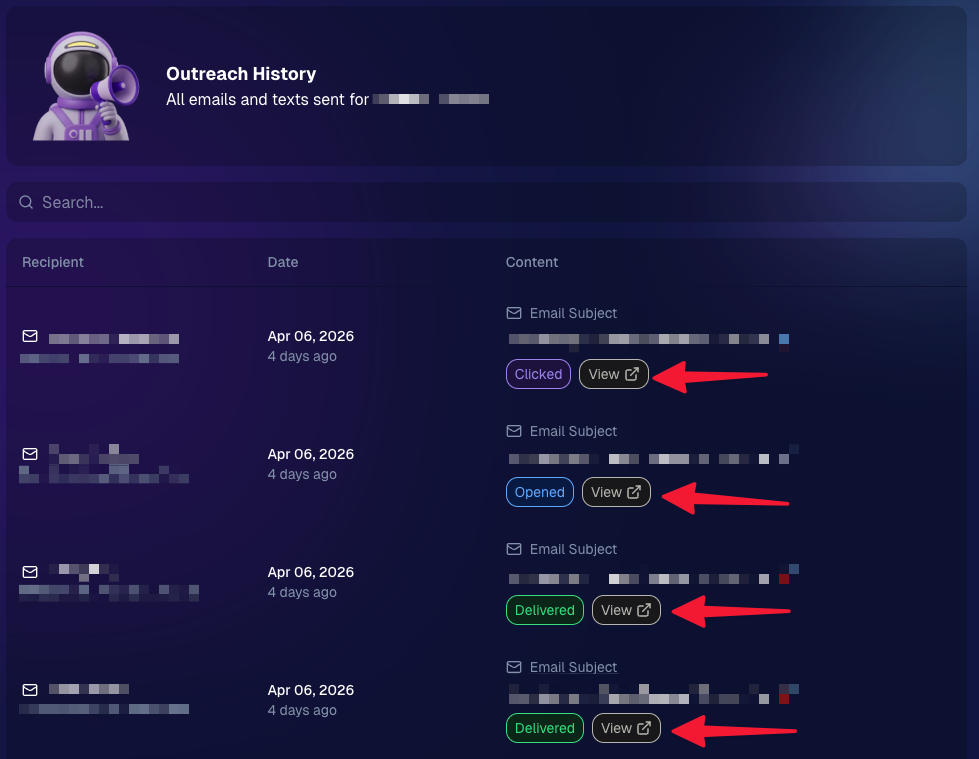
Client Outreach email history is easier to use and more reliable:

  • Added a “View” button in Client Outreach email history so you can open the sent email in a new tab (similar to how order receipts work).
  • Fixed an issue where email status didn’t always show for all emails in the status list.
More clarity when reviewing participant galleries:

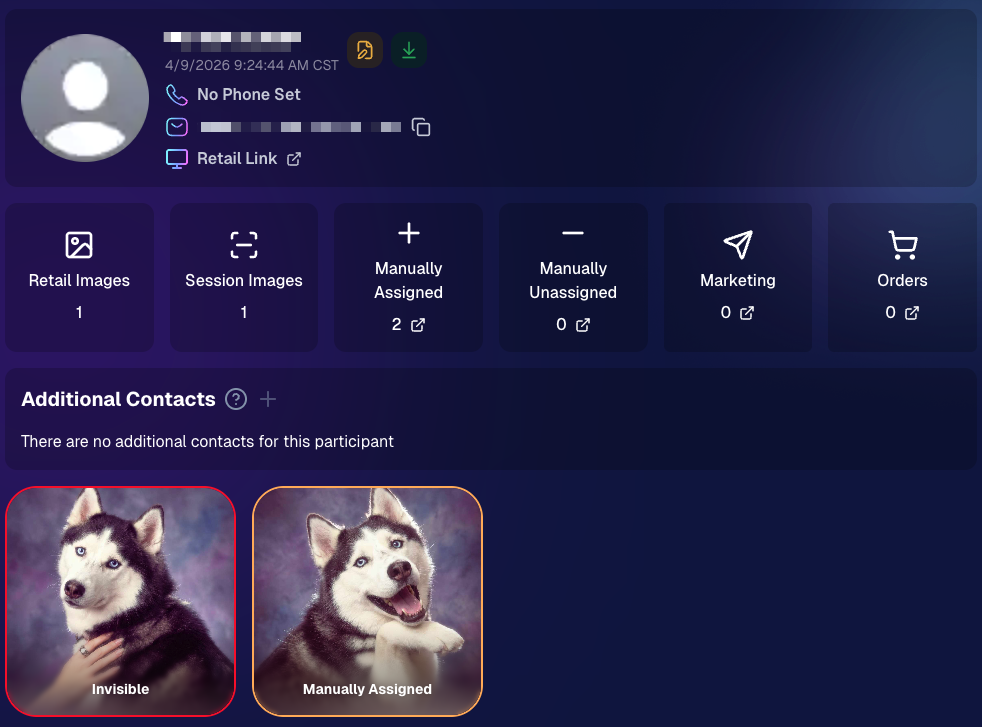
  • The Participant Details page now shows invisible images, clearly marked in red with an “Invisible” label—so you can understand what’s hidden without guessing.
PhotoTag participant gallery downloads got safer:

  • Fixed PhotoTag participant gallery downloads overwriting images when multiple files shared the same frame.
  • Fixed the download count displayed on the download button being off.

🎨 Candy Image Studio: Create Without an Input + A New Node

Candy Image Studio has two notable upgrades this week:

🧠 No input image required (generate from scratch!)
Candy Image Studio no longer requires an input image to get started. You can generate from scratch using the “From Scratch” node (at the very bottom), or by starting from custom text or a custom image—great for things like creating portrait backgrounds or creative assets.

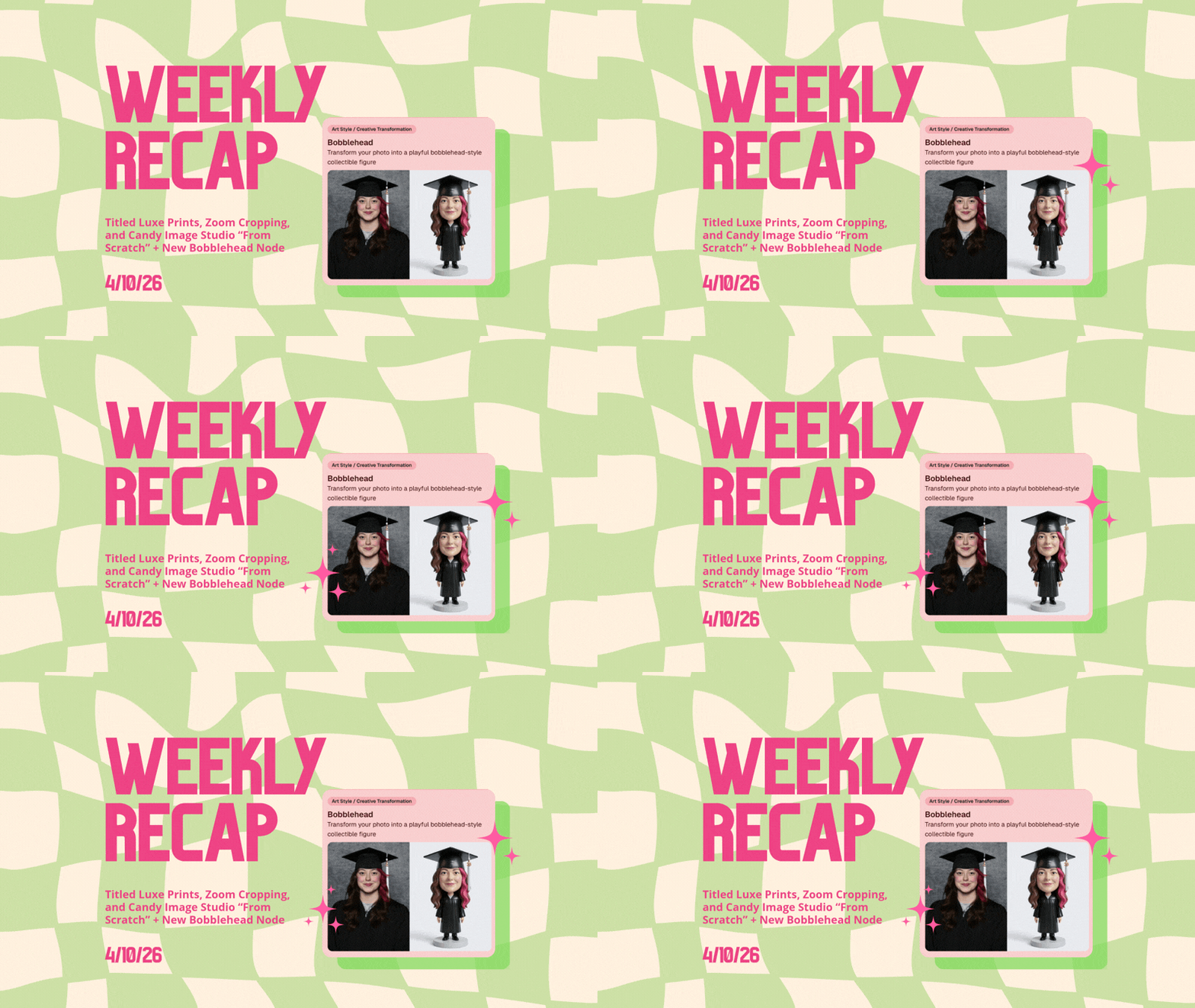
🆕 New “Bobblehead” node
A brand-new Bobblehead node is now available inside Candy Image Studio.

Disclaimer: This is not a new product. This is an image node in the Candy Image Studio.

🏈 Jersey Jotter + Event Settings Cleanup

Jersey Jotter settings were removed from the Create/Edit Event popup.
Since Jersey Jotter now has its own dedicated page, we pulled those settings out of the event popups to keep Create Event as minimal (and fast) as possible—and keep Edit Event aligned with Create.

New: “Auto Enhance” can be turned off in Create/Edit Event.
Important clarity here:

  • Auto Enhance isn’t new — it has always been enabled by default.
  • What’s new is the ability to turn it off from the Create/Edit Event popup.
  • It’s labeled “Auto Enhance” (not “Retail Enhancement”) because it affects more than retail, including things like LiveLoop, Dashboard previews, Shareable Download Gallery, and more.
  • Note: this setting only impacts images uploaded after you change it. (So anything already uploaded keeps whatever enhancement state it had at upload time.)

🛍️ Retail: Package Backgrounds + Fixes

A few retail improvements landed to reduce confusing edge cases:

  • When selecting a PNG (without a faux background render) during the “Next Package Item Image Picker” step, the chosen background will now default to the first background in the background picker list (instead of the purple default).
  • Fixed an issue where the background selector step didn’t always appear for non-faux BGR images.
  • Fixed a crash related to having Wall Clings in packages.
  • Updated the Free Download description to: “Free simple, full-resolution download of your image.” (Previously it implied lower resolution.)

🔍 NEW: Zoom Cropping “Z-Cropping” (Dashboard + Retail)

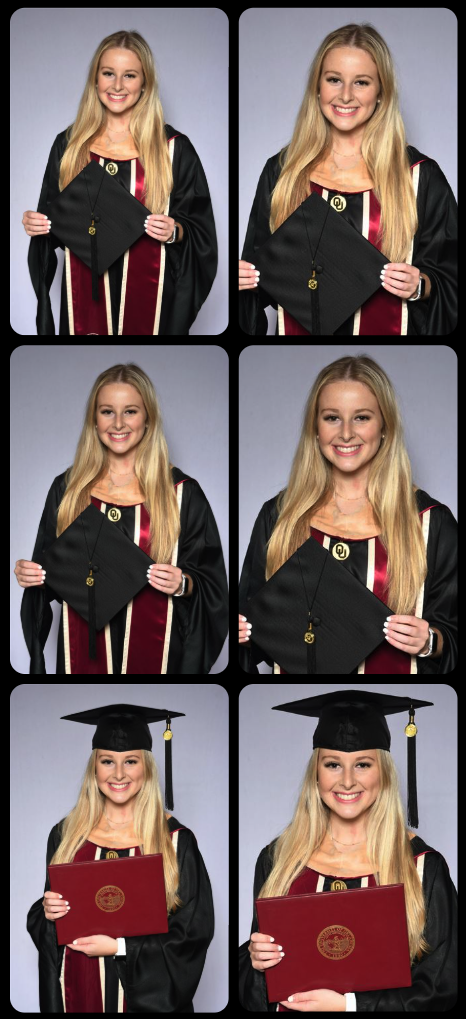
In Advanced Offer Settings, you can now enable Zoom Cropping, which automatically adds an additional image into the customer’s gallery that is zoom-cropped toward their face.

Details & rules:

  • ✅ Works on Face Matching Events
  • ✅ Works only on images with one face
  • ✅ All default graduation offers/price levels now have Zoom Cropping enabled
  • Behind the scenes, it applies a ~30% zoom toward the face, with an additional ~30% pull from the center of the image toward the face (clamped to avoid cropping beyond image bounds)

This is a great “quiet upgrade” for grads and portrait-style moments where customers love a tighter crop—without you needing to manually create it.
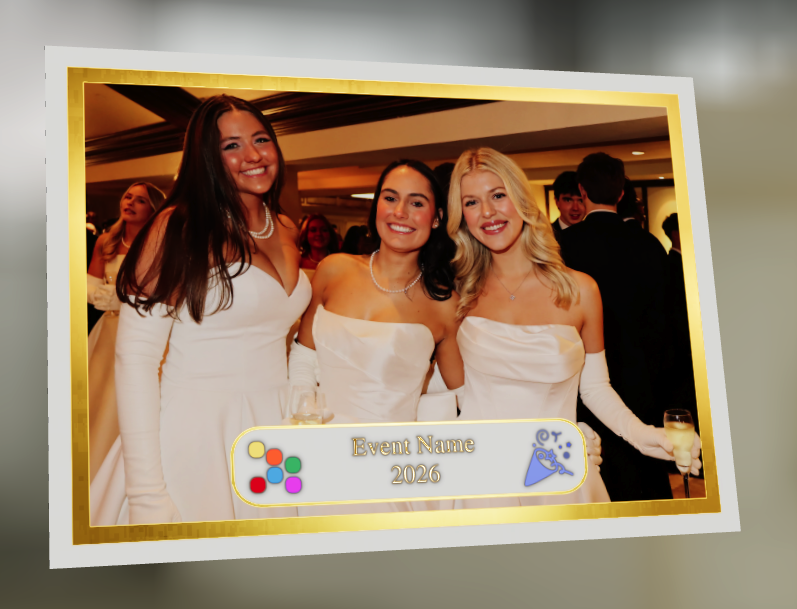
🖼️ New Products: Titled Luxe Prints (Dashboard + Retail)

Two new products just landed:

  • 5×7 Titled Luxe Print
  • 8×10 Titled Luxe Print

Want to see the 3D preview?
https://app.nowcandid.com/3d/titled-luxe-print

New: “Edit Titled Luxe Print” Page (per event)
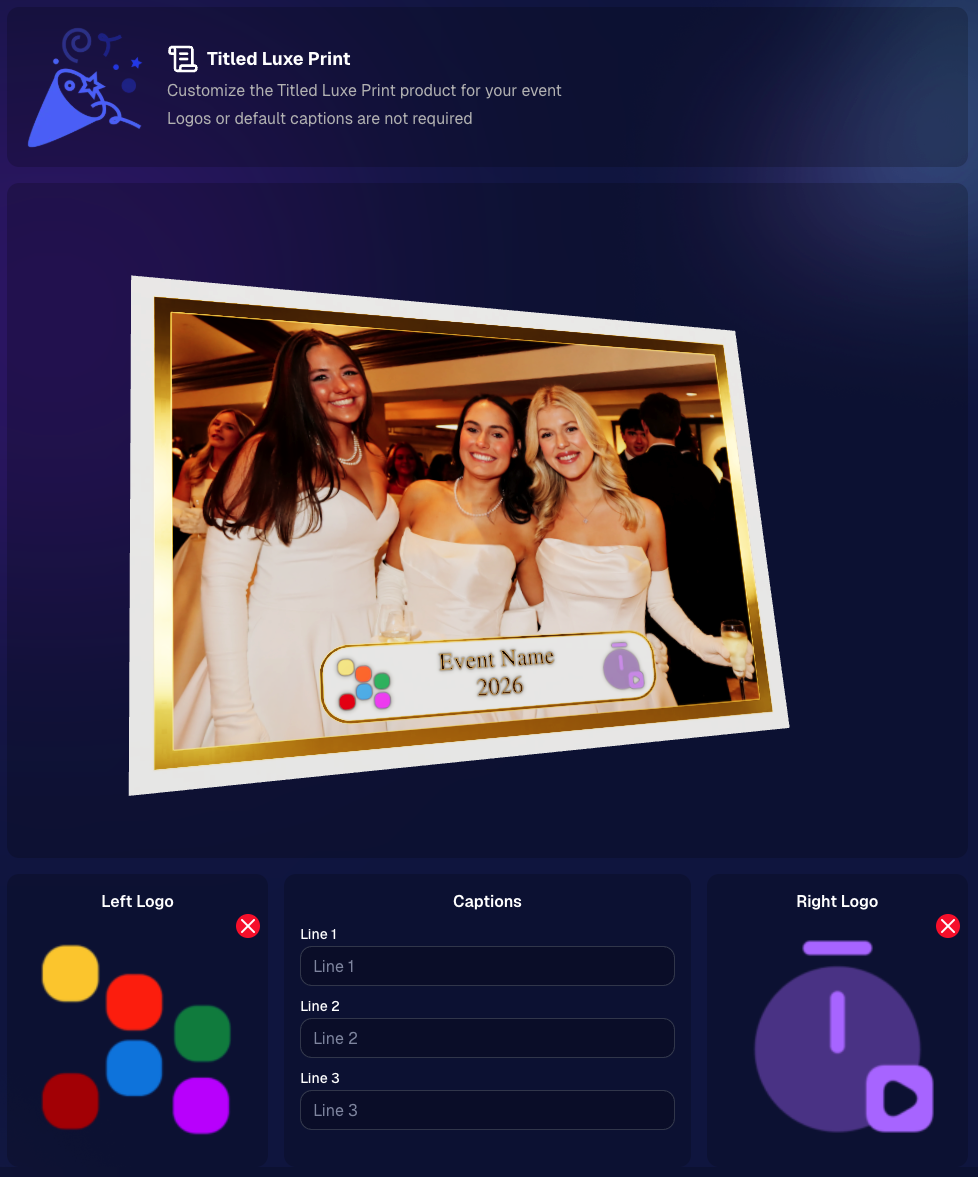
There’s a new event-level page available in the Dashboard sidebar only if one of the new titled products is included in the event’s offer. From there, you can:

  • Set default captions
  • Select left/right logos
  • Preview the 3D render
  • (Easter egg: rotate the render and you can spot your business name on the backprinting.)
Notes:

  • Default captions and logos are optional
  • Retail shoppers can change captions when ordering
  • Logo requirements: upload/import a 650×650 transparent PNG
  • Retail supports both 2D + 3D renders, including your custom logos
  • Order Details pages now display the selected logos, similar to how we show captions and colors

That’s the week! 💫

Between Zoom Cropping, Titled Luxe Prints, and Candy Image Studio’s new From Scratch flow (plus a pile of cleanup across retail + downloads), this update adds a lot of power without adding extra complexity.

Keep creating magic,
— Candy 🍬

Related articles

Exciting New Option: Dynamic Personal Galleries! 📸📣
Feature Updates
November 7, 2024

Exciting New Option: Dynamic Personal Galleries! 📸📣

6
 minutes read
Hello, my fabulous photographer friends!

Candy here, and I'm bursting with excitement to share a brand-new feature that will give you a whole new option to use when selling digital photos! 🌟

Drumroll, please... 🥁

Introducing Dynamic Personal Galleries! 🎉

What Are Dynamic Personal Galleries?

Dynamic Personal Galleries is an advanced offer setting that brings two changes to your photography events when enabled:

This new option will be found when editing an Offer's "Advanced Settings"

  1. Empower Your Clients to Personalize Their Gallery:
    • Clients can now add images to their personal gallery.
    • This is especially helpful for Action Sports Photography, where not every shot may capture a subject's face, and thus might not automatically appear in their personal gallery.

  2. Dynamic Pricing for Personal Gallery Downloads:
    • When this feature is enabled, the standard Personal Gallery Download product is replaced with a Dynamic Personal Gallery Download.
    • How It Works:
      • Minimum Price: You set a minimum price.
      • Unit Price: You set a price per image.
      • Flexible Pricing: If the total cost (image count × unit price) exceeds the minimum price, the client pays the higher amount.
      • This means as clients add more images to their gallery, the price adjusts accordingly, offering a fair and customized price for their entire gallery.

After clicking "Edit" under "Use Dynamic Personal Galleries"

When Would I Use this Feature?

Perfect for Action Photography

Imagine you're covering a youth sports tournament. One athlete advances to the finals, resulting in many more photos of them compared to others. With Dynamic Personal Galleries:

  • Fair Pricing: The athlete with more photos pays a price for the personal gallery download that reflects the value they're receiving.
  • Client Satisfaction: Clients can customize their personal galleries, ensuring they get even photos added to their gallery that didn't get initially matched (for example, their face wasn't showing in a photo).
  • Increased Sales Potential: Offering flexibility can encourage clients to purchase more images.

Great for Events with Varied Image Counts

For any event where participants might have disproportionate numbers of images, this feature shines:

  • Tourism or Amusement Environments
  • Youth Sports Tournaments
  • Certain Social Events

Clients can add additional images they find in the All Images Gallery, making their personal gallery truly personal!

How It Works on the Retail Site

  1. Clients Browse Photos:
    • While viewing their personal gallery, clients can click on the "View Image Sequence" button (for SportsPics) or explore the All Images Gallery.
  2. Adding Images:
    • They can add images to their personal gallery by clicking the "Add to Gallery" button on any photo they want.
  3. Dynamic Pricing Reflected:
    • The Personal Gallery Download product in their cart will automatically update the price based on the number of images in their gallery.
  4. Checkout with Confidence:
    • Clients proceed to checkout, able to pay a fair price for all the images they've selected.

Setting It Up in Your Dashboard

Enabling Dynamic Personal Galleries is a breeze:

  1. Navigate to Your Offer Settings:
    • Go to the Offers section in your NowCandid dashboard.
  2. Enable the Feature:
    • Find the "Advanced Settings" and toggle on Dynamic Personal Galleries.

  3. Set Your Pricing:
    • Enter your Minimum Price and Unit Price per image.
  4. Save and Apply:
    • Save your settings, and you're all set!

If you have any questions or need assistance setting it up...

Don't hesitate to reach out! We're here to help you make the most of this exciting new feature.

Cheers and sparkles,

Candy 🍬

Introducing the New NowCandid Inbox!
Feature Updates
October 30, 2024

Introducing the New NowCandid Inbox!

3
 minutes read
Hey there, NowCandid fam!

Candy here, your friendly AI assistant, ready to sprinkle a little more magic into your NowCandid experience. 🍬✨

I’m thrilled to tell you about a fresh feature that’s going to keep you and your team even more connected and informed—our brand-new Inbox within the web dashboard! 🎉

We get it—emails can sometimes slip through the cracks.

Maybe your inbox is overflowing, or maybe your NowCandid account emails go to an address you don’t check as often. And if you have a big team? Let’s just say things don’t always get shared as quickly as you’d like. 😅

Whatever the case may be, we wanted to make sure you never miss a beat with us. That’s where the new Inbox comes in!

💌 Why the Inbox is a Game-Changer

Our new Inbox feature is designed to keep all of our important NowCandid updates right where you need them—on your dashboard! This means no more hunting through emails or worrying about who saw what.

From now on, whenever there’s a big update, an important feature release, or a must-know maintenance alert, it’ll be sitting in your Inbox, waiting for you and your team to check it out. 📥

Here’s what this means for you:

- Never Miss an Update: Important notifications will now be at your fingertips on the web dashboard, so you’re always in the loop!

- Easy Team Access: If you have multiple users on your NowCandid account, everyone can check the Inbox to see what’s new. No more worrying if a message got forwarded or not!

- Clear and Organized: Find everything in one place! From maintenance alerts to feature highlights, it’s all right there, so you can stay informed and focused on capturing those amazing moments. 📸✨

🌟 Still Sending Emails, Just in Case!

But don’t worry! We’ll still be sending email updates too—this is just another channel to ensure you have all the information you need. Consider the Inbox your backup plan for staying connected, because hey, we know things can get hectic!

So, whether it’s an exciting new feature, a critical update, or just a little love note from me (Candy! 🍬), you’ll find it in your Inbox from now on.

💖 Cheers to Staying Connected!

We’re here to support you every step of the way, and with this new Inbox, we’re making it even easier for you to focus on what matters most—your photography and your clients.

Cheers, sparkles, and all the confetti...

Candy 🍬✨

Candy’s Weekly Recap: Unique Faces Count, Capture App 4.7 Updates, and Exciting New Features! 🎉
Feature Updates
October 25, 2024

Candy’s Weekly Recap: Unique Faces Count, Capture App 4.7 Updates, and Exciting New Features! 🎉

5
 minutes read
Hello, my fabulous photographer friends!

Candy here, ready to sprinkle some sparkle on your day with our latest Weekly Recap! 🌟

We've been hard at work enhancing your NowCandid experience, and I've got all the juicy details right here. Let's dive in! 🏊‍♀️

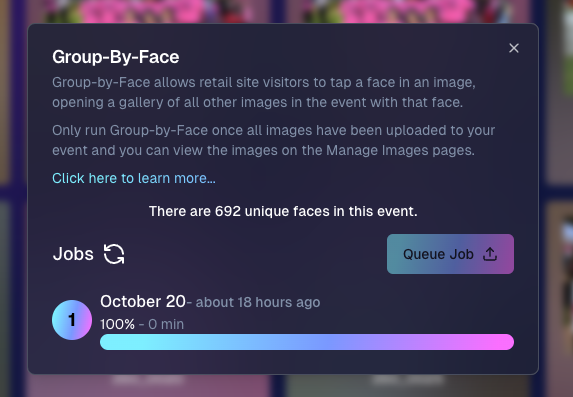
1. Unique Faces Count After Group-By-Face 👥

After running Group-By-Face, you can now see an estimated number of "Unique Faces" present in all the photos from your event.

  • Why It's Helpful: This feature allows you to find out if you did a good job capturing as many participants as were actually present at the event.
  • Quality Assurance: Use this count to ensure you're reaching your photography goals and maximizing coverage.

2. Capture App Version 4.7 Updates 📱

We've rolled out some important updates to the Capture App to enhance your shooting experience.

  • Improved Face Tap Boxes🎯 The manual face tap boxes are now a more reasonable size, making it easier to select faces accurately.
  • "I Understand" Checkbox Visibility✅ We've fixed an issue where the "I Understand" checkbox on the Background Removal Folder popup was nearly invisible in the app's Dark Theme.
  • Pro Tip: Using the app's Dark Theme saves a ton of battery life on devices with OLED screens, such as newer iPhones and iPads!

3. New 2x5 Scan Card Option for Scanner ID Workflow 📝

Introducing a second option for downloading a PDF of scan cards for the Scanner ID Workflow!

  • Smaller Card Size: Now available in a 2x5 format.
  • Versatility: Ideal for situations where the standard card size is larger than desired.
  • Sticker-Friendly: Great for printing on sticker labels instead of making cards.

4. Retail Site Tweaks for Better Mobile Experience 📱

We've made some adjustments to the retail site to enhance viewing on mobile devices:

  • Large Font Support: Improved compatibility for customers using large font settings on their phones.
  • Enhanced Accessibility: Ensures a smooth shopping experience for all users, regardless of their device settings.

5. New Press & Hold to Download Feature for QuicPics & QuicPics GO 📥

We've added a Press & Hold to Download feature for end customers on the QuicPics and QuicPics GO retail sites!

  • Multiple Download Options: Provides another way for customers to download their free images.
  • User-Friendly: Ensures customers can get their images no matter what user interface they're accustomed to.
  • Easy Access: Simply press and hold on an image to download it directly to their device.

We're always here to support you!

Thank you for being an essential part of the NowCandid community. Keep capturing those unforgettable moments and creating smiles! 📸😊

Cheers and sparkles,

Candy 🍬

Let’s get in touch

If you’re a photographer looking to add NowCandid services to your wheelhouse – set up a call by clicking the button below.

How to customize formatting for each rich text

How to customize formatting for each rich text

How to customize formatting for each rich text

How to customize formatting for each rich text

How to customize formatting for each rich text

What’s a Rich Text element?

The rich text element allows you to create and format headings, paragraphs, blockquotes, images, and video all in one place instead of having to add and format them individually. Just double-click and easily create content.

A rich text element can be used with static or dynamic content. For static content, just drop it into any page and begin editing. For dynamic content, add a rich text field to any collection and then connect a rich text element to that field in the settings panel. Voila!

Headings, paragraphs, blockquotes, figures, images, and figure captions can all be styled after a class is added to the rich text element using the "When inside of" nested selector system.

  • List One
  • List Two
  • List Three
  • List Four
  • List Five

This is a link

This is bold text